Turning data from Python into SPSS data

I’ve shown how you can grab data from SPSS and use it in Python commands, and I figured a post about the opposite process (taking data in Python and turning it into an SPSS data file) would be useful. A few different motivating examples are:

So first as a simple illustration, lets make a set of simple data in Python as a list of lists.

BEGIN PROGRAM Python.
MyData = [(1,2,'A'),(4,5,'B'),(7,8,'C')]
END PROGRAM.

Now to export this data into SPSS you can use spss.StartDataStep(), append variables using varlist.append and then add cases using cases.append (see the Python programming PDF that comes with SPSS in the help to peruse all of these functions plus the documentation). This particular codes adds in 3 variables (two numeric and one string) and then loops through the data python object and adds those cases to the define SPSS dataset.

BEGIN PROGRAM Python.
import spss
spss.StartDataStep()                   #start the data setp
MyDatasetObj = spss.Dataset(name=None) #define the data object
MyDatasetObj.varlist.append('X1',0)    #add in 3 variables
MyDatasetObj.varlist.append('X2',0)
MyDatasetObj.varlist.append('X3',1)
for i in MyData:                       #add cases in a loop
  MyDatasetObj.cases.append(i)
spss.EndDataStep()
END PROGRAM.

Here this will create a SPSS dataset and give it a generic name of the form xDataset? where ? will be an incrementing number based on the session history of naming datasets. To specify the name beforehand you need to use the SPSS command DATASET DECLARE X. and then place the dataset name as the option in the spss.Dataset(name='X') command.

As linked above I have had to do this a few times from Python objects, so I decided to make a bit of a simpler SPSS function to take care of this work for me.

BEGIN PROGRAM Python.
#Export to SPSS dataset function
import spss

def SPSSData(data,vars,types,name=None):
  VarDict = zip(vars,types) #combining variables and 
                            #formats into tuples
  spss.StartDataStep()
  datasetObj = spss.Dataset(name=name) #if you give a name, 
                                       #needs to be declared
  #appending variables to dataset
  for i in VarDict:
    datasetObj.varlist.append(i[0],i[1])
  #now the data
  for j in data:
    datasetObj.cases.append(list(j))
  spss.EndDataStep()
END PROGRAM.

This code takes an arbitrary Python object (data), and two lists, one of the SPSS variable names and the other of the format for the SPSS variables (either 0 for numeric or an integer for the size of the strings). To transform the data to SPSS, it needs a list of the same dimension as the variables you have defined, so this works for any data object that can be iterated over and that can be coerced to returning a list. Or more simply, if list(data[0]) returns a list of the same dimensions for the variables you defined, you can pass the data object to this function. This won’t work for all situations, but will for quite a few.

So with the permutation examples I previously linked to, we can use the itertools library to create a set of all the different permutations of string ABC. Then I define a set of variables and formats as lists, and then we can use the SPSSData function I created to make a new dataset.

DATASET DECLARE Combo.
BEGIN PROGRAM Python.
import itertools
YourSet = 'ABC' 
YourLen = 3
x = itertools.permutations(YourSet,YourLen)
v = ['X1','X2','X3']
t = [1,1,1]
SPSSData(data=x,vars=v,types=t,name='Combo')
END PROGRAM. 

This work flow is not optimal if you are creating the data in a loop (such as in the Google Places API example I linked to earlier), but works well for static python objects, such as the object returned by itertools.

Using regular expressions in SPSS

SPSS has a native set of string manipulations that will suffice for many simple situations. But with the ability to call Python routines, one can use regular expressions (or regex is often used for short) to accomplish more complicated searches. A post on Nabble recently discussed extracting zip codes from address data as an example, and I figured it would be a good general example for the blog.

So first, the SPSSINC TRANS command basically allows you to use Python functions the same as SPSS functions to manipulate a set of data. So for example if there is a function in Python and it takes one parameter, say f(a), and returns one value, you can use SPSSINC TRANS to have SPSS return a new variable based on this Python function. So say we have a variable named X1 and we want to get the result of f(X1) for every case in our dataset, as long as the function f() is available in the Python environment the following code would accomplish this:

SPSSINC TRANS RESULT=f_X TYPE=0 /FORMULA f(X1).

This will create a new variable in the active SPSS dataset, f_X, that is the result based on passing the values of X1 to the function. The TYPE parameter specifies the format of the resulting variable; 0 signifies that the result of the function is a number and if it is a string you simply pass the size of the string.

So using SPSSINC TRANS, we can create a function that does a regular expression search and returns the matching substring. The case on Nabble is a perfect example, extracting a set of 5 consecutive digits in a string, that is difficult to do with native SPSS string manipulation functions. It is really easy to do with regex’s though.

So the workflow is quite simple, import the re library, define your regular expression search, and then make your function. For SPSS if you return more than one value for a function in expects it is a tuple. If you look at the Nabble thread it discusses more complicated regex’s but here I keep it simple, \d{5}. This is interpreted as search for \d, which is shorthand for all digits 0-9, and then {n} is shorthand for search for the preceding string n times in a row.

BEGIN PROGRAM Python.
import re
s = re.compile(r'\d{5}')
def SearchZip(MyStr):
  Zip = re.search(s,MyStr)
  if Zip:
    return [Zip.group()]
  else:
    return [""]
END PROGRAM. 

Lets make up some test data to test our function within Python to make sure it works correctly.

BEGIN PROGRAM Python. 
#Lets try a couple of examples. 
test = ["5678 maple lane townname, md 20111", 
        "123 oak st #4 someplace, RI 02913-1234", 
        "9011 cedar place villagename"] 

for i in test: 
  print i 
  print SearchZip(i) 
END PROGRAM. 

And this outputs in the SPSS window:

5678 maple lane townname, md 20111 
['20111'] 
123 oak st #4 someplace, RI 02913-1234 
['02913'] 
9011 cedar place villagename 
['']

So at this point it is as simple as below (assuming Address is the string field in the SPSS dataset we are searching):

SPSSINC TRANS RESULT=Zip TYPE=5 /FORMULA SearchZip(Address).

This just scratches the surface of what regex’s can do. Based on some of the back and forth on the recent Nabble discussion this is a pretty general solution that searches an address at the end of the string, optionally finds a dash or a space, and then searches for 4 digits, re.compile(r"(\d{5})(?:[\s-])?(\d{4})?\s*$"). Note because the middle grouping is optional this would match 9 digits in a row (which I think is ok in my experience cleaning string address fields, especially since the search is limited to the end of the string).

Here is the full function for use. Note if you get errors about the None type conversion update your version of SPSSINC TRANS, see this Nabble thread for details.

BEGIN PROGRAM Python.
import re
SearchZ = re.compile(r"(\d{5})(?:[\s-])?(\d{4})?\s*$") #5 digits in a row @ end of string
                                                       #and optionally space or dash plus 4 digits
def SearchZip(MyStr):
  Zip = re.search(SearchZ,MyStr)
  #these return None if there is no match, so just replacing with
  #a tuple of two None's if no match
  if Zip:
    return Zip.groups()
  else:
    return (None,None)

#Lets try a couple of examples. 
test = ["5678 maple lane townname, md 20111", 
        "5678 maple lane townname, md 20111 \t",
        "123 oak st #4 someplace, RI 02913-1234", 
        "9011 cedar place villagename",
        "123 oak st #4 someplace, RI 029131234",
        "123 oak st #4 someplace, RI 02913 1234"] 

for i in test: 
  print [i] 
  print SearchZip(i) 
END PROGRAM. 

Because this returns two separate groups, the SPSSINC TRANS command will need to specify multiple variables, so would be something like:

SPSSINC TRANS RESULT=Zip5 Zip4 TYPE=5 4 /FORMULA SearchZip(Address).

Using the Google Places API in Python

So I was interested in scraping data from the Google Places API recently. My motivation came from some criminology studies that examine the relationship between coffee shops and crime (Papachristos et al. 2011; Smith, 2014) under the auspices that coffee shops are a measure of gentrification. I am also interested in gaining information about other place characteristics as well, as whether a place has some sort of non-residential application (e.g. bus stop, gas station) they tend to have elevated amounts of crime compared to solely residential locations. (These are not per-se characteristics that make places criminogenic – they just influence the walking around population and thus make the baseline exposure of places greater because of more human interaction).

So here I will give an example of grabbing data from the Google Places API given a grid of locations from SPSS and exporting to an SPSS dataset. So first you need sign up for an API key with Google from the Google APIs console. This allows 1,000 queries per day. Here I will make an example of 6 cases, but again with just the base query rates you can submit up to 1,000 requests per day (and can get 100,000 by verifying your identity).

*Need UNICODE.
PRESERVE.
SET UNICODE=ON.

*Some example data.
DATA LIST FREE / ID Lat Lng.
BEGIN DATA
1   38.901989   -77.041921
2   38.901991   -77.036157
3   38.901993   -77.030393
4   38.906493   -77.041924
5   38.906495   -77.036159
6   38.906497   -77.030394
END DATA.
DATASET NAME Locations.

I typically don’t have SPSS in Unicode mode, but since Google will return some results in Unicode it is necessary to turn it on. After that I create a dataset with 6 locations in central D.C. These happen to be centroids from a regular grid I laid over the city with 500 meter square grid cells (and it only takes 800 and some cells to cover the city of D.C.).

Now google has a pretty good intro to get your feet wet, so here I will just show the helper functions I created to ease the task. The first function takes as input parameters latitude, longitude, a radius (in meters), a type field, and your key for the maps API. It then grabs the JSON you get as a response from that specific url, and then turns the JSON object into a nested list that can be traversed in python. You can check out from Google what other information is available, but the IterJson function is just a helper to takes specific results from GoogPlac and put them into a nicer array for me to use. Here I just grab the geographic coordinates, a place name, a reference string, and the address associated with the place.

*Functions to grab the necessary data from Google.
BEGIN PROGRAM.
import urllib, json

#Grabbing and parsing the JSON data
def GoogPlac(lat,lng,radius,types,key):
  #making the url
  AUTH_KEY = key
  LOCATION = str(lat) + "," + str(lng)
  RADIUS = radius
  TYPES = types
  MyUrl = ('https://maps.googleapis.com/maps/api/place/nearbysearch/json'
           '?location=%s'
           '&radius=%s'
           '&types=%s'
           '&sensor=false&key=%s') % (LOCATION, RADIUS, TYPES, AUTH_KEY)
  #grabbing the JSON result
  response = urllib.urlopen(MyUrl)
  jsonRaw = response.read()
  jsonData = json.loads(jsonRaw)
  return jsonData

#This is a helper to grab the Json data that I want in a list
def IterJson(place):
  x = [place['name'], place['reference'], place['geometry']['location']['lat'], 
         place['geometry']['location']['lng'], place['vicinity']]
  return x
END PROGRAM.

Now we can set up the parameters for the search in addition to the geographic coordinates. Here I make python objects specifying the search type cafe and my API key. I will pass a constant for the radius field of 375 meters – which will cause just a bit of overlap among my grid cells.

*Setting the parameters I will use in the query - type & my key.
BEGIN PROGRAM.
#necessary info for geocoding
MyKey = 'Your API Key Here!!!'
MyType = 'cafe'
END PROGRAM.

Now the magic happens; this code 1) declares a new dataset to place the results in, and then in python 2) grabs the current SPSS dataset, 3) sets the variables for the new dataset, 4) searches at each longitude value in the original dataset, and 5) appends cases to the new SPSS dataset for every location result returned for each initial longitude location. The nested loops are necessary as one location will return multiple places. (For those not using SPSS, the SPSS data here, alldata, is simply a list of namedTuple’s for each row of SPSS data. This code is basically amenable to whatever data structure you are working with, just loop through your grid of geographic coordinates and then append those results to whatever data structure you want.)

*Now querying google and placing the results into a new file.
DATASET DECLARE PlacesResults.
BEGIN PROGRAM.
#Grabbing SPSS data
import spss, spssdata
alldata = spssdata.Spssdata().fetchall()

#making an SPSS dataset to place the results into
spss.StartDataStep()
datasetObj = spss.Dataset(name='PlacesResults')
datasetObj.varlist.append('Id',0)
datasetObj.varlist.append('LatSearch',0)
datasetObj.varlist.append('LngSearch',0)
datasetObj.varlist.append('name',100)
datasetObj.varlist.append('reference',500)
datasetObj.varlist.append('LatRes',0)
datasetObj.varlist.append('LngRes',0)
datasetObj.varlist.append('vicinity',300)

#appending the data to the SPSS dataset
for case in alldata:
  search = GoogPlac(lat=case[1],lng=case[2],radius=375,types=MyType,key=MyKey) #grab data
  if search['status'] == 'OK':                                                 #loop through results
    for place in search['results']:
      x = IterJson(place)
      results = list(case) + x
      datasetObj.cases.append(results)                                         #appending data to SPSS dataset
spss.EndDataStep()
END PROGRAM.

Now we have the data in our PlacesResults SPSS dataset for further manipulation or whatever. One of comment on a prior post was basically "What is the point of SPSS, I can do all of this in Python". Well this is generally true – but I continue to do work in SPSS because it is much more convenient a tool for data management then Python (at least for myself, knowing SPSS really well and Python not so well). So here because we have slightly overlapping search radius’s, you will have duplicate results in your set. The following code in SPSS eliminates those duplicate results.

*************************************.
*Getting rid of duplicate results.
DATASET ACTIVATE PlacesResults.
SHOW N.
SORT CASES BY name vicinity LatRes LngRes Id.
MATCH FILES FILE = *
  /FIRST = Keep
  /BY name vicinity LatRes LngRes.
SELECT IF Keep = 1.
MATCH FILES FILE = * /DROP Keep.
EXECUTE.
SHOW N.
*************************************.

So now you can do the analysis with your results without having to worry about duplicates. If you don’t want to keep SPSS in Unicode mode, remember to restore your settings before you end your SPSS session.

*Restoring back to LOCAL mode.
DATASET CLOSE ALL.
NEW FILE.
RESTORE.

So, I have done all this, but I must admit that it appears to me that this act would violate the terms of service for using the Google Places API data (see 10.1.3 Restrictions against Data Export or Copying specifically), as this is creating a database of the cached results. But others like FloatingSheep do approximately the same type of requests (and obviously cache the data in a permanent database to make such maps). Maybe if someone from Google is listening they can let me know if I am violating the terms of service for doing such a non-commercial academic project.

I will update at a later point about the results of the cafes and crime at the micro place level in DC (as part of my dissertation). There actually is a set of sidewalk cafe’s From DC.gov and a quick look with one of the older files I have (downloaded in Oct-13) there are 452 listed cafes. The scraped data from google only totals 368 over the whole city – so it seems likely I am undercounting taking the data from Google – but further investigation will be needed.

Finding subgroups in a graph using NetworkX and SPSS

This is a task I’ve have to conduct under several guises in the past. Given a set of edges, reduce those edges into unique subgroups based on the transitive closure of those edges. That is, find a group in which all nodes can reach one another (via however many steps are necessary) but are completely separated from all other nodes.

This is steeped in some network language jargon, so I will give a few examples in data analysis where this might be useful:

  • Find cliques of offenders (that may resemble a gang) given a set of co-offenders in a police incident database.
  • Reduce a large set of items that appear together into smaller subsets. An example may be if you have a multiple response set with a very large number of possible choices. You may identify subgroups of items that occur together.
  • Given a set of linked near match names, reduce the database so all of those near match names share the same unique id.
  • For my dissertation I aggregate crime incidents to street midpoints and intersections. This creates some overlap or near overlap points (e.g. at T intersections). You might want to further aggregate points that are within a prespecified distance, but there may be multiple nodes all within a short distance. These create a string of networked locations that are probably not appropriate to simply aggregate – especially when they include a large number of locations.

One (typical) way to find the transitive closure is to represent your edges in a binary adjacency matrix and then take subsequent higher powers of that matrix until the diffusion ceases. This is difficult to impossible though with node lists of any substantial size. In this post what I will do is use the NetworkX python library, which contains a handy function named components.connected that solves this problem for me.

So first for illustration lets make a small edge list in SPSS.

DATA LIST FREE / A B.
BEGIN DATA
1 2
2 3
3 4
5 6
7 8
4 9
7 9
8 10
END DATA.
DATASET NAME Test.
FORMATS A B (F5.0).
EXECUTE.

Now using the functions described in this StackOverflow post, we will be able to turn a set of nested lists into a NetworkX object in python.

BEGIN PROGRAM.
import networkx 
from networkx.algorithms.components.connected import connected_components

def to_graph(l):
    G = networkx.Graph()
    for part in l:
        # each sublist is a bunch of nodes
        G.add_nodes_from(part)
        # it also imlies a number of edges:
        G.add_edges_from(to_edges(part))
    return G

def to_edges(l):
    """ 
        treat `l` as a Graph and returns it's edges 
        to_edges(['a','b','c','d']) -> [(a,b), (b,c),(c,d)]
    """
    it = iter(l)
    last = next(it)

    for current in it:
        yield last, current
        last = current    
END PROGRAM.

Now this python code 1) imports our edge list from the SPSS dataset and turn it into a networkx graph, 2) reduces the set of edges into connected components, 3) makes a new SPSS dataset where each row is a list of those subgraphs, and 4) makes a macro variable to identify the end variable name (for subsequent transformations).

DATASET DECLARE Int.
BEGIN PROGRAM.
#grab SPSS data
import spss, spssdata
alldata = spssdata.Spssdata().fetchall()

#turn SPSS data into graph
G = to_graph(alldata)
results = connected_components(G)
print results
ml = max(map(len,results))

#now make an SPSS dataset
spss.StartDataStep()
datasetObj = spss.Dataset(name='Int')
for i in range(ml):
  v = 'V' + str(i+1) 
  datasetObj.varlist.append(v,0)
for j in results:
  datasetObj.cases.append(j)
spss.EndDataStep()

#make a macro value to signify the last variable
macroValue=[]
macroName="!VEnd"
macroValue.append('V' + str(ml)) 
spss.SetMacroValue(macroName, macroValue)
END PROGRAM.

Now we can take that subgroup dataset, named Int, reshape it so all of the nodes are in one column and has a second column identifying the subgraph to which it belongs, and then merge this info back to the edge dataset named Test.

DATASET ACTIVATE Int.
COMPUTE Group = $casenum.
FORMATS Group (F5.0).
VARSTOCASES
  /MAKE A FROM V1 TO !VEnd.
FORMATS A (F5.0).
SORT CASES BY A.

DATASET ACTIVATE Test.
SORT CASES BY A.
MATCH FILES FILE = *
  /TABLE = 'Int'
  /BY A.
EXECUTE.

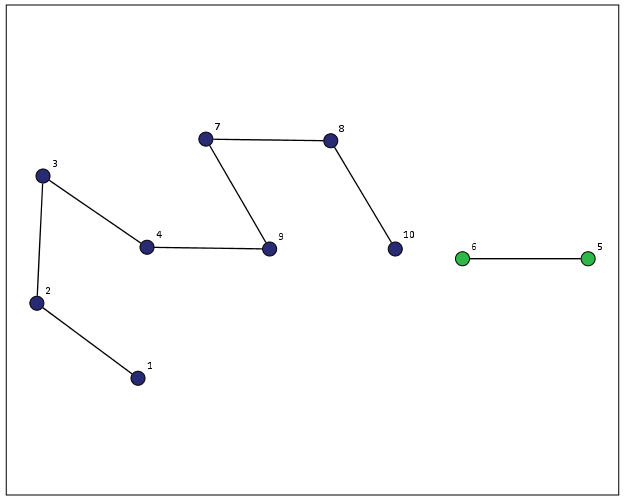
From here we can make some nice sociogram charts of our subgroups. SPSS’s layout.network is not very specific about the type of layout algorithm, but it does a good job here laying out a nice planar graph.

GGRAPH
  /GRAPHDATASET NAME="edges" DATASET = "Test" VARIABLES=A B Group
  /GRAPHDATASET NAME="nodes" DATASET = "Int" VARIABLES=A Group
  /GRAPHSPEC SOURCE=INLINE.
BEGIN GPL
 SOURCE: e=userSource(id("edges"))
 DATA: Ae=col(source(e), name("A"), unit.category())
 DATA: Be=col(source(e), name("B"), unit.category())
 DATA: Groupe=col(source(e), name("Group"), unit.category())
 SOURCE: n=userSource(id("nodes"))
 DATA: An=col(source(n), name("A"), unit.category())
 DATA: Groupn=col(source(n), name("Group"), unit.category())
 GUIDE: axis(dim(1), null())
 GUIDE: axis(dim(2), null())
 GUIDE: legend(aesthetic(aesthetic.color.interior), null())
 ELEMENT: edge(position(layout.network(node(An), from(Ae), to(Be))))
 ELEMENT: point(position(layout.network(node(An), from(Ae), to(Be))), color.interior(Groupn), size(size."14"), label(An))
END GPL.

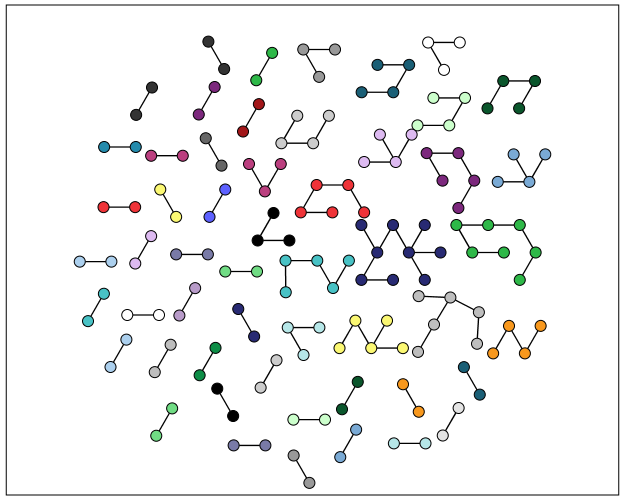
At the end of the post I have some more code to illustrate this with a slightly larger random network of 300 potential nodes and 100 random edges. Again SPSS does quite a nice job of laying out the graph, and the colors by group reinforce that our solution is correct.

My most recent use application for this had a set of 2,000+ plus edges and this code returned the solution instantaneously. Definitely a speed improvement over taking powers of a binary adjacency matrix in MATRIX code.

I wanted to make this network graph using small multiples by group, but I can’t figure out the correct code for the faceting (example commented out at the end of the code snippet). So if anyone has an example of making an SPSS graph with small multiples let me know.

*Similar graphs for larger network.
DATASET CLOSE ALL.
INPUT PROGRAM.
COMPUTE #Nodes = 300.
LOOP #i = 1 TO 100.
  COMPUTE A = TRUNC(RV.UNIFORM(0,#Nodes+1)).
  COMPUTE B = TRUNC(RV.UNIFORM(0,#Nodes+1)).
  END CASE.
END LOOP.
END FILE.
END INPUT PROGRAM.
DATASET NAME Test.
FORMATS A B (F5.0).
EXECUTE.

DATASET DECLARE Int.
BEGIN PROGRAM.
#grab SPSS data
import spss, spssdata
alldata = spssdata.Spssdata().fetchall()

#turning SPSS data into NetworkX graph
#functions are already defined
G = to_graph(alldata)
results = connected_components(G)
ml = max(map(len,results))
print ml

#now make an SPSS dataset
spss.StartDataStep()
datasetObj = spss.Dataset(name='Int')
for i in range(ml):
  v = 'V' + str(i+1) 
  datasetObj.varlist.append(v,0)
for j in results:
  datasetObj.cases.append(j)
spss.EndDataStep()

#make a macro value to signify the last variable
macroValue=[]
macroName="!VEnd"
macroValue.append('V' + str(ml)) 
spss.SetMacroValue(macroName, macroValue)
END PROGRAM.

*Now merging groups back into original set.
DATASET ACTIVATE Int.
COMPUTE Group = $casenum.
FORMATS Group (F5.0).
VARSTOCASES
  /MAKE A FROM V1 TO !VEnd.
FORMATS A (F5.0).
SORT CASES BY A.

DATASET ACTIVATE Test.
SORT CASES BY A.
MATCH FILES FILE = *
  /TABLE = 'Int'
  /BY A.
EXECUTE.

GGRAPH
  /GRAPHDATASET NAME="edges" DATASET = "Test" VARIABLES=A B Group
  /GRAPHDATASET NAME="nodes" DATASET = "Int" VARIABLES=A Group
  /GRAPHSPEC SOURCE=INLINE.
BEGIN GPL
 SOURCE: e=userSource(id("edges"))
 DATA: Ae=col(source(e), name("A"), unit.category())
 DATA: Be=col(source(e), name("B"), unit.category())
 DATA: Groupe=col(source(e), name("Group"), unit.category())
 SOURCE: n=userSource(id("nodes"))
 DATA: An=col(source(n), name("A"), unit.category())
 DATA: Groupn=col(source(n), name("Group"), unit.category())
 GUIDE: axis(dim(1), null())
 GUIDE: axis(dim(2), null())
 GUIDE: legend(aesthetic(aesthetic.color.interior), null())
 ELEMENT: edge(position(layout.network(node(An), from(Ae), to(Be))))
 ELEMENT: point(position(layout.network(node(An), from(Ae), to(Be))), color.interior(Groupn), size(size."11"))
END GPL.

*This small multiple faceting is not working.
*Error is Groupe & Groupn are not same faceting structure.
 * GGRAPH
  /GRAPHDATASET NAME="edges" DATASET = "Test" VARIABLES=A B Group
  /GRAPHDATASET NAME="nodes" DATASET = "Int" VARIABLES=A Group
  /GRAPHSPEC SOURCE=INLINE.
 * BEGIN GPL
 SOURCE: e=userSource(id("edges"))
 DATA: Ae=col(source(e), name("A"), unit.category())
 DATA: Be=col(source(e), name("B"), unit.category())
 DATA: Groupe=col(source(e), name("Group"), unit.category())
 SOURCE: n=userSource(id("nodes"))
 DATA: An=col(source(n), name("A"), unit.category())
 DATA: Groupn=col(source(n), name("Group"), unit.category())
 GUIDE: axis(dim(1), null())
 GUIDE: axis(dim(2), null())
 GUIDE: legend(aesthetic(aesthetic.color.interior), null())
 ELEMENT: edge(position(layout.network(1*1*Groupe, node(An), from(Ae), to(Be))))
 ELEMENT: point(position(layout.network(1*1*Groupn, node(An), from(Ae), to(Be))), color.interior(Groupn), size(size."14"), label(An))
END GPL.

The mad scientist workflow: Some examples of using python and R within SPSS

I figured I would share some of the scripts I have been recently working on to produce a set of figures on a regular basis for reports. SPSS GGRAPH can not be directly parameterized within macro’s (at least without a lot of work – see a counter example of Marta Garcia-Granero’s macro for Kalbfleisch-Prentice 95%CI for survival), but can be called using python code. Jon Peck has some examples at the Developerworks blog, and here I will show some more! I am also going to show how to make some automated maps in R using the ggmap package, with which you can grab various basemap tiles from online and superimpose point data.

So lets provide some example data to work with.

DATA LIST FREE / Id (A1) Crime (A8) Hour (F2.0) Lon Lat (2F16.8). BEGIN DATA 1 Robbery 18 -74.00548939 41.92961837 2 Robbery 19 -73.96800055 41.93152595 3 Robbery 19 -74.00755075 41.92996862 4 Burglary 11 -74.01183343 41.92925202 5 Burglary 12 -74.00708100 41.93262613 6 Burglary 14 -74.00923393 41.92667552 7 Burglary 12 -74.00263453 41.93267197 END DATA. DATASET NAME Crimes.

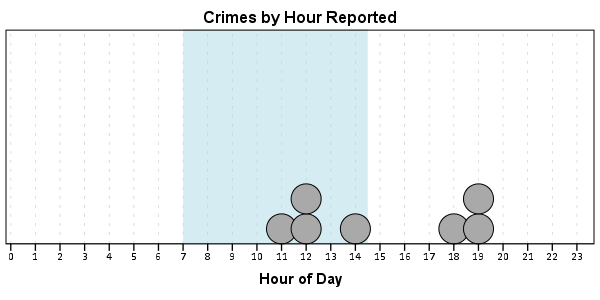
And now let’s say you want to make a graph of the hours of the day that Robberies occur in. Many small to mid-range police departments have few serious crimes when examining over shorter time spans (like a week or a month). So one type of chart I like to use are histogram like dot plots. Here is an example for the entire dataset in question.

GGRAPH /GRAPHDATASET NAME="graphdataset" VARIABLES=Hour MISSING=LISTWISE REPORTMISSING=NO /GRAPHSPEC SOURCE=INLINE. BEGIN GPL PAGE: begin(scale(600px,300px)) SOURCE: s=userSource(id("graphdataset")) DATA: Hour=col(source(s), name("Hour")) TRANS: bottom=eval(0) TRANS: top=eval(10) TRANS: begin=eval(7) TRANS: end=eval(14.5) COORD: rect(dim(1,2)) GUIDE: axis(dim(1), label("Hour of Day"), delta(1)) GUIDE: axis(dim(2), null()) GUIDE: text.title(label("Crimes by Hour Reported")) SCALE: linear(dim(1), min(1), max(22.5)) SCALE: linear(dim(2), min(0), max(3)) ELEMENT: polygon(position(link.hull((begin+end)*(bottom+top))), color.interior(color.lightblue), transparency.interior(transparency."0.5"), transparency.exterior(transparency."1")) ELEMENT: point.dodge.asymmetric(position(bin.dot(Hour, dim(1), binWidth(1))), color.interior(color.darkgrey), size(size."30")) PAGE: end() END GPL.

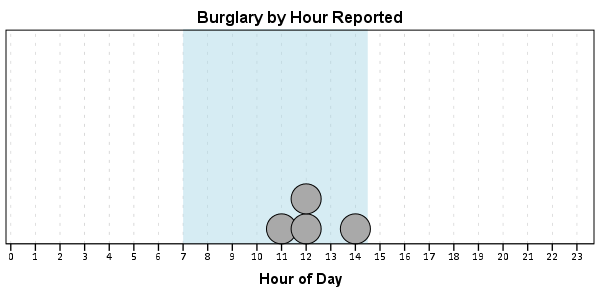
One of the things I like to do though is to make charts for different subsets of the data. One way is to use FILTER to only plot a subset of the data, but a problem with this approach is the fixed aspects of the chart, like the title, do not change to reflect the current data. Here I will use FILTER in combination with a python BEGIN PROGRAM ... END PROGRAM block to grab the crime type to insert into the title of the graph.

COMPUTE Bur = (Crime = "Burglary"). FILTER BY Bur. BEGIN PROGRAM. import spss MyVars = [1] dataCursor=spss.Cursor(MyVars) MyData=dataCursor.fetchone() dataCursor.close() CrimeType = MyData[0].strip() print CrimeType END PROGRAM. FILTER OFF.

So when grabbing the SPSS case data, python respects the current FILTER on the dataset. First I set an array, MyVars, to grab the variables I want. Here I only want the Crime variable, which is the second variable in the dataset. Python’s arrays are indexed at zero, so I end up wanting the variable in the [1] position. Then SPSS has a set of functions to grab data out of the active dataset using spss.Cursor. What I do is use the fetchone() object property to only grab the first row of data, and assign it the name MyData. Then after closing the cursor using dataCursor.close(), I access the string that is in the first location in the array MyData and use the strip() property to clean up trailing blanks in the string (see this example on Stackoverflow for where this was handy). When running the above code you can see that it prints Burglary, even though the burglary cases are not the first ones in the dataset. Now we can extend this example to insert the chart title and submit the GGRAPH syntax.

FILTER BY Bur. BEGIN PROGRAM. import spss MyVars = [1] dataCursor=spss.Cursor(MyVars) MyData=dataCursor.fetchone() dataCursor.close() CrimeType = MyData[0].strip() spss.Submit(""" GGRAPH /GRAPHDATASET NAME="graphdataset" VARIABLES=Hour MISSING=LISTWISE REPORTMISSING=NO /GRAPHSPEC SOURCE=INLINE. BEGIN GPL PAGE: begin(scale(600px,300px)) SOURCE: s=userSource(id("graphdataset")) DATA: Hour=col(source(s), name("Hour")) TRANS: bottom=eval(0) TRANS: top=eval(10) TRANS: begin=eval(7) TRANS: end=eval(14.5) COORD: rect(dim(1,2)) GUIDE: axis(dim(1), label("Hour of Day"), delta(1)) GUIDE: axis(dim(2), null()) GUIDE: text.title(label("%s by Hour Reported")) SCALE: linear(dim(1), min(1), max(22.5)) SCALE: linear(dim(2), min(0), max(3)) ELEMENT: polygon(position(link.hull((begin+end)*(bottom+top))), color.interior(color.lightblue), transparency.interior(transparency."0.5"), transparency.exterior(transparency."1")) ELEMENT: point.dodge.asymmetric(position(bin.dot(Hour, dim(1), binWidth(1))), color.interior(color.darkgrey), size(size."30")) PAGE: end() END GPL. """ %(CrimeType)) END PROGRAM. FILTER OFF.

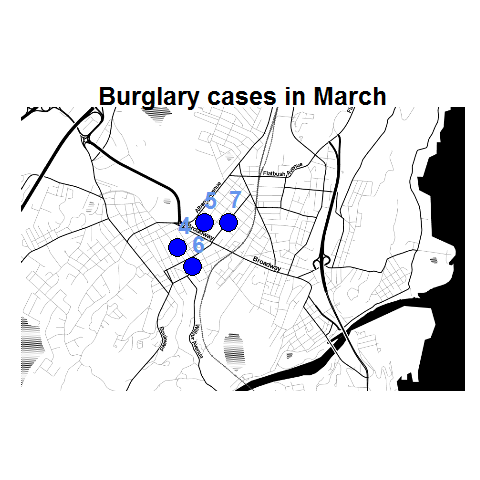
You can do this same process for calling R commands, as again grabbing the case data from SPSS respects the current FILTER or (TEMPORARY + SELECT IF). One favorite of mine recently is to make automated maps using the ggmap library. Grabbing the online tiles makes my job of making a nice background much easier. Here is an example of grabbing case data from SPSS and placing the locations on the map (note this is made up data, these aren’t actual crime locations in Kingston!)

FILTER BY Bur. BEGIN PROGRAM R. #using ggmap to make a basemap library(ggmap) loc <- c(left = -74.04, bottom = 41.91, right = -73.960, top = 41.948) KingstonBasemap <- get_map(location = loc, zoom = 14, maptype = "toner", source = "stamen") #setting styles for ggplot map axisStyle <- theme(axis.text.y=element_blank(),axis.text.x=element_blank(), axis.ticks=element_blank(),axis.title.x=element_blank(), axis.title.y=element_blank() ) titleStyle <- theme(plot.title = element_text(face="bold", size=25)) #now grabbing SPSS data casedata <- spssdata.GetDataFromSPSS(variables=c("Id","Crime","Lon","Lat")) TypeCrime <- as.character(casedata$Crime[1]) #grabs first case for chart title #Data to put on the map point <- geom_point(aes(x = Lon, y = Lat), data=casedata, shape=21, size = 9, fill = "Blue") labels <- geom_text(aes(x = Lon, y = Lat, label = as.character(Id)), data=casedata, hjust = -0.03, vjust = -0.8, size = 8, fontface=2, color="cornflowerblue" ) title <- labs(title=paste0(TypeCrime," cases in March")) #Putting all together CrimeMap <- ggmap(KingstonBasemap) + point + labels + axisStyle + titleStyle + title CrimeMap END PROGRAM. FILTER OFF.

To make the map look nice takes a bit of code, but all of the action with grabbing data from SPSS and setting the string I want to use in my chart title are in the two lines of code after the #now grabbing SPSS data comment. (Note I like using Stamen base maps as they allow one to grab non-square tiles. I typically like to use the terrain map – not because the terrain is necessary but just because I like the colors – but I’ve been having problems using the terrain tiles.)

Basically the set up I have now is to place some arbitrary code for graphs and maps in a separate syntax file. So all I need to do set the filter, use INSERT, and then turn the filter off. I can then add graphs for any subsets I am interested in. I have a separate look up table that stashes all the necessary metadata I want for use in the plots for whatever particular categories, which in addition to titles include other chart aesthetics like sizes for point elements or colors. In the future I will have to explore more options for using the SPLIT FILE facilities that both python and R offer when working with SPSS case data, but this is pretty simple and generalizes to non-overlapping groups as well.

Using Python to geocode data in SPSS

This is the first time since I’ve been using SPSS that I have regular access to Python and R programmability in all of the different places I use SPSS (home and multiple work computers). So I’ve been exploring more solutions to use these tools in regular data analysis and work-flows – of course to accomplish things that can not be done directly in native SPSS code.

The example I am going to show today is using geopy, a Python library that places several geocoding API’s all in a convenient set of scripts. So first once geopy is installed you can call Python code within SPSS by placing it within a BEGIN PROGRAM and END PROGRAM blocks. Here is an example modified from geopy’s tutorial.


BEGIN PROGRAM.
from geopy import geocoders
g = geocoders.GoogleV3()
place, (lat, lng) = g.geocode("135 Western Ave. Albany, NY")  
a = [place, lat, lng]
print a
END PROGRAM.

Now what we want to do is to geocode some address data that is currently stored in SPSS case data. So here is an example dataset with some addresses in Albany.


DATA LIST LIST ("|") / Address (A100).
BEGIN DATA
135 Western Ave. Albany, NY
Western Ave. and Quail St Albany, NY
325 Western Ave. Albany, NY
END DATA.
DATASET NAME Add.

Here I will use the handy SPSSINC TRANS function (provided when installing Python programmability – and as of SPSS 22 installed by default with SPSS) to return the geocoded coordinates using the Google API. The geocode function from geopy does not return the data in an array exactly how I want it, so what I do is create my own function, named g, and it coerces the individual objects (place, lat and lng) into an array and returns that.


BEGIN PROGRAM.
from geopy import geocoders
def g(a):
  g = geocoders.GoogleV3()
  place, (lat, lng) = g.geocode(a)
  return [place, lat, lng]
print g("135 Western Ave. Albany, NY")
END PROGRAM.

Now I can use the SPSSINC TRANS function to return the associated place string, as well as the latitude and longitude coordinates from Google.


SPSSINC TRANS RESULT=Place Lat Lng TYPE=100 0 0
  /FORMULA g(Address).

Pretty easy. Note that (I believe) the Google geocoding API has a limit of 2,500 cases – so don’t go submitting a million cases to be geocoded (use an offline solution for that). Also a mandatory mention should be made of the variable reliability of online geocoding services.