
In SPSS charts, not every element of the chart is accessible through syntax. For example, the default chart background in all of the versions I have ever used is light grey, and this can not be specified in GPL graphing statements. Many of such elements are specified in chart template files (.sgt extension). Chart template files are just a specific text format organized using an xml tag structure. Below is an example scatterplot with the default chart template for version 19.

You can manually edit graphics and save chart templates, but here I am going to show some example changes I have made in the default chart template. I do this because when you save chart templates by manually editing charts, SPSS has defaults for many different types of charts (one example when it changes are if the axes are categorical or numeric). So it is easier to make widespread changes by editing the main chart template.
The subsequent examples were constructed from a chart template originally from version 17, and I will demonstrate 3 changes I have made to my own chart template.
1) Change the background color from grey to transparent.
2) Make light grey, dashed gridlines the default.
3) Change the font.
Here I just copied and saved my own version of the template renamed in the same folder. You can then open up the files in any text editor. I use Notepad++, and it has a nice default plug-in that allows me to compare the original template file with my updated file. Moving on to how to actually make changes.
1) Change the background color.
The original chart color (in RGB hexidecimal code) is "F0F0F0" (you can open up a default chart to see the decimal representation, 240-240-240). Then I just used this online tool to convert the decimal to hexidecimal, and then you can search the template for this color. The background color is only located in one place in the template file, in a tag nested within an tag. I changed "F0F0F0" to "transparent" as oppossed to another RGB color. One might want to use white for the background as well ("FFFFFF").
2) Make light grey, dashed gridlines the default
Sometimes I can’t figure out how to exactly edit the original template to give me what I want. One way to get the “right” code is to manually apply the edits within the output, and save the chart template file to demonstrate how specific tag elements are structured. To get the gridlines I did this, and figured out that I needed to insert a set of tag with my wanted aesthetic specifications within the tag (that is within a tag). So, in my original chart template file the code was;
and below is what I inserted;
I then inserted the gridlines tag within all of the tags (you have several for different axis’s and whether the axis’s are cateogorical or numeric).
3) Change the font
This one was really easy to change. The default font is Sans-Serif. I just searched the file for Serif, and it is only located within one place, within a tag nested within an tag (near, but not within, the same place as the bacground color). Just change the "SansSerif" text to whatever you prefer, for example "Calibri". I don’t know what fonts are valid (if it is dependent on your system or on what is available in SPSS).
Here is what the same scatterplot at the beginning of the post looks like with my updated chart template.
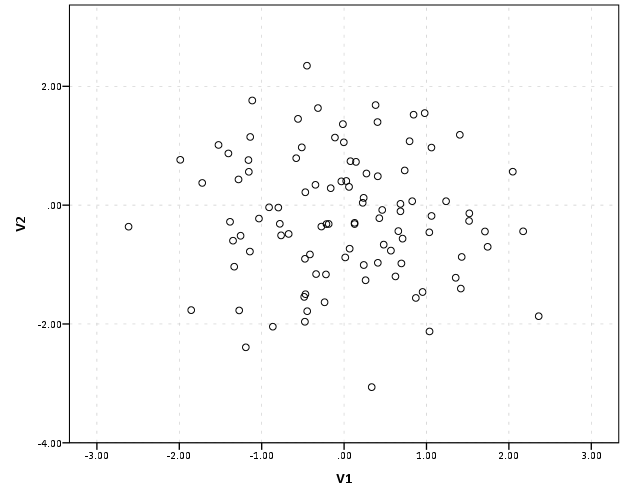
Besides this my only other advice is combing through the original chart template and using trial and error to change items. For example, for many bar charts the default RGB color is tan (D3CE97). You can change that to whatever you want by just doing a find and replace of that hexidecimal code with another valid hexidecimal color code (like BEBEBE for light grey).
These changes are all arbitrary and are just based on personal preference, but should be enlightening as to how to make such modifications. Other ones I suspect people may be interested in are the default color or other aesthetic schemes (such as point shapes). These are located at the end of my original chart template file within the tags. One for instance could change the default colors to be more printer friendly. It would be easier to save a set of different templates for color schemes (either categorical or continuous) than doing the map statements within GPL all the time (although you would need to have your categories ordered appropriately). Other things you can change are the font sizes, text alignment, plot margins, default pixel size for charts, and probably a bunch of other stuff I don’t know about.
I’ve saved my current chart template file at this Google code site for anyone to peruse (for an updated version see here). I’ve made a few more changes than I’ve listed here, but not many. Let me know in the comments if you have any examples of changing elements in your chart template file!
Below is some quick code that sets the chart templates to the file I made and produces the above scatterplots.
***********************************.

*original template location.

FILE HANDLE orig_temp /name = "C:\Program Files\IBM\SPSS\Statistics\19\template\".

*updated template location.

FILE HANDLE update_temp /name = "E:\BLOG\SPSS\GRAPHS\Hacking_Chart_Template\".

*making fake, data, 100 cases.

input program.

loop #i = 1 to 100.

compute V1 = RV.NORM(0,1).

compute V2 = RV.NORM(0,1).

end case.

end loop.

end file.

end input program.

execute.

*original template.

SET CTemplate='orig_temp\chart_style.sgt'.

*Scatterplot.

GGRAPH

/GRAPHDATASET NAME="graphdataset" VARIABLES=V1 V2 MISSING=LISTWISE REPORTMISSING=NO

/GRAPHSPEC SOURCE=INLINE.

BEGIN GPL

SOURCE: s=userSource(id("graphdataset"))

DATA: V1=col(source(s), name("V1"))

DATA: V2=col(source(s), name("V2"))

GUIDE: axis(dim(1), label("V1"))

GUIDE: axis(dim(2), label("V2"))

ELEMENT: point(position(V1*V2))

END GPL.

*My updated template.

SET CTemplate='update_temp\chart_style(AndyUpdate).sgt'.

*Scatterplot.

GGRAPH

/GRAPHDATASET NAME="graphdataset" VARIABLES=V1 V2 MISSING=LISTWISE REPORTMISSING=NO

/GRAPHSPEC SOURCE=INLINE.

BEGIN GPL

SOURCE: s=userSource(id("graphdataset"))

DATA: V1=col(source(s), name("V1"))

DATA: V2=col(source(s), name("V2"))

GUIDE: axis(dim(1), label("V1"))

GUIDE: axis(dim(2), label("V2"))

ELEMENT: point(position(V1*V2))

END GPL.

***********************************.


 Andrew Wheeler