Defending Prospectus

The defense date for my prospectus, What we can learn from small units of analysis, is finally set, November 1st at 9:30 (location TBD). You can find an electronic copy of the prospectus here and below is the abstract. So bring your slings and arrows (and I’ll bring some hydrogen peroxide and gauze?)

What we can learn from small units of analysis
Andrew Wheeler Prospectus Defense 11/1/2013

The dissertation is aimed at advancing knowledge of the correlates of crime at small geographic units of analysis. I begin the prospectus by detailing what motivates examining crime at small places, and focus on how aggregation creates confounds that limit causal inference. Local and spatial effects are confounded when using aggregate units, so to the extent the researcher wishes to distinguish between these two types of effects it should guide what unit of analysis is chosen. To illustrate these differences, I propose data analysis to examine local, spatial and contextual effects for bars, broken windows and crime using publicly available data from Washington D.C. I also propose a second set of data analysis focusing on estimating the effects of various measures of the built environment on crime.

How art can influence info viz.

The role of art on info viz. is a tortuous topic. Frequently, renditions of infographics have clear functional shortcomings as tools to convey quantitative data, but are lauded as beautiful pieces of art in spite of this. Thus the topic gets presented in overtones of function versus aesthetic, and any scientist worried about function would surely not choose something pretty over something obviously more functional (however you define functional). Thus the topic itself has some negative contextual history that impedes its discussion. But this is a false dichotomy; beauty need not impede function.

Here I want to bring to light some examples of how art actually has positive influences on the function of information visualization. I will break up the examples into two topics: the use of color and the rendering of graphics.

Color

The use of color to visualize discrete items in information visualizations is perhaps the most regular, but one of the most arbitrary decisions a designer makes. Here I will point to the work of Sidonie Christophe, who embraces the arbitrariness of using a color palette and uses popular pieces of artwork to create aesthetically pleasing color choices. Christophe makes the presumption that the colors in popular pieces of art provide ample contrast in the colors to effectively visualize different attributes, but are publicly vouched as aesthetically beautiful. Here is an example using a palette from one of Van Gogh’s paintings to apply to a street map (taken from Sidonie’s dissertation);

I won’t make any argument for Van Gogh’s palatte being more functional than other potential ones, but it is better than being guided by nothing (Van Gogh does have the added benefit of being color blind safe.)

Rendering

One example of artistic rendering of information I previously talked about was the logic behind the likability of XKCD graphs. There the motivation is both memorability of graphs and data reduction/simplification. Despite the minimalist straw man often painted of Tufte, in his later books he provides a variety of examples of diagrams that are artistic embellishments (e.g. the cover of Leviathan) but takes them as positive inspiration for GUI design.

Another recent example I came across is the use of curved lines in network diagrams (I have related academics interest in this for visualizing geographic flow data) which have motivation based on the work of Mark Lombardi.

The reason curved lines look nicer is not entirely aesthetic, it has functional values for displacing overlapping lines and (related) making in-bound edges easier to distinguish.

Much ado is made about network layout algorithms, but some interesting work is being done on visualizing the lines themselves. Interesting applications that are often lauded as beautiful are Circos and Hive Plots. Even Ben Shneiderman, creator of the treemap graphic, is getting in on the graphs as art wave.

I’m sure many other examples exist, so feel free to let me know in the comments.

Hanging rootograms and viz. differences in time series

These two quick charting tips are based on the notion that comparing differences from a straight line are easier than comparing deviations from a curved line. The problems with comparing differences between curved lines are similar to the difference between comparings length and distance from a common baseline (so Cleveland’s work is applicable), but the task of comparing two curves comes up enough that it deserves some specific attention.

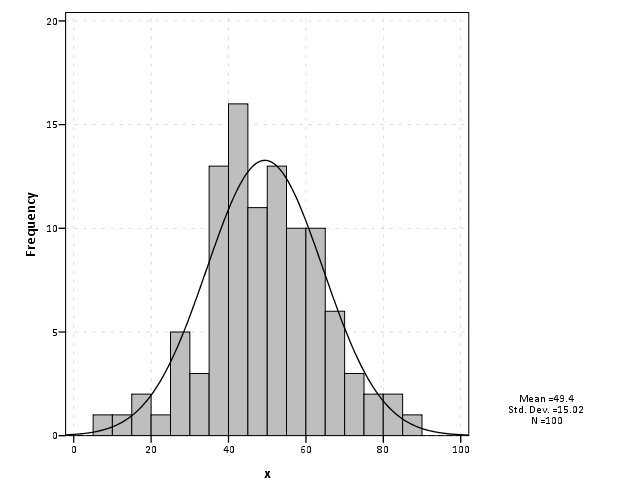
The first example is comparing differences between a histogram and an estimated distribution. For example, people often like to superimpose a distribution curve on a histogram, and here is an example SPSS chart.

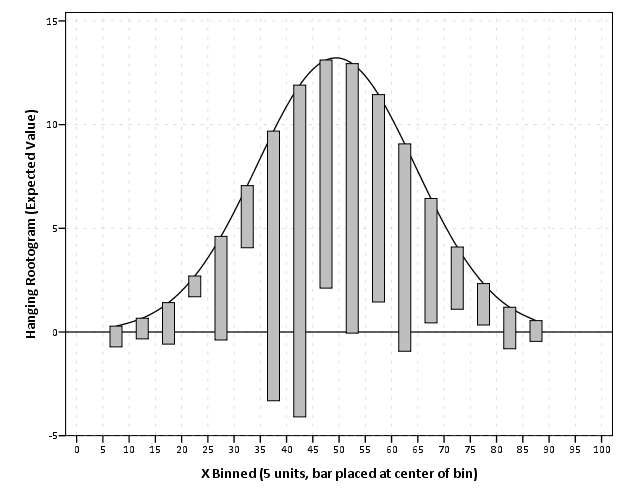
I believe it was Tukey who suggested that instead of plotting the histogram bars at the zero upwards, you hang them from the expected value. What this does is that instead of comparing differences from a curved line, you are comparing differences to the straight reference line at zero.

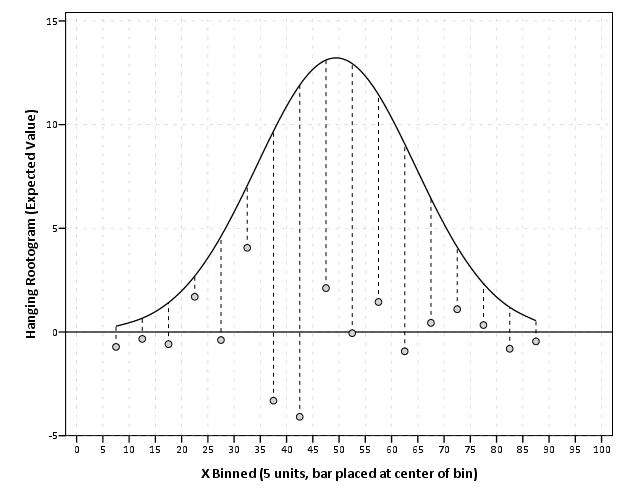
Although it is usual to plot the bars to cover the entire bin, I sometimes find this distracting. So here is an alternative (in SPSS – with example code linked to at the end of the post) in which I only plot lines and dots and just note in text the bin widths are in-between the hash marks on the X axis.

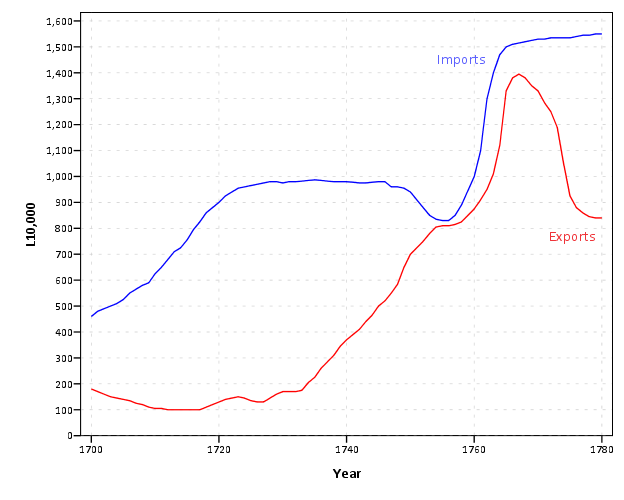
The second example is taken from William Playfair’s atlas, and Cleveland uses it to show that comparing two curves can be misleading. (It took me forever to find this data already digitized, so thanks for the bissantz blog for posting it.)

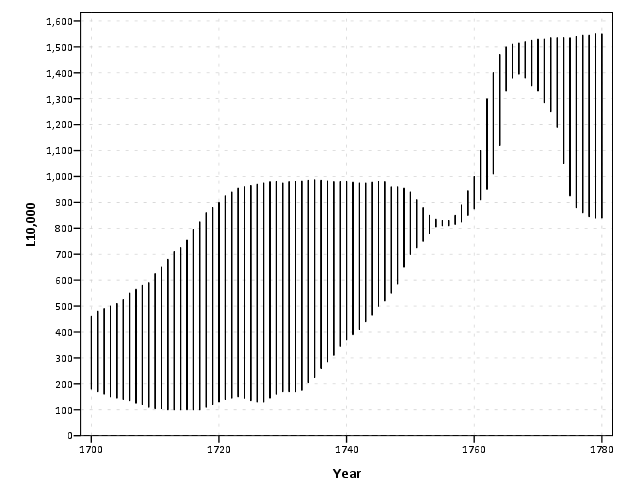
Instead of comparing the two curves only in terms of vertical deviations from one another, we tend to compare the curves in terms of the nearest location. Here the visual error in the magnitude of differences is likely to occur in the area between 1760 and 1766, where they look very close to one another because of the upward slope for both time series in that period.

Here I like the default behavior of SPSS when plotting the differences as an interval element and it is easier to see this potential error (just compare the length of the bars). When using a continuous scale, SPSS plots the interval elements with zero area inside and only an exterior outline (which ends up being near equivalent to a edge element).

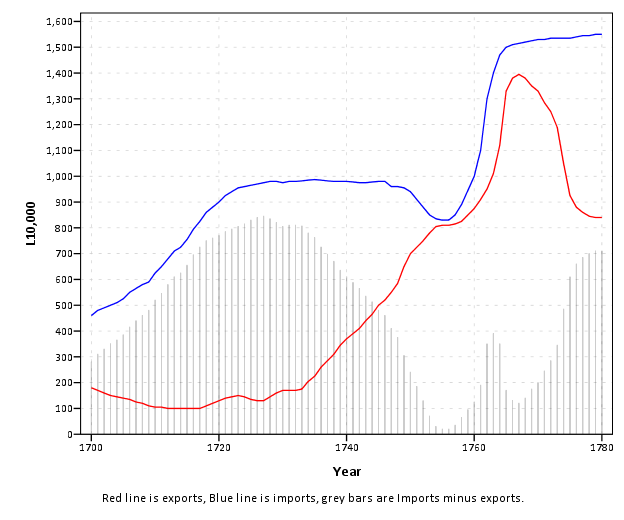
More frequently though, people suggest just to plot the differences, and here is a chart with all three (Imports, Exports and the difference) plotted on the same graph. Note the differences at 1763 (390) is actually larger than the difference and the start of the series, 280 at 1700.

You can do similar things to scatterplots, which Tukey calls detilting plots. Again, the lesson is it is easier to compare differences from a straight line than it is differences from a curve (or sloped line). Here I have posted the SPSS code to make the graphs (I slightly cheated though and post edited in the guidelines and labels in the graph editor).

Presenting at ASC this fall

The preliminary program for the American Society of Criminology meeting (this November in Atlanta) is up and my scheduled presentation time is 3:30 on Wednesday Nov. 20th. The title of my talk is Visualization Techniques for Journey to Crime Flow Data, and the associated pre-print is available on SSRN.

The title of the panel is Spatial and Temporal Analysis (a bit of a hodge podge I know), and is being held at Room 8 at the international level. The other presentations are;

  • Analyzing Spatial Interactions in Homicide Research Using a Spatial Durbin Model by Matthew Ruther and John McDonald (UPenn Demography and Criminology respectively)
  • Space-time Case-control Study of Violence in Urban Landscapes by Douglas Wiebe et al. (Some more folks from UPenn but not from the Criminology dept.!)
  • Spatial and Temporal Relationships between Violence, Alcohol Outlets and Drug Markets in Boston, 2006-2010 by Robert Lipton et al. (UMich Injury Center)

So come to see the other presenters (and stay for mine)! If anyone would like to meet up during the conference, feel free to shoot me an email. If I don’t cut my hair in the meantime maybe me and Robert Lipton can start a craziest hair for ASC award.

Note, I have no idea who the panel chair is, so perhaps we are still open for volunteers for that job.

Using circular dot plots instead of circular histograms

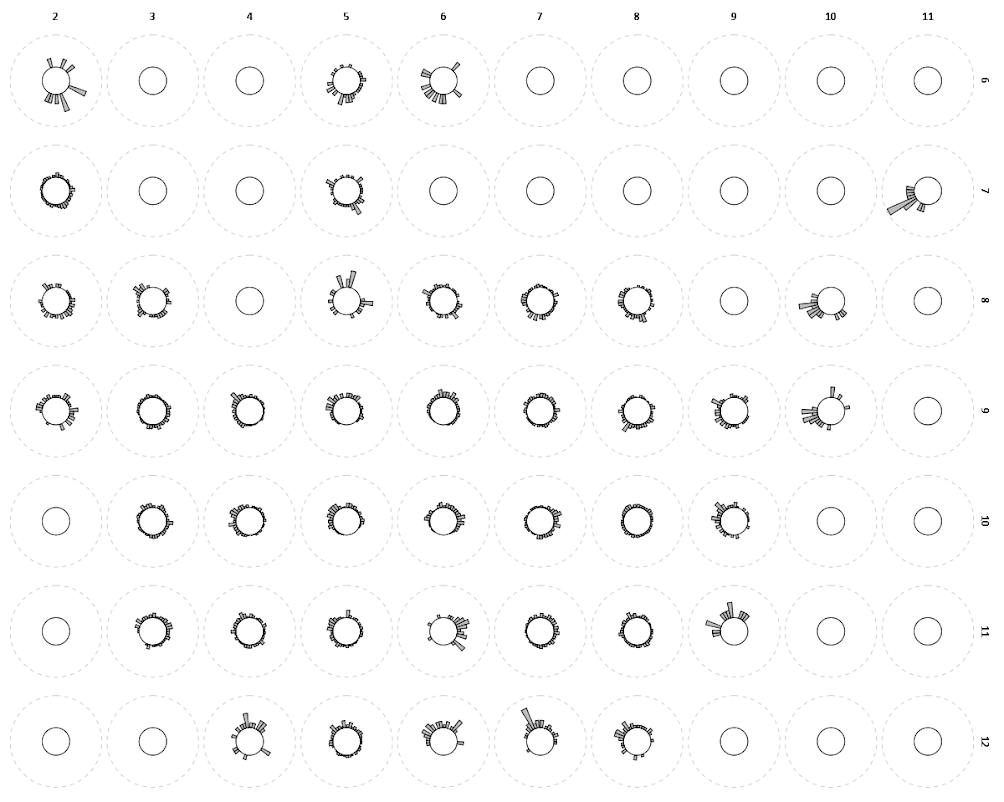
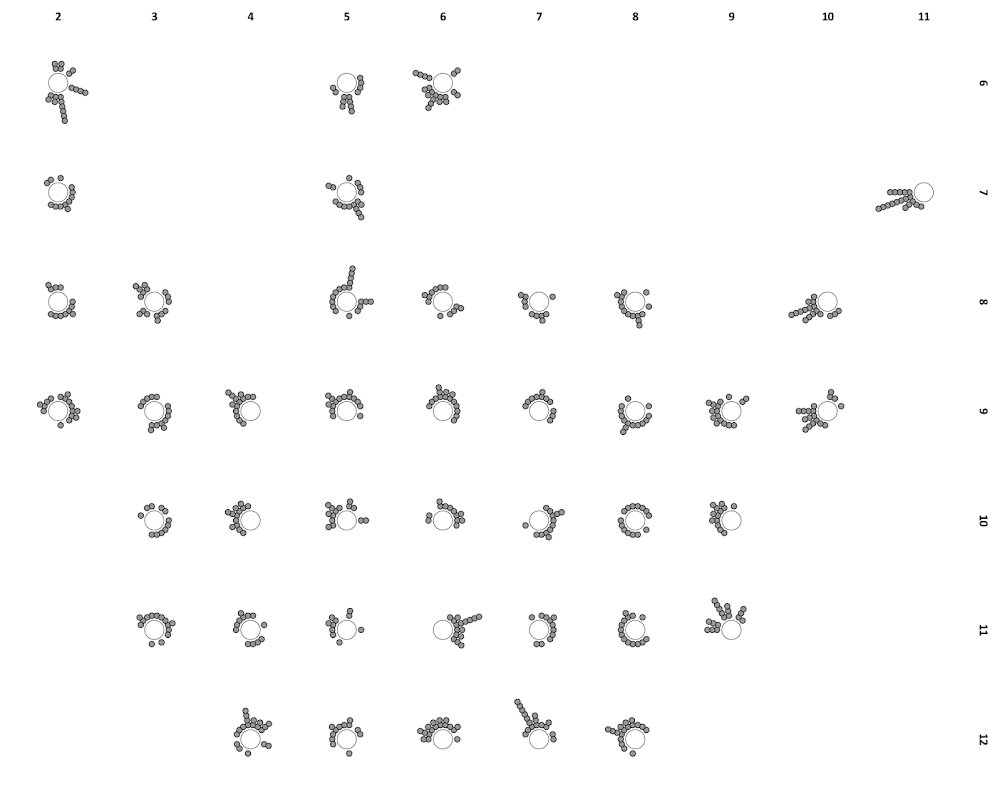
Although as I mentioned in this post on circular helio bar charts, polar coordinates are unlikely to be as effective as rectilinear coordinates for most types of comparisons, I really wanted to use a circular histogram in a recent paper of mine. The motivation is I have circular data in form of azimuths (Journey to Crime), aggregated to quadrants. So I really wanted to use a small multiple plot of circular histograms with the visual connection to the actual direction the azimuths were distributed within each quadrant.

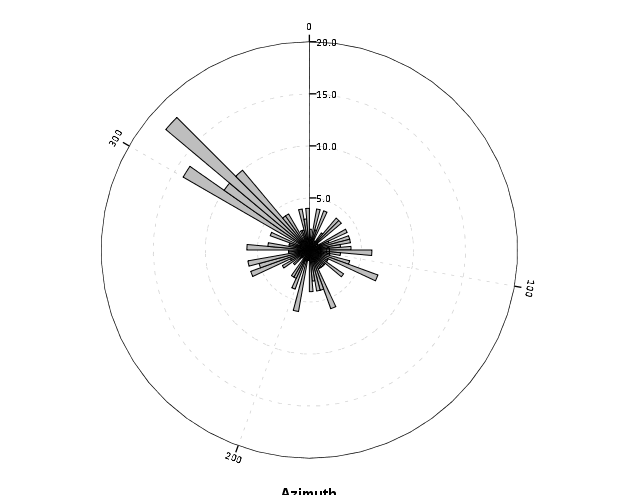
Part of the problem with circular histograms though is that the area near the center of the plot shrinks to nothing.

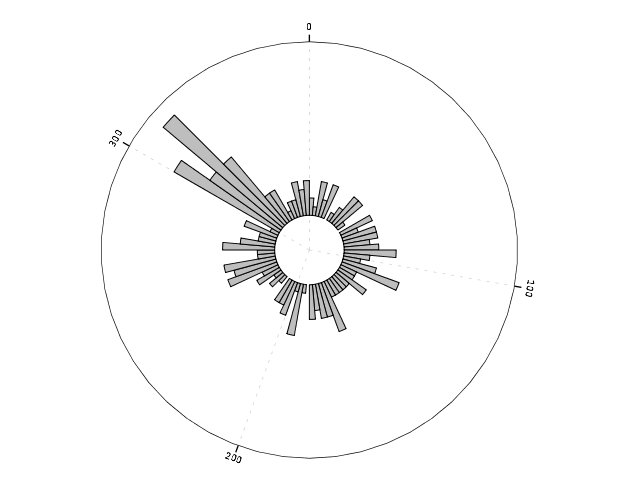
So a simple solution is to offset the center of the plot, so the bars don’t start at the origin, but a prespecified distance away from the center of the circle. Below is the same chart previously with a slight offset. (I saw this idea originally in Wilkinson’s Grammar of Graphics.)

And here is that technique extended to an example small multiple histogram from an earlier draft of the paper I previously mentioned.

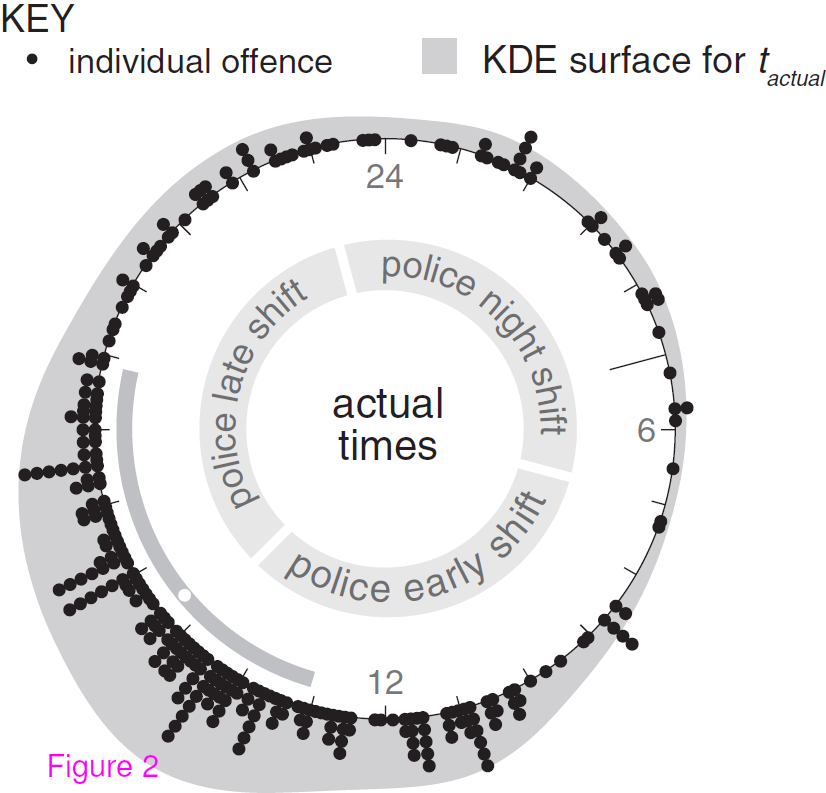
Even with the offset, the problem of the shrinking area is even worse because of the many plots, and the outlying bars in one plot shrinks the rest of the distribution even more dramatically. So, even with the offsetting it is still quite difficult assess trends. Also note I don’t even bother to draw the radius guide lines. I noticed in some recent papers about analyzing circular data that they don’t draw bars for circular histograms, but use dots (and/or kernel density estimates). See examples in Brunsdon and Corcoran (2006), Ashby and Bowers (2013), and Russell and Levitin (1995). The below image is taken from Ashby and Bowers (2013) to demonstrate this.

The idea behind this is that, in polar coordinates, you need to measure the length of the bar, instead of distance from a common reference line. When you use dots, it is pretty trivial to just count the dots to see how far they stack up (so no axis guide is needed). This just replaces one problem for other ones, especially for larger sample sizes (in which you will need to discretize how many observations a point represents) but I don’t think it is any worse than bars at least in this situation (and can potentially be better for a smaller number of dots). One thing that does happen with points is that large stacks deviate from each other the further they grow towards the circumference of the polar coordinate system (the bars in histograms typically get wider). This just looks aesthetically bad, although the bars growing wider could be considered a disingenuous representation (e.g. Florence Nightingale’s coxcomb chart) (Brasseur, 2005; Friendly, 2008).

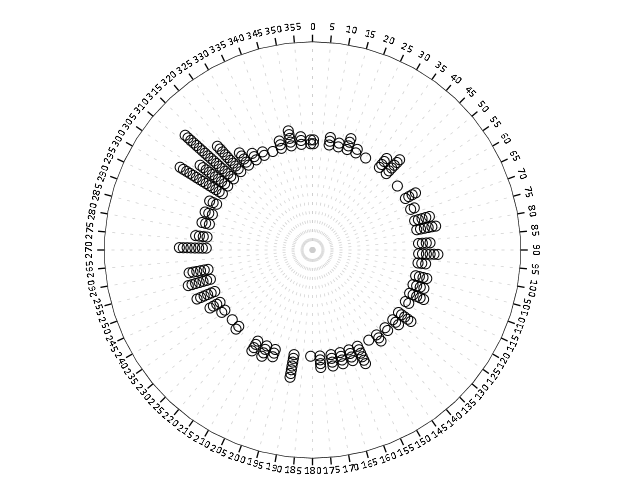
Unfortunately, SPSS’s routine to stack the dots in polar coordinates is off just slightly (I have full code linked at the end of the post to recreate some of the graphs in the post and display this behavior).

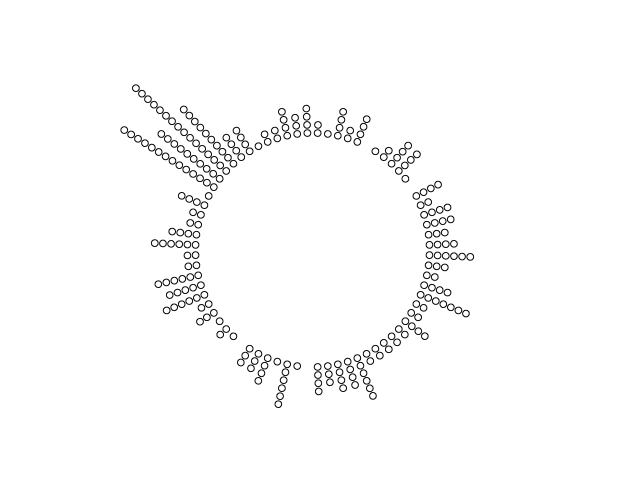
With alittle data manipulation though you can basically roll your own (although this is fixed bins, unlike irregular ones chosen based on the data like in Wilkinson’s dot plots, e.g. bin.dot in GPL) (Wilkinson, 1999).

And here is the same example small multiple histogram using the dots.

Here I have posted the code to demonstrate some of the graphs here (and I have the full code for the Viz. JTC paper here). To make the circular dot plot I use the sequential case processing trick, and then show how to use TRANS statements in inline GPL to adjust the positioning of the dots and if you want the dots to represent multiple values.


References

Querying Graph Neighbors in SPSS

The other day I showed how one could make an edge list in SPSS, which is needed to generate network graphs. Today, I will show how one can use an edge list in long format to identify neighbors for higher degree relationships.

So to start, what do I mean by a neighbor of higher degree relationship? Lets say I have a relationship between two nodes A B. Now lets also say I have another relationship between nodes B C. I might say that A and C don’t have a direct relationship, but they are related in that they both have a relationship to B. So A is a first degree neighbor of B, and A is a second degree neighbor of C. If I drew a graph of the listed network, the degree relationship between A and C would be the minimum number of edges one would have to traverse to get from the A node to the C node.

A  B  C

Why would a criminologist or crime analyst care about relationships of higher degrees? Well, here are two examples I am familiar with in criminology;

For more simple and practical motivation for crime analysts, you may just have some particular individuals who you want to have targeted enforcement towards (known chronic offenders, violent gang members) and you would like to compile a more extended network of individuals related to those particular offenders to keep an eye on, or further investigate for possible ties to co-offending or gang activity.

So to start in SPSS, lets say that we have a edge list in long format, where there is a column that ID’s each person, and another column that shows if those two people are related at the same event. Exampe ties for a crime analyst may be victimizations, or co-offending, or being stopped for field interviews at the same time.

*Long dataset marking people sharing same incident (ID).
data list free / IncID (F2.0) Person (A15).
begin data
1 John 
1 Mary
2 John 
2 Frank
3 John 
3 William
4 John 
4 Andrew
5 Mary 
5 Frank
6 Mary 
6 William
7 Frank 
7 Kelly
8 Andrew 
8 Penny
9 Matt 
9 Andrew
10 Kelly 
10 Andrew
end data.
dataset name long.
dataset activate long.

Now, lets say we want to grab higher degree neighbors for Mary, first I will ID the first degree neighbors by creating a flag, and then aggregating within the incident ID. That is, cases that share an incident with Mary.


*ID Mary and then aggregate to get first degree.
compute degree1 = (Person = "Mary").
*Now aggregate to get all degree1s.
AGGREGATE
  /OUTFILE=* MODE=ADDVARIABLES OVERWRITE = YES
  /BREAK=IncID
  /degree1 = MAX(degree1).

To identify if a person is a second degree neighbor of Mary, I can first aggregate within person, to ID that both John and Frank are first degree neighbors, and then pick their first degree neighbors, who I will then be able to tell are second degree neighbors of Mary.


*Aggregate within edge ID to get second degrees.
AGGREGATE
  /OUTFILE=* MODE=ADDVARIABLES OVERWRITE = YES
  /BREAK=Person
  /degree2 = MAX(degree1).
AGGREGATE
  /OUTFILE=* MODE=ADDVARIABLES OVERWRITE = YES
  /BREAK=IncID
  /degree2 = MAX(degree2).

I can continue to do the same procedure for third degree neighbors.


*Aggregate within edge ID to get third degrees.
AGGREGATE
  /OUTFILE=* MODE=ADDVARIABLES OVERWRITE = YES
  /BREAK=Person
  /degree3 = MAX(degree2).
AGGREGATE
  /OUTFILE=* MODE=ADDVARIABLES OVERWRITE = YES
  /BREAK=IncID
  /degree3 = MAX(degree3).

So now this should be clear how I can make a recursive structure to identify neighbors of however many degrees I want. I end the post with a general MACRO to estimate all neighbors of a certain degree given an edge list in long format. Since this will expand to very many cases, you will likely only want to use a smaller list, or I provided an option in the macro to only check certain flagged individuals for neighbors.

I’d love to see or hear about other applications crime analysts are using such social networks for. On the academic bucket list to learn more about graph layout algorithms, so hopefully you see more posts about that from me in the future.


*Current requirement - personid needs to be a string variable.
*Flag argument will return people who have a value of one for that variable and all of there
neighbors in the long list.
DEFINE !neighbor (incid = !TOKENS(1)
                           /personid = !TOKENS(1)
                           /number = !TOKENS(1) 
                           /flag = !DEFAULT ("") !TOKENS(1)   )

dataset copy neighbor.
dataset activate neighbor.
match files file = *
/keep = !incid !personid !flag.

rename variables (!incid = IncID)
(!personid = Person).

*I need to make a stacked dataset for all cases.
compute XXconstXX = 1.

*Making wide dataset of Persons in the long list.
dataset copy XXwideXX.
dataset activate XXwideXX.

*eliminating duplicate people.
sort cases by Person.
match files file = *
/first = XXkeepXX
/by Person
/drop IncID.
select if XXkeepXX = 1.

*reshaping long to wide - could use flip here but that requires numeric PersonIDs.
*flip variables = Person.
!IF (!flag  !NULL) !THEN
select if !flag = 1.
!IFEND
casestovars
/ID = XXconstXX
/seperator = ""
/drop XXkeepXX !flag.
*Similar here you could just replace with a list of all unique offender nodes - just needs to be in wide format.

*Match back to the original long dataset.
dataset activate neighbor.
match files file = *
/table = 'XXwideXX'
/by XXconstXX.
dataset close XXwideXX.

*Reshape wide to long - @ is for filler so I dont need to know how many people - it gets dropped by default in varstocases.
string @ (A1).
varstocases
/make DegreePers from Person1 to @
/drop XXconstXX !flag.

sort cases by DegreePers IncID Person.

*Make first degree.
compute degree1 = (Person = DegreePers).
AGGREGATE
  /OUTFILE=* MODE=ADDVARIABLES OVERWRITE = YES
  /BREAK=IncID DegreePers
  /degree1 = MAX(degree1).
AGGREGATE
  /OUTFILE=* MODE=ADDVARIABLES OVERWRITE = YES
  /BREAK=Person DegreePers
  /degree1 = MAX(degree1).
*dropping self checks.
select if Person  DegreePers.

!LET !past = "degree1"
!DO !i = 2 !TO !number
!LET !current = !CONCAT("degree",!i)
AGGREGATE
  /OUTFILE=* MODE=ADDVARIABLES OVERWRITE = YES
  /BREAK=IncID DegreePers
  /!current = MAX(!past).
AGGREGATE
  /OUTFILE=* MODE=ADDVARIABLES OVERWRITE = YES
  /BREAK=Person DegreePers
  /!current = MAX(!current).
!LET !past = !current
!DOEND
*Clean up and delete duplicates.
compute degree = (!number + 1) - SUM(degree1 to !current).
string P1 P2 (A100).
DO IF Person <= DegreePers.
    compute P1 = Person.
    compute P2 = DegreePers.
ELSE.
    compute P1 = DegreePers.
    compute P2 = Person.
END IF.
sort cases by P1 P2.
match files file = *
/first = XXkeepXX
/by P1 P2
/drop DegreePers Person.
*will be [1 + degrees searched] if not a neighbor.
select if XXkeepXX = 1 and degree <= !number.
match files file = *
/drop degree1 to !current XXkeepXX IncID.
formats degree (!CONCAT("F",!LENGTH(!number),".0")).
!ENDDEFINE.

*Example use case - uncomment to check it out.
*dataset close ALL.
*Long dataset marking people sharing same incident (ID).
*data list free / IncID (F2.0) Person (A15).
*begin data
1 John 
1 Mary
2 John 
2 Frank
3 John 
3 William
4 John 
4 Andrew
5 Mary 
5 Frank
6 Mary 
6 William
7 Frank 
7 Kelly
8 Andrew 
8 Penny
9 Matt 
9 Andrew
10 Kelly 
10 Andrew
*end data.
*dataset name long.
*dataset activate long.
*compute myFlag = 1.
*set mprint on.
*output close ALL.
*neighbor incid = IncID personid = Person number = 3.
*set mprint off.
*dataset activate long.
*dataset close neighbor.
*compute myFlag = (Person = "Mary" or Person = "Andrew").
*set mprint on.
*output close ALL.
*neighbor incid = IncID personid = Person number = 3 flag = myFlag.
*set mprint off.

Quick SPSS Tip: Cleaning up irregular characters in strings

This is just intended to be a quick tip on cleaning up string fields in SPSS. Frequently if I am parsing a field or matching string records (such as names or addresses) I don’t want extra ascii characters besides names and/or numbers in the field. For example, if I have a name I might want to eliminate hyphens or quotes, or if I have a field that is meant to be a house number I typically do not want any alpha character in the end (geocoding databases will rarely be able to tell the difference between Apt’s 1A and 1B).

We can use a simple loop and the PIB variable format in SPSS to clean out unwanted ascii codes in string characters. So for instance if I wanted to replace all the numbers with nothing in a string field I could use this code below (where OrigField is the original field with the numbers contained, and CleanField is the subsequent cleaned variable).

string CleanField (A5).
compute CleanField = OrigField.
loop #i = 48 to 57.
compute CleanField = REPLACE(CleanField,STRING(#i,PIB),"").
end loop.

The DEC column in the linked ascii table corresponds to the ascii character code in SPSS’s PIB format. The numbers 0 through 9 end up being 48 to 57 in decimal values, so I create a string corresponding to those characters via the string(#i,PIB) commmand and replace them with nothing in the REPLACE command. I loop through values of 48 to 57 to get rid of all numeric values.

This extends to potentially all characters, for instance if I want to return only capital alpha characters, I could use a loop with an if statement like below;

string CleanField (A5).
compute CleanField = OrigField.
loop #i = 1 to 255.
if #i < 65 or #i > 90 CleanField = REPLACE(CleanField,STRING(#i,PIB),"").
end loop.

There are (a lot) more than 255 ascii characters, but that should suffice to clean up most string fields in English.

Making an Edge List in SPSS

I have planned a series of posts on some data manipulation for network data. Here I am going to show how to go from either a list of network relations in long or wide format to a list of (non-redundant) edges in SPSS.

So to start off lets define what I mean by long, wide and edge format. Long format would consist of a table where there is an ID column defining a shared instance, and a sperate column defining the nodes that have relations within that event. Imagine an event is a criminal incident, and a sharing relation can be offender(s) or victim(s).

So a long table might look like this;


Incident# Name Status
--------------
1 Mary O
1 Joe O
1 Steve V
2 Bob O
2 Ted V
2 Jeff V

Here, incident 1 has three nodes, Mary, Joe and Steve. The Status field represents if the node is either an offender, O, or a victim, V. They are all related through the incident number field. Wide format of this data would have only one record for each unique incident number, and the people "nodes" would span across multiple columns. It might then look something like below, where a . represents missing data.


Incident# Offender1 Offender2 Victim1 Victim2
---------------------------------------------
1 Mary Joe Steve . 
2 Bob . Ted Jeff .

I’ve encountered both of these types of data formats in police RMS databases, and the following solution I propose to make an edge list with go back and forth between the two to produce the final list. So what do I mean by an edge list? Below is an example;


Incident# FromID ToID FromStatus ToStatus
-----------------------------------------
1 Mary Joe O O
1 Mary Steve O V
1 Joe Steve O V
2 Bob Ted O V
2 Bob Jeff O V
2 Jeff Ted V V

Here we define all possible relationship among the two incidents ignoring the FromID and the ToID fields order (e.g. Mary Joe is equivalent to Joe Mary). Why do we want an edge list like this? In further posts I will show to do some data manipulation to find neighbors of different degrees using data formatted like this, but suffice to say many graph drawing algorithms need data in this format (or return data in this format).

So below I will show an example in SPSS going from the long format to the edge list format. In doing show I will transform the long list to the wide format, so it is trivial to adapt the code to go from the wide format to the edge list (instead of generating the wide table from the long table, you would generate the long table from the wide table).

So to start lets use some data in long format.


data list free / MyID (F1.0) Name (A1) Status (A1).
begin data
1 A O
1 B O
1 C V
1 D V
2 E O
2 F O
2 G V
end data.
dataset name long.

Now I will make a copy of this dataset, and reshape to the wide format. Then I merge the wide dataset into the long dataset.


*make copy and reshape to one row.
dataset copy wide.
dataset activate wide.
casestovars
/id MyID
/seperator = "".

*merge back into main dataset.
dataset activate long.
match files file = *
/table = 'wide'
/by MyID.
dataset close wide.

From here we will reshape the dataset to wide again, and this will create a full expansion of possible pairs. This produces much redundancy though. So first, before I reshape wide to long, I get rid of values in the new set of Name? variables that match the original Name variable (can’t have an edge with oneself). You could technically do this after VARSTOCASES, but I prefer to make as little extra data as possible. With big datasets this can expand to be very big – a case with n people would expand to be n^2, by eliminating self-referencing edges it will only expand n(n-1). Also I eliminate cases simply based on the sort order between Name and the wide XName? variables. By eliminating cases based on the ordering it reduces it to n(n-1)/2 total cases after the VARSTOCASES command (which by default drops missing data).


*Reshape to long again!
do repeat XName = Name1 to Name4 /XStatus = Status1 to Status4.
DO IF Name = XName OR  Name > XName. 
    compute Xname = " ".
    compute XStatus = " ".
END IF.
end repeat.
VARSTOCASES
/make XName from Name1 to Name4
/make XStatus from Status1 to Status4.

So you end up with a list of non-redundant edges with supplemental information on the nodes (note you can change the DO IF command to just Name > XName, here I leave it as is to further distinguish between them). To follow are some more posts about manipulating this data further to produce neighbor lists. I’d be interested to see in anyone has better ideas about how to make the edge list. It is easier to make pairwise comparisons in MATRIX programs, but I don’t go that route here because my intended uses are datasets too big to fit into memory. My code will certainly be slow though (CASESTOVARS and VARSTOCASES are slow operations on large datasets). Maybe an efficient XSAVE? (Not sure – let me know in the comments!) The Wikipedia page on SQL joins has an example of using a self join to produce the same type of edge table as well.


Below is the full code from the post without the text in between (for easier copying and pasting).


data list free / MyID (F1.0) Name (A1) Status (A1).
begin data
1 A O
1 B O
1 C V
1 D V
2 E O
2 F O
2 G V
end data.
dataset name long.

*make copy and reshape to one row.
dataset copy wide.
dataset activate wide.
casestovars
/id MyID
/seperator = "".

*merge back into main dataset.
dataset activate long.
match files file = *
/table = 'wide'
/by MyID.
dataset close wide.

*Reshape to long again! - and then get rid of duplicates.
do repeat XName = Name1 to Name4 /XStatus = Status1 to Status4.
DO IF Name = XName OR  Name > XName. 
    compute Xname = " ".
    compute XStatus = " ".
END IF.
end repeat.
VARSTOCASES
/make XName from Name1 to Name4
/make XStatus from Status1 to Status4.

Some discussion on circular helio bar charts

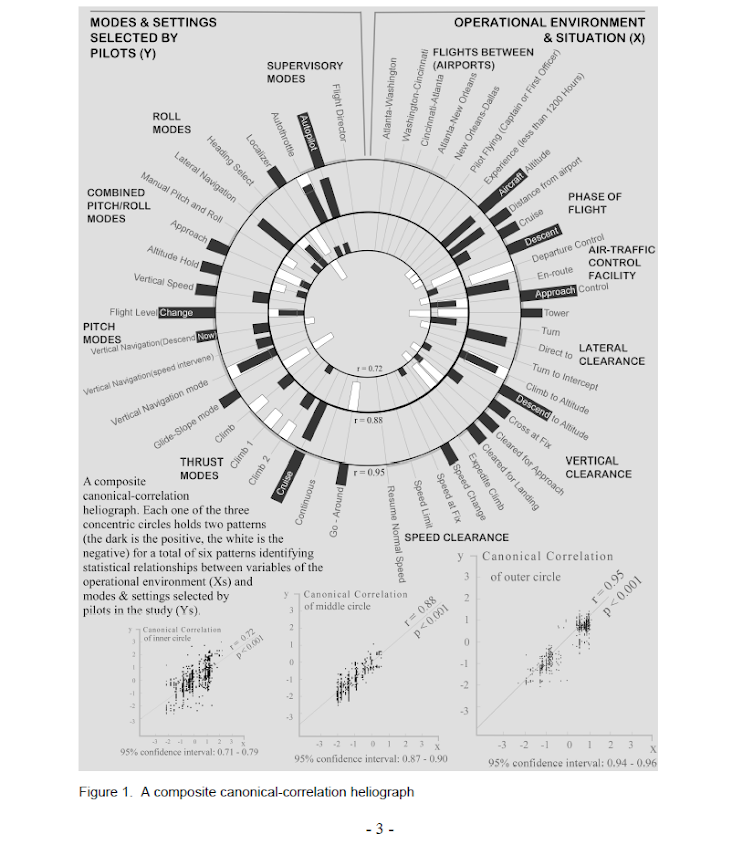
The other day I saw a popular post on the mathematica site was to reconstruct helio plots. They are essentially bar charts of canonical correlation coefficients plotted in polar coordinates, and below is the most grandiose example of them I could find (Degani et al., 2006).

That is a bit of a crazy example, but it is essentially several layers of bar charts in polar coordinates, with seperate rings displaying seperate correlation coefficients. Seeing there use in action struck me as odd, given typical perceptual problems known with using polar coordinates. Polar coordinates are popular for their space saving capabilities for network diagrams (see for example Circos) but there appears to be no redeeming quality of using polar coordinates for displaying the data in these circumstances that I can tell. The Degani paper gives the motivation for the polar coordinates because polar coordinates lack natural ordering that plots in cartesian coordinates imply. This strikes me as either unfounded or hypocritical, so I don’t really see why that is a reasonable motivation.

Polar coordinates have the negatives here that points going towards the center of the circle are compressed in smaller areas, and points going towards the edge of the circle are spread further apart. This creates a visual bias that does not portray actual data. I also presume length judgements in polar coordinates are more difficult. This having some bars protruding closer to one another and some diverging farther away I suspect cause more error judgements in false associations than do any ordering in bar charts in rectilinear coordinates. Also polar coordinates are very difficult to portray radial axis labels, so specific quantitative assements (e.g. this correlation is .5 and this correlation is .3) are difficult to make.

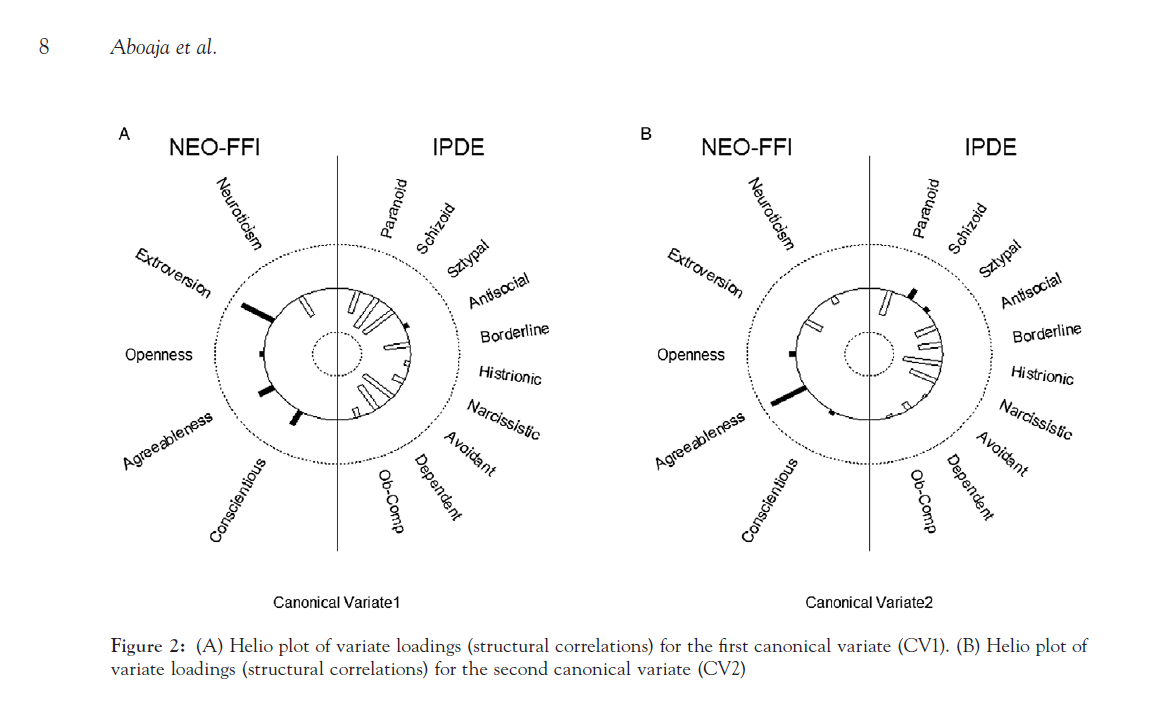
Below I will show an example taken from page 8 of Aboaja et al. (2011). Below is a screen shot of their helio plot, produced with the R package yacca.

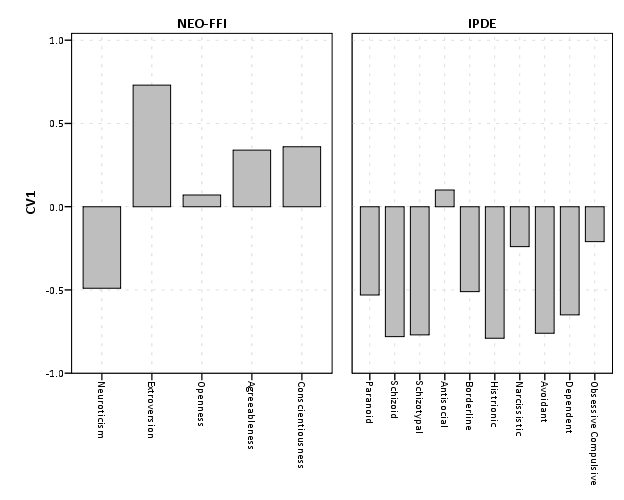
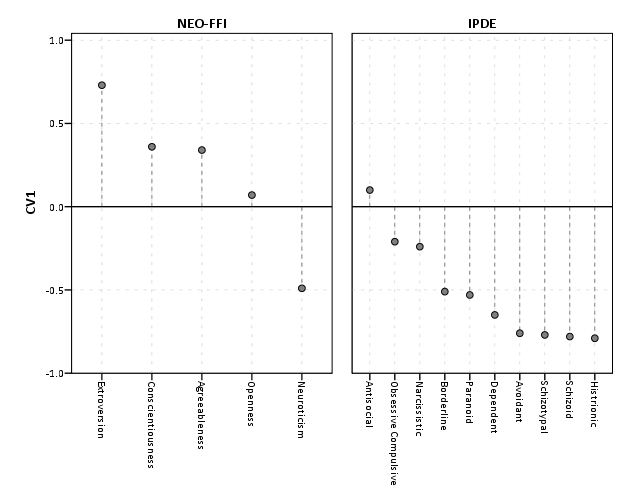
So first, lets not go crazy and just see how a simple bar chart suffices to show the data. I use nesting here to differentiate between NEO-FFI and IPDE factors, but one could use other aesthetics like color or pattern to clearly distinguish between the two.


data list free / type (F1.0) factors (F2.0) CV1 CV2.
begin data
1 1 -0.49 -0.17
1 2 0.73 -0.37
1 3 0.07 0.14
1 4 0.34 0.80
1 5 0.36 0.08
2 6 -0.53 -0.57
2 7 -0.78 0.25
2 8 -0.77 0.08
2 9 0.10 -0.45
2 10 -0.51 -0.48
2 11 -0.79 -0.48
2 12 -0.24 -0.56
2 13 -0.76 -0.04
2 14 -0.65 -0.16
2 15 -0.21 -0.05
end data.
value labels type
1 'NEO-FFI'
2 'IPDE'.
value labels factors
1 'Neuroticism'
2 'Extroversion'
3 'Openness'
4 'Agreeableness'
5 'Conscientiousness'
6 'Paranoid'
7 'Schizoid'
8 'Schizotypal'
9 'Antisocial'
10 'Borderline'
11 'Histrionic'
12 'Narcissistic'
13 'Avoidant'
14 'Dependent'
15 'Obsessive Compulsive'.
formats CV1 CV2 (F2.1).

*Bar Chart.
GGRAPH
  /GRAPHDATASET NAME="graphdataset" VARIABLES=factors CV1 type
  /GRAPHSPEC SOURCE=INLINE.
BEGIN GPL
 SOURCE: s=userSource(id("graphdataset"))
 DATA: factors=col(source(s), name("factors"), unit.category())
 DATA: type=col(source(s), name("type"), unit.category())
 DATA: CV1=col(source(s), name("CV1"))
 GUIDE: axis(dim(1), opposite())
 GUIDE: axis(dim(2), label("CV1"))
 SCALE: cat(dim(1.1), include("1", "2", "3", "4", "5", "6", "7", "8", "9", "10", "11", "12", "13", "14", "15"))
 SCALE: linear(dim(2), min(-1), max(1))
 ELEMENT: interval(position(factors/type*CV1), shape.interior(shape.square))
END GPL.

This shows an example of using nesting for the faceting structure in SPSS. The default behavior for SPSS is that the NEO-FFI has fewer categories, so the bars are plotted wider (because the panels are set to be equally sized). Wilkinson’s Grammar has examples of setting the panels to be different sizes just in this situation, but I do not believe this is possible in SPSS. Because of this, I like to use point and edge elements to just symbolize lines, which makes the panels visually similar. Also I post-hoc added a guideline at the zero value and sorted the values of CV1 descendingly within panels.


*Because of different sizes - I like the line with dotted interval.
GGRAPH
  /GRAPHDATASET NAME="graphdataset" VARIABLES=factors CV1 type
  /GRAPHSPEC SOURCE=INLINE.
BEGIN GPL
 SOURCE: s=userSource(id("graphdataset"))
 DATA: factors=col(source(s), name("factors"), unit.category())
 DATA: type=col(source(s), name("type"), unit.category())
 DATA: CV1=col(source(s), name("CV1"))
 TRANS: base=eval(0)
 GUIDE: axis(dim(1), opposite())
 GUIDE: axis(dim(2), label("CV1"))
 SCALE: cat(dim(1.1), include("1", "2", "3", "4", "5", "6", "7", "8", "9", "10", "11", "12", "13", "14", "15"), sort.statistic(summary.max(CV1)), reverse())
 SCALE: linear(dim(2), min(-1), max(1))
 ELEMENT: edge(position(factors/type*(base+CV1)), shape.interior(shape.dash), color(color.grey))
 ELEMENT: point(position(factors/type*CV1), shape.interior(shape.circle), color.interior(color.grey))
END GPL.

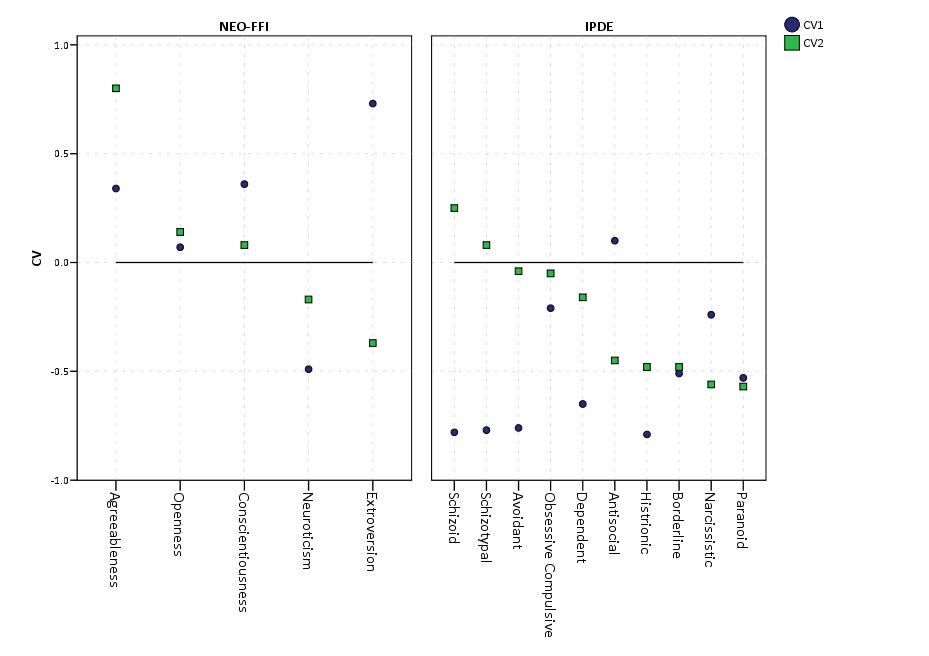
If one wanted to show both variates within the same plot, one could either use panels (as did the original Aboaja article, just in polar coordinates) or one could superimpose those estimates on the same plot. An example of superimposing is given below. This superimposing also extends to more than two canonical variates, although the more points the more the graph gets so busy it is difficult to interpret and one might want to consider small multiples. Here I show superimposing CV1 and CV2 and sort by descending values of CV2.


GGRAPH
  /GRAPHDATASET NAME="graphdataset" VARIABLES=factors CV1 CV2 type
  /GRAPHSPEC SOURCE=INLINE.
BEGIN GPL
 SOURCE: s=userSource(id("graphdataset"))
 DATA: factors=col(source(s), name("factors"), unit.category())
 DATA: type=col(source(s), name("type"), unit.category())
 DATA: CV1=col(source(s), name("CV1"))
 DATA: CV2=col(source(s), name("CV2"))
 TRANS: base=eval(0)
 GUIDE: axis(dim(1), opposite())
 GUIDE: axis(dim(2), label("CV"))
 SCALE: cat(dim(1.1), include("1", "2", "3", "4", "5", "6", "7", "8", "9", "10", "11", "12", "13", "14", "15"), sort.statistic(summary.max(CV2)), reverse())
 SCALE: linear(dim(2), min(-1), max(1))
 ELEMENT: line(position(factors/type*base), color(color.black))
 ELEMENT: point(position(factors/type*CV1), shape.interior("CV1"), color.interior("CV1"))
 ELEMENT: point(position(factors/type*CV2), shape.interior("CV2"), color.interior("CV2"))
END GPL.

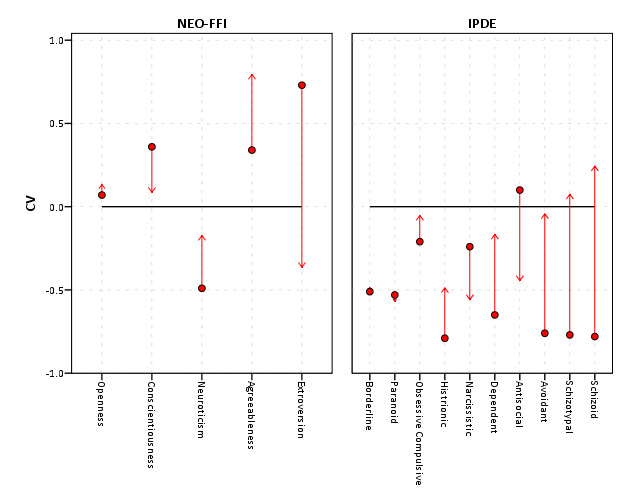
Now, I know nothing of canonical correlation, but if one wanted to show the change from the first to second canonical covariate one could use the edge element with an arrow. One could also order the axis here, based on values of either the first or second canonical variate, or on the change between variates. Here I sort ascendingly by the absolute value in the change between variates.


GGRAPH
  /GRAPHDATASET NAME="graphdataset" VARIABLES=factors CV1 CV2 type
  /GRAPHSPEC SOURCE=INLINE.
BEGIN GPL
 SOURCE: s=userSource(id("graphdataset"))
 DATA: factors=col(source(s), name("factors"), unit.category())
 DATA: type=col(source(s), name("type"), unit.category())
 DATA: CV1=col(source(s), name("CV1"))
 DATA: CV2=col(source(s), name("CV2"))
 TRANS: base=eval(0)
 GUIDE: axis(dim(1), opposite())
 GUIDE: axis(dim(2), label("CV"))
 SCALE: cat(dim(1.1), include("1", "2", "3", "4", "5", "6", "7", "8", "9", "10", "11", "12", "13", "14", "15"), sort.statistic(summary.max(diff)))
 SCALE: linear(dim(2), min(-1), max(1))
 ELEMENT: line(position(factors/type*base), color(color.black))
 ELEMENT: edge(position(factors/type*(CV1+CV2)), shape.interior(shape.arrow), color.interior(color.red)) 
 ELEMENT: point(position(factors/type*CV1), shape.interior(shape.circle), color.interior(color.red))
END GPL.

I’ve posted some additional code at the end of the blog post to show the nuts and bolts of making a similar chart in polar coordinates, plus a few other potential variants like a clustered bar chart. I see little reason though to prefer them to more traditional bar charts in a rectilinear coordinate system.


Citations


***********************************************************************************.
*Full code snippet.
data list free / type (F1.0) factors (F2.0) CV1 CV2.
begin data
1 1 -0.49 -0.17
1 2 0.73 -0.37
1 3 0.07 0.14
1 4 0.34 0.80
1 5 0.36 0.08
2 6 -0.53 -0.57
2 7 -0.78 0.25
2 8 -0.77 0.08
2 9 0.10 -0.45
2 10 -0.51 -0.48
2 11 -0.79 -0.48
2 12 -0.24 -0.56
2 13 -0.76 -0.04
2 14 -0.65 -0.16
2 15 -0.21 -0.05
end data.
value labels type
1 'NEO-FFI'
2 'IPDE'.
value labels factors
1 'Neuroticism'
2 'Extroversion'
3 'Openness'
4 'Agreeableness'
5 'Conscientiousness'
6 'Paranoid'
7 'Schizoid'
8 'Schizotypal'
9 'Antisocial'
10 'Borderline'
11 'Histrionic'
12 'Narcissistic'
13 'Avoidant'
14 'Dependent'
15 'Obsessive Compulsive'.
formats CV1 CV2 (F2.1).

*Bar Chart.
GGRAPH
  /GRAPHDATASET NAME="graphdataset" VARIABLES=factors CV1 type
  /GRAPHSPEC SOURCE=INLINE.
BEGIN GPL
 SOURCE: s=userSource(id("graphdataset"))
 DATA: factors=col(source(s), name("factors"), unit.category())
 DATA: type=col(source(s), name("type"), unit.category())
 DATA: CV1=col(source(s), name("CV1"))
 GUIDE: axis(dim(1), opposite())
 GUIDE: axis(dim(2), label("CV1"))
 SCALE: cat(dim(1.1), include("1", "2", "3", "4", "5", "6", "7", "8", "9", "10", "11", "12", "13", "14", "15"))
 SCALE: linear(dim(2), min(-1), max(1))
 ELEMENT: interval(position(factors/type*CV1), shape.interior(shape.square))
END GPL.

*Because of different sizes - I like the line with dotted interval.
GGRAPH
  /GRAPHDATASET NAME="graphdataset" VARIABLES=factors CV1 type
  /GRAPHSPEC SOURCE=INLINE.
BEGIN GPL
 SOURCE: s=userSource(id("graphdataset"))
 DATA: factors=col(source(s), name("factors"), unit.category())
 DATA: type=col(source(s), name("type"), unit.category())
 DATA: CV1=col(source(s), name("CV1"))
 TRANS: base=eval(0)
 GUIDE: axis(dim(1), opposite())
 GUIDE: axis(dim(2), label("CV1"))
 SCALE: cat(dim(1.1), include("1", "2", "3", "4", "5", "6", "7", "8", "9", "10", "11", "12", "13", "14", "15"), sort.statistic(summary.max(CV1)), reverse())
 SCALE: linear(dim(2), min(-1), max(1))
 ELEMENT: edge(position(factors/type*(base+CV1)), shape.interior(shape.dash), color(color.grey))
 ELEMENT: point(position(factors/type*CV1), shape.interior(shape.circle), color.interior(color.grey))
END GPL.

*Dot Plot Showing Both.
GGRAPH
  /GRAPHDATASET NAME="graphdataset" VARIABLES=factors CV1 CV2 type
  /GRAPHSPEC SOURCE=INLINE.
BEGIN GPL
 SOURCE: s=userSource(id("graphdataset"))
 DATA: factors=col(source(s), name("factors"), unit.category())
 DATA: type=col(source(s), name("type"), unit.category())
 DATA: CV1=col(source(s), name("CV1"))
 DATA: CV2=col(source(s), name("CV2"))
 TRANS: base=eval(0)
 GUIDE: axis(dim(1), opposite())
 GUIDE: axis(dim(2), label("CV"))
 SCALE: cat(dim(1.1), include("1", "2", "3", "4", "5", "6", "7", "8", "9", "10", "11", "12", "13", "14", "15"), sort.statistic(summary.max(CV2)), reverse())
 SCALE: linear(dim(2), min(-1), max(1))
 ELEMENT: line(position(factors/type*base), color(color.black))
 ELEMENT: point(position(factors/type*CV1), shape.interior("CV1"), color.interior("CV1"))
 ELEMENT: point(position(factors/type*CV2), shape.interior("CV2"), color.interior("CV2"))
END GPL.

*Arrow going from CV1 to CV2.
GGRAPH
  /GRAPHDATASET NAME="graphdataset" VARIABLES=factors CV1 CV2 type
  /GRAPHSPEC SOURCE=INLINE.
BEGIN GPL
 SOURCE: s=userSource(id("graphdataset"))
 DATA: factors=col(source(s), name("factors"), unit.category())
 DATA: type=col(source(s), name("type"), unit.category())
 DATA: CV1=col(source(s), name("CV1"))
 DATA: CV2=col(source(s), name("CV2"))
 TRANS: diff=eval(abs(CV1 - CV2))
 TRANS: base=eval(0)
 GUIDE: axis(dim(1), opposite())
 GUIDE: axis(dim(2), label("CV"))
 SCALE: cat(dim(1.1), include("1", "2", "3", "4", "5", "6", "7", "8", "9", "10", "11", "12", "13", "14", "15"), sort.statistic(summary.max(diff)))
 SCALE: linear(dim(2), min(-1), max(1))
 ELEMENT: line(position(factors/type*base), color(color.black))
 ELEMENT: edge(position(factors/type*(CV1+CV2)), shape.interior(shape.arrow), color.interior(color.red)) 
 ELEMENT: point(position(factors/type*CV1), shape.interior(shape.circle), color.interior(color.red))
END GPL.

*If you must, polar coordinate helio like plot.
GGRAPH
  /GRAPHDATASET NAME="graphdataset" VARIABLES=factors CV1 CV2 type
  /GRAPHSPEC SOURCE=INLINE.
BEGIN GPL
 SOURCE: s=userSource(id("graphdataset"))
 DATA: factors=col(source(s), name("factors"), unit.category())
 DATA: type=col(source(s), name("type"), unit.category())
 DATA: CV1=col(source(s), name("CV1"))
 DATA: CV2=col(source(s), name("CV2"))
 TRANS: base=eval(0)
 COORD: polar()
 GUIDE: axis(dim(2), null())
 SCALE: cat(dim(1), include("1", "2", "3", "4", "5", "6", "7", "8", "9", "10", "11", "12", "13", "14", "15"))
 SCALE: linear(dim(2), min(-1), max(1))
 ELEMENT: line(position(factors*base), color(color.black), closed())
 ELEMENT: edge(position(factors*(base+CV1)), shape.interior(shape.dash), color.interior(type))
 ELEMENT: point(position(factors*CV1), shape.interior(type), color.interior(type))
END GPL.

*Extras - not necesarrily recommended.

*Bars instead of lines in polar coordinates.
GGRAPH
  /GRAPHDATASET NAME="graphdataset" VARIABLES=factors CV1 CV2 type
  /GRAPHSPEC SOURCE=INLINE.
BEGIN GPL
 SOURCE: s=userSource(id("graphdataset"))
 DATA: factors=col(source(s), name("factors"), unit.category())
 DATA: type=col(source(s), name("type"), unit.category())
 DATA: CV1=col(source(s), name("CV1"))
 DATA: CV2=col(source(s), name("CV2"))
 TRANS: base=eval(0)
 COORD: polar()
 GUIDE: axis(dim(2), null())
 SCALE: cat(dim(1), include("1", "2", "3", "4", "5", "6", "7", "8", "9", "10", "11", "12", "13", "14", "15"))
 SCALE: linear(dim(2), min(-1), max(1))
 ELEMENT: line(position(factors*base), color(color.black), closed())
 ELEMENT: interval(position(factors*(base+CV1)), shape.interior(shape.square), color.interior(type))
END GPL.

*Clustering between CV1 and CV2? - need to reshape.
varstocases
/make CV from CV1 CV2
/index order.

value labels order
1 'CV1'
2 'CV2'.

*Clustered Bar.
GGRAPH
  /GRAPHDATASET NAME="graphdataset" VARIABLES=factors type CV order 
  /GRAPHSPEC SOURCE=INLINE.
BEGIN GPL
 SOURCE: s=userSource(id("graphdataset"))
 DATA: factors=col(source(s), name("factors"), unit.category())
 DATA: type=col(source(s), name("type"), unit.category())
 DATA: CV=col(source(s), name("CV"))
 DATA: order=col(source(s), name("order"), unit.category())
 COORD: rect(dim(1,2))
 GUIDE: axis(dim(3), label("factors"))
 GUIDE: axis(dim(2), label("CV"))
 GUIDE: legend(aesthetic(aesthetic.color.interior))
 SCALE: cat(aesthetic(aesthetic.color.interior))
 ELEMENT: interval.dodge(position(factors/type*CV)), color.interior(order),shape.interior(shape.square))
END GPL.
***********************************************************************************.

An example of using a MACRO to make a custom data transformation function in SPSS

MACROS in SPSS are ways to make custom functions. They can either accomplish very simple tasks, as I illustrate here, or can wrap up large blocks of code. If you pay attention to many of my SPSS blog posts, or the NABBLE SPSS forum you will see a variety of examples of their use. They aren’t typical fodder though for introductory books in SPSS, so here I will provide a very brief example and refer those interested to other materials.

I was reading Gelman’s and Hill’s Data Analysis Using Regression and Multilevel/Hierarchical Models and for their chapter on Logistic regression they define a function in R, invlogit, to prevent the needless repetition of writing 1/1 + (exp(-x)) (where x is some arbitrary value or column of data) when transforming predictions on the logit scale to the probability scale. We can do the same in SPSS with a custom macro.


DEFINE !INVLOGIT (!POSITIONAL  !ENCLOSE("(",")") ) 
1/(1 + EXP(-!1))
!ENDDEFINE.

To walk one through the function, an SPSS macro defintion starts with a DEFINE statement, and ends with !ENDDEFINE. In between these are the name of the custom function, !INVLOGIT, and the parameters the function will take within parentheses. This function only takes one parameter, defined as the first argument passed after the function name that is enclosed within parentheses, !POSITIONAL !ENCLOSE("(",")").

After those statements comes the functions the macro will perform. Here it is just a simple data transformation, 1/(1 + EXP(-!1)), and !1 is where the argument is passed to the function. The POSITIONAL key increments if you use mutliple !POSITIONAL arguments in a macro call, and starts at !1. The enclose statement says the value that will be passed to !1 will be contained within a left and right parenthesis.

When the MACRO is called, by typing !INVLOGIT(x) for example, it will then expand to the SPSS syntax 1/(1 + EXP(-x)), where the !1 is replaced by x. I could pass anything here though within the parenthesis, like a constant value or a more complicated value such as (x+5)/3*1.2. To make sense you only need to provide a numeric value. The macro is just a tool to that when expanded writes SPSS code with the arbitrary arguments inserted.

Below is a simple use example case. One frequent mistake of beginners is to not expand the macro call in the text log using SET MPRINT ON. to debug incorrect code, so the code includes that as an example (and uses PRESERVE. and RESTORE. to keep the your intial settings).


DEFINE !INVLOGIT (!POSITIONAL  !ENCLOSE("(",")") ) 
1/(1 + EXP(-!1))
!ENDDEFINE.

data list free / x.
begin data
0.5
1
2
end data.

PRESERVE.
SET MPRINT ON.
compute logit = !INVLOGIT(x).
RESTORE.
*you can pass more complicated arguments since.
*they are enclosed within parentheses.
compute logit2 = !INVLOGIT(x/3).
compute logit3 = !INVLOGIT((x+5)/3*1.2).
compute logit4 = !INVLOGIT(1).
EXECUTE.

Like all SPSS transformation statements, the INVLOGIT transformation is not sensitive to case (e.g. you could write !InvLogit(1) or !invlogit(1) and they both would be expanded). It is typical practice to write custom macro functions with a leading exclamation mark not because it is necessary, but to clearly differentiate them from native SPSS functions. Macros can potentially be expanded even when in * marked comments (but will not be expanded in /* */ style comments), so I typically write macro names excluding the exclamation in comments and state something along the lines of *replace the * with a ! to run the macro.. Here I intentially write the macro to look just like an SPSS data transformation that only takes one parameter and is enclosed within parentheses. Also I do not call the execute statement in the macro, so just like all data transformations this is not immediately performed.

This is unlikely to be the best example case for macros in SPSS, but I merely hope to provide more examples to the unfamiliar. Sarah Boslaugh’s An Intermediate Guide to SPSS Programming has one of the simplest introductions to macros in SPSS you can find. Also this online tutorial has some good use examples of using loops and string functions to perform a variety of tasks with macros. Of course viewing Raynald’s site of SPSS syntax examples provides a variety of use cases in addition to the programming and data management guide that comes with SPSS.