Bean plots in SPSS

It seems like I have come across alot of posts recently about visualizing univariate distributions. Besides my own recent blog post about comparing distributions of unequal size in SPSS, here are a few other blog posts I have recently come across;

Such a variety of references is not surprising though. Examining univariate distributions is a regular task for data analysis and can tell you alot about the nature of data (including potential errors in the data). Here are some posts on the Cross Validated Q/A site of related interest I have compiled;

In particular the recent post on bean plots and Luca Fenu’s post motivated my playing around with SPSS to produce the bean plots here. Note Jon Peck has published a graphboard template to generate violin plots for SPSS, but here I will show how to generate them in the usual GGRAPH commands. It is actually pretty easy, and here I extend the violin plots to include the beans suggested in bean plots!

A brief bit about the motivation for bean plots. Besides consulting the article by Peter Kampstra, one is interested in viewing a univariate continuous distribution among a set of different categories. To do this one uses a smoothed kernel density estimate of the distribution for each of the subgroups. When viewing the smoothed distribution though one loses the ability to identify patterns in the individual data points. Patterns can mean many things, such as outliers, or patterns such as striation within the main body of observations. The bean plot article gives an example where striation in measurements at specific inches can be seen. Another example might be examining the time of reported crime incidents (they will have bunches at the beginning of the hour, as well as 15, 30, & 45 minute marks).

Below I will go through a brief series of examples demonstrating how to make bean plots in SPSS.


SPSS code to make bean plots

First I will make some fake data for us to work with.

******************************************.
set seed = 10.
input program.
loop #i = 1 to 1000.
compute V1 = RV.NORM(0,1).
compute groups = TRUNC(RV.UNIFORM(0,5)).
end case.
end loop.
end file.
end input program.
dataset name sim.
execute.

value labels groups
0 'cat 0'
1 'cat 1'
2 'cat 2'
3 'cat 3'
4 'cat 4'.
******************************************.

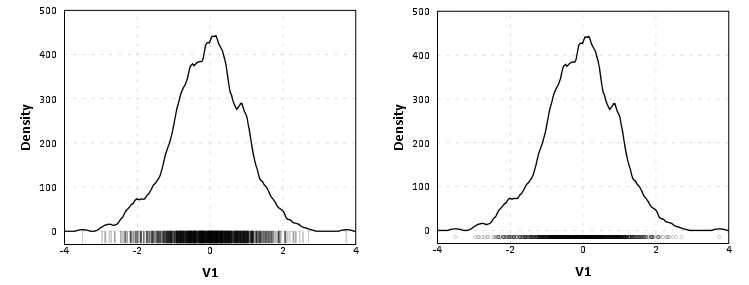
Next, I will show some code to make the two plots below. These are typical kernel density estimates of the V1 variable I made for the entire distribution, and these are to show the elements of the base bean plots. Note the use of the TRANS statement in the GPL to make a constant value to plot the rug of the distribution. Also note although such rugs are typically shown as bars, you could pretty much always use point markers as well in any situation where you use bars. Below the image is the GGRAPH code used to produce them.

******************************************.
*Regular density estimate with rug plot.
GGRAPH
  /GRAPHDATASET NAME="graphdataset" VARIABLES=V1 MISSING=LISTWISE REPORTMISSING=NO
  /GRAPHSPEC SOURCE=INLINE.
BEGIN GPL
  SOURCE: s=userSource(id("graphdataset"))
  DATA: V1=col(source(s), name("V1"))
  TRANS: rug = eval(-26)
  GUIDE: axis(dim(1), label("V1"))
  GUIDE: axis(dim(2), label("Density"))
  SCALE: linear(dim(2), min(-30))
  ELEMENT: interval(position(V1*rug), transparency.exterior(transparency."0.8"))
  ELEMENT: line(position(density.kernel.epanechnikov(V1*1)))
END GPL.

*Density estimate with points instead of bars for rug.
GGRAPH
  /GRAPHDATASET NAME="graphdataset" VARIABLES=V1 MISSING=LISTWISE REPORTMISSING=NO
  /GRAPHSPEC SOURCE=INLINE.
BEGIN GPL
  SOURCE: s=userSource(id("graphdataset"))
  DATA: V1=col(source(s), name("V1"))
  TRANS: rug = eval(-15)
  GUIDE: axis(dim(1), label("V1"))
  GUIDE: axis(dim(2), label("Density"))
  SCALE: linear(dim(2), min(-30))
  ELEMENT: point(position(V1*rug), transparency.exterior(transparency."0.8"))
  ELEMENT: line(position(density.kernel.epanechnikov(V1*1)))
END GPL.
******************************************.

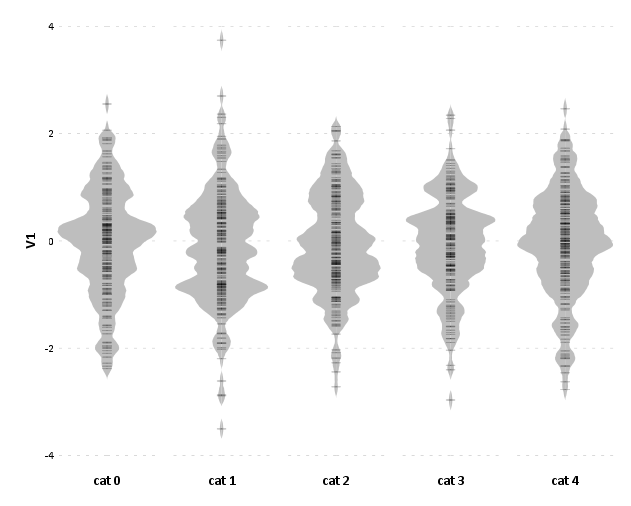
Now bean plots are just the above plots rotatated 90 degrees, adding a reflection of the distribution (so the area of the density is represented in two dimensions), and then further paneled by another categorical variable. To do the reflection, one has to create a fake variable equal to the first variable used for the density estimate. But after that, it is just knowing alittle GGRAPH magic to make the plots.

******************************************.
compute V2 = V1.

varstocases
/make V from V1 V2
/index panel_dum.

GGRAPH
  /GRAPHDATASET NAME="graphdataset" VARIABLES=V panel_dum groups MISSING=LISTWISE REPORTMISSING=NO
  /GRAPHSPEC SOURCE=INLINE.
BEGIN GPL
  SOURCE: s=userSource(id("graphdataset"))
  COORD: transpose(mirror(rect(dim(1,2))))
  DATA: V=col(source(s), name("V"))
  DATA: panel_dum=col(source(s), name("panel_dum"), unit.category())
  DATA: groups=col(source(s), name("groups"), unit.category())
  TRANS: zero = eval(10)
  GUIDE: axis(dim(1), label("V1"))
  GUIDE: axis(dim(2), null())
  GUIDE: axis(dim(3), null())
  SCALE: linear(dim(2), min(0))
  ELEMENT: area(position(density.kernel.epanechnikov(V*1*panel_dum*1*groups)), transparency.exterior(transparency."1.0"), transparency.interior(transparency."0.4"), 
           color.interior(color.grey), color.exterior(color.grey)))
  ELEMENT: interval(position(V*zero*panel_dum*1*groups), transparency.exterior(transparency."0.8"))
END GPL.
    ******************************************.

Note I did not label the density estimate anymore. I could have, but I would have had to essentially divide the density estimate by two, since I am showing it twice (which is possible, and if you wanted to show it you would omit the GUIDE: axis(dim(2), null()) command). But even without the axis they are still reasonable for relative comparisons. Also note the COORD statement for how I get the panels to mirror each other (the transpose statement just switches the X and Y axis in the charts).

I just post hoc edited the chart to get it to look nice (in particular settign the spacing between the panel_dum panel to zero and making the panel outlines transparent), but most of those things can likley be more steamlined by making an appropriate chart template. Two things I do not like, which I may need to edit the chart template to be able to accomplish anyway; 1) There is an artifact of a white line running down the density estimates, (it is hard to see with the rug, but closer inspection will show it), 2) I would prefer to have a box around all of the estimates and categories, but to prevent a streak running down the middle of the density estimates one needs to draw the panel boxes without borders. To see if I can accomplish these things will take further investigation.

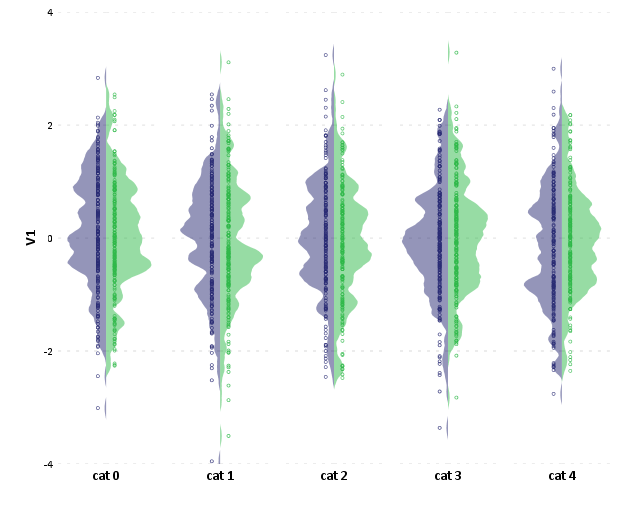
This framework is easily extended to the case where you don’t want a reflection of the same variable, but want to plot the continuous distribution estimate of a second variable. Below is an example, and here I have posted the syntax in entirety used in making this post. In there I also have an example of weighting groups inversely proportional to the total items in each group, which should make the area of each group equal.

In this example of comparing groups, I utilize dots instead of the bar rug, as I believe it provides more contrast between the two distributions. Also note in general I have not superimposed other summary statistics (some of the bean plots have quartile lines super-imposed). You could do this, but it gets a bit busy.

Comparing continuous distributions of unequal size groups in SPSS

The other day I had the task of comparing two distributions of a continous variable between two groups. One complication that arose when trying to make graphical comparisons was that the groups had unequal sample sizes. I’m making this blog post mainly because many of the options I will show can’t be done in SPSS directly through the graphical user interface (GUI), but understanding alittle bit about how the graphic options work in the GPL will help you make the charts you want to make without having to rely solely on what is available through the GUI.

The basic means I typically start out at are histograms, box-plots and a few summary statistics. The beginning code is just how I generated some fake data to demonstrate these graphics.

SET TNumbers=Labels ONumbers=Labels OVars=Labels TVars=Labels.
dataset close ALL.
output close ALL.
*making fake cases data.
set seed = 10.
input program.
loop #i = 1 to 5000.
if #i <= 1500 group = 1.
if #i > 1500 group = 2.
end case.
end loop.
end file.
end input program.
dataset name sim.
execute.

*making approximate log normal data.
if group = 1 time_event = (RV.LNORMAL(0.5,0.6))*10.
if group = 2 time_event = (RV.LNORMAL(0.6,0.5))*10.

variable labels time_event 'Time to Event'.
value labels group 
1 'Group 1'
2 'Group 2'.
formats group time_event (F3.0).

variable level group (nominal).

*Good First Stabs are Histograms and Box plots and summary statistics.
GRAPH
  /HISTOGRAM=time_event
  /PANEL ROWVAR=group ROWOP=CROSS.

EXAMINE VARIABLES=time_event BY group
  /PLOT=BOXPLOT
  /STATISTICS=NONE
  /NOTOTAL. 

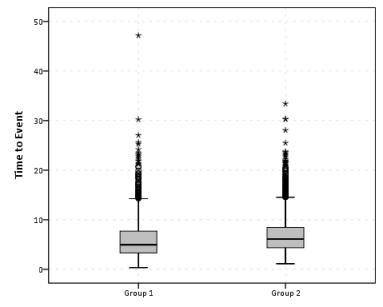
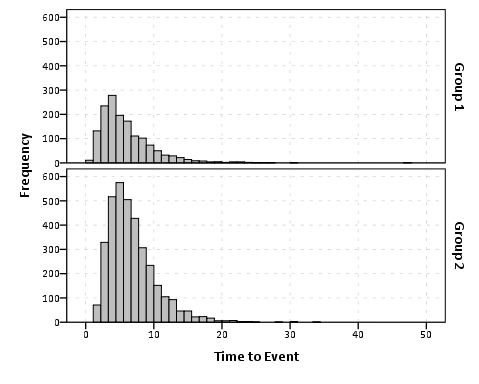
So this essentially produces a summary statistics table, a paneled histogram, and a box-plot (shown below).

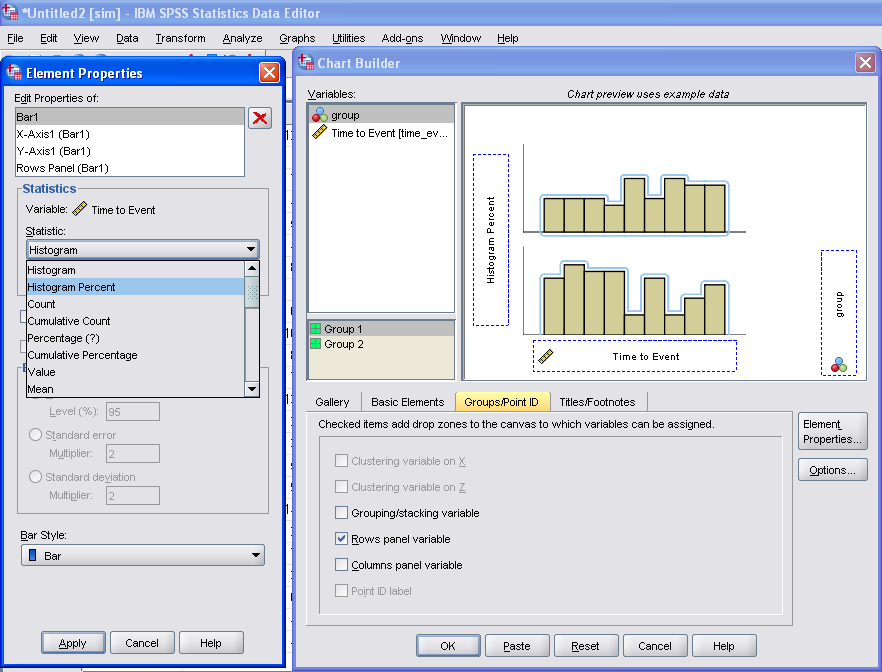
First blush this is an alright way to visually assess various characteristics of each distribution, and the unequal sizes of each group is not problematic when comparing the summary statistics nor the box-plots. The histogram produced by SPSS though is the frequency of events per bin, and this makes it difficult to compare Group 2 to Group 1, as Group 2 has so many more observations. One way to normalize the distributions is to make a histogram showing the percent of the distribution that falls within that bin as oppossed to the frequency. You can actually do this through the GUI through the Chart Builder, but it is buried within some various other options, below is a screen shot showing how to change the histogram from frequency to percents. Also to note, you need to change what the base percentage is built off of, by clicking the Set Parameters button (circled in red) and then toggling the denominator choice in the new pop up window to total for each panel (if you click on the screen shot images they will open up larger images).

Sometimes you can’t always get to what you want through the chart builder GUI though. For an example, I originally wanted to make a population pyramid type chart, and it does not allow you to specify the base percent like that through the GUI. So I originally made a pyramid chart like this;

And here is what the pasted output appears like.

GGRAPH
  /GRAPHDATASET NAME="graphdataset" VARIABLES=time_event group MISSING=LISTWISE REPORTMISSING=NO
  /GRAPHSPEC SOURCE=INLINE.
BEGIN GPL
  SOURCE: s=userSource(id("graphdataset"))
  DATA: time_event=col(source(s), name("time_event"))
  DATA: group=col(source(s), name("group"), unit.category())
  COORD: transpose(mirror(rect(dim(1,2))))
  GUIDE: axis(dim(1), label("Time to Event"))
  GUIDE: axis(dim(1), opposite(), label("Time to Event"))
  GUIDE: axis(dim(2), label("Frequency"))
  GUIDE: axis(dim(3), label("group"), opposite(), gap(0px))
  GUIDE: legend(aesthetic(aesthetic.color), null())
  SCALE: cat(dim(3), include("1", "2"))
  ELEMENT: interval(position(summary.count(bin.rect(time_event*1*group))), color.interior(group))
END GPL.

To get the percent bins instead of the count bins takes one very simple change to summary specification on the ELEMENT statement. One would simply insert summary.percent.count instead of summary.count. Which will approximately produce the chart below.
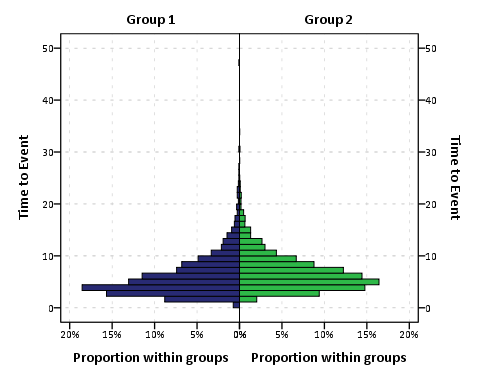
You can actually post-hoc edit the traditional histogram to make a population pyramid (by mirroring the panels), but by examining the GPL produced for the above chart gives you a glimpse of the potential possibilities you can do to produce a variety of charts in SPSS.

Another frequent way to assess continuous distributions like those displayed so far is by estimating kernel density smoothers through the distribution (sometime referred by the acronym kde (e is for estimate). Sometimes this is perferable because our perception of the distribution can be too highly impacted by the histogram bins. Kernel density smoothers aren’t available through the GUI at all though (as far as I’m aware), and so you would have only known the potential exisited if you looked at the examples in the GPL reference guide that comes with the software. Below is an example (including code).

GGRAPH
  /GRAPHDATASET NAME="graphdataset" VARIABLES=time_event group MISSING=LISTWISE REPORTMISSING=NO
  /GRAPHSPEC SOURCE=INLINE.
BEGIN GPL
  SOURCE: s=userSource(id("graphdataset"))
  DATA: time_event=col(source(s), name("time_event"))
  DATA: group=col(source(s), name("group"), unit.category())
  GUIDE: axis(dim(1), label("Time to Event"))
  GUIDE: axis(dim(2), label("Kernel Density Estimate"))
  GUIDE: legend(aesthetic(aesthetic.color.interior))
  SCALE: cat(aesthetic(aesthetic.color.interior), include("1", "2"))
  ELEMENT: line(position(density.kernel.epanechnikov(time_event*group)), color(group))
END GPL.

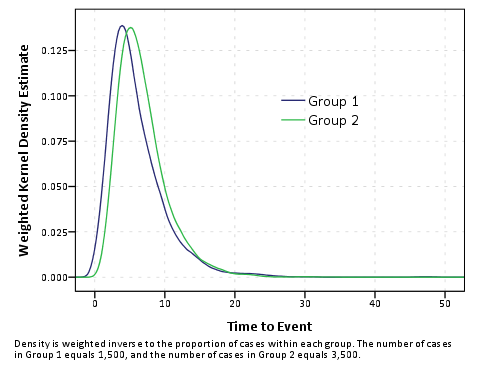
Although the smoothing is useful, again we have a problem with the unequal number of cases in the distributions. To solve this, I weighted cases inversely proportional to the number of observations that were in each group (i.e. the weight for group 1 is 1/1500, and the weight for group 2 is 1/3500 in this example). This should make the area underneath the lines sum to 1, and so to get the estimate back on the original frequency scale you would simply multiply the marginal density estimate by the total in the corresponding group. So for instance, the marginal density for group 2 at the time to event value of 10 is 0.05, so the estimated frequency given 3500 cases is .05 * 3500 = 175. To get back on a percentage scale you would just multiply by 100.

AGGREGATE
  /OUTFILE=* MODE=ADDVARIABLES
  /BREAK=group
  /cases=N.
compute myweight = 1/cases.

GGRAPH
  /GRAPHDATASET NAME="graphdataset" VARIABLES=time_event group myweight MISSING=LISTWISE REPORTMISSING=NO
  /GRAPHSPEC SOURCE=INLINE.
BEGIN GPL
  SOURCE: s=userSource(id("graphdataset"), weight(weightedVar))
  DATA: weightedVar=col(source(s), name("myweight"))
  DATA: time_event=col(source(s), name("time_event"))
  DATA: group=col(source(s), name("group"), unit.category())
  GUIDE: axis(dim(1), label("Time to Event"))
  GUIDE: axis(dim(2), label("Weighted Kernel Density Estimate"))
  GUIDE: legend(aesthetic(aesthetic.color.interior))
  GUIDE: text.footnote(label("Density is weighted inverse to the proportion of cases within each group. The number of cases in group 1 equals 1,500, and the number of cases ingroup 2 equals 3,500."))
  SCALE: cat(aesthetic(aesthetic.color.interior), include("1", "2"))
  SCALE: linear(dim(2))
  ELEMENT: line(position(density.kernel.epanechnikov(time_event*group)), color(group))
END GPL.

One of the critiques of this though is that choosing a kernel and bandwidth is ad-hoc (I just used all of the default kernal and bandwidth in SPSS here, and it differed in unexpected ways between the frequency counts and the weighted estimates which is undesirable). Also you can see that some of the density is smoothed over illogical values in this example (values below 0). Other potential plots are the cumualitive distribution and QQ-plots comparing the quantiles of each distribution to each other. Again these are difficult to impossible to obtain through the GUI. Here is the closest I could come to getting a cumulative distribution by groups through the GUI.

GGRAPH
  /GRAPHDATASET NAME="graphdataset" VARIABLES=time_event COUNT()[name="COUNT"] group 
    MISSING=LISTWISE REPORTMISSING=NO
  /GRAPHSPEC SOURCE=INLINE.
BEGIN GPL
  SOURCE: s=userSource(id("graphdataset"))
  DATA: time_event=col(source(s), name("time_event"))
  DATA: COUNT=col(source(s), name("COUNT"))
  DATA: group=col(source(s), name("group"), unit.category())
  GUIDE: axis(dim(1), label("Time to Event"))
  GUIDE: axis(dim(2), label("Cumulative Percent of Total"))
  GUIDE: legend(aesthetic(aesthetic.color.interior))
  SCALE: cat(aesthetic(aesthetic.color.interior), include("1", "2"))
  ELEMENT: line(position(summary.percent.cumulative(time_event*COUNT, base.all(acrossPanels()))), 
    color.interior(group), missing.wings())
END GPL.

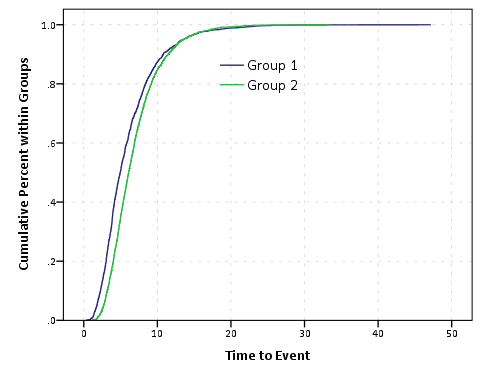
This is kind of helpful, but not really what I want. I wasn’t quite sure how to change the summary statistic functions in the ELEMENT statement to calculate percent within groups (I assume it is possible, but I just don’t know how), so I ended up just making the actual data to include in the plot. Example syntax and plot below.

sort cases by group time_event.
compute id = $casenum.
AGGREGATE
  /OUTFILE=* MODE=ADDVARIABLES
  /BREAK=group
  /id_min=MIN(id)
  /id_max=MAX(id).
compute cum_prop = ((id +1) - id_min)/(id_max - (id_min - 1)).


*Here is the cumulative proportion I want.
GGRAPH
  /GRAPHDATASET NAME="graphdataset" VARIABLES=time_event cum_prop group MISSING=LISTWISE 
    REPORTMISSING=NO
  /GRAPHSPEC SOURCE=INLINE.
BEGIN GPL
  SOURCE: s=userSource(id("graphdataset"))
  DATA: time_event=col(source(s), name("time_event"))
  DATA: cum_prop=col(source(s), name("cum_prop"))
  DATA: group=col(source(s), name("group"), unit.category())
  GUIDE: axis(dim(1), label("Time to Event"))
  GUIDE: axis(dim(2), label("Cumulative Percent within Groups"))
  GUIDE: legend(aesthetic(aesthetic.color.interior))
  SCALE: cat(aesthetic(aesthetic.color.interior), include("1", "2"))
  ELEMENT: line(position(time_event*cum_prop), color.interior(group), missing.wings())
END GPL.

These cumulative plots aren’t as problematic with bins as are the histograms or kde estimates, and in fact many interesting questions are much easier addressed with the cumulative plots. For instance if I wanted to know the proportion of events that happen within 10 days (or its complement, the proportion of events that do not yet occur within 10 days) this is an easy task with the cumulative plots. This would be at best extremely difficult to determine with the histogram or density estimates. The cumulative plot also gives a graphical comparisons of the distribution (although perhaps not as intuitive as the histogram or kde estimates). For instance it is easy to see the location of group 2 is slightly shifted to the right.

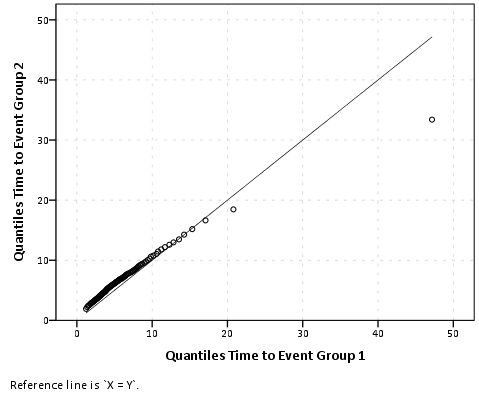
The last plot I present is a QQ-plot. These are typically presented as plotting an empirical distribution against a theoretical distribution, but you can plot two empirical distributions against each other. Again you can’t quite get the QQ-plot of interest though the regular GUI, and you have to do some data manipulation to be able to construct the elements of the graph. You can do QQ-plots against a theoretical distribution in the PPLOT command, so you could make seperate QQ plots for each subgroup, but this is less than ideal. Below I paste an example of my constructed QQ-plot, along with syntax showing how to use the PPLOT command for seperate sub-groups (using SPLIT FILE) and getting the quantiles of intrest using the RANK command.

sort cases by group time_event.
split file by group.
PPLOT
  /VARIABLES=time_event
  /NOLOG
  /NOSTANDARDIZE
  /TYPE=Q-Q
  /FRACTION=BLOM
  /TIES=MEAN
  /DIST=LNORMAL.
split file off.

*Not really what I want - I want Q-Q plot of one group versus the other group.
RANK VARIABLES=time_event (A) BY group
  /NTILES(99)
  /PRINT=NO
  /TIES=MEAN.

*Now aggregating to new dataset.
DATASET DECLARE quantiles.
AGGREGATE
  /OUTFILE='quantiles'
  /BREAK=group Ntime_ev 
  /time_event=MAX(time_event).
dataset activate quantiles.

sort cases by Ntime_ev group.
casestovars
/id = Ntime_ev
/index = group.

DATASET ACTIVATE quantiles.
* Chart Builder.
GGRAPH
  /GRAPHDATASET NAME="graphdataset" VARIABLES=time_event.1[name="time_event_1"] 
    time_event.2[name="time_event_2"] MISSING=LISTWISE REPORTMISSING=NO
  /GRAPHSPEC SOURCE=INLINE.
BEGIN GPL
  SOURCE: s=userSource(id("graphdataset"))
  DATA: time_event_1=col(source(s), name("time_event_1"))
  DATA: time_event_2=col(source(s), name("time_event_2"))
  GUIDE: axis(dim(1), label("Quantiles Time to Event Group 1"))
  GUIDE: axis(dim(2), label("Quantiles Time to Event Group 2"))
  ELEMENT: point(position(time_event_1*time_event_2))
  ELEMENT: line(position(time_event_1*time_event_1))
END GPL.

Although I started out with a simple question, it takes a fair bit of knowledge about both graphically comparing distributions and data management (i.e. how to shape your data) to be able to make all of these types of charts in SPSS. I intentionally made the reference distributions very similar, and if you just stuck with the typical histogram the slight differences in location and scale between the two distributions would not be as evident as it is with the kernel density, the cumulative distribution or the QQ-plots.

Beware of Mach Bands in Continuous Color Ramps

A recent post of mine on the cross validated statistics site addressed how to make kernel density maps more visually appealing. The answer there was basically just adjust the bandwidth until you get a reasonably smoothed surface (where reasonable means not over-smoothed to one big hill or undersmoothed to a bunch of unconnected hills).

Another problem that frequently comes along with the utlizing the default types of raster gradients is that of mach bands. Here is a replicated image I used in the cross validated site post (made utilizing the spatstat R library).

Even though the color ramp is continous, you see some artifacts around the gradient where the hue changes from what our eyes see as green to blue. To be more precise, approximately where the green hue touches the blue hue the blue color appears to be lighter than the rest of the blue background. This is not the case though, and is just an optical illusion (you can even see the mach bands in the legend if you look close). Mark Monmonier in How to Lie with Maps gives an example of this, and also uses that as a reason to not use continous color ramps (also another reason he gives is it is very difficult to map a color to an exact numerical location on the ramp). To note this isn’t just something that happens with this particular color ramp, this happens even when the hue is the same (the wikipedia page gives an example with varying grey saturation).

So what you say? Well, part of the reason it is a problem is because the artifact reinforces unnatural boundaries or groupings in the data, the exact opposite of what one wants with a continuous color ramp! Also the groupings are largely at the will of the computer, and I would think the analyst wants to define the groupings themselves when disseminating the maps (although this brings up another problem with how to define the color breaks). A general principle with how people interpret such maps is that they tend to form homogenous groupings anyway, so for both exploratory purposes and disseminating maps we should keep this in mind.

This isn’t a problem limited to isopleth maps either, the Color Brewer online app is explicitly made to demonstrate this phenonenom for choropleth maps visualizing irregular polygons. What happens is that one county that is spatially outlying compared to its neighbors appears more extreme on the color gradient than when it is surrounded by colors with the same hue and saturation. Below is a screen shot of what I am talking about, with some of the examples circled in red. They are easy to see that they are spatially outlying, but harder to map to the actual color on the ramp (and it gets harder when you have more bins).

Even with these problems I think the default plots in the spatstat program are perfectly fine for exploratory analysis. I think to disseminate the plots though I would prefer discrete bins in many (perhaps most) situations. I’ll defer discussion on how to choose the bins to another time!

Co-maps and Hot spot plots! Temporal stats and small multiple maps to visualize space-time interaction.

One of the problems with visualizing and interpreting spatial data is that there are characteristics of the geographical data that are hard to display on a static, two dimensional map. Friendly (2007) makes the pertinent distinction between map and non-map based graphics, and so the challenge is to effectively interweave them. One way to try to overcome this is to create graphics intended to supplement the map based data. Below I give two examples pertinent to analyzing point level crime patterns with attached temporal data, co-maps (Brunsdon et al., 2009) and the hot spot plot (Townsley, 2008).

co-maps

The concept of co-maps is an extension of co-plots, a visualization technique for small multiple scatterplots originally introduced by William Cleveland (1994). Co-plots are in essence a series of small multiples scatterplots in which the visualized scatter plot is conditioned on a third (or potentially fourth) variable. What is unique about co-plots are though the conditioning variable(s) is not mutually exclusive between categories, so the conditions overlap.

The point of co-plots is in general to see if the relationship between two variables has an interaction with a third continuous variable. When the conditioning variable is continuous, we wouldn’t expect the interaction to change dramatically with discrete cut-offs of the continuous variable, so we want to examine the interaction effect at varying levels of the conditioning variable. It is also useful in instances in which the data is sparse, and you don’t want to introduce artifactual relationships by making arbitrary cut-offs for the conditioning variable.

Besides the Cleveland paper cited (which is publicly available, link in citations at bottom of post), there are some good examples of coplot scatterplots from the R graphical manual.

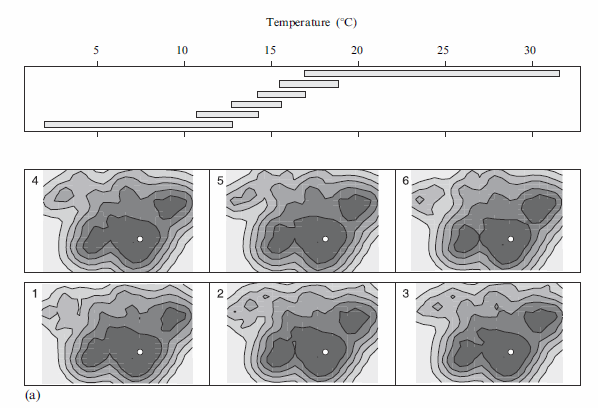
Brunsdon et al. (2009) extend the concept to analyzing point patterns, when time is the conditioning variable. Also because the geographic data are numerous, they apply kernel density estimation (kde) to visualize the results (instead of a sea of overlapping points). When visualizing geographic data, too many points are common, and the solutions to visualizing the data are essentially the same as people use for scatterplots (this thread at the stats site gives a few resources and examples concerning that). Below I’ve copied a picture from Brusdon et al., 2009 to show it applied to crime data.

Although the example is conditional on temperature (instead of time), it should be easy to see how it could be extended to make the same plot conditional on time. Also note the bar graph at the top denotes the temperature range, with the lowest bar corresponding to the graphic that is in the panel on the bottom left.

Also of potential interest, the same authors applied the same visualization technique to reported fires in another publication (Corcoran et al., 2007).

the hot spot plot

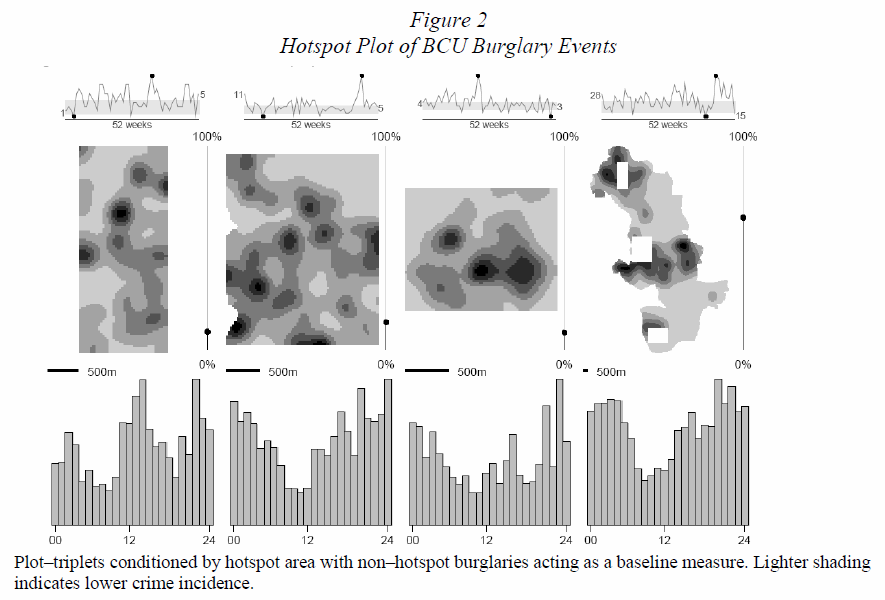
Another similarly motivated graphical presentation of the interaction of time and space is the hot-spot plot proposed by Michael Townsley (2008). Below is an example.

So the motivation here is having coincident graphics simulataneously depicting long term temporal trends (in a sparkline like graphic at the top of the plot), spatial hot spots depicted using kde, and a lower bar graphic depicting hourly fluctuations. This allows one to identify spatial hot spots, and then quickly assess their temporal nature. The example from the Townsley article I give is a secondary plot showing zoomed in locations of several analyst chosen hot spots, with the cut out remaining events left as a baseline.

Some food for thought when examing space-time trends with point pattern crime data.


Citations

Connect with me!

In taking the advice of this question on the Academia stack exchange site, Is web-presence important for researchers?, I’ve created this blog and joined several other social networking sites. If you are interested in my work, or think I would be interested in yours, feel free to connect with me in any of these following venues.

Are there any other sites I should be joining? Let me know in the comments.

Making a reproducible example in SPSS

Since I participate on several sites in which programming related questions in regards to SPSS appear (StackOverflow and the SPSS Google group forum mainly), I figured it would useful to share some code snippets that would allow one to make a minimal working example to demonstrate what the problem is (similar in flavor to this question on StackOverflow for R).

Basically this involves two steps; 1) making some fake data (or using an existing dataset), 2) including the code that produces the error or a description of what you would like to accomplish. Since 2 will vary depending on your situation, here I will just be demonstrating the first part, making some fake data.

There are four main ways I use syntax to generate fake data on a regular basis to work with. Below I will demonstrate them;

INPUT PROGRAM

*******************************.
set seed = 10. /* sets random seed generator to make exact data reproducible */.
input program.
loop #j = 1 to 100. /*I typically use scratch variables (i.e. #var) when making loops.
    loop #i = 1 to 100. /*multiple loops allows you to make grouped data.
    compute V1 = RV.NORM(0,1). /*you can use the random number generators to make different types of data.
    compute V2 = RV.UNIFORM(0,1).
    compute V3 = RV.POISSON(3).
    compute V4 = RV.BERNOULLI(.5).
    compute V5 = RV.BINOM(5,.8).
    compute mycat = TRUNC(RV.UNIFORM(0,5)). /*this makes categorical data with 4 groups.
    compute group = #j. /*this assigns the scratch variable #j to an actual variable.
    end case.
    end loop.
end loop.
end file.
end input program.
dataset name sim.
execute. /*note spacing is arbitrary and is intended to make code easier to read.
*******************************.

Using an input program block and the random variable functions provided by SPSS is my most frequent way to make data to work with. Above I also demonstrate the ability to make grouped data by using two loops in the input program block, as well as a variety of different data types using SPSS’s random number generator. This is also the best way to make big data, for an example use you can see this question I answered on Stackoverflow, How to aggregate on IQR in SPSS? which required an example with 4 million cases.

DATA LIST

*******************************.
data list free / V1 (F2.0) V2 (F2.0) V3 (A4).
begin data
1 2 aaaa
3 4 bbbb
5 6 cccc
end data.
dataset name input.
*******************************.

Using data list is just SPSS’s way to read in plain text data. An example where this came in handy was another question I answered on Stackoverflow, How to subtract certain minuted from a DateTime in SPSS. There I read in some custom data-time data as strings and demonstrated how to convert it to actual date-time variables. I also used this recently on a question over at the Developerworks forum to show some plotting capabilities, Plotting lines and error bars. It was just easier in that instance to make some fake data that conformed to how I needed the data in GPL than going through a bunch of transformations to shape the data.

GET FILE

*******************************.
*Base datasets that come with SPSS.
FILE HANDLE base_data /Name = "C:\Program Files\SPSSInc\Statistics17\Samples\English".
get file = "base_data\Cars.sav".
dataset name cars.
get file = "base_data\1991 U.S. General Social Survey.sav".
dataset name gss.
*there are a bunch more data files in there.
*******************************.

SPSS comes with a bunch of example datasets, and you can insert some simple code to grab one of those. Note here I use FILE HANDLE, making it easier for someone to update their the code to the location of their own data (same for saving data files). Also this logic could be used in an instance if you upload your exact data to say dropbox to allow people to download it.

Data with cases Python program

*******************************.
begin program.
import statsgeneratedata
numvar = 3
numcase = 100
parms = "0 1 "
dsname = "python_sim"
factor = "nofactor"
corrtype = "ARBITRARY"
corrs = "1 .5 1 .5 .5 1"
displaycorr="noprint"
distribution = "NORMAL"
displayinputpgm = "noprint"
statsgeneratedata.generate(dsname, numvar, numcase, distribution, parms, 
  factor, corrtype, corrs, displaycorr, displayinputpgm)
end program.
*******************************.

This uses a custom python program makedata available as a download from SPSS developerworks. Although I provide code above, once installed it comes with its own GUI. Although I don’t typically use this when answering questions (as it requires having Python installed) it has certainly come in handy for my own analysis, especially the ability to generate correlated data.


This isn’t the only part of making an easy to answer question, but having some data at hand to demonstrate your problem is a good start. It certainly makes the work of others who are trying to help easier. Also see a (when I am writing this) recent exchange on posting to the NABBLE SPSS group. IMO making some example data to demonstrate your problem is a very good start to asking a clear and cogent question.

Reference lines for star plots aid interpretation

The other day I was reading Nathan Yau’s Visualize This, and in his chapter on visualizing multi-variate relationships, he brought up star plots (also referred to as radar charts by Wikipedia). Below is an example picture taken from a Michael Friendly conference paper in 1991.


Update: Old link and image does not work. Here is a crappy version of the image, and an updated link to a printed version of the paper.

One of the things that came to mind when I was viewing the graph is that a reference line to signify points along the stars would be nice (similar to an anchor figure I mention in the making tables post on the CV blog). Lo and behold, the author of the recently published EffectStars package for R must have been projecting his thoughts into my mind. Here is an example taken from their vignette on the British Election Panel Study

Although the use case is not exactly what I had in mind (some sort of summary statistics for coefficients in multi-nomial logistic regression models), the idea is still the same. The small multiple radar charts typically lack a scale with which to locate values around the star (see a google image search of star plots to reinforce my assertion) . Although I understand data reduction is necessary when plotting a series of small multiples like this, I find it less than useful to lack the ability to identify the actual value along the star in that particular node. Utilizing reference lines (like the median or mean of the distribution, along with the maximum value) should help with this (at least you can compare whether nodes are above/below said reference line). It would be similar to inserting a guidline for the median value in a parallel coordinates plot (but obviously this is not necessary).

Here I’ve attempted to display what I am talking about in an SPSS chart. Code posted here to replicate this and all of the other graphics in this post. If you open the image in a new tab you can see it in its full grandeur (same with all of the other images in this post).


Lets back up a bit, to explain in greater detail what a star plot is. So to start out, our coordinate system of the plot is in polar coordinates (instead of rectangular). Basically the way I think of it is the X axis in a rectangular coordinate system is replaced by the location around the circumference of a circle, and the Y axis is replaced by the distance from the center of the circle (i.e. the radius). Here is an example, using fake data for time of day events. The chart on the left is a “typical” bar chart, and the chart on the right are the same bars displayed in polar coordinates.

The star plots I displayed before are essentially built from the same stuff, they just have various aesthetic parts of the graph (referred to as “guides” in SPSS’s graphics language) not included in the graph. When one is making only one graphic, one typically has the guides for the reference coordinate system (as in the above charts). In particular here I’m saying the gridlines for the radius axis are really helpful.

Another thing that should be mentioned is, comparing multi-variate data one typically needs to normalize the locations along any node in the chart to make sense. An example might be if one node around the star represents a baseball players batting average, and another represents their number of home runs. You can’t put them on the same scale (which is the radius in a polar coordinate system), as their values are so disparate. All of the home runs would be much closer to the circumferance of the circle, and the batting averages would be all clustered towards the center.

The image below uses the same US average crime rate data from Nathan Yau’s book (available here) to demonstrate this. The frequency that some of the more serious crimes happen, such as homicide, are much smaller than less serious crimes such as assault and burglary. Mapping all of these types of crimes to the same radius in the chart does not make sense. Here I just use points to demonstrate the distributions, and a jittered dot plot is on the right to demonstrate the same problem (but more clearly).

So to make the different categories of crimes comparable one needs to transform the distributions to be on similar scales. What is typically done in parrallel coordinate plots is to rescale the distribution for any variable to between 0 and 1 (a simple example would be new_x = (x – x_min)/(x_max – x_min) where new_x is the new value, x is the old value, x_min is the minimum of all the x values, and x_max is the maximum of all the x values).1 But depending on the data you could use others (if all could be re-expressed as proportions of something would be an example). Here I will rank the data.

1: This re-scaling procedure will not work out well if you have an outlier. There is probably no universal good way to do the rescaling for comparisons like these, and best practices will vary depending on context.

So here the reference guide is not as useful (since the data is rescaled it is not as readily intuitive as the original rates). But, we could still include reference guides for say the maximum value (which would amount to a circle around the star plot) or some other value (like the median of any node) or a value along the rescaled distribution (like the mid-point – which won’t be the same as the original median). If you use something like the median in the original distribution it won’t be a perfect circle around the star.

Here the background reference line in the plot on the left is the middle rank (26 out of 50 states plus D.C.). The background reference line in the plot on the left is the middle rank (26 out of 50 states plus D.C.). The reference guide in the plot on the right is the ranking if the US average were ranked as well (so all the points more towards the center of the circle are below the US average).

Long story short, all I’m suggesting if your in a situation in which the reference guides are best ommitted, an unobstrusive reference guide can help. Below is an example for the 50 states (plus Washington, D.C.), and the circular reference guide marks the 26th rank in the distribution. The plot I posted at the beginning of the blog post is just this sprucced up alittle bit plus a visual legend with annotations.


Part of the reason I am interested in such displays is that they are useful in visualizing multi-variate geographic data. The star plots (unlike bar graphs or line graphs) are self contained, and don’t need a common scale (i.e. they don’t need to be placed in a regular fashion on the map to still be interpretable). Examples of this can be found in this map made by Charles Minard utilizing pie charts, Dan Carr’s small glyphs (page 7), or in a paper by Michael Friendly revisiting the moral statistics produced by old school criminologist Andre Guerry. An example from the Friendly paper is presented below (and I had already posted it as an example for visualizng multi-variate data on the GIS stackexchange site).


An example of how it is difficult to visualize lines without a common scale is given in this working paper of Hadley Wickham’s (and Cleveland talks about it and gives an example of bar charts in The Elements). Cleveland’s solution is to provide the bar a container which provides an absolute reference for the length of that particular bar, although it is still really hard to assess spatial patterns that way (the same could probably be said of the star plots too though).

Given models with many spatially varying parameters I think this has potential to be applied in a wider variety of situations. Instances that first come to mind are spatial discrete choice models, but perhaps it could be extended to situations such as geographically weighted regression (see a paper, Visual comparison of Moving Window Kriging Models by Demsar & Harris, 2010 for an example) or models which have spatial interactions (e.g. multi-level models where the hierarchy is some type of spatial unit).

Don’t take this as I’m saying that star charts are a panacea or anything, visualizing geographic patterns is difficult with these as well. Baby steps though, and reference lines are good.

I know the newest version of SPSS has the ability to place some charts, like pie charts, on a map (see this white paper), but I will have to see if it is possible to use polar coordinates like this. Since as US state map is part of the base installation for the new version 20, if it is possible someone could just use this data I presented here fairly easily I would think.

Also as a note, when making these star plots I found this post on the Nabble SPSS forum to be very helpful, especially the examples given by ViAnn Beadle and Mariusz Trejtowicz.


A quick SPSS tip: Using vertical selection in Notepad++ to edit printed MACRO statements

The version of the SPSS syntax editor is really nice and I use it for most of daily analysis. Sometimes though I utlize the text editor Notepadd++ for various tasks that are difficult to accomplish in the SPSS editor. Here I will highlight one instance which I have found Notepad++ to be really helpful, editing printed MACRO statements by using vertical selection.

To start off with a brief example, I have created a very simple MACRO that has an obvious error in it.

**************************************************.
data list free / V1 (F2.0) V2 (F2.0) V3 (A4).
begin data
1 2 aaaa
3 4 bbbb
5 6 cccc
end data.
dataset name input.

DEFINE !example ().
compute X = V1 + V3.
!ENDDEFINE.

set mprint on.

!example.
**************************************************.

When expanded, the printed statement in the output viewer appears like this;

  56  0 M>   
  57  0 M>  . 
  58  0 M>  compute X = V1 + V3 
  59  0 M>  .

Now this is a trivial problem to fix, but what if you have 100’s of line of code and want to edit out all of the beginning text before the commands (e.g. the 59 0 M> part)? It is useful to debug the expanded code because when debugging you can step through the expanded code but not the MACRO code. To edit out the intial lines in Notepad++ is not very hard though because of the ability to utilize vertical selection. If you copy and paste the expanded macro statements into Notepadd++, then press Alt and Shift simultaneously (this is for Windows, I’m not sure about other operating systems), one can vertically select the first 13 columns of text and delete them in one swoop. See picture below to see what I am talking about with vertical selection.

I’ve found having another text editor at my disposal is useful for other tasks as well, so it is something to keep in mind when doing alot of text editing in SPSS anyway. For instance any time I need to find and replace I have much better experience doing it in Notepad++ (and SPSS doesn’t have wildcard find/replace which is obviously helpful in many situations). SPSS syntax files, .sps, are plain text so you can actually just edit those files directly in any text editor you want as well.

Avoid Dynamite Plots! Visualizing dot plots with super-imposed confidence intervals in SPSS and R

Over at the stats.se site I have come across a few questions demonstrating the power of utilizing dot plots to visualize experimental results.

Also some interesting discussion on what error bars to plot in similar experiments is in this question, Follow up: In a mixed within-between ANOVA plot estimated SEs or actual SEs?

Here I will give two examples utilizing SPSS and R to produce similar plots. I haven’t annotated the code that much, but if you need anything clarified on what the code is doing let me know in the comments. The data is taken from this question on the stats site.


Citations of Interest to the Topic


SPSS Code to generate below dot plot


*******************************************************************************************. data list free /NegVPosA NegVNtA    PosVNegA    PosVNtA NtVNegA NtVPosA.
begin data
0.5 0.5 -0.4    0.8 -0.45   -0.3
0.25    0.7 -0.05   -0.35   0.7 0.75
0.8 0.75    0.65    0.9 -0.15   0
0.8 0.9 -0.95   -0.05   -0.1    -0.05
0.9 1   -0.15   -0.35   0.1 -0.85
0.8 0.8 0.35    0.75    -0.05   -0.2
0.95    0.25    -0.55   -0.3    0.15    0.3
1   1   0.3 0.65    -0.25   0.35
0.65    1   -0.4    0.25    0.3 -0.8
-0.15   0.05    -0.75   -0.15   -0.45   -0.1
0.3 0.6 -0.7    -0.2    -0.5    -0.8
0.85    0.45    0.2 -0.05   -0.45   -0.5
0.35    0.2 -0.6    -0.05   -0.3    -0.35
0.95    0.95    -0.4    0.55    -0.1    0.8
0.75    0.3 -0.05   -0.25   0.45    -0.45
1   0.9 0   0.5 -0.4    0.2
0.9 0.25    -0.25   0.15    -0.65   -0.7
0.7 0.6 -0.15   0.05    0   -0.3
0.8 0.15    -0.4    0.6 -0.05   -0.55
0.2 -0.05   -0.5    0.05    -0.5    0.3
end data.
dataset name dynamite.

*reshaping the data wide to long, to use conditions as factors in the plot.

varstocases
/make condition_score from NegVPosA to NtVPosA
/INDEX = condition (condition_score).

*dot plot, used dodge symmetric instead of jitter.
GGRAPH
  /GRAPHDATASET dataset = dynamite NAME="graphdataset" VARIABLES=condition condition_score MISSING=LISTWISE
    REPORTMISSING=NO
  /GRAPHSPEC SOURCE=INLINE.
BEGIN GPL
  SOURCE: s=userSource(id("graphdataset"))
  DATA: condition=col(source(s), name("condition"), unit.category())
  DATA: condition_score=col(source(s), name("condition_score"))
  GUIDE: axis(dim(1), label("condition"))
  GUIDE: axis(dim(2), label("condition_score"))
  ELEMENT: point.dodge.symmetric(position(condition*condition_score))
END GPL.

*confidence interval plot.

*cant get gpl working (maybe it is because older version) - will capture std error of mean.

dataset declare mean.
OMS /IF LABELS = 'Report'
/DESTINATION FORMAT = SAV OUTFILE = 'mean'.
MEANS TABLES=condition_score BY condition
  /CELLS MEAN SEMEAN.
OMSEND.

dataset activate mean.
compute mean_minus = mean - Std.ErrorofMean.
compute mean_plus = mean + Std.ErrorofMean.
execute.

select if Var1  "Total".
execute.

rename variables (Var1 = condition).

*Example just interval bars.
GGRAPH
  /GRAPHDATASET dataset = mean NAME="graphdataset2" VARIABLES=condition mean_plus
  mean_minus Mean[LEVEL=SCALE]
    MISSING=LISTWISE REPORTMISSING=NO
  /GRAPHSPEC SOURCE=INLINE.
BEGIN GPL
  SOURCE: s2=userSource(id("graphdataset2"))
  DATA: condition=col(source(s2), name("condition"), unit.category())
  DATA: mean_plus=col(source(s2), name("mean_plus"))
  DATA: mean_minus=col(source(s2), name("mean_minus"))
  DATA: Mean=col(source(s2), name("Mean"))
  GUIDE: axis(dim(1), label("Var1"))
  GUIDE: axis(dim(2), label("Mean Estimate and Std. Error of Mean"))
  SCALE: linear(dim(2), include(0))
  ELEMENT: interval(position(region.spread.range(condition*(mean_minus+mean_plus))),
    shape(shape.ibeam))
  ELEMENT: point(position(condition*Mean), shape(shape.square))
END GPL.

*now to put the two datasets together in one chart.
*note you need to put the dynamite source first, otherwise it treats it as a dataset with one observation!
*also needed to do some post-hoc editing to get the legend to look correct, what I did was put an empty text box over top of
*the legend items I did not need.

GGRAPH
  /GRAPHDATASET dataset = mean NAME="graphdataset2" VARIABLES=condition mean_plus
  mean_minus Mean[LEVEL=SCALE]
    MISSING=LISTWISE REPORTMISSING=NO
  /GRAPHDATASET dataset = dynamite NAME="graphdataset" VARIABLES=condition condition_score MISSING=LISTWISE
    REPORTMISSING=NO
  /GRAPHSPEC SOURCE=INLINE.
BEGIN GPL
  SOURCE: s=userSource(id("graphdataset"))
  DATA: condition2=col(source(s), name("condition"), unit.category())
  DATA: condition_score=col(source(s), name("condition_score"))
  SOURCE: s2=userSource(id("graphdataset2"))
  DATA: condition=col(source(s2), name("condition"), unit.category())
  DATA: mean_plus=col(source(s2), name("mean_plus"))
  DATA: mean_minus=col(source(s2), name("mean_minus"))
  DATA: Mean=col(source(s2), name("Mean"))
  GUIDE: axis(dim(1), label("Condition"))
  GUIDE: axis(dim(2), label("Tendency Score"))
  SCALE: linear(dim(2), include(0))
  SCALE: cat(aesthetic(aesthetic.color.interior), map(("Observation", color.grey), ("Mean", color.black), ("S.E. of Mean", color.black)))
  SCALE: cat(aesthetic(aesthetic.color.exterior), map(("Observation", color.grey), ("Mean", color.black), ("S.E. of Mean", color.black)))
  SCALE: cat(aesthetic(aesthetic.shape), map(("Observation", shape.circle), ("Mean", shape.square), ("S.E. of Mean", shape.ibeam)))
  ELEMENT: point.dodge.symmetric(position(condition2*condition_score), shape("Observation"), color.interior("Observation"), color.exterior("Observation"))
  ELEMENT: interval(position(region.spread.range(condition*(mean_minus+mean_plus))),
    shape("S.E. of Mean"), color.interior("S.E. of Mean"), color.exterior("S.E. of Mean"))
  ELEMENT: point(position(condition*Mean), shape("Mean"), color.interior("Mean"), color.exterior("Mean"))
END GPL.
*******************************************************************************************.

R code using ggplot2 to generate dot plot


library(ggplot2)
library(reshape)

#this is where I saved the associated dat file in the post
work <- "F:\\Forum_Post_Stuff\\dynamite_plot"
setwd(work)

#reading the dat file provided in question
score <- read.table(file = "exp2tend.dat",header = TRUE)

#reshaping so different conditions are factors
score_long <- melt(score)

#now making base dot plot
plot <- ggplot(data=score_long)+
layer(geom = 'point', position =position_dodge(width=0.2), mapping = aes(x = variable, y = value)) +
theme_bw()

#now making the error bar plot to superimpose, I'm too lazy to write my own function, stealing from webpage listed below
#very good webpage by the way, helpful tutorials in making ggplot2 graphs
#http://wiki.stdout.org/rcookbook/Graphs/Plotting%20means%20and%20error%20bars%20(ggplot2)/

##################################################################################
## Summarizes data.
## Gives count, mean, standard deviation, standard error of the mean, and confidence interval (default 95%).
##   data: a data frame.
##   measurevar: the name of a column that contains the variable to be summariezed
##   groupvars: a vector containing names of columns that contain grouping variables
##   na.rm: a boolean that indicates whether to ignore NA's
##   conf.interval: the percent range of the confidence interval (default is 95%)
summarySE <- function(data=NULL, measurevar, groupvars=NULL, na.rm=FALSE, conf.interval=.95, .drop=TRUE) {
    require(plyr)

    # New version of length which can handle NA's: if na.rm==T, don't count them
    length2 <- function (x, na.rm=FALSE) {
        if (na.rm) sum(!is.na(x))
        else       length(x)
    }

    # This is does the summary; it's not easy to understand...
    datac <- ddply(data, groupvars, .drop=.drop,
                   .fun= function(xx, col, na.rm) {
                           c( N    = length2(xx[,col], na.rm=na.rm),
                              mean = mean   (xx[,col], na.rm=na.rm),
                              sd   = sd     (xx[,col], na.rm=na.rm)
                              )
                          },
                    measurevar,
                    na.rm
             )

    # Rename the "mean" column
    datac <- rename(datac, c("mean"=measurevar))

    datac$se <- datac$sd / sqrt(datac$N)  # Calculate standard error of the mean

    # Confidence interval multiplier for standard error
    # Calculate t-statistic for confidence interval:
    # e.g., if conf.interval is .95, use .975 (above/below), and use df=N-1
    ciMult <- qt(conf.interval/2 + .5, datac$N-1)
    datac$ci <- datac$se * ciMult

    return(datac)
}
##################################################################################

summary_score <- summarySE(score_long,measurevar="value",groupvars="variable")

ggplot(data = summary_score) +
layer(geom = 'point', mapping = aes(x = variable, y = value)) +
layer(geom = 'errorbar', mapping = aes(x = variable, ymin=value-se,ymax=value+se))

#now I need to merge these two dataframes together and plot them over each other
#merging summary_score to score_long by variable

all <- merge(score_long,summary_score,by="variable")

#adding variables to data frame for mapping aesthetics in legend
all$observation <- "observation"
all$mean <- "mean"
all$se_mean <- "S.E. of mean"

#these define the mapping of categories to aesthetics
cols <- c("S.E. of mean" = "black")
shape <- c("observation" = 1)

plot <- ggplot(data=all) +
layer(geom = 'jitter', position=position_jitter(width=0.2, height = 0), mapping = aes(x = variable, y = value.x, shape = observation)) +
layer(geom = 'point', mapping = aes(x = variable, y = value.y, color = se_mean)) +
layer(geom = 'errorbar', mapping = aes(x = variable, ymin=value.y-se,ymax=value.y+se, color = se_mean)) +
scale_colour_manual(" ",values = cols) +
scale_shape_manual(" ",values = shape) +
ylab("[pVisual - pAuditory]") + xlab("Condition") + theme_bw()
plot
#I just saved this in GUI to png, saving with ggsave wasn't looking as nice

#changing width/height in ggsave seems very strange, maybe has to do with ymax not defined?
#ggsave(file = "Avoid_dynamite.png", width = 3, height = 2.5)
#adjusting size of plot within GUI works just fine

Feel free to let me know of any suggested improvements in the code. The reason I did code both in SPSS and R is that I was unable to generate a suitable legend in SPSS originally. I was able to figure out how to generate a legend in SPSS, but it still requires some post-hoc editing to eliminate the extra aesthetic categories. Although the chart is simple enough maybe a legend isn’t needed anyway.

Some tips on keeping up with contemporary scholarly research

A brief tip on two tools I use to keep up with contemporary scholarly research, RSS feeds from peer reviewed publications, and google scholar alerts.

RSS feeds are a really awesome way to aggregate information into easily readable short clips. And using RSS feeds has greatly improved the amount of information I consume on a regular basis.

Most peer-reviewed publications I am interested in have RSS feeds for the current issue and online first articles, and they post the title, abstract and authors for every feed. One of the nice things about this is that publications publish infrequently enough that they aren’t particularly bothersome, and so I have a huge list of publications I follow and peruse the titles/abstracts. Also because I use google reader as my feed reader, I have a custom “sendto” button to send the article directly to my citeulike library to read later if I’m interested.

I also use google scholar alerts to send me emails when new articles appear under specific search terms. For instance I have a search for “journey to crime”, and I believe I get an update for a new article on average every two weeks. I suspect if you use more general search terms it would be more bothersome with updates, but if that is the case it would be better to refine your search terms to be more specific anyway.

I previously used this tool to keep up to date on some authors whose work I’m generally interested in, but Rob Hyndman mentions that a new option is signing up for email alerts directly from an individual scholar’s profile page (which is a fairly new addition I believe).  I even see I can sign up for alerts for articles that cite my own (meager) list of publications so far.

These two tools, RSS feeds and google scholar alerts, have greatly aided me to be aware of contemporary research. In particular RSS feeds have really expanded my awareness of fields outside of criminology/criminal justice that I do not read articles from as frequently.

Some other tools that I use, but the breadth of information is not quite as large as RSS feeds or google scholar alerts (but are worth an honorable mention are);

  • citeulike watch lists, groups, connections & watched tag lists. I would guess similar networking tools are available in Mendeley
  • Public repositories of working papers, such as SSRNNBER, arXIV. Unfortunately these popular ones don’t have any categories that really conform to my field, but it appears a new program called Academia.edu allows to post working papers. For an example see my friends, Kelly Socia’s profile.