Using SPSS as a calculator: Printing immediate calculations

I find it useful sometimes to do immediate calculations when I am in an interactive data analysis session. In either the R or Stata statistical program, this is as simple as evaluating a valid expression. For an example, typing 8762 - 4653 into the R console will return the result of the expression, 4109. SPSS does not come out of the box with this functionality, but I have attempted to replicate it utilizing the PRINT command with temporary variables, and wrap it up in a MACRO for easier use.

The PRINT command can be used to print plain text output, and takes active variables in the dataset as input. For instance in you have a dataset that consists of the following values;

***************************.
data list free / V1 (F2.0) V2 (F2.0) V3 (A4).
begin data
1 2 aaaa
3 4 bbbb
5 6 cccc
end data.
dataset name input.
dataset activate input.
***************************.

If you run the syntax command

***************************.
PRINT /V1.
exe. 
***************************.

The resulting text output (in the output window) will be (Note that for the PRINT command to route text to the output, it needs to be executed);

1
3
5

Now, to make my immediate expression calculator to emulate R or Stata, I do not want to print out all of the cases in the active dataset (as the expression will be a constant, it is not necessary or wanted). So I can limit the number of cases on the PRINT command by using a DO IF and using the criteria $casenum = 1 ($casenum is an SPSS defined variable referring to the row in the dataset). One can then also calculate a temporary variable (represented with a # in the prefix of a variable name) to pass the particular expression to be printed. The below example evaluates 9**4 (nine to the fourth power);

***************************.
DO IF $casenum = 1.
compute #temp = 9**4.
PRINT /#temp.
END IF.
exe.
***************************.

Now we have the ability to pass an expression and have the constant value returned (as long as it would be a valid expression on the right hand side of a compute statement). To make this alittle more automated, one can write a macro that evaluates the expression.

***************************.
DEFINE !calc (!POSITIONAL !CMDEND).
DO IF $casenum = 1.
compute #temp = !1.
PRINT /#temp.
END IF.
exe.
!ENDDEFINE.

!calc 11**5.
***************************.

And now we have a our script that takes an expression and returns the answer. This isn’t great when the number of cases is humongous, as it still appears to cycle through all of the records in the dataset, but for most realisitic sized datasets this calculation will be instantaneous. For a test on 10 million cases, the result was returned in approximately two seconds on my current computer, but the execution of the command took another few seconds to cycle through the dataset.

Other problems with this I could see happening are you cannot directly control the precision with which the value is returned. It appears the temporary variable is returned as whatever the current default variable format is. Below is an example in syntax changing the default to return 5 decimal places.

***************************.
SET Format=F8.5.
!calc 3/10.
***************************.

Also as a note, you will need to have an active dataset with at least one case within it for this to work. Let me know in the comments if I’m crazy and there is an obviously easier way to do this.

Example (good and bad) uses of 3d choropleth maps

A frequent critique of choropleth maps is that, in the process of choosing color bins, one can hide substantial variation within each of the bins . An example of this is in this critique of a map in the Bad maps thread on the GIS stackexchange site.  In particular, Laurent argues that the classification scheme (in that example map) is misleading because China’s population (1.3 billion) and Indonesia’s population (0.2 billion) are within the same color bin although they have noteworthy differences in their population.

I think it is a reasonable note, and such a difference would be noteworthy in a number of contexts. One possible solution to this problem is by utilizing 3d choropleth maps, where the height of the bar maps to a quantitative value.  An example use of this can be found at Alasdair Rae’s blog, Daytime Population in the United States.

The use of 3d allows one to see the dramatic difference in daytime population estimates between the cities (mainly on the east coast).  Whereas a 2d map relying on a legend can’t really demonstrate the dramatic magnitude of differences between legend items like that.

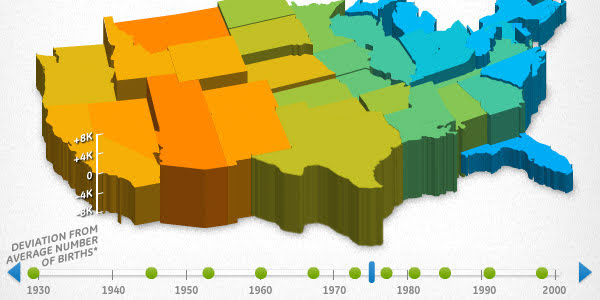
I’m not saying a 3d map like this is always the best way to go. Frequent critiques are that the bars will hide/obstruct data. Also it is very difficult to really evaluate where the bars lie on the height dimension. For an example of what I am talking about, see the screen shot used for this demonstration,  A Historical Snapshot of US Birth Trends, from ge.com (taken from the infosthetics blog).

If you took the colors away, would you be able to tell that Virginia is below average?

Still, I think used sparingly and to demonstrate dramatic differences they can be used effectively.  I give a few more examples and/or reading to those interested below.

References

Ratti, Carlo, Stanislav Sobolevsky, Francesco Calabrese, Clio Andris, Jonathan Reades, Mauro Martino, Rob Claxton & Steven H. Strogatz. (2010) Redrawing the map of Great Britain from a Network of Human Interactions. PLoS ONE 5(12). Article is open access from link.

This paper is an example of using 3d arcs for visualization.

Stewart, James & Patrick J. Kennelly. 2010. Illuminated choropleth maps. Annals of the Association of American Geographers 100(3): 513-534.

Here is a public PDF by one of the same authors demonstrating  the concept. This paper gives an example of using 3d choropleth maps, and in particular is a useful way to utilize a 3d shadow effect that slightly enhances distinguishing differences between two adjacent polygons. This doesn’t technique doesn’t really map height to a continuous variable though, just uses shading to distinguish between adjacent polygons.

Other links of interest

GIS Stackexchange question – When is a 3D Visualisation in GIS Useful?

A cool example of utilizing 3d in kml maps on the GIS site by dobrou, Best practices for visualizing speed.

Alasdair Rae’s blog has several examples of 3d maps besides the one I linked to here, and I believe he was somehow involved in making the maps associated with this Centre for Cities short clip (that includes 3d maps).

If you have any other examples where you thought the use of 3d maps (or other visualizations) was useful/compelling let me know in the comments.

Edit: I see looking at some of my search traffic that this blog post is pretty high up for “3d choropleth” on a google image search already. I suspect that may mean I am using some not-well adopted terminology, although I don’t know what else to call these types of maps.

The thematic mapping blog calls them prism maps (and is another place for good examples). Also see the comment by Jon Peltier for that post, and the subsequent linked blog post by the guys at Axis maps (whose work I really respect), Virtual Globes are a seriously bad idea for thematic mapping.

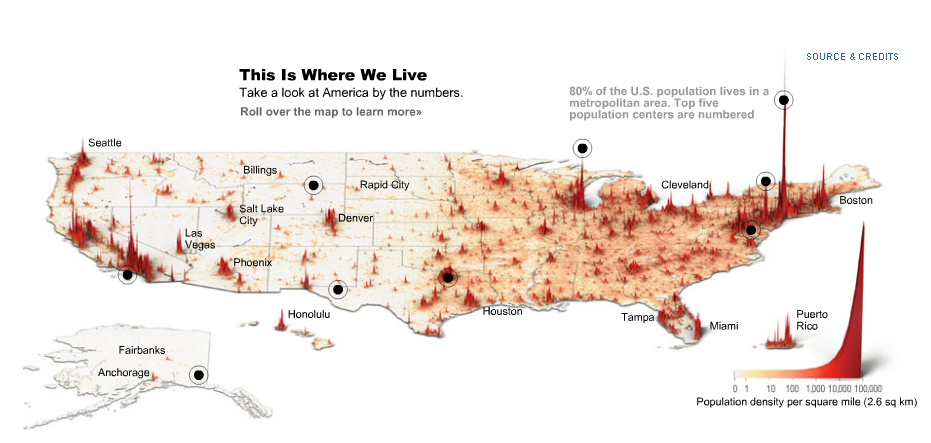
Edit2: I came across another example, very similar to Alasdair Rae’s map produced by the New York Times, Where America Lives. Below is a screen shot (at the link they have an interactive map). Referred to by the folks at OCSI, and they call this type of map a “Spike Map”.

Crime Mapping article library at CiteULike

I use the online reference library, CiteULike, to organize my personal bibliography. I have created a group within CiteULike specifically focused on crime mapping relevant articles, and the group is named Crime Mapping. I typically post relevant articles that I place in my own library, as well as suggestions that are placed on the Geography and Crime google group forum. At the moment there is also one other CiteULike member that has posted articles to the group as well, and we have a total of 135 articles as of January, 2012.

Although you need a CiteULike account to add to the library, even without a profile you can still browse the library. If you have any suggestions feel free to either make a comment here or shoot me an email if you can’t post yourself. Also I’m sure the library could use some better thought into the tags for each article, so feel free to update, add, or re-tag any articles currently in the library.

Another example use of small multiples, many different point elements on a map

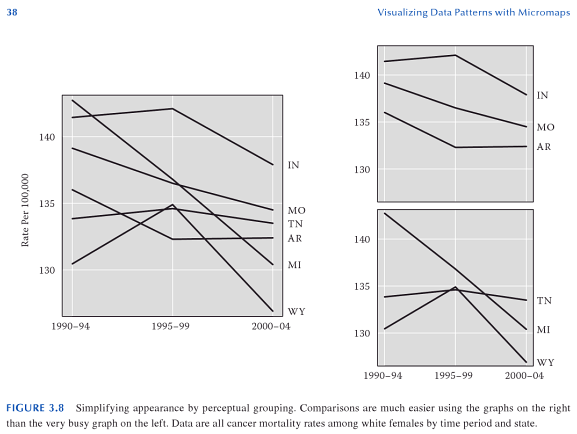
I recently had a post at the Cross Validated blog about how small multiple graphs,  AndyW says Small Multiples are the Most Underused Data Visualization. In that post I give an example (taken from Carr and Pickle, 2009) where visualizing multiple lines on one graphs are very difficult. A potential solution to the complexity is to split the line graph into a set of small multiples.

In this example, Carr and Pickle explain that the reason the graphic is difficult to comprehend is that we are not only viewing 6 lines individually, but that when viewing the line graphs we are trying to make a series of comparisons between the lines. This suggests in the graph on the left there are a potential of 30 pairwise comparisons between lines. Whereas, in the small multiple graphics on the left, each panel has only 6 potential pairwise comparisons within each panel.

Another recent example that I came across in my work that small multiples I believe were more effective was plotting multiple points elements on the same map. And the two examples are below.

In the initial map it is very difficult to separate out each individual point pattern from the others, and it is even difficult to tell the prevalence of each point pattern in the map including all elements. The small multiple plots allow you to visualize each individual pattern, and then after evaluating each pattern on their own make comparisons between patterns.

Of course there are some drawbacks to the use of small multiple charts. Making comparisons between panels is surely more difficult to do than making comparisons within panels. But, I think that trade off in the examples I gave here are worth it.

I’m just starting to read the book, How Maps Work, by Alan MacEachren, and in the second chapter he gives a similar example many element point pattern map compared to small multiples. In that chapter he also goes into a much more detailed description of the potential cognitive processes that are at play when we view such graphics (e.g. why the small multiple maps are easier to interpret).  Such as how locations of objects in a Cartesian coordinate system take preference into how we categorize objects (as opposed to say color or shape). Although I highly suggest you read it as opposed to taking my word for it!

References

Carr, Daniel & Linda Pickle. 2009. Visualizing Data Patterns with Micromaps. Boca Rotan, FL. CRC Press.

MacEachren, Alan. 2004. How maps work: Representation, visualization, and design. New York, NY. Guilford Press.

SPSS resources at the Cross Validated tag-wiki

In both my work and personal projects I frequently use the statistical program SPSS to conduct data management, statistical analysis, and make statistical graphics. Over the years I have collected various resources for the program, and have subsequently compiled a list of them at the SPSS tag-wiki over at the Cross Validated Q/A site.

Instead of having a seperate page of these resources here at my blog, I figured the one at Cross Validated is sufficient. The Cross Validated resource is nice as well in that other people can edit/update it.

If you have some suggestions as to resources I missed feel free to add them in to the tag-wiki, or give me a comment here.

Hacking the default SPSS chart template

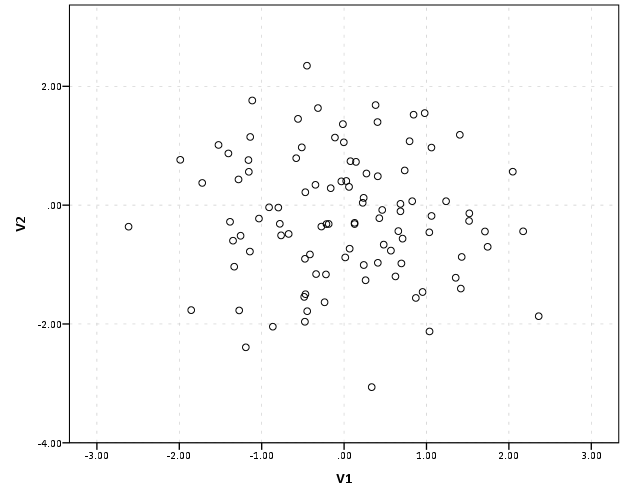
In SPSS charts, not every element of the chart is accessible through syntax. For example, the default chart background in all of the versions I have ever used is light grey, and this can not be specified in GPL graphing statements. Many of such elements are specified in chart template files (.sgt extension). Chart template files are just a specific text format organized using an xml tag structure. Below is an example scatterplot with the default chart template for version 19.

You can manually edit graphics and save chart templates, but here I am going to show some example changes I have made in the default chart template. I do this because when you save chart templates by manually editing charts, SPSS has defaults for many different types of charts (one example when it changes are if the axes are categorical or numeric). So it is easier to make widespread changes by editing the main chart template.

The subsequent examples were constructed from a chart template originally from version 17, and I will demonstrate 3 changes I have made to my own chart template.

1) Change the background color from grey to transparent.
2) Make light grey, dashed gridlines the default.
3) Change the font.

Here I just copied and saved my own version of the template renamed in the same folder. You can then open up the files in any text editor. I use Notepad++, and it has a nice default plug-in that allows me to compare the original template file with my updated file. Moving on to how to actually make changes.

1) Change the background color.

The original chart color (in RGB hexidecimal code) is "F0F0F0" (you can open up a default chart to see the decimal representation, 240-240-240). Then I just used this online tool to convert the decimal to hexidecimal, and then you can search the template for this color. The background color is only located in one place in the template file, in a tag nested within an tag. I changed "F0F0F0" to "transparent" as oppossed to another RGB color. One might want to use white for the background as well ("FFFFFF").

2) Make light grey, dashed gridlines the default

Sometimes I can’t figure out how to exactly edit the original template to give me what I want. One way to get the “right” code is to manually apply the edits within the output, and save the chart template file to demonstrate how specific tag elements are structured. To get the gridlines I did this, and figured out that I needed to insert a set of tag with my wanted aesthetic specifications within the tag (that is within a tag). So, in my original chart template file the code was;

and below is what I inserted;

I then inserted the gridlines tag within all of the tags (you have several for different axis’s and whether the axis’s are cateogorical or numeric).

3) Change the font

This one was really easy to change. The default font is Sans-Serif. I just searched the file for Serif, and it is only located within one place, within a tag nested within an tag (near, but not within, the same place as the bacground color). Just change the "SansSerif" text to whatever you prefer, for example "Calibri". I don’t know what fonts are valid (if it is dependent on your system or on what is available in SPSS).

Here is what the same scatterplot at the beginning of the post looks like with my updated chart template.

Besides this my only other advice is combing through the original chart template and using trial and error to change items. For example, for many bar charts the default RGB color is tan (D3CE97). You can change that to whatever you want by just doing a find and replace of that hexidecimal code with another valid hexidecimal color code (like BEBEBE for light grey).

These changes are all arbitrary and are just based on personal preference, but should be enlightening as to how to make such modifications. Other ones I suspect people may be interested in are the default color or other aesthetic schemes (such as point shapes). These are located at the end of my original chart template file within the tags. One for instance could change the default colors to be more printer friendly. It would be easier to save a set of different templates for color schemes (either categorical or continuous) than doing the map statements within GPL all the time (although you would need to have your categories ordered appropriately). Other things you can change are the font sizes, text alignment, plot margins, default pixel size for charts, and probably a bunch of other stuff I don’t know about.

I’ve saved my current chart template file at this Google code site for anyone to peruse (for an updated version see here). I’ve made a few more changes than I’ve listed here, but not many. Let me know in the comments if you have any examples of changing elements in your chart template file!

Below is some quick code that sets the chart templates to the file I made and produces the above scatterplots.


***********************************.
*original template location.
FILE HANDLE orig_temp /name = "C:\Program Files\IBM\SPSS\Statistics\19\template\".
*updated template location.
FILE HANDLE update_temp /name = "E:\BLOG\SPSS\GRAPHS\Hacking_Chart_Template\".
*making fake, data, 100 cases.
input program.
loop #i = 1 to 100.
compute V1 = RV.NORM(0,1).
compute V2 = RV.NORM(0,1).
end case.
end loop.
end file.
end input program.
execute.
*original template.
SET CTemplate='orig_temp\chart_style.sgt'.
*Scatterplot.
GGRAPH
/GRAPHDATASET NAME="graphdataset" VARIABLES=V1 V2 MISSING=LISTWISE REPORTMISSING=NO
/GRAPHSPEC SOURCE=INLINE.
BEGIN GPL
SOURCE: s=userSource(id("graphdataset"))
DATA: V1=col(source(s), name("V1"))
DATA: V2=col(source(s), name("V2"))
GUIDE: axis(dim(1), label("V1"))
GUIDE: axis(dim(2), label("V2"))
ELEMENT: point(position(V1*V2))
END GPL.
*My updated template.
SET CTemplate='update_temp\chart_style(AndyUpdate).sgt'.
*Scatterplot.
GGRAPH
/GRAPHDATASET NAME="graphdataset" VARIABLES=V1 V2 MISSING=LISTWISE REPORTMISSING=NO
/GRAPHSPEC SOURCE=INLINE.
BEGIN GPL
SOURCE: s=userSource(id("graphdataset"))
DATA: V1=col(source(s), name("V1"))
DATA: V2=col(source(s), name("V2"))
GUIDE: axis(dim(1), label("V1"))
GUIDE: axis(dim(2), label("V2"))
ELEMENT: point(position(V1*V2))
END GPL.
***********************************.

Crime Mapping Friendly Geography Journals

I’m a Criminal Justician/Criminologist by degree, but I think it is important for any academic to be aware of developments not only within their own field, but in outside disciplines as well. It is also good to know of novel outlets with which to publish your work.

Here I have listed a few geography oriented journals I believe any Criminologist interested in crime mapping should be cogniscent of. I chose these for mainly two reasons; 1) the frequency with which they publish directly pertient criminological research, 2) my perceived quality of the journals and articles that are contained within (e.g. it is good just to read articles in the journal in general given their quality). I also list some examples of (mostly) recent criminological work within each journal.

Applied Geography

The Professional Geographer

There was recently a special issue, that was devoted to crime mapping topics. See the below article and the subsequent pertinent articles in that same issue.

Also for other examples see

Annals of the Association of American Geographers

Of course this is not an exhaustive list, but you can check out the articles I have posted in my citeulike library for other hints at crime mapping relevent journals to watch out for (you can search for specific journal titles in the library, see this example of searching for Applied Geography in my library). Also check out the crime mapping citeulike library I upload content to regularly (this will have a more specific crime mapping focus than my general library, although they largely overlap).

If you think I’ve done some injustive leaving a journal off the list, let me know in the comments!

Some example corrgrams in SPSS base graphics

I was first introduced to corrgrams in this post by Tal Gallil on the Cross Validated site. Corrgrams are visualization examples developed by Michael Friendly used to visualize large correlation matrices. I have developed a few examples using SPSS base graphics to mimic some of the corrgrams Friendly presents, in particular a heat-map and proportional sized dot plot. I’ve posted the syntax to produce these graphics at the SPSS developer forum in this thread.

Some other extensions could be made in base graphics fairly easily, such as the diagonal hashings in the heat-map, but some others would take more thought (such as plotting different graphics in the lower and upper diagonal, or sorting the elements in the matrix by some other criterion). I think this is a good start though, and I particularly like the ability to super-impose the actual correlations as labels on the chart, like how it is done in this example on Cross Validated. It should satisfy both the graph people and the table people! See this other brief article by Michael Friendly and Ernest Kwan (2011) (which is initially in response to Gelman, 2011) and this post by Stephen Few to see what I am talking about.

One of the limitations of these visualizations is that it simply plots the bi-variate correlation. Friendly has one obvious extension in in the corrgram paper when he plots the bi-variate ellipses and loess smoother line. Other potential readings of interest that go beyond correlations may be examining scagnostic characteristics of distributions (Wilkinson & Wills, 2008) or utilizing other metrics that capture non-linear associations, such as the recent MIC statistic proposed in Reshef et al. (2011). All of these are only applicable to bi-variate associations.

Citations:

Hello world!

Feel free to navigate to the About Me page to get to know a little about who I am. As a brief introduction to what I plan to blog about, I have waiting in the thralls (many) potential posts on data management and constructing statistical graphics in SPSS. I may also throw in some posts in general on data visualization, on making maps, and research tips.

I don’t plan on saying much here in direct relation to my research agenda (you can read the boring papers in the C.V. section if you are interested in that),  but posts on said topics may sneak in from time to time.

I make no guarantees on the regularity with which I post. Unless of course you want to pay me to blog!