JQC paper on the moving home effect finally published!

My first solo publication, The moving home effect: A quasi experiment assessing effect of home location on the offence location, after being in the online first que nearly a year, has finally been published in the Journal of Quantitative Criminology 28(4):587-606. It was the oldest paper in the online first section (along with the paper by Light and Harris published on the same day)!

This paper was the fruits of what was basically the equivalent of my Masters thesis, and I would like to take this opportunity to thank all of the individuals whom helped me with the project, as I accidently ommitted such thanks from the paper (entirely my own fault). I would like to thank my committee members, Rob Worden, Shawn Bushway, and Janet Stamatel. I would also like to thank Robert Apel and Greg Pogarsky for useful feedback I had recieved on in class papers based on the same topic, as well as the folks in the Worden meeting group (for not only feedback but giving me motivation to do work so I had something to say!)

Rob Worden was the chair of my committee, and he deserves extra thanks not only for reviewing my work, but also for giving me a job at the Finn Institute, which otherwise I would have never had access to such data and opportunity to conduct such a project. I would also like to give thanks to the Syracuse PD and Chief Fowler for letting me use the data and reveal the PD’s identity in the publication.

I would also like to thank Alex Piquero and Cathy Widom for letting me make multiple revisions and accepting the paper for publication. For the publication itself I recieved three very excellent and thoughtful peer reviews. The excellence of the reviews were well above the norm for feedback I have otherwise encountered, and demonstrated that the reviewers not only read the paper but read it carefully. I was really happy with the improvements as well as how fair and thoughtful the reviews were. I am also very happy it was accepted for publication in JQC, it is the highest quality venue I would expect the paper to be on topic at, and if it wasn’t accepted there I was really not sure where I would send it otherwise.

In the future I will publish pre-prints online, so the publication before editing can still be publicly available to everyone. But, if you can not get a copy of this (or any of the other papers I have co-authored so far) don’t hesitate to shoot me an email for a copy of the off-print. Hopefully I have some more work to share in the new future on the blog! I currently have two papers I am working on with related topics, one with visualizing journey to crime flow data, and another paper with Emily Owens and Matthew Feedman of Cornell comparing journey to work data with journey to crime data.

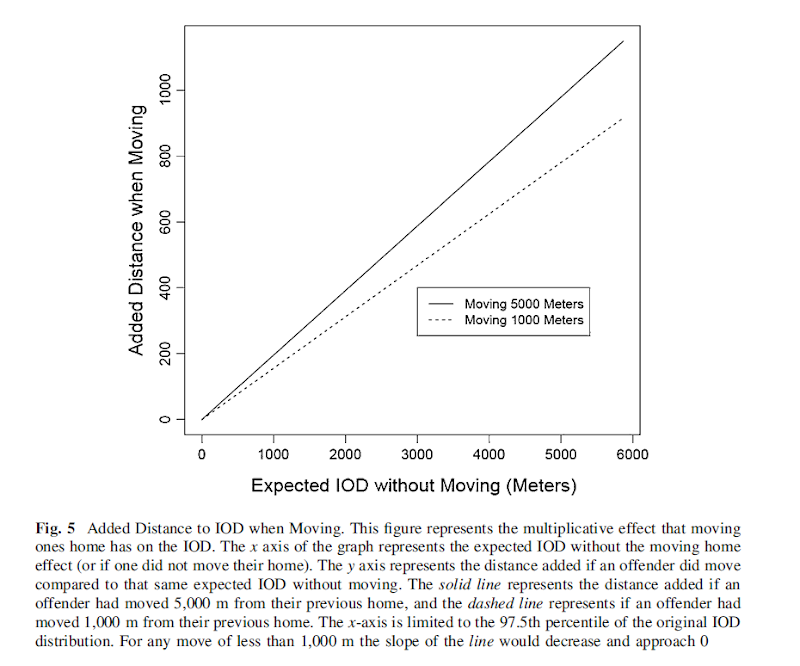
For a teaser for this paper here is the structured abstract from the paper and a graph demonstrating my estimated moving home effect.

Objectives
This study aims to test whether the home location has a causal effect on the crime location. To accomplish this the study capitalizes on the natural experiment that occurs when offender’s move, and uses a unique metric, the distance between sequential offenses, to determine if when an offender moves the offense location changes.

Methods
Using a sample of over 40,000 custodial arrests from Syracuse, NY between 2003 and 2008, this quasi-experimental design uses t test’s of mean differences, and fixed effects regression modeling to determine if moving has a significant effect on the distance between sequential offenses.

Results
This study finds that when offenders move they tend to commit crimes in locations farther away from past offences than would be expected without moving. The effect is rather small though, both in absolute terms (an elasticity coefficient of 0.02), and in relation to the effect of other independent variables (such as the time in between offenses).

Conclusions
This finding suggests that the home has an impact on where an offender will choose to commit a crime, independent of offence, neighborhood, or offender characteristics. The effect is small though, suggesting other factors may play a larger role in influencing where offenders choose to commit crime.

Using Bezier curves to draw flow lines

As I talked about previously, great circle lines are an effective way to visualize flow lines, as the bending of the arcs creates displacement among over-plotted lines. A frequent question that comes up though (see an example on GIS.stackexchange and on the flowing data forums) is that great circle lines don’t provide enough bend over short distances. Of course for visualizing journey to crime data (one of the topics I am interested in), one has the problem that most known journey’s are within one particular jurisdiction or otherwise short distances.

In the GIS question I linked to above I suggested to utilize half circles, although that seemed like over-kill. I have currently settled on drawing an arcing line utilizing quadratic Bezier curves. For a thorough demonstration of Bezier curves, how to calculate them, and to see one of the coolest interactive websites I have ever come across, check out A primer on Bezier curves – by Mike "Pomax" Kamermans. These are flexible enough to produce any desired amount of bend (and are simple enough for me to be able to program!) Also I think they are more aesthetically pleasing than irregular flows. I’ve seen some programs use hook like bends (see an example of this flow mapping software from the Spatial Data Mining and Visual Analytics Lab), but I’m not all that fond of that for either aesthetic reasons or for aiding the visualization.

I won’t go into too great of details here on how to calculate them, (you can see the formulas for the quadratic equations from the Mike Kamermans site I referenced), but you basically, 1) define where the control point is located at (origin and destination are already defined), 2) interpolate an arbitrary number of points along the line. My SPSS macro is set to 100, but this can be made either bigger or smaller (or conditional on other factors as well).

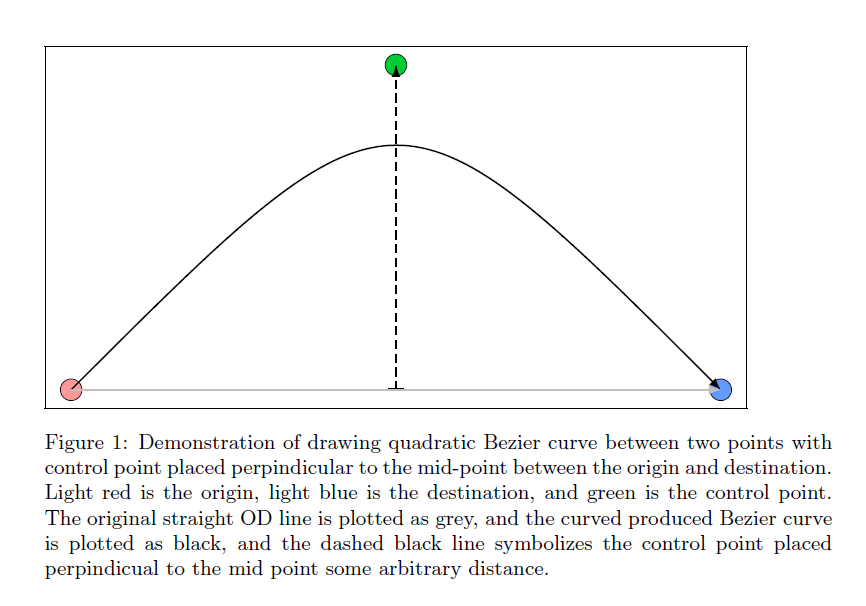
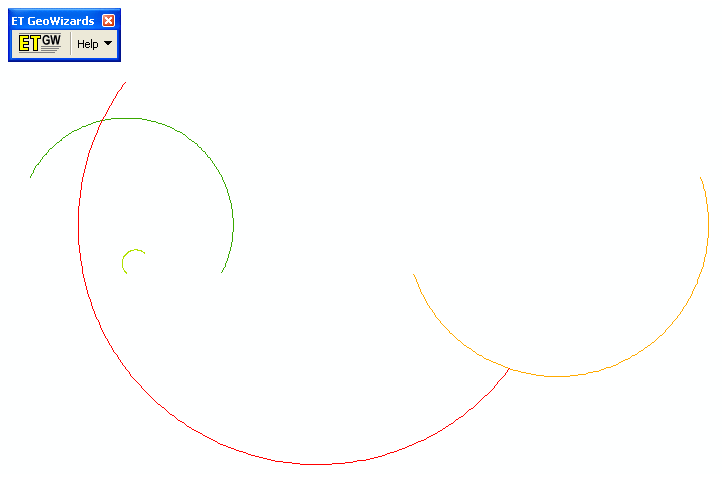
Below is an example diagram I produced to demonstrate quadratic Bezier curves. For my application, I suggest placing a control point perpindicular to the mid point between the origin and destination. This creates a regular arc between the two locations, and conditional on the direction one can control the direction of the arc. In the SPSS function provided the user then provides a value of a ratio of the height of the control point to the distance between the origin and destination location (so points further away from each other will be given higher arcs). Below is a diagram using Latex and the Tikz library (which has a handy function to calulate Bezier curves).

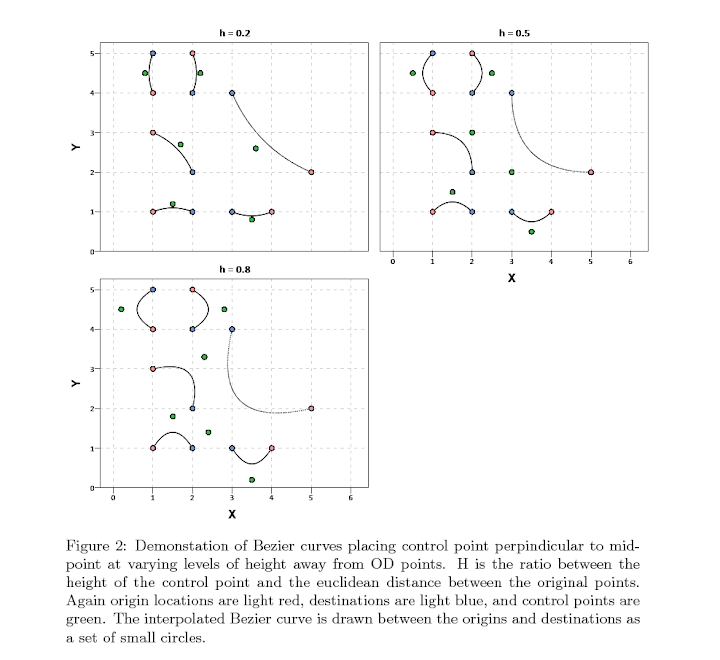
Here is a simpler demonstration of the controlling the direction and adjusting the control point to produce either a flatter arc or an arc with more eccentricity.

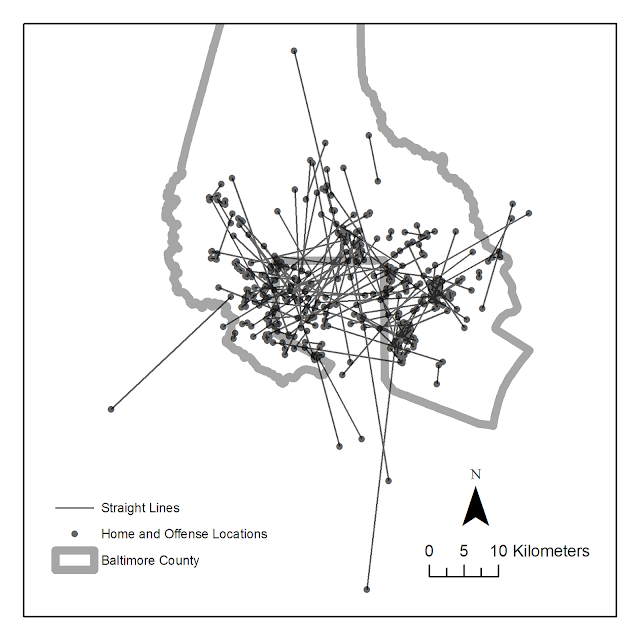
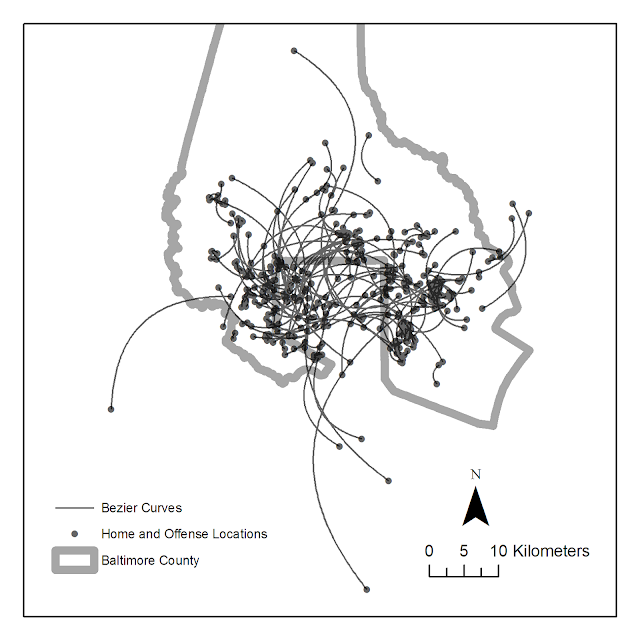
Here is an example displaying 200 JTC lines from the simulated data that comes with the CrimeStat program. The first image are the original straight lines, and the second image are the curved lines using a control point at a height half the distance between the origin and destination coordinate.

Of course, both are most definately still quite crowded, but what do people think? Are my curved lines suggestion benificial in this example?

Here I have provided the SPSS function (and some example data) used to calculate the lines (I then use the ET Geowizards add-on to turn the points into lines in ArcGIS). Perhaps in the future I will work on an R function to calculate Bezier curves (I’m sure they could be of some use), but hopefully for those interested this is simple enough to program your own function in whatever language of interest. I have the starting of a working paper on visualizing flow lines, and I plan on this being basically my only unique contribution (everything else is just a review of what other people have done!)

One could be more fancy as well, and make the curves different based on other factors. For instance make the control point closer to either the origin or destination is the flow amount is assymetrical, or make the control point further away (and subsequently make the arc larger) is the flow is more volumous. Ideas for the future I suppose.

Making value by alpha maps with ArcMap

I recently finished reading Cynthia Brewer’s Designing better maps: A guide for GIS users. Within the book she had an example of making a bi-variate map legend manually in ArcMap, and then the light-bulb went off in my mind that I could use that same technique to make value by alpha maps in ArcMap.

For a brief intro into what value by alpha maps are, Andy Woodruff (one of the creators) has a comprehensive blog post on them on what they are and their motivation. Briefly though, we want to visualize some variable in a choropleth map, but that variable is measured with varying levels of reliability. Value by alpha maps de-emphasize areas of low reliability in the choropleth values by increasing the transparency of that polygon. I give a few other examples of interest related to mapping reliability in this answer on the GIS site as well, How is margin of error reported on a map?. Essentially those techniques mentioned either only display certain high reliability locations, make two maps, or use technqiues to overlay multiple attributes (like hashings). But IMO the value by alpha maps looks much nicer than the maps with multiple elements, and so I was interested in how to implement them in ArcMap.

What value by alpha maps effectively do is reduce the saturation and contrast of polygons with high alpha blending, making them fade into the background and be less noticable. I presented an applied example of value by alpha maps in my question asking for examples of beautiful maps on the GIS site. You can click through to see further citations for the map and reasons for why I think the map is beautiful. But below I include an image here as well (taken from the same Andy Woodruff blog post mentioned earlier).

Here I will show to make the same maps in ArcMap, and present some discussion about their implementation, in particular suitable choices for the original choropleth colors. Much was already discussed by the value by alpha originators, but I suppose I didn’t really appreciate them until I got my hands alittle dirty and tried to make them myself. Note this question on the GIS site, How to implement value-by-alpha map in GIS? gives other resources for implementing value-by-alpha maps. But as far as I am aware this contribution about how to do them in ArcMap is novel.

Below I present an example displaying the percentage of female heads of households with children (abbreviated PFHH from here on) for 2010 census blocks within Washington, D.C. Here we can consider the reliability of the PFHH dependent on the number of households within the block itself (i.e. we would expect blocks with smaller number of households to have a higher amount of variability in the PFHH). The map below depicts blocks that have at least one household, and so the subsequent PFHH maps will only display those colored polygons (about a third, 2132 out of 6507, have no households).

I chose the example because female headed households are a typical covariate of interest to criminologists for ecological studies. I also chose blocks as they are the smallest unit available from the census, and hence I expected them to show the widest variability in estimates. Below I provide an example on how one might typically display PFHH, while simultaneously incorporating information on the baseline number the maps will be map of.

The first example seperately displays the denominator number of households on the left and the percent of female headed households with children on the right both in a sequential choropleth scheme (darker colors are a higher PFHH and Number of Households).

One can also superimpose the same information on the map. Sun & Wong, 2010 suggest one use cross hatching above the the choropleth colors to depict reliability, but here I will demonstrate using choropleth colors for the baseline number of households and a proportional point symbols for the PFHH. I supplement the map on the right with a scatterplot, that has the number of households on the X axis and the PFHH on the Y axis.

These both do an alright job (if you made me pick one, I think I would pick the side-by-side sets of maps), but lets see if we can do better with value-by-alpha maps! The following tutorial will be broken up into two sections. The first section talks about actually generating the map, and the second section talks about how to make the legend. Neither is difficult, but making the legend is more of a pain in the butt.

How to make the value by alpha map

First one can start out by making the base layer with the desired choropleth classifications and color scheme. Note here I changed what I am visualizing from a sequential color scheme of PFHH to location quotients with only four categories. I will discuss why I did this later on in the post.

Then one can make several copies of that layer (right click -> copy -> paste within hierarchy), based on however many different reliability classifications you want to display. Here I will do 4 different reliability classifications. Note after you make them for management of the TOC it is easier to group them.

Then one uses selection criteria to filter out only those polygons that fall within the specified reliability range. And then sets the transparency for the that level to the desired value.

And voila, you have your value by alpha map. Note if after you make the layers you decide you want a different classification and/or color scheme, you can make the changes to one layer and then apply the changes to all of the other layers.

How to make the legend

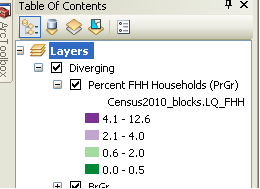
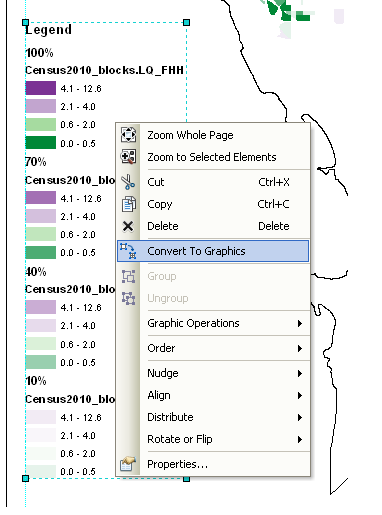
Now making the legend is the harder part. If one goes to the layout view, one will see that since in this example one has essentially for layers superimposed on the same map, one has four seperate legend entries. Below is what it looks like with my defaults (plus a vertical rule I have in my map).

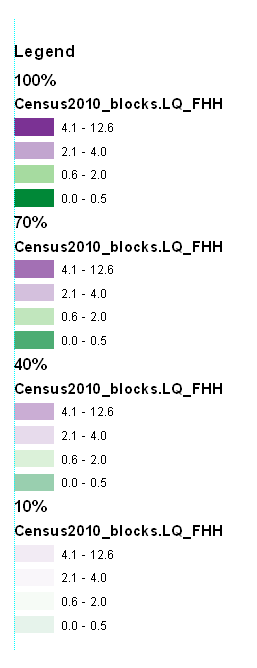
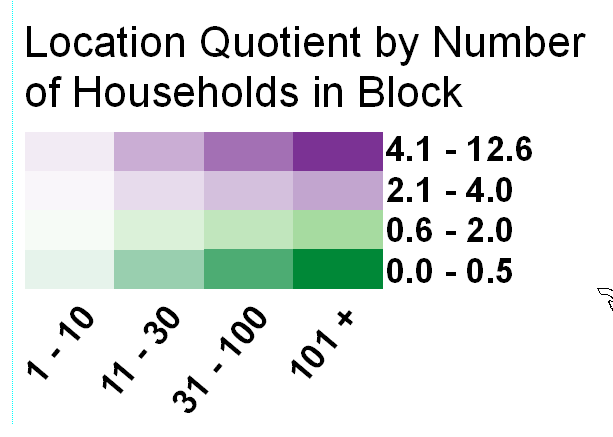
What we want in the end is a bivariate scheme, with the PFHH dimension running up and down, and the transparency dimension running from one side to the other (the same as in the example mortality rate map at the beginning of the post). To do this, one has to convert the legends to graphics.

The ungroup the elements so each can be individualy manipulated. Note, sometimes I have to do this operation multiple times.

Then re-arrange the panels and labels into the desired format.

More tedious than making the seperate layers, but not crazy unreasonable if you only have to do it for one (or a small number of maps). If you need to do it for a larger number of maps a better workflow will be needed, like creating a seperate “fake inset” map that replicates the legend, making the legend in a seperate tool, or just making the map entirely in a program where alpha blending is more readily incorporated. For instance in statistical packages it is typically a readily available encoding that can be added to a graphic (they also will allow continous color ramps and continous levels of transparency).

And voila, here is the final map. To follow is some discussion about choosing color schemes and whether you should use a black background or not.

Some discussion about color schemes

The Roth et al. (2010) paper in the cartographic journal and Andy Woodruff’s blog post I cited at the beginning of this post initially talked about color schemes and utilizing a black background, but I didn’t really appreciate the complexity of this choice until I went and made a value-by-alpha map of my own. In the end I decided to use location quotients to display the data, as the bivariate color scheme provides further contrast. I feel weird using a bivariate color scheme for a continous scale (hence the conversion to location quotients), but I feel like I should get over that. Everything has its time and place, and set rules like that aren’t good for anyone but bureaucrats or the mindless.

I certainly picked a complex dataset to start with, and the benifits of the value by alpha map over the two side by side maps (if any) are slight. I suspect why mine don’t look quite as nice as the ones created by Roth, Woodruff and company are partially due to the greater amount of complexity. The map with the SatScan reliabilities I noted as one of my favorite maps is quite striking, but it is partly due to the relibaility having a very spatially contiguous pattern (although the underlying cancer mortality rate map is quite spatially heterogenous). Here the spatial regularity is much weaker, in either the pattern being mapped or the reliability thresholds I had chosen. It does produce a quite pretty map though, FWIW.

For reference, here is the same map utilizing a black background. The only thing different in this map is that the most transparent layer is now set to 80% transparency instead of 90% (it was practically invisible at 90% with black as the modifying background color). Also it was necessary to do the fake inset map for a legend I talked about earlier with black as the background color. This is because the legend generated by ArcGIS always has white as the modifying color. If you refer back to the map with white as the modifying color, you can tell this produces greater contrast among the purples (the location quotient 2.1 – 4 for fully opaque and 4.1 – 12.6 for 40% transparent with white as the modifying color appear very similar).

The Roth Cartographic journal article gives other bivariate and nominal color scheme suggestions, you should take their advice. Hopefully in the future it will be simpler to incorporate bivariate color schemes in ArcMap, as it would make the process much simpler (and hence more useful for exploratory data analysis).

I would love it if people point me to other examples in which value by alpha maps are useful. I think in theory it is a good idea, but the complexity intoduced in the map is a greater burden than I intially estimated until I made a few. I initially thought this would be useful for presenting the results of geographically weighted regression or perhaps cancer atlas maps in general (where sometimes people just filter out results below some population threshold). But maybe not given the greater complexity introduced.

When should we use a black background for a map?

Some of my favorite maps utilize black (or dark) backgrounds. For some examples;


Steven Romalewski offers a slight critique of them recently in his blog post, Mapping NYC stop and frisks: some cartographic observations;

I know that recently the terrific team at MapBox put together some maps using fluorescent colors on a black background that were highly praised on Twitter and in the blogs. To me, they look neat, but they’re less useful as maps. The WNYC fluorescent colors were jarring, and the hot pink plus dark blue on the black background made the map hard to read if you’re trying to find out where things are. It’s a powerful visual statement, but I don’t think it adds any explanatory value.

I don’t disagree with this, and about all I articulate in their favor so far is essentially “well lit places create a stunning contrast with the dark background” while white background maps just create a contrast and are not quite as stunning!

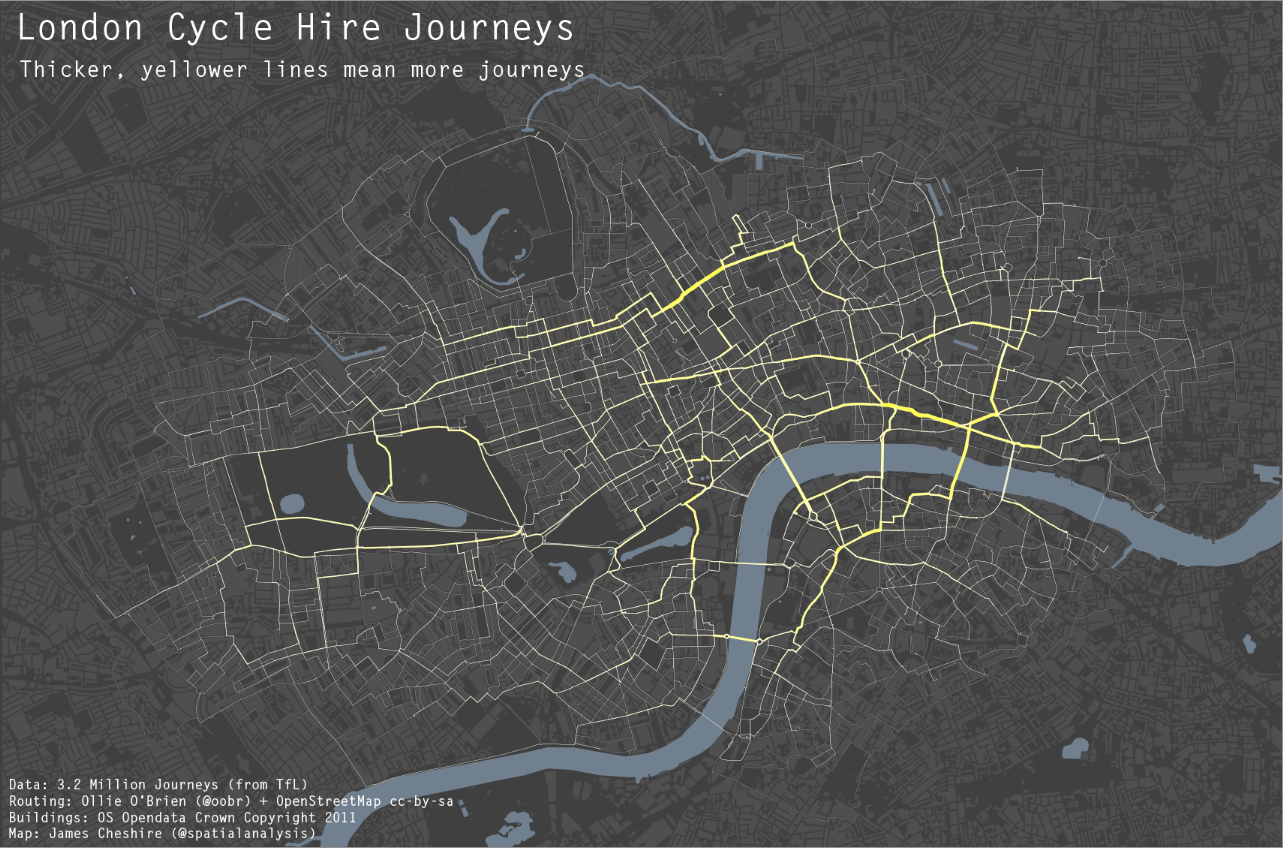
I think the proof of a black backgrounds usefulness can be seen in the example value-by-alpha maps and the flow maps of James Chesire, where a greater amount of contrast is necessary. IMO in the value by alpha maps the greater contrast is needed for the greater complexity of the bivariate color scheme, and in Chesire’s flow maps it is needed because lines frequently don’t have enough areal gurth to be effectively distinguished from the background.

I couldn’t find any more general literature on the topic though. It doesn’t seem to be covered in any of the general cartography books that I have read. Since it is really only applicable to on-screen maps (you certainly wouldn’t want to print out a map with a black background) perhaps it just hasn’t been addressed. I may be looking in the wrong place though, some text editors have a high contrast setting where text is white on a dark background (for likely the same reasons they look nice in maps), so it can’t be that foreign a concept to have no scholarly literature on the topic.

So in short, I guess my advice is utilize a black background when you want to highly focus attention on the light areas, essentially at the cost of greatly diminishing the contrast with other faded elements in the map. This is perhaps a good thing for maps intended as complex statistical summaries, and the mapnificient travel times map is probably another good example where high focus in one area is sufficient and other background elements are not needed. I’m not sure though for choropleth maps black backgrounds are really needed (or useful), and any more complicated thematic maps certainly would not fit this bill.

To a certain extent I wonder what lessons from black backgrounds can be applied to the backgrounds of statistical graphics more generally. Leave me some comments if you have any thoughts or other examples of black background maps!

Why great circle lines look nicer in flow maps

I got sick of working on my dissertation the other day so I started writing a review article on visualizing flow lines for journey to crime data. Here I will briefly illustrate why great circle lines tend to look nicer in flow maps than do straight lines.

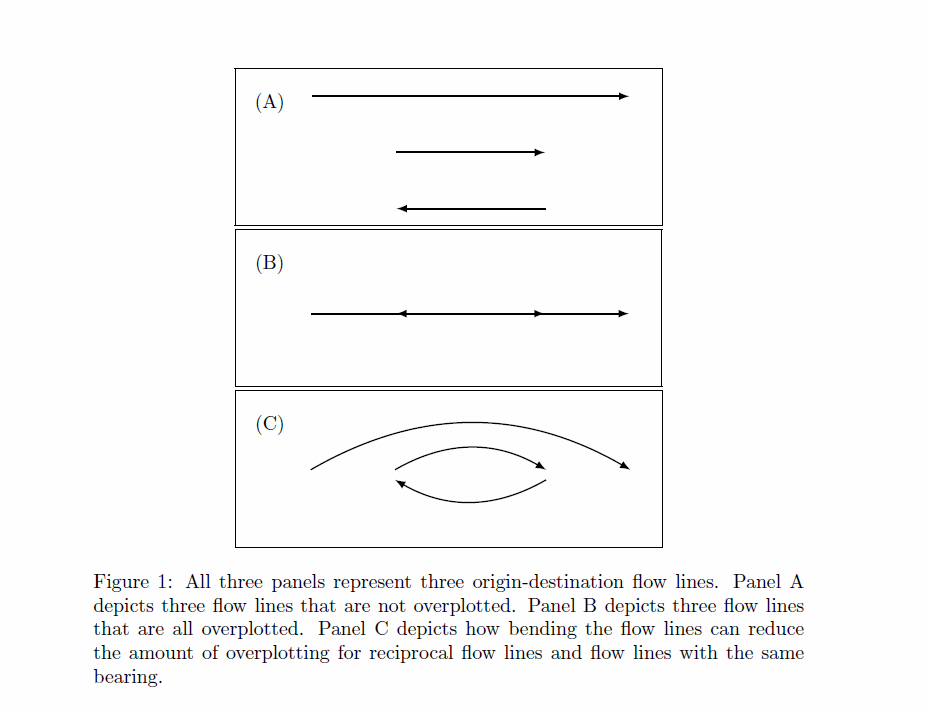
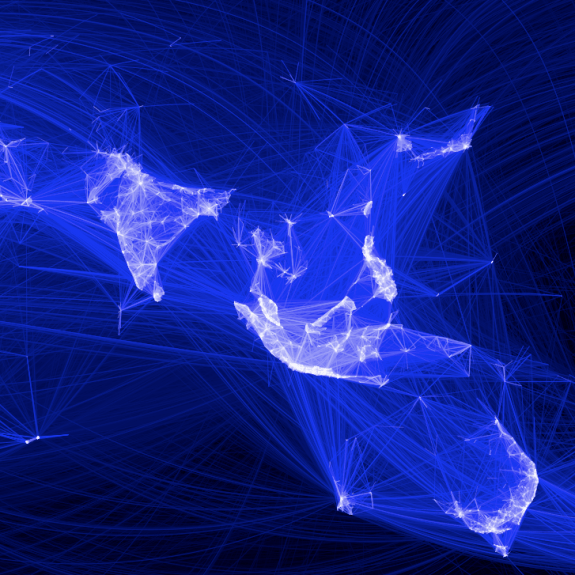
Flow maps tend to be very visually complicated, and so what happens (to a large extent) is what happens in Panel B in the above graphic. Bending the lines, as is done with great circles, tends to displace the lines from one another to a greater extent. Although perfect overlap as is demonstrated in the picture doesn’t necessarily happen that frequently, the same logic applies to nearly overlapped lines. One of the nicest examples of this you can find is the facebook friends map that made the internet rounds (note there are many other aesthetic elements in the plot that make it look nice besides just the great circle lines).

Of course with great circle lines you don’t get the bending in the other direction for reciprocal flows I demonstrate in my first figure (the great circle line is the same regardless of direction). Because of this, and because when using a local projection great circles lines don’t really provide enough eccentricity in the bend to produce the desired displacement of the lines, I suggested to utilize half circles and discuss how to calculate them given a set of origin-destination coordinates at this question on the GIS site.

I need to test this out in the wild some more though. I suspect a half-circle is too much, but my attempts to script a version where the eccentricity is less pronounced has befuddled me so far. I will post an update on here if I come to a better solution, and when the working paper is finished I will post a copy of that as well. Preferably I would like the script to take an arbitrary parameter to control the amount of bend in the arc, so if you have suggestions feel free to shoot me an email or leave a comment here.

For those interested in the topic I would suggest to peruse one of my other answers at the GIS site. Therein I give a host of references and online mapping examples of visualizing flows.

Visualization techniques for large N scatterplots in SPSS

When you have a large N scatterplot matrix, you frequently have dramatic over-plotting that prevents effectively presenting the relationship. Here I will give a few quick examples of simple ways to alter the typical default scatterplot to ease the presentation. I give examples in SPSS, although I suspect any statistical packages contains these options to alter the default scatterplot. At the end of the post I will link to SPSS code and data I used for these examples. For a brief background of the data, these are UCR index crime rates for rural counties by year in Appalachia from 1977 to 1996. This data is taken from the dataset Spatial Analysis of Crime in Appalachia, 1977-1996 posted on ICPSR (doi:10.3886/ICPSR03260.v1). While these scatterplots ignore the time dimension of the dataset, they are sufficient to demonstrate techniques to visualize big N scatterplots, as they result in over 7,000 county years to visualize.

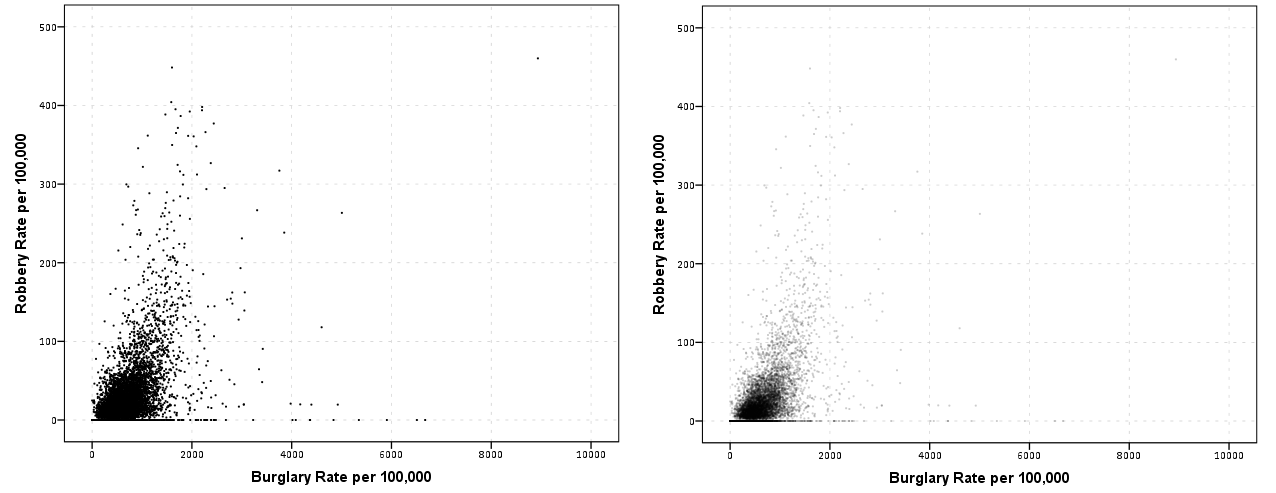
So what is the problem with typical scatterplots for such large data? Below is an example default scatterplot in SPSS, plotting the Burglary Rate per 100,000 on the X axis versus the Robbery Rate per 100,000 on the Y axis. This uses my personal default chart template, but the problem is with the large over-plotted points in the scatter, which is the same for the default template that comes with installation.

The problem with this plot is that the vast majority of the points are clustered in the lower left corner of the plot. For the most part, the graph is expanded simply due to a few outliers in both dimesions (likely due to in part hetereoskedascity that comes with rates in low population areas). While the outliers will certainly be of interest, we kind of lose the forest for the trees in this particular plot.

Two simple suggestions to the base default scatterplot are to utilize smaller points and/or makes the points semi-transparent. On the left is an example of making the points smaller, and on the right is an example utilizing semi-transparency and small points. This de-emphasizes the outlier points (which could be good or bad depending on how you look at it), but allows one to see the main point cloud and the correlation between the two rates within it. (Note: you can open up the images in a new window to see them larger)

Note if you are using SPSS, to define semi-transparency you need to define it in the original GPL code (or in a chart template if you wanted), you can not do it post-hoc in the editor. You can make the points smaller in the editor, but editing charts with this many elements tends to be quite annoying, so to the extent you can specify the aesthetics in GPL I would suggest doing so. Also note making the elements smaller and semi-transparent can also be effectively utilized to visualize line plots, and I gave an example at the SPSS IBM forum recently.

Another option is to bin the elements, and SPSS has the options to either utilze rectangular bins or hexagon bins. Below is an example of each.

One thing that is nice about this technique and how SPSS handles the plot, a bin is only drawn if at least one point falls within it. Thus the outliers and the one high leverage point in the plot are still readily apparent. Other ways to summarize distributions (that are currently not available in SPSS) are sunflower plots or contour plots. Sunflower plots are essentially another way to display and summarize multiple overlapping points (see Carr et al., 1987 or an example from this blog post by Analyzer Assistant). Contour plots are drawn by smoothing the distribution and then plotting lines of equal density. Here is an example of a contour plot using ggplot2 in R on the Cross Validated Q/A site).

This advice can also be extended to scatterplot matrices. In fact such advice is more important in such plots, as the relationship is shrunk in a much smaller space. I talk about this some in my post on the Cross Validated blog, AndyW says Small Multiples are the Most Underused Data Visualization when I say reducing information into key patterns can be useful.

Below on the left is an example of the default SPSS scatter plot matrix produced through the Chart Builder, and on the right after editing the GPL code to make the points smaller and semi-transparent.

I very briefly experimented with adding a loess smooth line or using the binning techniques in SPSS but was not sucessful. I will have to experiment more to see if it can be effectively done in scatterplot matrices. I would like to extend some of the example corrgrams I previously made to plot the loess smoother and bivariate confidence ellipses, and you can be sure I will post the examples here on the blog if I ever get around to it.

The data and syntax used to produce the plots can be found here.

Bean plots in SPSS

It seems like I have come across alot of posts recently about visualizing univariate distributions. Besides my own recent blog post about comparing distributions of unequal size in SPSS, here are a few other blog posts I have recently come across;

Such a variety of references is not surprising though. Examining univariate distributions is a regular task for data analysis and can tell you alot about the nature of data (including potential errors in the data). Here are some posts on the Cross Validated Q/A site of related interest I have compiled;

In particular the recent post on bean plots and Luca Fenu’s post motivated my playing around with SPSS to produce the bean plots here. Note Jon Peck has published a graphboard template to generate violin plots for SPSS, but here I will show how to generate them in the usual GGRAPH commands. It is actually pretty easy, and here I extend the violin plots to include the beans suggested in bean plots!

A brief bit about the motivation for bean plots. Besides consulting the article by Peter Kampstra, one is interested in viewing a univariate continuous distribution among a set of different categories. To do this one uses a smoothed kernel density estimate of the distribution for each of the subgroups. When viewing the smoothed distribution though one loses the ability to identify patterns in the individual data points. Patterns can mean many things, such as outliers, or patterns such as striation within the main body of observations. The bean plot article gives an example where striation in measurements at specific inches can be seen. Another example might be examining the time of reported crime incidents (they will have bunches at the beginning of the hour, as well as 15, 30, & 45 minute marks).

Below I will go through a brief series of examples demonstrating how to make bean plots in SPSS.


SPSS code to make bean plots

First I will make some fake data for us to work with.

******************************************.
set seed = 10.
input program.
loop #i = 1 to 1000.
compute V1 = RV.NORM(0,1).
compute groups = TRUNC(RV.UNIFORM(0,5)).
end case.
end loop.
end file.
end input program.
dataset name sim.
execute.

value labels groups
0 'cat 0'
1 'cat 1'
2 'cat 2'
3 'cat 3'
4 'cat 4'.
******************************************.

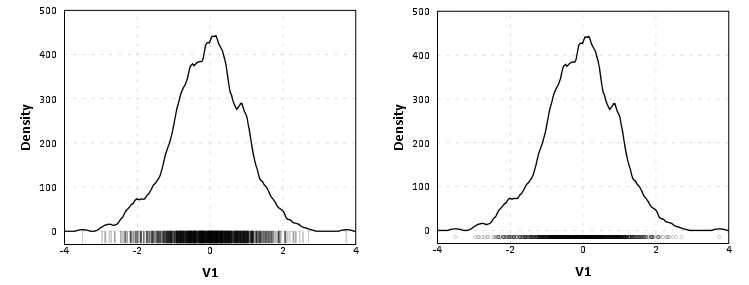
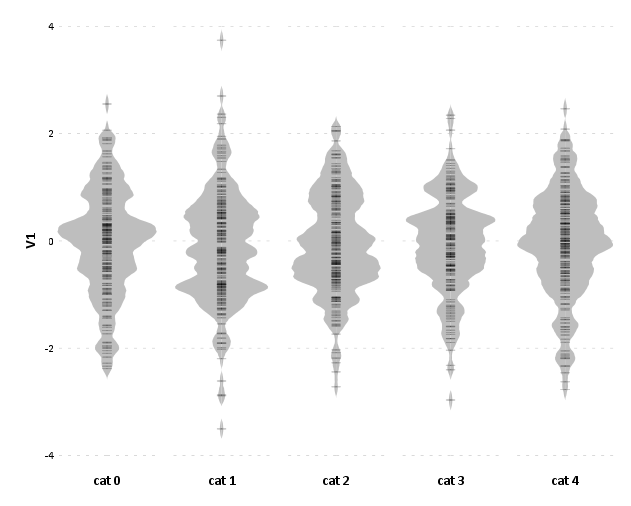
Next, I will show some code to make the two plots below. These are typical kernel density estimates of the V1 variable I made for the entire distribution, and these are to show the elements of the base bean plots. Note the use of the TRANS statement in the GPL to make a constant value to plot the rug of the distribution. Also note although such rugs are typically shown as bars, you could pretty much always use point markers as well in any situation where you use bars. Below the image is the GGRAPH code used to produce them.

******************************************.
*Regular density estimate with rug plot.
GGRAPH
  /GRAPHDATASET NAME="graphdataset" VARIABLES=V1 MISSING=LISTWISE REPORTMISSING=NO
  /GRAPHSPEC SOURCE=INLINE.
BEGIN GPL
  SOURCE: s=userSource(id("graphdataset"))
  DATA: V1=col(source(s), name("V1"))
  TRANS: rug = eval(-26)
  GUIDE: axis(dim(1), label("V1"))
  GUIDE: axis(dim(2), label("Density"))
  SCALE: linear(dim(2), min(-30))
  ELEMENT: interval(position(V1*rug), transparency.exterior(transparency."0.8"))
  ELEMENT: line(position(density.kernel.epanechnikov(V1*1)))
END GPL.

*Density estimate with points instead of bars for rug.
GGRAPH
  /GRAPHDATASET NAME="graphdataset" VARIABLES=V1 MISSING=LISTWISE REPORTMISSING=NO
  /GRAPHSPEC SOURCE=INLINE.
BEGIN GPL
  SOURCE: s=userSource(id("graphdataset"))
  DATA: V1=col(source(s), name("V1"))
  TRANS: rug = eval(-15)
  GUIDE: axis(dim(1), label("V1"))
  GUIDE: axis(dim(2), label("Density"))
  SCALE: linear(dim(2), min(-30))
  ELEMENT: point(position(V1*rug), transparency.exterior(transparency."0.8"))
  ELEMENT: line(position(density.kernel.epanechnikov(V1*1)))
END GPL.
******************************************.

Now bean plots are just the above plots rotatated 90 degrees, adding a reflection of the distribution (so the area of the density is represented in two dimensions), and then further paneled by another categorical variable. To do the reflection, one has to create a fake variable equal to the first variable used for the density estimate. But after that, it is just knowing alittle GGRAPH magic to make the plots.

******************************************.
compute V2 = V1.

varstocases
/make V from V1 V2
/index panel_dum.

GGRAPH
  /GRAPHDATASET NAME="graphdataset" VARIABLES=V panel_dum groups MISSING=LISTWISE REPORTMISSING=NO
  /GRAPHSPEC SOURCE=INLINE.
BEGIN GPL
  SOURCE: s=userSource(id("graphdataset"))
  COORD: transpose(mirror(rect(dim(1,2))))
  DATA: V=col(source(s), name("V"))
  DATA: panel_dum=col(source(s), name("panel_dum"), unit.category())
  DATA: groups=col(source(s), name("groups"), unit.category())
  TRANS: zero = eval(10)
  GUIDE: axis(dim(1), label("V1"))
  GUIDE: axis(dim(2), null())
  GUIDE: axis(dim(3), null())
  SCALE: linear(dim(2), min(0))
  ELEMENT: area(position(density.kernel.epanechnikov(V*1*panel_dum*1*groups)), transparency.exterior(transparency."1.0"), transparency.interior(transparency."0.4"), 
           color.interior(color.grey), color.exterior(color.grey)))
  ELEMENT: interval(position(V*zero*panel_dum*1*groups), transparency.exterior(transparency."0.8"))
END GPL.
    ******************************************.

Note I did not label the density estimate anymore. I could have, but I would have had to essentially divide the density estimate by two, since I am showing it twice (which is possible, and if you wanted to show it you would omit the GUIDE: axis(dim(2), null()) command). But even without the axis they are still reasonable for relative comparisons. Also note the COORD statement for how I get the panels to mirror each other (the transpose statement just switches the X and Y axis in the charts).

I just post hoc edited the chart to get it to look nice (in particular settign the spacing between the panel_dum panel to zero and making the panel outlines transparent), but most of those things can likley be more steamlined by making an appropriate chart template. Two things I do not like, which I may need to edit the chart template to be able to accomplish anyway; 1) There is an artifact of a white line running down the density estimates, (it is hard to see with the rug, but closer inspection will show it), 2) I would prefer to have a box around all of the estimates and categories, but to prevent a streak running down the middle of the density estimates one needs to draw the panel boxes without borders. To see if I can accomplish these things will take further investigation.

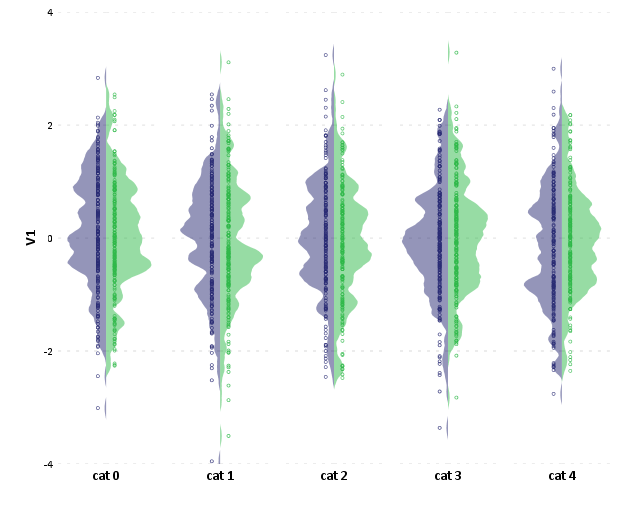
This framework is easily extended to the case where you don’t want a reflection of the same variable, but want to plot the continuous distribution estimate of a second variable. Below is an example, and here I have posted the syntax in entirety used in making this post. In there I also have an example of weighting groups inversely proportional to the total items in each group, which should make the area of each group equal.

In this example of comparing groups, I utilize dots instead of the bar rug, as I believe it provides more contrast between the two distributions. Also note in general I have not superimposed other summary statistics (some of the bean plots have quartile lines super-imposed). You could do this, but it gets a bit busy.

Comparing continuous distributions of unequal size groups in SPSS

The other day I had the task of comparing two distributions of a continous variable between two groups. One complication that arose when trying to make graphical comparisons was that the groups had unequal sample sizes. I’m making this blog post mainly because many of the options I will show can’t be done in SPSS directly through the graphical user interface (GUI), but understanding alittle bit about how the graphic options work in the GPL will help you make the charts you want to make without having to rely solely on what is available through the GUI.

The basic means I typically start out at are histograms, box-plots and a few summary statistics. The beginning code is just how I generated some fake data to demonstrate these graphics.

SET TNumbers=Labels ONumbers=Labels OVars=Labels TVars=Labels.
dataset close ALL.
output close ALL.
*making fake cases data.
set seed = 10.
input program.
loop #i = 1 to 5000.
if #i <= 1500 group = 1.
if #i > 1500 group = 2.
end case.
end loop.
end file.
end input program.
dataset name sim.
execute.

*making approximate log normal data.
if group = 1 time_event = (RV.LNORMAL(0.5,0.6))*10.
if group = 2 time_event = (RV.LNORMAL(0.6,0.5))*10.

variable labels time_event 'Time to Event'.
value labels group 
1 'Group 1'
2 'Group 2'.
formats group time_event (F3.0).

variable level group (nominal).

*Good First Stabs are Histograms and Box plots and summary statistics.
GRAPH
  /HISTOGRAM=time_event
  /PANEL ROWVAR=group ROWOP=CROSS.

EXAMINE VARIABLES=time_event BY group
  /PLOT=BOXPLOT
  /STATISTICS=NONE
  /NOTOTAL. 

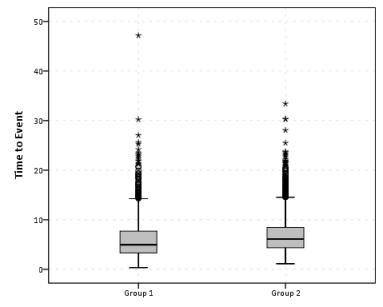
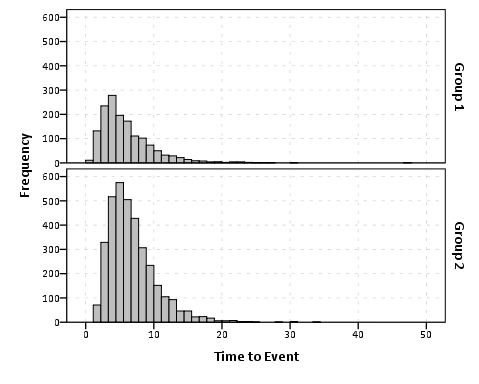
So this essentially produces a summary statistics table, a paneled histogram, and a box-plot (shown below).

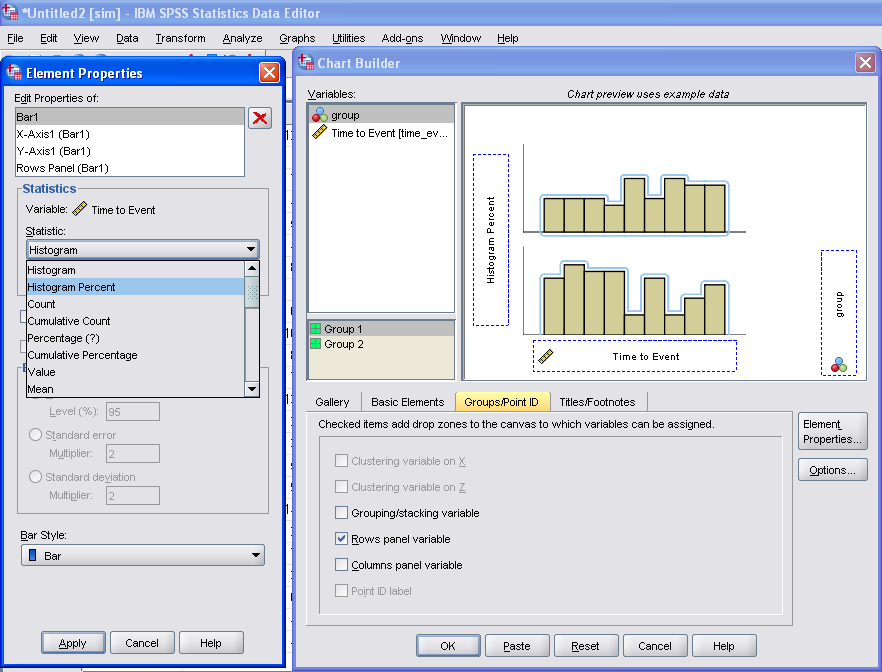
First blush this is an alright way to visually assess various characteristics of each distribution, and the unequal sizes of each group is not problematic when comparing the summary statistics nor the box-plots. The histogram produced by SPSS though is the frequency of events per bin, and this makes it difficult to compare Group 2 to Group 1, as Group 2 has so many more observations. One way to normalize the distributions is to make a histogram showing the percent of the distribution that falls within that bin as oppossed to the frequency. You can actually do this through the GUI through the Chart Builder, but it is buried within some various other options, below is a screen shot showing how to change the histogram from frequency to percents. Also to note, you need to change what the base percentage is built off of, by clicking the Set Parameters button (circled in red) and then toggling the denominator choice in the new pop up window to total for each panel (if you click on the screen shot images they will open up larger images).

Sometimes you can’t always get to what you want through the chart builder GUI though. For an example, I originally wanted to make a population pyramid type chart, and it does not allow you to specify the base percent like that through the GUI. So I originally made a pyramid chart like this;

And here is what the pasted output appears like.

GGRAPH
  /GRAPHDATASET NAME="graphdataset" VARIABLES=time_event group MISSING=LISTWISE REPORTMISSING=NO
  /GRAPHSPEC SOURCE=INLINE.
BEGIN GPL
  SOURCE: s=userSource(id("graphdataset"))
  DATA: time_event=col(source(s), name("time_event"))
  DATA: group=col(source(s), name("group"), unit.category())
  COORD: transpose(mirror(rect(dim(1,2))))
  GUIDE: axis(dim(1), label("Time to Event"))
  GUIDE: axis(dim(1), opposite(), label("Time to Event"))
  GUIDE: axis(dim(2), label("Frequency"))
  GUIDE: axis(dim(3), label("group"), opposite(), gap(0px))
  GUIDE: legend(aesthetic(aesthetic.color), null())
  SCALE: cat(dim(3), include("1", "2"))
  ELEMENT: interval(position(summary.count(bin.rect(time_event*1*group))), color.interior(group))
END GPL.

To get the percent bins instead of the count bins takes one very simple change to summary specification on the ELEMENT statement. One would simply insert summary.percent.count instead of summary.count. Which will approximately produce the chart below.
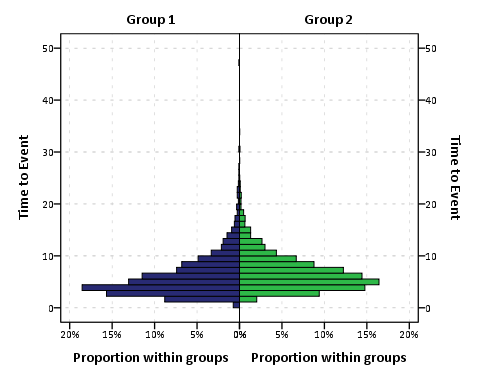
You can actually post-hoc edit the traditional histogram to make a population pyramid (by mirroring the panels), but by examining the GPL produced for the above chart gives you a glimpse of the potential possibilities you can do to produce a variety of charts in SPSS.

Another frequent way to assess continuous distributions like those displayed so far is by estimating kernel density smoothers through the distribution (sometime referred by the acronym kde (e is for estimate). Sometimes this is perferable because our perception of the distribution can be too highly impacted by the histogram bins. Kernel density smoothers aren’t available through the GUI at all though (as far as I’m aware), and so you would have only known the potential exisited if you looked at the examples in the GPL reference guide that comes with the software. Below is an example (including code).

GGRAPH
  /GRAPHDATASET NAME="graphdataset" VARIABLES=time_event group MISSING=LISTWISE REPORTMISSING=NO
  /GRAPHSPEC SOURCE=INLINE.
BEGIN GPL
  SOURCE: s=userSource(id("graphdataset"))
  DATA: time_event=col(source(s), name("time_event"))
  DATA: group=col(source(s), name("group"), unit.category())
  GUIDE: axis(dim(1), label("Time to Event"))
  GUIDE: axis(dim(2), label("Kernel Density Estimate"))
  GUIDE: legend(aesthetic(aesthetic.color.interior))
  SCALE: cat(aesthetic(aesthetic.color.interior), include("1", "2"))
  ELEMENT: line(position(density.kernel.epanechnikov(time_event*group)), color(group))
END GPL.

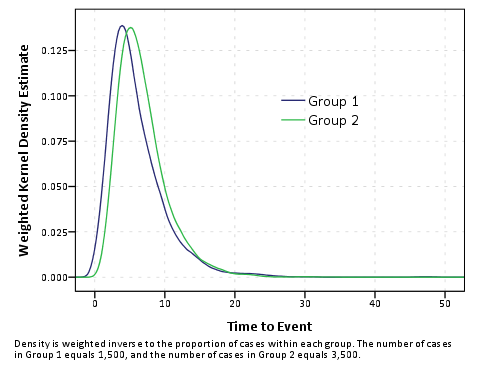
Although the smoothing is useful, again we have a problem with the unequal number of cases in the distributions. To solve this, I weighted cases inversely proportional to the number of observations that were in each group (i.e. the weight for group 1 is 1/1500, and the weight for group 2 is 1/3500 in this example). This should make the area underneath the lines sum to 1, and so to get the estimate back on the original frequency scale you would simply multiply the marginal density estimate by the total in the corresponding group. So for instance, the marginal density for group 2 at the time to event value of 10 is 0.05, so the estimated frequency given 3500 cases is .05 * 3500 = 175. To get back on a percentage scale you would just multiply by 100.

AGGREGATE
  /OUTFILE=* MODE=ADDVARIABLES
  /BREAK=group
  /cases=N.
compute myweight = 1/cases.

GGRAPH
  /GRAPHDATASET NAME="graphdataset" VARIABLES=time_event group myweight MISSING=LISTWISE REPORTMISSING=NO
  /GRAPHSPEC SOURCE=INLINE.
BEGIN GPL
  SOURCE: s=userSource(id("graphdataset"), weight(weightedVar))
  DATA: weightedVar=col(source(s), name("myweight"))
  DATA: time_event=col(source(s), name("time_event"))
  DATA: group=col(source(s), name("group"), unit.category())
  GUIDE: axis(dim(1), label("Time to Event"))
  GUIDE: axis(dim(2), label("Weighted Kernel Density Estimate"))
  GUIDE: legend(aesthetic(aesthetic.color.interior))
  GUIDE: text.footnote(label("Density is weighted inverse to the proportion of cases within each group. The number of cases in group 1 equals 1,500, and the number of cases ingroup 2 equals 3,500."))
  SCALE: cat(aesthetic(aesthetic.color.interior), include("1", "2"))
  SCALE: linear(dim(2))
  ELEMENT: line(position(density.kernel.epanechnikov(time_event*group)), color(group))
END GPL.

One of the critiques of this though is that choosing a kernel and bandwidth is ad-hoc (I just used all of the default kernal and bandwidth in SPSS here, and it differed in unexpected ways between the frequency counts and the weighted estimates which is undesirable). Also you can see that some of the density is smoothed over illogical values in this example (values below 0). Other potential plots are the cumualitive distribution and QQ-plots comparing the quantiles of each distribution to each other. Again these are difficult to impossible to obtain through the GUI. Here is the closest I could come to getting a cumulative distribution by groups through the GUI.

GGRAPH
  /GRAPHDATASET NAME="graphdataset" VARIABLES=time_event COUNT()[name="COUNT"] group 
    MISSING=LISTWISE REPORTMISSING=NO
  /GRAPHSPEC SOURCE=INLINE.
BEGIN GPL
  SOURCE: s=userSource(id("graphdataset"))
  DATA: time_event=col(source(s), name("time_event"))
  DATA: COUNT=col(source(s), name("COUNT"))
  DATA: group=col(source(s), name("group"), unit.category())
  GUIDE: axis(dim(1), label("Time to Event"))
  GUIDE: axis(dim(2), label("Cumulative Percent of Total"))
  GUIDE: legend(aesthetic(aesthetic.color.interior))
  SCALE: cat(aesthetic(aesthetic.color.interior), include("1", "2"))
  ELEMENT: line(position(summary.percent.cumulative(time_event*COUNT, base.all(acrossPanels()))), 
    color.interior(group), missing.wings())
END GPL.

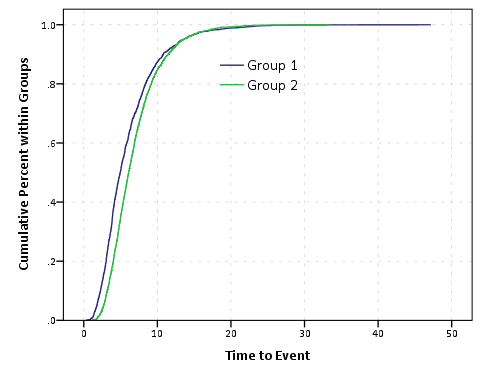
This is kind of helpful, but not really what I want. I wasn’t quite sure how to change the summary statistic functions in the ELEMENT statement to calculate percent within groups (I assume it is possible, but I just don’t know how), so I ended up just making the actual data to include in the plot. Example syntax and plot below.

sort cases by group time_event.
compute id = $casenum.
AGGREGATE
  /OUTFILE=* MODE=ADDVARIABLES
  /BREAK=group
  /id_min=MIN(id)
  /id_max=MAX(id).
compute cum_prop = ((id +1) - id_min)/(id_max - (id_min - 1)).


*Here is the cumulative proportion I want.
GGRAPH
  /GRAPHDATASET NAME="graphdataset" VARIABLES=time_event cum_prop group MISSING=LISTWISE 
    REPORTMISSING=NO
  /GRAPHSPEC SOURCE=INLINE.
BEGIN GPL
  SOURCE: s=userSource(id("graphdataset"))
  DATA: time_event=col(source(s), name("time_event"))
  DATA: cum_prop=col(source(s), name("cum_prop"))
  DATA: group=col(source(s), name("group"), unit.category())
  GUIDE: axis(dim(1), label("Time to Event"))
  GUIDE: axis(dim(2), label("Cumulative Percent within Groups"))
  GUIDE: legend(aesthetic(aesthetic.color.interior))
  SCALE: cat(aesthetic(aesthetic.color.interior), include("1", "2"))
  ELEMENT: line(position(time_event*cum_prop), color.interior(group), missing.wings())
END GPL.

These cumulative plots aren’t as problematic with bins as are the histograms or kde estimates, and in fact many interesting questions are much easier addressed with the cumulative plots. For instance if I wanted to know the proportion of events that happen within 10 days (or its complement, the proportion of events that do not yet occur within 10 days) this is an easy task with the cumulative plots. This would be at best extremely difficult to determine with the histogram or density estimates. The cumulative plot also gives a graphical comparisons of the distribution (although perhaps not as intuitive as the histogram or kde estimates). For instance it is easy to see the location of group 2 is slightly shifted to the right.

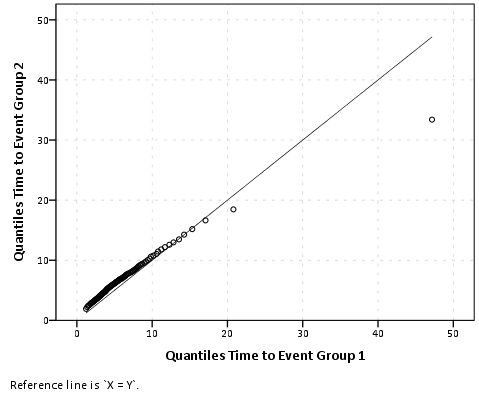
The last plot I present is a QQ-plot. These are typically presented as plotting an empirical distribution against a theoretical distribution, but you can plot two empirical distributions against each other. Again you can’t quite get the QQ-plot of interest though the regular GUI, and you have to do some data manipulation to be able to construct the elements of the graph. You can do QQ-plots against a theoretical distribution in the PPLOT command, so you could make seperate QQ plots for each subgroup, but this is less than ideal. Below I paste an example of my constructed QQ-plot, along with syntax showing how to use the PPLOT command for seperate sub-groups (using SPLIT FILE) and getting the quantiles of intrest using the RANK command.

sort cases by group time_event.
split file by group.
PPLOT
  /VARIABLES=time_event
  /NOLOG
  /NOSTANDARDIZE
  /TYPE=Q-Q
  /FRACTION=BLOM
  /TIES=MEAN
  /DIST=LNORMAL.
split file off.

*Not really what I want - I want Q-Q plot of one group versus the other group.
RANK VARIABLES=time_event (A) BY group
  /NTILES(99)
  /PRINT=NO
  /TIES=MEAN.

*Now aggregating to new dataset.
DATASET DECLARE quantiles.
AGGREGATE
  /OUTFILE='quantiles'
  /BREAK=group Ntime_ev 
  /time_event=MAX(time_event).
dataset activate quantiles.

sort cases by Ntime_ev group.
casestovars
/id = Ntime_ev
/index = group.

DATASET ACTIVATE quantiles.
* Chart Builder.
GGRAPH
  /GRAPHDATASET NAME="graphdataset" VARIABLES=time_event.1[name="time_event_1"] 
    time_event.2[name="time_event_2"] MISSING=LISTWISE REPORTMISSING=NO
  /GRAPHSPEC SOURCE=INLINE.
BEGIN GPL
  SOURCE: s=userSource(id("graphdataset"))
  DATA: time_event_1=col(source(s), name("time_event_1"))
  DATA: time_event_2=col(source(s), name("time_event_2"))
  GUIDE: axis(dim(1), label("Quantiles Time to Event Group 1"))
  GUIDE: axis(dim(2), label("Quantiles Time to Event Group 2"))
  ELEMENT: point(position(time_event_1*time_event_2))
  ELEMENT: line(position(time_event_1*time_event_1))
END GPL.

Although I started out with a simple question, it takes a fair bit of knowledge about both graphically comparing distributions and data management (i.e. how to shape your data) to be able to make all of these types of charts in SPSS. I intentionally made the reference distributions very similar, and if you just stuck with the typical histogram the slight differences in location and scale between the two distributions would not be as evident as it is with the kernel density, the cumulative distribution or the QQ-plots.

Beware of Mach Bands in Continuous Color Ramps

A recent post of mine on the cross validated statistics site addressed how to make kernel density maps more visually appealing. The answer there was basically just adjust the bandwidth until you get a reasonably smoothed surface (where reasonable means not over-smoothed to one big hill or undersmoothed to a bunch of unconnected hills).

Another problem that frequently comes along with the utlizing the default types of raster gradients is that of mach bands. Here is a replicated image I used in the cross validated site post (made utilizing the spatstat R library).

Even though the color ramp is continous, you see some artifacts around the gradient where the hue changes from what our eyes see as green to blue. To be more precise, approximately where the green hue touches the blue hue the blue color appears to be lighter than the rest of the blue background. This is not the case though, and is just an optical illusion (you can even see the mach bands in the legend if you look close). Mark Monmonier in How to Lie with Maps gives an example of this, and also uses that as a reason to not use continous color ramps (also another reason he gives is it is very difficult to map a color to an exact numerical location on the ramp). To note this isn’t just something that happens with this particular color ramp, this happens even when the hue is the same (the wikipedia page gives an example with varying grey saturation).

So what you say? Well, part of the reason it is a problem is because the artifact reinforces unnatural boundaries or groupings in the data, the exact opposite of what one wants with a continuous color ramp! Also the groupings are largely at the will of the computer, and I would think the analyst wants to define the groupings themselves when disseminating the maps (although this brings up another problem with how to define the color breaks). A general principle with how people interpret such maps is that they tend to form homogenous groupings anyway, so for both exploratory purposes and disseminating maps we should keep this in mind.

This isn’t a problem limited to isopleth maps either, the Color Brewer online app is explicitly made to demonstrate this phenonenom for choropleth maps visualizing irregular polygons. What happens is that one county that is spatially outlying compared to its neighbors appears more extreme on the color gradient than when it is surrounded by colors with the same hue and saturation. Below is a screen shot of what I am talking about, with some of the examples circled in red. They are easy to see that they are spatially outlying, but harder to map to the actual color on the ramp (and it gets harder when you have more bins).

Even with these problems I think the default plots in the spatstat program are perfectly fine for exploratory analysis. I think to disseminate the plots though I would prefer discrete bins in many (perhaps most) situations. I’ll defer discussion on how to choose the bins to another time!

Co-maps and Hot spot plots! Temporal stats and small multiple maps to visualize space-time interaction.

One of the problems with visualizing and interpreting spatial data is that there are characteristics of the geographical data that are hard to display on a static, two dimensional map. Friendly (2007) makes the pertinent distinction between map and non-map based graphics, and so the challenge is to effectively interweave them. One way to try to overcome this is to create graphics intended to supplement the map based data. Below I give two examples pertinent to analyzing point level crime patterns with attached temporal data, co-maps (Brunsdon et al., 2009) and the hot spot plot (Townsley, 2008).

co-maps

The concept of co-maps is an extension of co-plots, a visualization technique for small multiple scatterplots originally introduced by William Cleveland (1994). Co-plots are in essence a series of small multiples scatterplots in which the visualized scatter plot is conditioned on a third (or potentially fourth) variable. What is unique about co-plots are though the conditioning variable(s) is not mutually exclusive between categories, so the conditions overlap.

The point of co-plots is in general to see if the relationship between two variables has an interaction with a third continuous variable. When the conditioning variable is continuous, we wouldn’t expect the interaction to change dramatically with discrete cut-offs of the continuous variable, so we want to examine the interaction effect at varying levels of the conditioning variable. It is also useful in instances in which the data is sparse, and you don’t want to introduce artifactual relationships by making arbitrary cut-offs for the conditioning variable.

Besides the Cleveland paper cited (which is publicly available, link in citations at bottom of post), there are some good examples of coplot scatterplots from the R graphical manual.

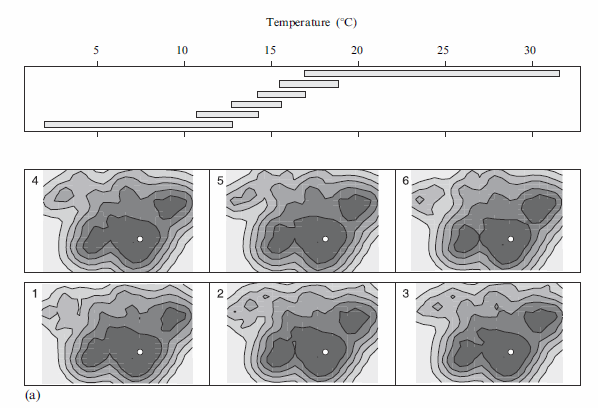
Brunsdon et al. (2009) extend the concept to analyzing point patterns, when time is the conditioning variable. Also because the geographic data are numerous, they apply kernel density estimation (kde) to visualize the results (instead of a sea of overlapping points). When visualizing geographic data, too many points are common, and the solutions to visualizing the data are essentially the same as people use for scatterplots (this thread at the stats site gives a few resources and examples concerning that). Below I’ve copied a picture from Brusdon et al., 2009 to show it applied to crime data.

Although the example is conditional on temperature (instead of time), it should be easy to see how it could be extended to make the same plot conditional on time. Also note the bar graph at the top denotes the temperature range, with the lowest bar corresponding to the graphic that is in the panel on the bottom left.

Also of potential interest, the same authors applied the same visualization technique to reported fires in another publication (Corcoran et al., 2007).

the hot spot plot

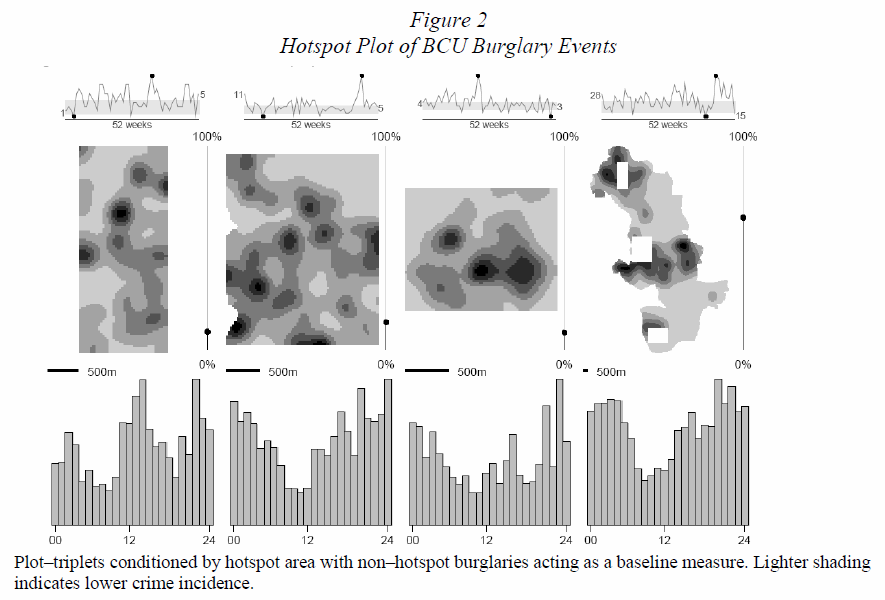
Another similarly motivated graphical presentation of the interaction of time and space is the hot-spot plot proposed by Michael Townsley (2008). Below is an example.

So the motivation here is having coincident graphics simulataneously depicting long term temporal trends (in a sparkline like graphic at the top of the plot), spatial hot spots depicted using kde, and a lower bar graphic depicting hourly fluctuations. This allows one to identify spatial hot spots, and then quickly assess their temporal nature. The example from the Townsley article I give is a secondary plot showing zoomed in locations of several analyst chosen hot spots, with the cut out remaining events left as a baseline.

Some food for thought when examing space-time trends with point pattern crime data.


Citations