Poisson regression and crazy predictions

Here is a problem I’ve encountered a few times in my own work (and others) with Poisson regression models and the exponential link function. It came up recently in some discussions on the scatterplot blog by Jeremy Freese (see 1 & 2) critiquing the PNAS paper on the effect of female named hurricanes on death tolls, so I figured I would expand up those thoughts a little here.

So the problem is when you estimate a Poisson regression model is that the exponential link function can become explosive for explanatory variables that have a large range. So to be clear, we have a Poisson regression model of the form (here E[Y] mean the expected value of Y):

log(E[Y]) = B1*(X)
    E[Y]  = e^(B1*X)

If X has a small range this may be fine, but if X has a large range it can become problematic. Consider if Y are hurricane deaths, X is monetary damage of the hurricane, and B1 = 0.01. Lets say the monetary damage ranges from 1 to 1000 (imagine these are in thousands of dollars, so range between $1,000 and $1 million). What happens with the predictions?

E[Deaths] = e^(0.01*   1) =     1.01
E[Deaths] = e^(0.01*   5) =     1.05
E[Deaths] = e^(0.01*  10) =     1.11
E[Deaths] = e^(0.01*  50) =     1.65
E[Deaths] = e^(0.01* 100) =     2.71
E[Deaths] = e^(0.01* 500) =   148
E[Deaths] = e^(0.01*1000) = 22026

These predictions are invariant to linear transformations – that is Z-scoring X in the original units doesn’t change the predictions (the same as expressing X in [dollars/1000] doesn’t make any difference than just by including [X] on the right hand side). The linear predictor of B1 will simply be scaled by the appropriate inverse transformation. Also I’d note that expressed in terms of incident rate ratios the effect would be e^0.01=1.01. This appears on its face a totally innocuous effect, and only in consideration of the variation in X does it appear to be absurd.

You can see that if the range of X were smaller, say between 1 and 100, the predictions might be fine. The predictions between 1 and 100 only vary by 1.7 deaths. The problem with these explosive predictions at larger values is that they are nonsense for most of social scientific research. A simple sanity check to see if this is occurring is to check the predicted value from your Poisson regression equation at the low end of X versus the high end (and just pretend all of the other explanatory variables are set to 0) exactly as I have done here. If the high end is crazy, you will need to consider some alternative model specification (or be very clear that the model can not be extrapolated to the larger values of X).

A useful alternate parametrization is simply to log X, and in this case when exponentiating the right hand side, it will make the predictor a power of the original metric.

So imagine we fit the model:

log(E[Y]) = B2*(log(X))
    E[Y]) = e^(B2*log(X)) 
          = x^B2

Lets say here that B2 = 0.5. What happens to our predictions again?

E[Deaths] =    1^0.5 =  1
E[Deaths] =    5^0.5 =  2.2
E[Deaths] =   10^0.5 =  3.2
E[Deaths] =   50^0.5 =  7.1
E[Deaths] =  100^0.5 = 10
E[Deaths] =  500^0.5 = 22
E[Deaths] = 1000^0.5 = 32

Those predictions look a little bit easier to swallow at the larger ranges. Notice also the differences in predictions in the smaller stages? There is more discrimination for the smaller values than on the original scale, but the larger values are suppressed. Lets consider the predictions side by side for easier comparison.

   X      B1   B2
   -      --   --
   1       1    1
   5       1    2
  10       1    3
  50       2    7
 100       3   10
 500     148   22
1000   22026   32

A frequent problem with logging the explanatory variables is that they contain zeroes. A simple alternative is to treat log(0) as 0 and then have a separate dummy variable equal to 1 when X = 0. This model may not make Occam happy, as it implies a discontinuity at 0, but it is in my opinion a small price to pay. Also if there are a lot of zeroes this doesn’t strike me as totally unrealistic to have a mixture of what happens at 0 and then what happens at the higher values. So the full model written out would be:

log(E[Y]) = B3*D + B4*(log(X))

But the model is essentially discontinuous. When X=0, we treat log(X)=0 and D=1, so the model reduces to;

log(E[Y]) = B3*D :When X = 0

When X>0, D=0 and the model reduces to:

log(E[Y]) = B4*(log(X)) :When X > 0

Now, it certainly would be weird if B3>>0, as this would imply a high spike at 0, and then at the X value of 1 Y goes back down to 1 and then increases with X. If we expect B4 to be positive, then a negative value of B3 (or very close to 0) would make the most sense. It is still a discontinuity in the function, but one that may make theoretical sense. So imagine we fit the equation log(E[Y]) = B3*D + B4*(log(X)), lets say B4 is 0.5 (the same as B2), and that B3 is equal to -0.1. This would then make the set of predictions go:

E[Deaths] =  e^-0.01 =  0.9
E[Deaths] =    1^0.5 =  1.0
E[Deaths] =    5^0.5 =  2.2
E[Deaths] =   10^0.5 =  3.2
E[Deaths] =   50^0.5 =  7.1
E[Deaths] =  100^0.5 = 10
E[Deaths] =  500^0.5 = 22
E[Deaths] = 1000^0.5 = 32

So in this made up example the discontinuity pretty much fits right in with the rest of the function. We may consider other non-linear transformations of X as well (splines or higher powers) but frequently an additional problem is that the bulk of the data lie in the lower end of the range. So for our dollars if it was highly right skewed, there may only be a few values at 100 or higher. These can be highly influential if you use powers of X (e.g. include X^2, X^3 etc. on the right hand side) – so splines are a better choice – but essentially no matter how you fit the function it will be hard to verify the fit at these values or extrapolate to those tails. So the fit in the original function may be fine – but it just implies unrealistic marginal effects in the tails.

So how do we verify one equation over the other? Visualizing count data in scatterplots tend to be harder than visualizing continuous data, especially if there is a stock pile of data at 0. The problem is simply exacerbated if the explanatory variable has a similar right skew, there will be a large mass near the origin of the plot and very sparse everywhere else.

My simple suggesting is to just bin the data at X values, which is very simple if X is integer valued, and then plot the mean and standard error of the Y value within those bins. As Poisson regression and its variants rely on asymptotic properties, if the error bars are too variable to deduce a pattern you should be concerned your sample size isn’t large enough to begin with.

If the bulk of the data only have a small range over X, then it will be hard in practice to differentiate between the two model parametrizations I suggest here (with the typical noisy data we have in the social sciences). So you may prefer logging the X variable simply to prevent the dramatic explosions in the tails of the data right from the start.

I do feel comfortable saying that if the ratio of the smallest to largest value for the independent variable is over 100, you should check the predictions of the exponential link function very closely (if the smallest value is 0 just estimate the ratio as if the smallest value is 1). If this ratio is 100 or larger, unless the linear predictor in the Poisson regression equation is very small (<<.01) the predictions may explode into very implausible ranges for the larger X values.


What is up with 3d graphics for book covers?

The other day in Google books I noticed Graphics for Statistics and Data Analysis with R by Kevin Keen in the related book section. What caught my eye was not the title (there have to be 100+ related R books at this point) but the really awful 3d pie chart.

Looking at the preview on google books this appears to be an unfortunate substitution. The actual cover has a much more reasonable set of surface plots and other online book stores (e.g. Amazon) appear to have the correct cover.

I suspect someone at CRC Press used some stock imagery for the cover, and unfortunately the weird 3d pie graph has been propagated to the google book preview without correction.

This reminded me of a few other book covers in cartography and data visualization though that I find less than appealing. Now, I’m not saying here to judge a book by its cover, and I have not read all of the books I will point to here. But I find the use of 3d graphics in book covers in the data visualization field to be strange and bordering cognitive dissonance with the advice most of the authors give.

First I’ll start with a book I have read, and would suggest to everyone, Thematic cartography and geographic visualization by Slocum et al. I have the 2005 version, and it is dawned by this 3d landscape. (Sorry this is the largest image I can find online – other editions I believe have different covers.)

The multivariate display of data is admirable – so for exploratory analysis you could make a reasonable argument for the use of proportional sized circles superimposed on the choropleth map. The use of 3d in this circumstance though is gratuitous, and the extreme perspective hides much of the data while highlighting the green hills in the background.

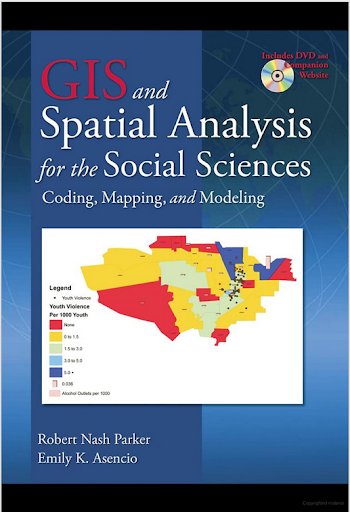
The second mapping book I have slight reservations about critiquing the cover (I am on the job market!). I have not read the book, so I can not say anything about its contents. But roaming the book displays at an ASC conference I remember seeing this cover, GIS and Spatial Analysis for the Social Sciences: Coding, Mapping, and Modeling by Nash and Asencio.

This probably should not count in the other 3d graphics I am showing. The bar columns do have shading for 3d perspective – but the map otherwise is 2d. But the spectral color scheme is an awful choice. The red in the map tends to stand out the most – which places with zero crimes I don’t think you want to make that impression. The choropleth colors appear to be displaying the same data as the point data. The point data are so clustered that the choropleth can only be described as misleading – which may be a good point in text for side by side maps – but on the cover? Bar locations seem to be unrelated (as we might expect for juvenile crime) but they are again aggregated to the (probably) census units – making me question if the aggregation obfuscates the relationship. Bars are not available from the census – so it is likely this aggregation was intentional. I have no idea about the content of the book and I will likely get it and do an overall review of all crime mapping books sometime. But the cover is unambiguously a bad map.

The last book cover with 3d graphics (related to data-visualization) that I immediately remembered was R For Dummies by Meys and de Vries.

Now this when you look close really is not bad. It is not a graph on the cover, but a set of winding, hexagon cylinder stairsteps. So the analogy of taking small steps is fine – but the visual similarity to other statistical 3d graphics is clear. Consider the SPSS For Dummies book by Griffith.

Now that is an intentional, 3d chart made up of tiny blocks, with a trend line if you look closely, shadowed by cigarette like red bars in the background. At least this is so strange (and not possible in statistical software) that this example would never be confused with an actual reasonable statistical graphic. The Dummies series has such brand recognition as well that the dominant part of the cover might be the iconic yellow and type, as opposed to the inset graphic.

Not wanting to leave other software out of the loop, I looked for examples for SAS and Stata. SAS has a reasonable 3d cover in SAS System for Statistical Graphics by Friendly.

Short sidetrack story: I first learned statistical programming using SAS back in undergrad days at Bloomsburg University. Default graphics for SAS at that point (04-08) I believe were still the ASCII art looking things (at least that is what I remember). During our last meeting for my last statistics class – one of the other students showed me you could turn on the ODS output to html – and tables and graphs were by default pretty nice. I since have not had a need to use SAS.

This 3d cover by Friendly is arguably a reasonable use of 3d. 3d graphs are hard to navigate, and the use the anchors connecting the observations to the non-linear surface more easily associate a point with below or above the surface. It is certainly difficult though to understand the fit of the function – so likely a series of bivariate graphs would be more intuitive – especially given the meager number of points. I suspect the 3d on the cover is for the same reason 3d graphics were used in the other covers – because it looks cooler to book marketers!

Stata managed to debunk the 3d graph trends – I could not find any example Stata books with 3d graphics. Nick Cox’s newer collection of his Speaking Stata series though has some interesting embellishments.

While in isolation all of the graphs are fine – I’m sure Cox would not endorse the gratuitous use of color gradients in the graphics (I don’t think svg like gradients like that are even possible in Stata graphics). The ternary diagrams show nothing but triangles as well – so I don’t think such gradients are a good idea in any case for simply the background of the plot. Such embellishments could actually decode data, but in the case of bar graphs do not likely hurt or help with understanding the plot. When such gradients are used as the background though they likely compete with the actual data in the plot. Stata apparently can do 3d graphs – so I might suggest I write a book on crime modelling (published by Stata press) and insert a 3d graph on the cover (as this is clearly a niche in the market not currently filled!) I might have to make room for Chernoff faces somewhere on the front or back cover as well.

So maybe I am just seeing things in the examples of 3d covers. If anyone has any insight into how these publishers choose the covers let me know – or if you have other examples of bad book cover examples of data vizualization! Since most of my maps and graphs are pretty dull in 2d I might just outsource the graphic design if I made a book.

Learning to write badly in the social sciences

I recently finished Michael Billig’s book, Learn to Write Badly: How to Succeed in the Social Sciences, and I was largely convinced of Billig’s thesis so I shall reiterate it briefly here. Billig argues that much of social scientific writing is difficult to understand because of the excessive use of nouns instead of verbs. If we (ironically) use the word nominalization to describe the process of turning verbs into nouns, it would sound pretty similar to old hat of avoiding the use of jargon in scientific writing.

Billig goes a bit further though then the usual avoid jargon advice (which is uncontroversial), but gives many examples of where this change from verbs to nouns has negative consequences on how writing is interpreted. Two of these are:

  • Verbs are often much more clear about what actor is performing what actions (and in turning the verb to a noun both the actor and the action can become ambigious)
  • Replacing verbs with nouns gives a false sense of authority that the noun actually exists

The first is important for social scientists because we are pretty much always describing the actions of humans. The second Billig likens to marketing strategies to promote ones work (similar to how advertisements promote products), which I imagine the analogy turns a few academics stomachs.

As an example from my own work, I will use the title to one of my papers, The Moving Home Effect: A Quasi Experiment Assessing Effect of Home Location on the Offence Location. The title is really awful, and in a bit of self-deprecation the few times I presented the work I would make fun of my title making skills at the opening of my talk. The first part of the title before the semi-colon, "The Moving Home Effect", is an example of an ambiguous use of nouns. First, describing my findings as the moving home effect is rather ambiguous, it could mean effecting anything and everything. My particular study is much more restricted, I examined the distance between crimes before and after offenders move. Second, the effect of the added distance between crimes when moving I found to be rather small, which is probably one of the more interesting points of the paper. So saying "The Moving Home Effect" places unwanted emphasis that it exists and is real.

The same exercise can be used for the second part of the title. The use of quasi-experiment is simply econometrics jargon and is unneeded. It is an appeal to associate with a particular camp of analysis, and really does nothing to describe the nature of the work. So, I propose possible rewrites of my title to be:

  • Moving one’s home slightly changes the average distance between offences
  • When an offender moves, it slightly changes the location of where they offend

These are much more descriptive (and shorter) than the original title. Reviewing my own work such examples are rampant, so I have a bit of work to do to live up to Billig’s ideal, but I am convinced it will lead to improved writing. Also it seems to me it is a good exercise to make ones writing more concise, which is always welcome.

In (slight) defense of word clouds

Word cloud of the frequency of words in Dr. Seuss’s Cat in the Hat via Jason Davies D3.js app.

I try to view the practice of data visualization with an open mind. In particular, I like to think that there is rarely a strict dichotomy of good or bad visualizations (or synonymously maps). It is a continual gradation, but we can use knowledge of visual perception to guide us as to visualizations that will be better for communicating particular information. Here I want to spend a few minutes talking about word clouds, and provide some things that they do good along with the bad.

So first, I will be focusing solely on the presentation of data in the form of the word cloud. Jacob Harris has a wonderful rant about why he hates word clouds, and this is focused on the fact that many word clouds are devoid of real meaning. You can present meaningless content in any graphical form you want – so I will not discuss this further.

When we evaluate the utility of any particular graphic, one needs to be clear about the motivation for the graphic – what data the graphic is intended to display to its audience. With that goal in mind, then we can evaluate how well the graphic meets that goal. If the goal of a word cloud is intended as a graphical depiction of the entire distribution of words it is obviously inferior to a bar chart (or with a long tail a chart of the empirical CDF). The words in a word cloud tend to be all jumbled up and in no particular order, so it is difficult to see the distribution. If the goal is a quantitative estimate of the difference between two words, they also fail here because we know that area judgements are much more difficult than comparing lengths along an aligned axis. In addition, there is another confound in that the length of the word (or even particular letters with ascenders or descenders – depending on the font used) further confound the size differences between the words in the word cloud. That is, even if the font sizes are in the end the same, SomeReallyBigLongWord will appear larger in the graphic than a word such as tiny. Again bar charts are clearly superior for either of these tasks, and Marti Hearst has a nice PDF white paper discussing these short comings (via Stephen Few’s Perceptual Edge site), Whats up with Tag clounds. Also see Stephen Few’s critique of the use of packed circles in Tableu for a similar critique.

Given the shortcomings, there are two potential aspects of word clouds that I personally find appealing in terms of communicating information. They both have to do with focusing the attention on particular words, as opposed to focusing on the empirical distribution of words or on the size difference between the two words. The first aspect I would refer to the Stroop effect. Stroop’s experiment showed that reaction time for reading words that provided interfering mental stimulus slowed reaction time. Or more simply, it is easier to read red and blue than it is to read green and orange. So what does this have to do tag clouds? In tag clouds, the differentially sized words themselves are the data. There is no cognitive burden as in bar charts because one need not navigate between the label and the word.

The second aspect is related to the fact that in a particular graphic, there are certain elements that will dominate the readers attention. This is similar to creating a layering in a chart (that is often discussed in cartography), e.g. make elements you want to focus attention on in the chart come to the foreground, and other elements recede to the background. For one example Stephen Kosslyn argues that bar charts are preferable to Cleveland dot plots for presentations, as the bars have a higher visual recognition (e.g. stand out more or are more salient). Word clouds do this very well for the bigger words, while bar charts tend to be more appropriate for visualizing the entire distribution. That is the bigger words aren’t immediately more salient in the graph – the actual bars displaying the data are.

Based on these, I would suspect a user study of word clouds would outperform bar charts in the following aspects in terms of time taken to perform the task:

  • Return the top three words in the graph.
  • Given two particular words, which word is larger than the other word.

Or more simply, even though when evaluating areas we are not terribly effective at assigning areas, we can still rank order based on the size of the words. So in terms of rank order tasks I think word clouds will perform alright for simple comparisons. Given no time constraints, I would expect bar charts will always be more accurate, but depending on the nature of the task will take longer. For the top three words, if the chart is ordered one would need to read the top three and then reply. If the chart was unordered, one needs to take time to find them (this is where the interference and the Stroop effect comes into play). Most words clouds I see these top words are pretty much immediately recognizable, and so I suspect will be much faster for these tasks.

For the two particular words, I suspect it will boil down to in what format you can find the words the fastest. In the bar chart, you have to scan a list, whereas in a tag cloud it is unordered. With the exception of very tiny words in the word cloud, I bet you will find each word faster in a word cloud in most examples. (This is my guess, I know of no experiments confirming this specific scenario.)

So what does this mean in terms of visualizing data – either in the form of a tag/word cloud or a more typical form like a bar chart? For the bar chart, the bar is what is the most salient feature of the graph. If you want to draw more attention to the particular words, while still leaving the data intact, consider direct labels of the bars or maybe a more table like graphic. As always, if you can selectively filter out a larger amount of words, it will provide a simpler graphic to evaluate for the remaining items.

Can the tag cloud ever be a reasonable data visualization compared to a simple table or bar graph? I believe it can, but only if the typical layout algorithms are improved to incorporate ancillary information. Tag clouds are very similar to bin packing algorithms, and strike me as natively similar to force directed network layout algorithms (such as Dorling Cartograms). The layouts as used by Wordle or the Jason Davies implementation simply place the words by a convenient algorithm in a rank order importance. They pretty much just take the biggest word, place it, then go around in a circle to find a place for the next biggest word.

We can think of other ways to lay out the words though. CiteULike has a wonderful example where the words are laid out in alphabetical order, you can see my entire library tags here. Here is a screenshot of my tag library on the homepage, in which it is a smaller space, so they filter out the small tags:

The motivation for this is not to view the empirical distribution of the tags, but is for look up of particular tags. You can click on a tag and it brings up all of my entries in my library with that tag. If you don’t want to navigate to an additional site, simply take a look to the right aside of this WordPress template I use. There is a library of the tags I use on this site ordered alphabetically and filtered, but with the font sized in proportion to the amount of tags used in posts on this site. I find these uses of word clouds quite convenient, where I rather give priority to the words themselves, over specific quantitative estimates of the frequencies.

There are other potential ways to layout the words though that can hold other quantitative information. For instance, I could layout the tags in my CiteULike library according to shared articles. Coloring the words and the typical layouts in random order I find distracting, but given particular tasks (such as simple look up) I find they work just fine. Again because the focus is on the word, and not exact quantitative assessment of the magnitude (nor understanding of the overall distribution) I say tag clouds are better in this particular circumstance than a bar chart is. My arguments based on cognitive load and speed of surveying word clouds certainly does not make them appropriate for all data viz. tasks, but I believe it does for some.

Using the Google Places API in Python

So I was interested in scraping data from the Google Places API recently. My motivation came from some criminology studies that examine the relationship between coffee shops and crime (Papachristos et al. 2011; Smith, 2014) under the auspices that coffee shops are a measure of gentrification. I am also interested in gaining information about other place characteristics as well, as whether a place has some sort of non-residential application (e.g. bus stop, gas station) they tend to have elevated amounts of crime compared to solely residential locations. (These are not per-se characteristics that make places criminogenic – they just influence the walking around population and thus make the baseline exposure of places greater because of more human interaction).

So here I will give an example of grabbing data from the Google Places API given a grid of locations from SPSS and exporting to an SPSS dataset. So first you need sign up for an API key with Google from the Google APIs console. This allows 1,000 queries per day. Here I will make an example of 6 cases, but again with just the base query rates you can submit up to 1,000 requests per day (and can get 100,000 by verifying your identity).

*Need UNICODE.
PRESERVE.
SET UNICODE=ON.

*Some example data.
DATA LIST FREE / ID Lat Lng.
BEGIN DATA
1   38.901989   -77.041921
2   38.901991   -77.036157
3   38.901993   -77.030393
4   38.906493   -77.041924
5   38.906495   -77.036159
6   38.906497   -77.030394
END DATA.
DATASET NAME Locations.

I typically don’t have SPSS in Unicode mode, but since Google will return some results in Unicode it is necessary to turn it on. After that I create a dataset with 6 locations in central D.C. These happen to be centroids from a regular grid I laid over the city with 500 meter square grid cells (and it only takes 800 and some cells to cover the city of D.C.).

Now google has a pretty good intro to get your feet wet, so here I will just show the helper functions I created to ease the task. The first function takes as input parameters latitude, longitude, a radius (in meters), a type field, and your key for the maps API. It then grabs the JSON you get as a response from that specific url, and then turns the JSON object into a nested list that can be traversed in python. You can check out from Google what other information is available, but the IterJson function is just a helper to takes specific results from GoogPlac and put them into a nicer array for me to use. Here I just grab the geographic coordinates, a place name, a reference string, and the address associated with the place.

*Functions to grab the necessary data from Google.
BEGIN PROGRAM.
import urllib, json

#Grabbing and parsing the JSON data
def GoogPlac(lat,lng,radius,types,key):
  #making the url
  AUTH_KEY = key
  LOCATION = str(lat) + "," + str(lng)
  RADIUS = radius
  TYPES = types
  MyUrl = ('https://maps.googleapis.com/maps/api/place/nearbysearch/json'
           '?location=%s'
           '&radius=%s'
           '&types=%s'
           '&sensor=false&key=%s') % (LOCATION, RADIUS, TYPES, AUTH_KEY)
  #grabbing the JSON result
  response = urllib.urlopen(MyUrl)
  jsonRaw = response.read()
  jsonData = json.loads(jsonRaw)
  return jsonData

#This is a helper to grab the Json data that I want in a list
def IterJson(place):
  x = [place['name'], place['reference'], place['geometry']['location']['lat'], 
         place['geometry']['location']['lng'], place['vicinity']]
  return x
END PROGRAM.

Now we can set up the parameters for the search in addition to the geographic coordinates. Here I make python objects specifying the search type cafe and my API key. I will pass a constant for the radius field of 375 meters – which will cause just a bit of overlap among my grid cells.

*Setting the parameters I will use in the query - type & my key.
BEGIN PROGRAM.
#necessary info for geocoding
MyKey = 'Your API Key Here!!!'
MyType = 'cafe'
END PROGRAM.

Now the magic happens; this code 1) declares a new dataset to place the results in, and then in python 2) grabs the current SPSS dataset, 3) sets the variables for the new dataset, 4) searches at each longitude value in the original dataset, and 5) appends cases to the new SPSS dataset for every location result returned for each initial longitude location. The nested loops are necessary as one location will return multiple places. (For those not using SPSS, the SPSS data here, alldata, is simply a list of namedTuple’s for each row of SPSS data. This code is basically amenable to whatever data structure you are working with, just loop through your grid of geographic coordinates and then append those results to whatever data structure you want.)

*Now querying google and placing the results into a new file.
DATASET DECLARE PlacesResults.
BEGIN PROGRAM.
#Grabbing SPSS data
import spss, spssdata
alldata = spssdata.Spssdata().fetchall()

#making an SPSS dataset to place the results into
spss.StartDataStep()
datasetObj = spss.Dataset(name='PlacesResults')
datasetObj.varlist.append('Id',0)
datasetObj.varlist.append('LatSearch',0)
datasetObj.varlist.append('LngSearch',0)
datasetObj.varlist.append('name',100)
datasetObj.varlist.append('reference',500)
datasetObj.varlist.append('LatRes',0)
datasetObj.varlist.append('LngRes',0)
datasetObj.varlist.append('vicinity',300)

#appending the data to the SPSS dataset
for case in alldata:
  search = GoogPlac(lat=case[1],lng=case[2],radius=375,types=MyType,key=MyKey) #grab data
  if search['status'] == 'OK':                                                 #loop through results
    for place in search['results']:
      x = IterJson(place)
      results = list(case) + x
      datasetObj.cases.append(results)                                         #appending data to SPSS dataset
spss.EndDataStep()
END PROGRAM.

Now we have the data in our PlacesResults SPSS dataset for further manipulation or whatever. One of comment on a prior post was basically "What is the point of SPSS, I can do all of this in Python". Well this is generally true – but I continue to do work in SPSS because it is much more convenient a tool for data management then Python (at least for myself, knowing SPSS really well and Python not so well). So here because we have slightly overlapping search radius’s, you will have duplicate results in your set. The following code in SPSS eliminates those duplicate results.

*************************************.
*Getting rid of duplicate results.
DATASET ACTIVATE PlacesResults.
SHOW N.
SORT CASES BY name vicinity LatRes LngRes Id.
MATCH FILES FILE = *
  /FIRST = Keep
  /BY name vicinity LatRes LngRes.
SELECT IF Keep = 1.
MATCH FILES FILE = * /DROP Keep.
EXECUTE.
SHOW N.
*************************************.

So now you can do the analysis with your results without having to worry about duplicates. If you don’t want to keep SPSS in Unicode mode, remember to restore your settings before you end your SPSS session.

*Restoring back to LOCAL mode.
DATASET CLOSE ALL.
NEW FILE.
RESTORE.

So, I have done all this, but I must admit that it appears to me that this act would violate the terms of service for using the Google Places API data (see 10.1.3 Restrictions against Data Export or Copying specifically), as this is creating a database of the cached results. But others like FloatingSheep do approximately the same type of requests (and obviously cache the data in a permanent database to make such maps). Maybe if someone from Google is listening they can let me know if I am violating the terms of service for doing such a non-commercial academic project.

I will update at a later point about the results of the cafes and crime at the micro place level in DC (as part of my dissertation). There actually is a set of sidewalk cafe’s From DC.gov and a quick look with one of the older files I have (downloaded in Oct-13) there are 452 listed cafes. The scraped data from google only totals 368 over the whole city – so it seems likely I am undercounting taking the data from Google – but further investigation will be needed.

Some more value-by-alpha maps for D.C. Census Blocks

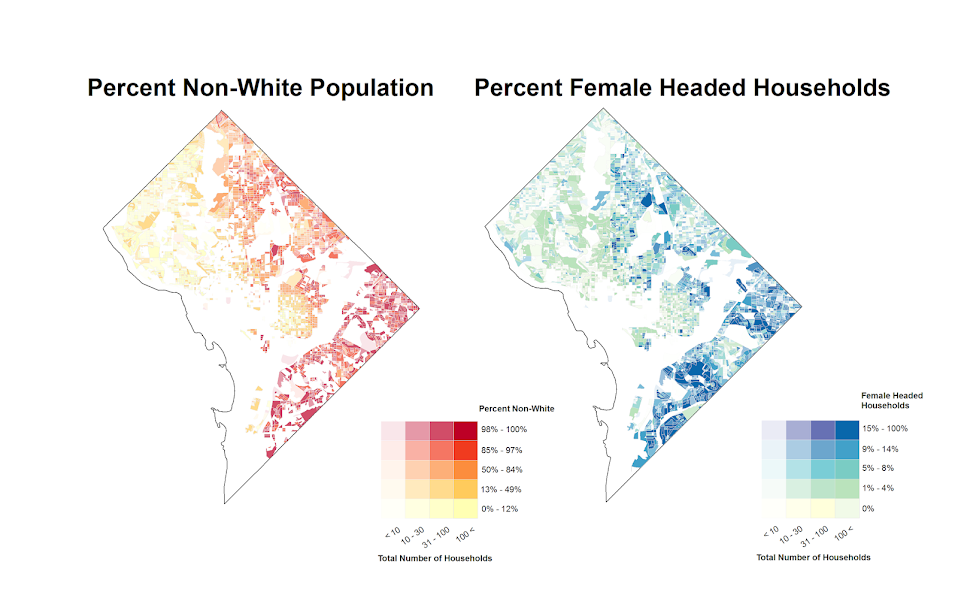
I’ve made some more value-by-alpha maps for my dissertation for percent non-white population in comparison to percentage of female-headed households for Census blocks in 2010 in D.C. See my first post for some background. The choropleth classes for the percents are chosen according to quintiles of the distributions and the alpha classes are arbitrary (note the alpha class uses households as the baseline in both maps, even though percent non-white uses the population counts).

When making these maps I’ve found that the Color Brewer sequential styles that range two colors work out much better than those that span one color. What happens with the one color sequential themes is that the faded out colors end up being confounded with the lighter colors in the fully opaque ranges. When using the two sequential color schemes (here showing Yellow to Red and Yellow to Blue) it provides greater discrepancy between the classes.


I did not try out the black background for these maps (I thought perhaps it would be a bit jarring in the document have a swath of black stand out). The CUNY Center for Urban Research has some other example value-by-alpha maps for New York City elections in 2013. After some discussion with Steven Romalewski they decided they liked the white background better for there maps, and my quick attempts for these examples I think I agree.

Taking account of the baseline in kernel density maps using CrimeStat

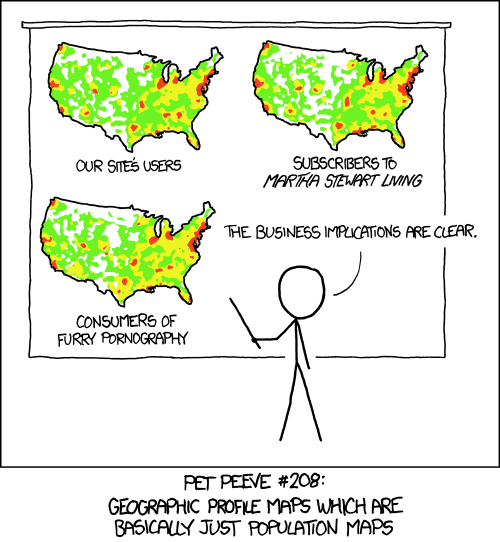
When making kernel density maps sometimes the phenonema is heavily clustered in particular locations simply because the population at risk is uneven over the study space. xkcd puts this in a bit more of laymans terms than I do:

So how do we take into account the underlying population? It depends on the data, but if you actually have population at risk data as points we can make kernel density maps that are the ratio of the cases to the underlying total population. I will show how you can do this type of raster kernel density estimate in CrimeStat using some data on reported assaults and arrests from the city of Chicago.

To make the necessary smooth estimate of the proportions of arrests in CrimeStat you will need two seperate ones, the first primary file should be all arrests of interest, and the secondary file should be all of the incidents (so the arrests are a subset of all incidents). And of course both files need to have the geocoordinates already.

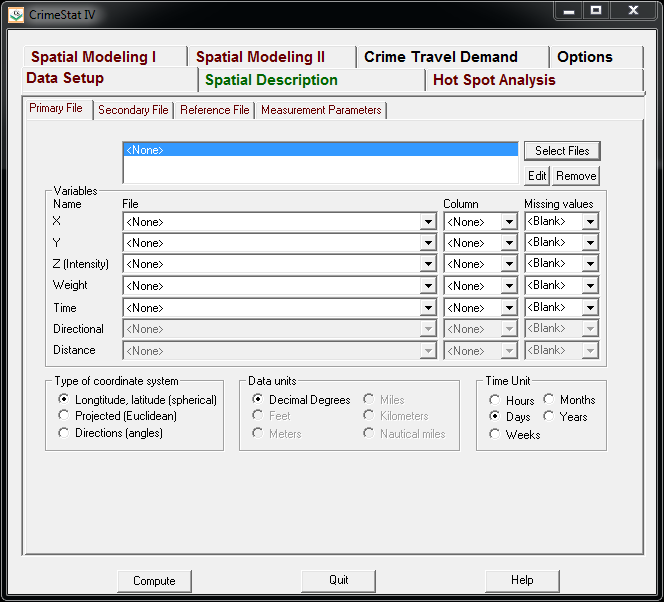
So CrimeStat has a nice GUI to make our KDE maps. So you will be greeted with the following screen after starting the CrimeStat program.

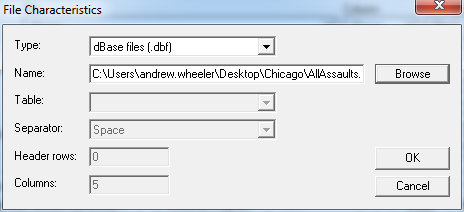
Now we can enter in our data. First click the Select Files button and then navigate to your data file. Here I saved the seperate files as DBFs, and for the primary file I use all of the arrests associated with an assault incident in Chicago in 2013.

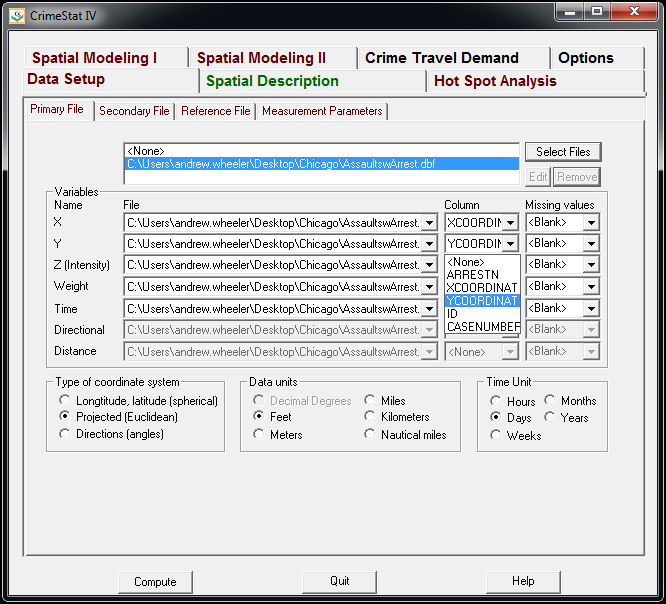
Now that the file is loaded into CrimeStat, we need to specify what fields contain the spatial coordinates in the variables section. Then we set the appropriate options in the bottom panels. Here I am using projected coordinates in feet. I don’t specify a time unit so that option is superflous.

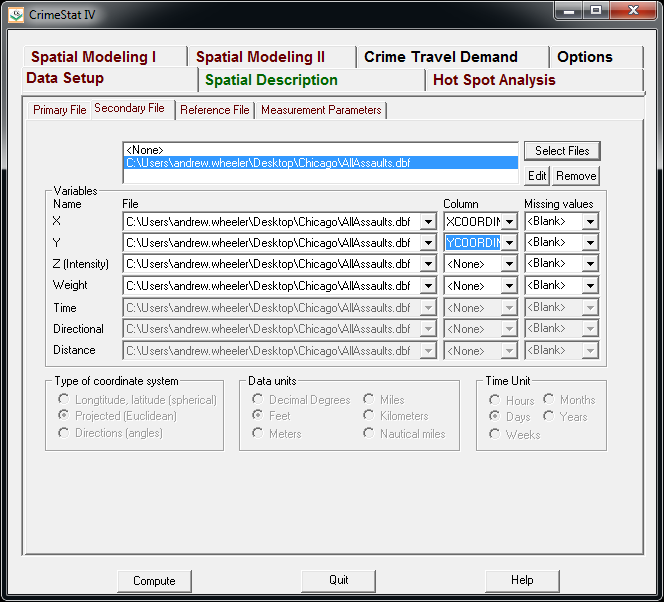
Now we can enter in our secondary file, which will be all of the assault incidents in Chicago in 2013. The Seconday File tab is in the set of minor tabs under the larger Data Setup tab (CrimeStat has an incredible number of routines, hence the many options). It is an equivalent workflow as to that of the primary file, import the spreadsheet, and define the fields.

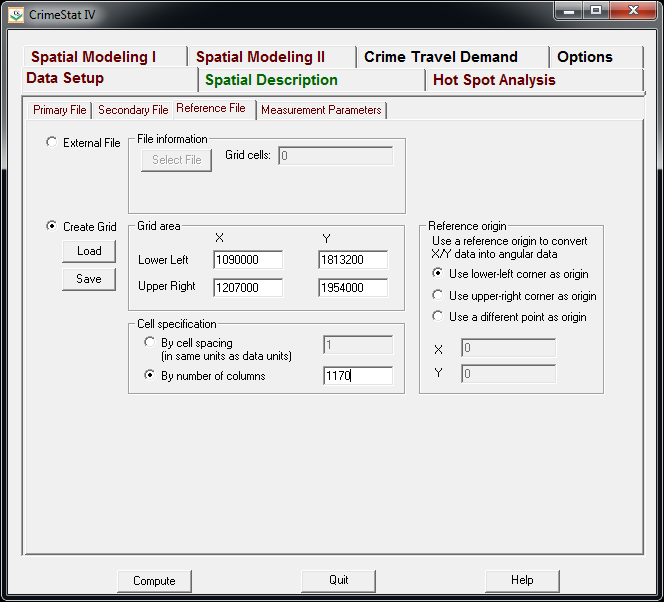
Now we need to set up the reference grid to which we will write the raster output to. Still on the same Data Setup main tab, we then navigate to the Reference file minor tab. Here we specify a set of coordinates (in the particular projection of use) as a rectangle corresponding to the lower left and upper right corners. Then you can control how fine the grid is by specifying a larger number of columns. Here the cell sizes are 300 square feet. Note you can save the particular reference file for future use.

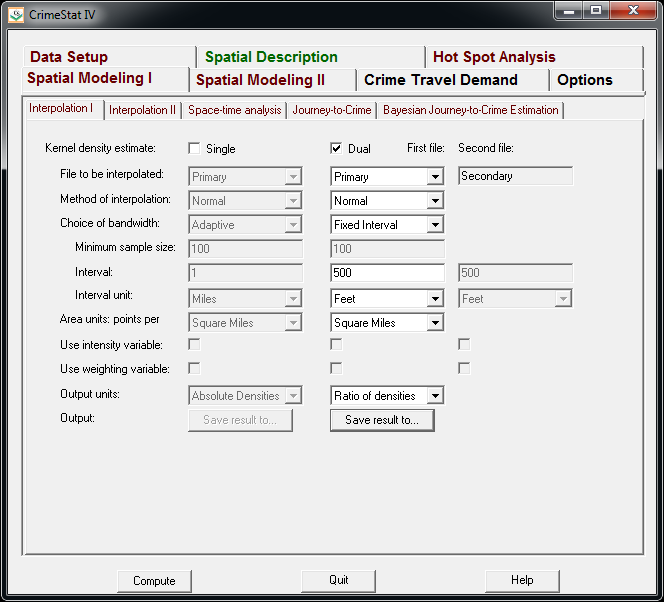
Now we can finally move onto estimating our kernel density map! Now navigate to the main Spatial Modeling I tab and navigate to the Interpolation I minor tab. To make a ratio of our two rasters (which will be the smoothed proportions of arrests). Here we choose the Dual KDE estimation, and specify the normal kernel. Typically for KDE maps the kernel makes very little difference, choosing an appropriate bandwidth impacts the look of the map to a much greater extent. I typically default to around 300 meters, but here I choose a smaller 500 foot bandwidth (we will see this is seriously undersmoothed – but I rather start with undersmoothed than oversmoothed).

The field Area units: points per ends up being superflous when specifying the ratio of the two densities. Clicking on the Save Result to button we can choose to save the output to various geographic data file formats (both vector and raster). Here I specify ArcGIS’s raster format.

Now we are ready to calculate the KDE raster. Simply click the Compute button at the bottom of CrimeStat, and be alittle patient with a dataset of this size (4,000 some arrests and over 17,500 total incidents). After that runs we can then import the rasters into your favorite GIS and make some maps.

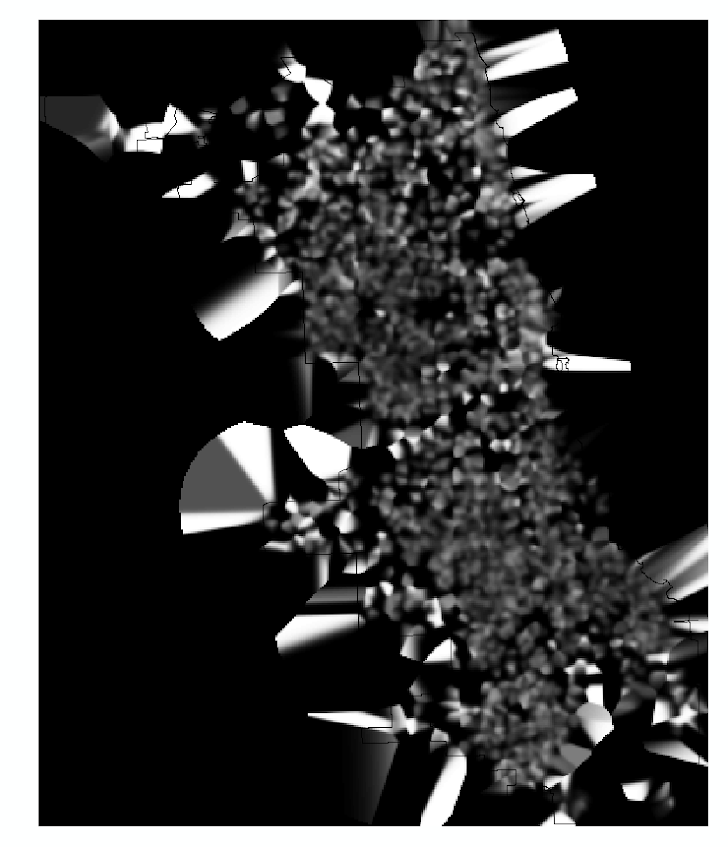
You will notice when you first upload the raster there are several strange artifacts. This is a function of places with very few incidents have a low baseline with with to calculate the smoothed proportion of arrests. Unfortunately it appears CrimeStat specifies 0 where null data values should be (places with zero density in the denominator).

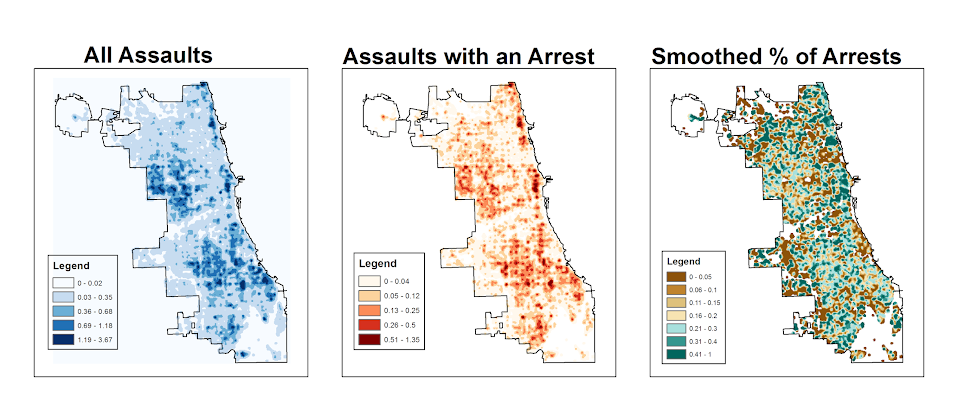
A quick fix to this problem though is to make a separate kernel density map of just the incidents and superimpose that on top of your smoothed arrests. Then you can make the zero density areas the same color as the background map so they are filtered out. Here I filter areas that have a incident density of less than <0.02 (these are absolute densities, so they sum to the total number of incidents used to calculate them to begin with).

So below are the final KDE maps. As you can see from all of them 500 feet is seriously undersmoothed, but the absolute densities of incidents and arrests (the two left most maps) appears to be highly correlated. If you look at the hit rate of arrests though in the right most map, the percent of arrests appear to be spatially random.

Other possibilities for similar analysis are say accidents involving injury or pedestrians where the baseline is all accidents, field stops that result in contraband recovery, or comparison of densities before and after an intervention (although here I may take the absolute difference as opposed to the ratio).

Of course this just scratches the surface of possible analysis. When the population at risk is not so conveniently labelled in the data set, such as coming from census geographies, one may consult the literature on dasymetric mapping (also see the head bang procedure in CrimeStat). Bivand et al. (2008) have an example of calculating the ratio raster along with some statistical tests, and the spatstat library has some more convenient functions to accomplish this and map the results (see the relrisk function). One can also estimate a logistic regression model with the spatial coordinates as non-linear predictors (e.g. using splines) and then plot the predicted probabilities for each grid cell.

I’m not sure of a quick global test of whether the proportion of arrests are random though. I thought off-hand you could use a spatial scan test for the case-control data (e.g. using SatScan or similar functions in the spatstat R library), although I’m not sure if that counts as quick.

Finding subgroups in a graph using NetworkX and SPSS

This is a task I’ve have to conduct under several guises in the past. Given a set of edges, reduce those edges into unique subgroups based on the transitive closure of those edges. That is, find a group in which all nodes can reach one another (via however many steps are necessary) but are completely separated from all other nodes.

This is steeped in some network language jargon, so I will give a few examples in data analysis where this might be useful:

  • Find cliques of offenders (that may resemble a gang) given a set of co-offenders in a police incident database.
  • Reduce a large set of items that appear together into smaller subsets. An example may be if you have a multiple response set with a very large number of possible choices. You may identify subgroups of items that occur together.
  • Given a set of linked near match names, reduce the database so all of those near match names share the same unique id.
  • For my dissertation I aggregate crime incidents to street midpoints and intersections. This creates some overlap or near overlap points (e.g. at T intersections). You might want to further aggregate points that are within a prespecified distance, but there may be multiple nodes all within a short distance. These create a string of networked locations that are probably not appropriate to simply aggregate – especially when they include a large number of locations.

One (typical) way to find the transitive closure is to represent your edges in a binary adjacency matrix and then take subsequent higher powers of that matrix until the diffusion ceases. This is difficult to impossible though with node lists of any substantial size. In this post what I will do is use the NetworkX python library, which contains a handy function named components.connected that solves this problem for me.

So first for illustration lets make a small edge list in SPSS.

DATA LIST FREE / A B.
BEGIN DATA
1 2
2 3
3 4
5 6
7 8
4 9
7 9
8 10
END DATA.
DATASET NAME Test.
FORMATS A B (F5.0).
EXECUTE.

Now using the functions described in this StackOverflow post, we will be able to turn a set of nested lists into a NetworkX object in python.

BEGIN PROGRAM.
import networkx 
from networkx.algorithms.components.connected import connected_components

def to_graph(l):
    G = networkx.Graph()
    for part in l:
        # each sublist is a bunch of nodes
        G.add_nodes_from(part)
        # it also imlies a number of edges:
        G.add_edges_from(to_edges(part))
    return G

def to_edges(l):
    """ 
        treat `l` as a Graph and returns it's edges 
        to_edges(['a','b','c','d']) -> [(a,b), (b,c),(c,d)]
    """
    it = iter(l)
    last = next(it)

    for current in it:
        yield last, current
        last = current    
END PROGRAM.

Now this python code 1) imports our edge list from the SPSS dataset and turn it into a networkx graph, 2) reduces the set of edges into connected components, 3) makes a new SPSS dataset where each row is a list of those subgraphs, and 4) makes a macro variable to identify the end variable name (for subsequent transformations).

DATASET DECLARE Int.
BEGIN PROGRAM.
#grab SPSS data
import spss, spssdata
alldata = spssdata.Spssdata().fetchall()

#turn SPSS data into graph
G = to_graph(alldata)
results = connected_components(G)
print results
ml = max(map(len,results))

#now make an SPSS dataset
spss.StartDataStep()
datasetObj = spss.Dataset(name='Int')
for i in range(ml):
  v = 'V' + str(i+1) 
  datasetObj.varlist.append(v,0)
for j in results:
  datasetObj.cases.append(j)
spss.EndDataStep()

#make a macro value to signify the last variable
macroValue=[]
macroName="!VEnd"
macroValue.append('V' + str(ml)) 
spss.SetMacroValue(macroName, macroValue)
END PROGRAM.

Now we can take that subgroup dataset, named Int, reshape it so all of the nodes are in one column and has a second column identifying the subgraph to which it belongs, and then merge this info back to the edge dataset named Test.

DATASET ACTIVATE Int.
COMPUTE Group = $casenum.
FORMATS Group (F5.0).
VARSTOCASES
  /MAKE A FROM V1 TO !VEnd.
FORMATS A (F5.0).
SORT CASES BY A.

DATASET ACTIVATE Test.
SORT CASES BY A.
MATCH FILES FILE = *
  /TABLE = 'Int'
  /BY A.
EXECUTE.

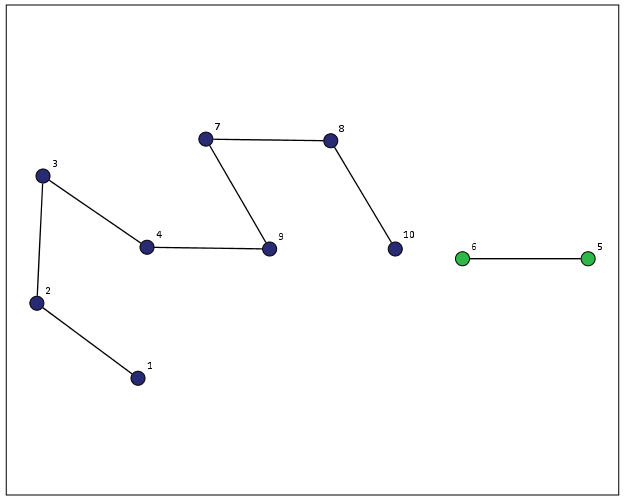
From here we can make some nice sociogram charts of our subgroups. SPSS’s layout.network is not very specific about the type of layout algorithm, but it does a good job here laying out a nice planar graph.

GGRAPH
  /GRAPHDATASET NAME="edges" DATASET = "Test" VARIABLES=A B Group
  /GRAPHDATASET NAME="nodes" DATASET = "Int" VARIABLES=A Group
  /GRAPHSPEC SOURCE=INLINE.
BEGIN GPL
 SOURCE: e=userSource(id("edges"))
 DATA: Ae=col(source(e), name("A"), unit.category())
 DATA: Be=col(source(e), name("B"), unit.category())
 DATA: Groupe=col(source(e), name("Group"), unit.category())
 SOURCE: n=userSource(id("nodes"))
 DATA: An=col(source(n), name("A"), unit.category())
 DATA: Groupn=col(source(n), name("Group"), unit.category())
 GUIDE: axis(dim(1), null())
 GUIDE: axis(dim(2), null())
 GUIDE: legend(aesthetic(aesthetic.color.interior), null())
 ELEMENT: edge(position(layout.network(node(An), from(Ae), to(Be))))
 ELEMENT: point(position(layout.network(node(An), from(Ae), to(Be))), color.interior(Groupn), size(size."14"), label(An))
END GPL.

At the end of the post I have some more code to illustrate this with a slightly larger random network of 300 potential nodes and 100 random edges. Again SPSS does quite a nice job of laying out the graph, and the colors by group reinforce that our solution is correct.

My most recent use application for this had a set of 2,000+ plus edges and this code returned the solution instantaneously. Definitely a speed improvement over taking powers of a binary adjacency matrix in MATRIX code.

I wanted to make this network graph using small multiples by group, but I can’t figure out the correct code for the faceting (example commented out at the end of the code snippet). So if anyone has an example of making an SPSS graph with small multiples let me know.

*Similar graphs for larger network.
DATASET CLOSE ALL.
INPUT PROGRAM.
COMPUTE #Nodes = 300.
LOOP #i = 1 TO 100.
  COMPUTE A = TRUNC(RV.UNIFORM(0,#Nodes+1)).
  COMPUTE B = TRUNC(RV.UNIFORM(0,#Nodes+1)).
  END CASE.
END LOOP.
END FILE.
END INPUT PROGRAM.
DATASET NAME Test.
FORMATS A B (F5.0).
EXECUTE.

DATASET DECLARE Int.
BEGIN PROGRAM.
#grab SPSS data
import spss, spssdata
alldata = spssdata.Spssdata().fetchall()

#turning SPSS data into NetworkX graph
#functions are already defined
G = to_graph(alldata)
results = connected_components(G)
ml = max(map(len,results))
print ml

#now make an SPSS dataset
spss.StartDataStep()
datasetObj = spss.Dataset(name='Int')
for i in range(ml):
  v = 'V' + str(i+1) 
  datasetObj.varlist.append(v,0)
for j in results:
  datasetObj.cases.append(j)
spss.EndDataStep()

#make a macro value to signify the last variable
macroValue=[]
macroName="!VEnd"
macroValue.append('V' + str(ml)) 
spss.SetMacroValue(macroName, macroValue)
END PROGRAM.

*Now merging groups back into original set.
DATASET ACTIVATE Int.
COMPUTE Group = $casenum.
FORMATS Group (F5.0).
VARSTOCASES
  /MAKE A FROM V1 TO !VEnd.
FORMATS A (F5.0).
SORT CASES BY A.

DATASET ACTIVATE Test.
SORT CASES BY A.
MATCH FILES FILE = *
  /TABLE = 'Int'
  /BY A.
EXECUTE.

GGRAPH
  /GRAPHDATASET NAME="edges" DATASET = "Test" VARIABLES=A B Group
  /GRAPHDATASET NAME="nodes" DATASET = "Int" VARIABLES=A Group
  /GRAPHSPEC SOURCE=INLINE.
BEGIN GPL
 SOURCE: e=userSource(id("edges"))
 DATA: Ae=col(source(e), name("A"), unit.category())
 DATA: Be=col(source(e), name("B"), unit.category())
 DATA: Groupe=col(source(e), name("Group"), unit.category())
 SOURCE: n=userSource(id("nodes"))
 DATA: An=col(source(n), name("A"), unit.category())
 DATA: Groupn=col(source(n), name("Group"), unit.category())
 GUIDE: axis(dim(1), null())
 GUIDE: axis(dim(2), null())
 GUIDE: legend(aesthetic(aesthetic.color.interior), null())
 ELEMENT: edge(position(layout.network(node(An), from(Ae), to(Be))))
 ELEMENT: point(position(layout.network(node(An), from(Ae), to(Be))), color.interior(Groupn), size(size."11"))
END GPL.

*This small multiple faceting is not working.
*Error is Groupe & Groupn are not same faceting structure.
 * GGRAPH
  /GRAPHDATASET NAME="edges" DATASET = "Test" VARIABLES=A B Group
  /GRAPHDATASET NAME="nodes" DATASET = "Int" VARIABLES=A Group
  /GRAPHSPEC SOURCE=INLINE.
 * BEGIN GPL
 SOURCE: e=userSource(id("edges"))
 DATA: Ae=col(source(e), name("A"), unit.category())
 DATA: Be=col(source(e), name("B"), unit.category())
 DATA: Groupe=col(source(e), name("Group"), unit.category())
 SOURCE: n=userSource(id("nodes"))
 DATA: An=col(source(n), name("A"), unit.category())
 DATA: Groupn=col(source(n), name("Group"), unit.category())
 GUIDE: axis(dim(1), null())
 GUIDE: axis(dim(2), null())
 GUIDE: legend(aesthetic(aesthetic.color.interior), null())
 ELEMENT: edge(position(layout.network(1*1*Groupe, node(An), from(Ae), to(Be))))
 ELEMENT: point(position(layout.network(1*1*Groupn, node(An), from(Ae), to(Be))), color.interior(Groupn), size(size."14"), label(An))
END GPL.

Plotting interactions and non-linear predictions

When interpreting regression model coefficients in which the predictions are non-linear in the original variables, such as when you have polynomial terms or interaction effects, it is much simpler to make plots of the predicted values and interpret those than it is to interpret the coefficients directly.

This came up in some discussion of interpreting polynomial terms on the SPSS list-serve recently, and the example I will use came from this CrossValidated question. So I figured a blog post showing how to do it in SPSS was warranted.

So to start off I will make some fake data to work with, note the highly non-linear function Y is of the covariates.

FILE HANDLE save /NAME = "!Your Handle Here!".
INPUT PROGRAM.
LOOP Id = 1 TO 3000.
END CASE.
END LOOP.
END FILE.
END INPUT PROGRAM.
VECTOR X(3).
LOOP #i = 1 TO 3.
  COMPUTE X(#i) = RV.NORMAL(0,1).
END LOOP.
COMPUTE Y = 5 + 0.6*(X1) + 0.2*(X2) + -3*(X3) + 
            0.38*(X1**2) + 0.15*(X2**2) + -0.1*(X3**2) +
            0.3*(X1*X2) + -0.1*(X2*X3) + RV.NORMAL(0,1).
COMPUTE X1SQ = X1**2.
COMPUTE X2SQ = X2**2.
COMPUTE X3SQ = X3**2.
COMPUTE X1X2 = X1*X2.
COMPUTE X2X3 = X2*X3.

Now I am going to use REGRESSION to estimate the model with all of the terms and save the model to an XML file (at the save handle location defined before I made the fake data). The point of saving the model estimates is to use it later on to score predictions to a new set of data.

REGRESSION
  /MISSING LISTWISE
  /STATISTICS COEFF OUTS R ANOVA
  /CRITERIA=PIN(.05) POUT(.10)
  /NOORIGIN 
  /DEPENDENT Y
  /METHOD=ENTER X1 X2 X3 X1SQ X2SQ X3SQ X1X2 X2X3
  /OUTFILE=MODEL('save\LinModel.xml').

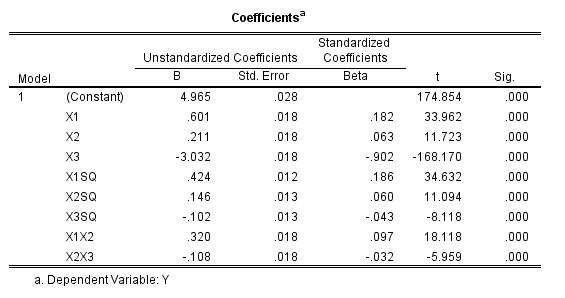
For illustration of how informative the model coefficients are, below is an image of the table. Given the sample size of 3000 and the small amount of error I added the coefficients are very close the the simulated model.

Now tell me based on the table if X1 takes a value of -1 and X3 takes a value of 0, does a change in X2 from -1 to 0 result in a positive change to the outcome or a negative change in the outcome? If you can figure out the direction of the change how large is the effect? This information is not impossible to cull from the table, but do your readers a favor and spare them these mental calculus gymnastics and plot the effects!

To do that I am going to make a new set of data in regular intervals over the explanatory values of interest.

*Now making a new set of variables to score the model.
DATASET CLOSE ALL.
INPUT PROGRAM.
COMPUTE #dens = 10.
COMPUTE #min = -2.
COMPUTE #max = 2.
COMPUTE #step = (#max - #min)/#dens.
LOOP #x1 = 0 TO #dens.
  LOOP #x2 = 0 TO #dens.
    LOOP #x3 = 0 TO #dens.
      COMPUTE Id = #x2.
      COMPUTE X1 = #min + #step*#x1. 
      COMPUTE X2 = #min + #step*#x2.
      COMPUTE X3 = #min + #step*#x3.       
      END CASE.
    END LOOP.
  END LOOP.
END LOOP.
END FILE.
END INPUT PROGRAM.
COMPUTE X1SQ = X1**2.
COMPUTE X2SQ = X2**2.
COMPUTE X3SQ = X3**2.
COMPUTE X1X2 = X1*X2.
COMPUTE X2X3 = X2*X3.
EXECUTE.

Here I used the INPUT MODEL and loops to control the sampling of where the independent variables are located at. Now you can score the model using the MODEL HANDLE and the subsequent APPLYMODEL statements available for computation.

*Score the model.
MODEL HANDLE NAME=LinModel FILE='save\LinModel.xml'
  /OPTIONS MISSING=SUBSTITUTE.
COMPUTE StandardError=APPLYMODEL(LinModel, 'STDDEV').
COMPUTE PredictedValue=APPLYMODEL(LinModel, 'PREDICT').
EXECUTE.
MODEL CLOSE NAME=LinModel.
FORMATS X1 X2 X3 X1SQ X2SQ X3SQ X1X2 X2X3 (F3.1)
        PredictedValue (F2.0).

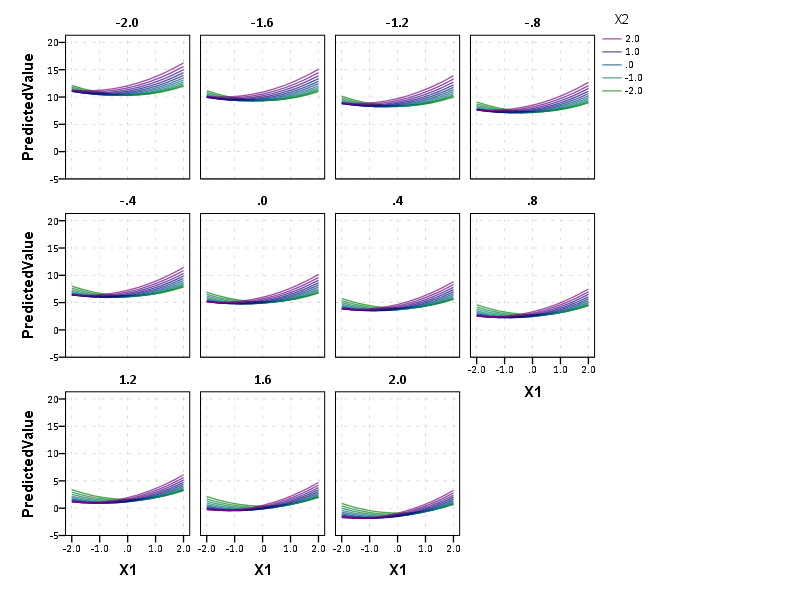
Now we have a set of predictions and standard errors for our model. Given the three way set of interactions what I do is make a plot that has X1 on the X axis, varying values of X2 as a set of individual lines (with the color of the line a continuous color ramp) and panelled by values of X3.

*Make predicted graph.
GGRAPH
  /GRAPHDATASET NAME="graphdataset" VARIABLES=X1 PredictedValue X2 X3 Id
    MISSING=LISTWISE REPORTMISSING=NO
  /GRAPHSPEC SOURCE=INLINE.
BEGIN GPL
  PAGE: begin(scale(800px,600px))
  SOURCE: s=userSource(id("graphdataset"))
  DATA: X1=col(source(s), name("X1"))
  DATA: PredictedValue=col(source(s), name("PredictedValue"))
  DATA: X2=col(source(s), name("X2"))
  DATA: X3=col(source(s), name("X3"), unit.category())
  DATA: Id=col(source(s), name("Id"), unit.category())
  COORD: rect(dim(1,2), wrap())
  GUIDE: axis(dim(1), label("X1"))
  GUIDE: axis(dim(2), label("PredictedValue"))
  GUIDE: axis(dim(3), label("X3"), opposite())
  GUIDE: legend(aesthetic(aesthetic.color.interior), label("X2"))
  SCALE: linear(aesthetic(aesthetic.color.interior), aestheticMinimum(color.green), 
         aestheticMaximum(color.purple))
  ELEMENT: line(position(X1*PredictedValue*X3), color.interior(X2), split(Id), 
           transparency(transparency."0.3"))
  PAGE: end()
END GPL.

So lets try to answer my original question now: if X1 takes a value of -1 and X3 takes a value of 0, does a change in X2 from -1 to 0 result in a positive change to the outcome or a negative change in the outcome?

Answer: The predicted value of Y at the covariate values of X1 = -1 and X3 = 0 can be seen in the middle row of panels, second in from the left. The predicted values appear to range between 5 and 6 for the given values of X2. Going up in value for X2 (from green to purple) results in a slight decrease in the predicted value, probably less than 1 in total.

Interpreting the equation more generally though, the values of X3 mainly serve as a change in intercept of the predicted values. The shape of the slopes only changes slightly between panels – but X3 acts a moderator – bringing the slopes closer together. X2 acts a moderator on X1 in most circumstances. The green lines tend to be lower than the purple lines when both X1 and X2 take positive values, but that isn’t the whole story. Describing X2 in terms of mediating or moderating X1 is insufficient here, as you can see when both take negative values the relationship is switched and causes decreases in values of Y. When both are positive, the relationship is moderated, and a smaller change in X1 results in a larger change in the predicted value.

Now, linear OLS regression models typically don’t have so many complicated interaction and polynomial terms. But other regression models that have a link functions (e.g. Logistic, Poisson) are non-linear in the parameters when taking the inverse of the function. So even if they don’t have interaction terms they are prime candidates for similar plots of predicted values with a set of different lines and panels for various values of other explanatory variables in the model. My generic experience is looking at odds ratios (or incident rate ratios) tends to give an overly dramatic representation of effects compared to these types of plots.

When interpreting different effects of changing the explanatory variables these graphs are definitely easier to see the marginal changes of interest than the original regression coefficients. Imagine if Y in this example are physical fitness test scores, and the X’s are time spent in various exercise routines. If you are a Phys. Ed. teacher, you may want to spend more time in one activity, but since time is zero-sum you have to take time away from another. In that case, looking at the original coefficients can be slightly misleading, as you can’t increase X1 by 1 without decreasing X2 or X3 by an equivalent amount.

In this situation, the optimal scenario would be having X3 as low as possible and X1 and X2 as high as possible. For scenarios in which X3 is positive though the predictions dip in the middle, so you are better off having more extreme values of X1 and X2 then you are of having them around 0 in those circumstances.

Using SPSS’s SIMPLAN to generate fake data

A while ago I had a post about generating fake data in SPSS. This is useful for conducting your own simulations, or as I mentioned in the prior post it is often useful when posting questions to discussion lists to have example data that demonstrates your problem.

As of SPSS version 21, it includes a new simulation procedure in which you can take a predictive model and simulate new outcomes (it is in base, so everyone has it if you have a version of SPSS 21 or later). You can also use it to create data from scratch, with unique distributions for each variable and have it conform to either an approximate correlation matrix or a contingency table. Below is an example set of syntax that creates a simulation plan using the SIMPLAN function.

FILE HANDLE save /NAME = "!your handle here!".
SIMPLAN CREATE 
  /SIMINPUT 
    INPUT = input1(FORMAT=F)
    TYPE = MANUAL 
    DISTRIBUTION = POISSON(MEAN=1.2)
  /SIMINPUT
    INPUT = input2 input3
    TYPE = MANUAL
    DISTRIBUTION = NORMAL(MEAN = 0 STDDEV = 1)
  /CORRELATIONS
    VARORDER = input1 input2 input3 
    CORRMATRIX = 1; 0.5, 1; 0.2 0.1 1
  /STOPCRITERIA MAXCASES=50000
  /PLAN FILE='save\test.splan'.

First I create a file handle named save that ends up being where I save the splan file. The SIMPLAN function is quite complex, but here is a quick rundown of what is going on in this particular statement:

  • On the SIMINPUT subcommand, you can specify a variable to create, its format and its marginal distribution. Note numeric formats on this command are a little different than typical, they are not of the form F3.0, but just take an input format type and then if you want decimals would be F,2 for two decimals.
  • I then have two separate SIMINPUT subcommands, the first specifies input1 as being distributed as Poisson with a mean of 1.2. The second specifies variables input2 and input3 as being normally distributed with a mean of zero and a standard deviation of 1.
  • The CORRELATIONS subcommand then lets you specify a set of approximate bivariate correlations for each of the variables.
  • The STOPCRITERIA subcommand then specifies that only 50,000 cases are generated.
  • The PLAN subcommand then specifies a file to save the simulation plan to.

Once you have the simulation plan created, you can then run the SIMRUN command to generate the data.

SIMRUN
 /PLAN FILE='save\test.splan'
 /CRITERIA  REPRESULTS=TRUE  SEED=10
 /PRINT ASSOCIATIONS=YES DESCRIPTIVES=YES
 /OUTFILE FILE=*.

Note in this code snippet I save the simulated data to the active dataset, which was a feature added as of V22. Otherwise you need to use DATASET DECLARE and the specify that file name on the OUTFILE command (or I presume save to a file).

Using the simulation builder is probably overkill for generating data for troubleshooting problems to the list-serve, although if you use its capabilities to mimic the current dataset it can be a quick way to generate fake data that you can upload to a public site without divulging confidential info. This is certainly just scratching the surface of what the simulation builder can do though. I’m hoping its functionality will be continually extended in the future, in particular more complicated transformations being allowed on the SIMPREP command I would like to see.