Using Python to geocode data in SPSS

This is the first time since I’ve been using SPSS that I have regular access to Python and R programmability in all of the different places I use SPSS (home and multiple work computers). So I’ve been exploring more solutions to use these tools in regular data analysis and work-flows – of course to accomplish things that can not be done directly in native SPSS code.

The example I am going to show today is using geopy, a Python library that places several geocoding API’s all in a convenient set of scripts. So first once geopy is installed you can call Python code within SPSS by placing it within a BEGIN PROGRAM and END PROGRAM blocks. Here is an example modified from geopy’s tutorial.


BEGIN PROGRAM.
from geopy import geocoders
g = geocoders.GoogleV3()
place, (lat, lng) = g.geocode("135 Western Ave. Albany, NY")  
a = [place, lat, lng]
print a
END PROGRAM.

Now what we want to do is to geocode some address data that is currently stored in SPSS case data. So here is an example dataset with some addresses in Albany.


DATA LIST LIST ("|") / Address (A100).
BEGIN DATA
135 Western Ave. Albany, NY
Western Ave. and Quail St Albany, NY
325 Western Ave. Albany, NY
END DATA.
DATASET NAME Add.

Here I will use the handy SPSSINC TRANS function (provided when installing Python programmability – and as of SPSS 22 installed by default with SPSS) to return the geocoded coordinates using the Google API. The geocode function from geopy does not return the data in an array exactly how I want it, so what I do is create my own function, named g, and it coerces the individual objects (place, lat and lng) into an array and returns that.


BEGIN PROGRAM.
from geopy import geocoders
def g(a):
  g = geocoders.GoogleV3()
  place, (lat, lng) = g.geocode(a)
  return [place, lat, lng]
print g("135 Western Ave. Albany, NY")
END PROGRAM.

Now I can use the SPSSINC TRANS function to return the associated place string, as well as the latitude and longitude coordinates from Google.


SPSSINC TRANS RESULT=Place Lat Lng TYPE=100 0 0
  /FORMULA g(Address).

Pretty easy. Note that (I believe) the Google geocoding API has a limit of 2,500 cases – so don’t go submitting a million cases to be geocoded (use an offline solution for that). Also a mandatory mention should be made of the variable reliability of online geocoding services.

A shout out for ScraperWiki

I’ve used the online tool ScraperWiki a few times to scrape some online data into a simple spreadsheet. It provides a set of tools to code in Python (and a few other languages) online in the browser and dump the resulting set of information into an online table. It also allows you to set the data collection on a timer and updates the table with new information. It is just a nice set of tools that makes getting and sharing the data easier.

For a few sample scripts I’ve used it for in the past:

  • Grabbing the number of chat posts from Stack Overflow chat rooms.
  • Grabbing the user location from profiles on the GIS.SE site. (This is really redundant with the power to query the SO data explorer – it can be more up to date though.)
  • Scraping the NYPD reported precinct statistics that were uploaded in PDF form. (Yes you can turn PDFs into xml which you can subsequently parse).

I previously used what is now called ScraperWiki Classic. But since the service is migrating to a new platform my prior scripts will not continue downloading data.

It appears my NYPD data scraper does not work any more anyway (they do have an online map now – but unfortunately are not providing the data in a convenient format for bulk download to the NYC Open Data site last I knew). But it has some historical data from the weekly precinct level crime stats between the end of 2010 and through most of 2013 if you are interested.

I’ve migrated the chat posts scraper to the new site, and so it will continue to update with new data for the activity in the SO R Room and the main chat room on the CrossValidated Stats Site. I’ll have to leave analysing that data for a future post, but if you are interested in amending the scraper to download data for a different room it is pretty easy. Just fork it and add/change the rooms of interest to the url_base array. You can download a csv file of the data directly from this link. The Mono field is a count of the unique "Monologue" tags in the html, and the Baseroom shows what chat room the data is from. Note that the Mono value shows 0 even if the room did not exist at that date.

I’m not sure how to make the scraper viewable to the public, but you can still view the code on the classic site. Note the comment about the CPU time isn’t applicable to the main site; I could download the transcripts all the way back to 2010 and I did not receive any errors from ScraperWiki.

Article: Viz. techniques for JTC flow data

My publication Visualization techniques for journey to crime flow data has just been posted in the online first section of the Cartography and Geographic Information Science journal. Here is the general doi link, but Taylor and Francis gave me a limited number of free offprints to share the full version, so the first 50 visitors can get the PDF at this link.

Also note that:

  • The pre-print is posted to SSRN. The pre-print has more maps that were cut for space, but the final article is surely cleaner (in terms of concise text and copy editing) and has slightly different discussion in various places based on reviewer feedback.
  • Materials I used for the article can be downloaded from here. The SPSS code to make the vector geometries for a bunch of the maps is not terribly friendly. So if you have questions feel free – or if you just want a tutorial just ask and I will work on a blog post for it.
  • If you ever want an off-print for an article just send me an email (you can find it on my CV. I plan on continuing to post pre-prints to SSRN, but I realize it is often preferable to cite the final in print version (especially if you take a quote).

The article will be included in a special issue on crime mapping in the CaGIS due to be published in January 2015.

Visualizing multi-level data using ellipses

After reading Elliptical Insights: Understanding Statistical Methods through Elliptical Geometry (Friendly, Monette & Fox 2013) I was interested in trying ellipses out for viz. multi-level data. Note there is an add-on utility for SPSS to draw ellipses in R graphics (ScatterWEllipse.spd), but I wanted to give it a try in SPSS graphics.

So I’ve made two SPSS macros. The first, !CorrEll, takes two variables and returns a set of data that can be used by the second macro, !Ellipse, to draw data ellipses based on the eigenvectors and eigenvalues of those 2 by 2 covariance matrices by group. In this example I will be using the popular2.sav data available from Joop Hox’s Multilevel Analysis book. The code can be downloaded from here to follow along.

So first lets define the FILE HANDLE where the data and scripts are located. Then we can read in the popular2.sav data. I only know very little about the data – but it is students nested within classrooms (pretty close to around 20 students in 100 classes), and it appears focused on student evaluations of teachers.


FILE HANDLE Mac / name = "!Location For Your Data!".
INSERT FILE = "Mac\MACRO_CorrEll.sps".
INSERT FILE = "Mac\MACRO_EllipseSPSS.sps".
GET FILE = "Mac\popular2.sav".
DATASET NAME popular2.

Now we can call the first macro, !CorrEll for the two variables extrav (a measure of the teachers extroversion) and popular (there are two popular measures in here, and I am unsure what the difference between them are – this is the "sociometry" popular variable though). This will return a dataset with the means, variances and covariances for those two variables split by the group variable class. It will also return the major and minor diameters based on the square root of the eigenvalues of that 2 by 2 matrix, and then the ellipse is rotated according to direction of the covariance.


!CorrEll X = extrav Y = popular Group = class.

This returns a dataset named CorrEll as the active dataset, with which we can then draw the coordinate geometry for our ellipses using the !Ellipse macro.


!Ellipse X = Meanextrav Y = Meanpopular Major = Major Minor = Minor Angle = AngDeg Steps = 100.

The Steps parameter defines the coordinates around the circle that are drawn. So more steps means a more precise drawing (but also more datapoints to draw). This makes a new dataset called Ellipse as the active dataset, and based on this we can draw those ellipses in SPSS using the path element with the split modifier so the ellipses aren’t drawn in one long pen stroke. Also note the ellipses are not closed circles (that is the first point does not meet the last point) so I use the closed() option when drawing the paths.


FORMATS X Y Id (F3.0).
GGRAPH
  /GRAPHDATASET NAME="graphdataset" DATASET = 'Ellipse' VARIABLES=X Y Id
  REPORTMISSING=NO
  /GRAPHSPEC SOURCE=INLINE.
BEGIN GPL
 SOURCE: s=userSource(id("graphdataset"))
 DATA: X=col(source(s), name("X"))
 DATA: Y=col(source(s), name("Y"))
 DATA: Id=col(source(s), name("Id"), unit.category())
 GUIDE: axis(dim(1), label("Extraversion"))
 GUIDE: axis(dim(2), label("Popular"))
 ELEMENT: path(position(X*Y), split(Id), closed())
END GPL.

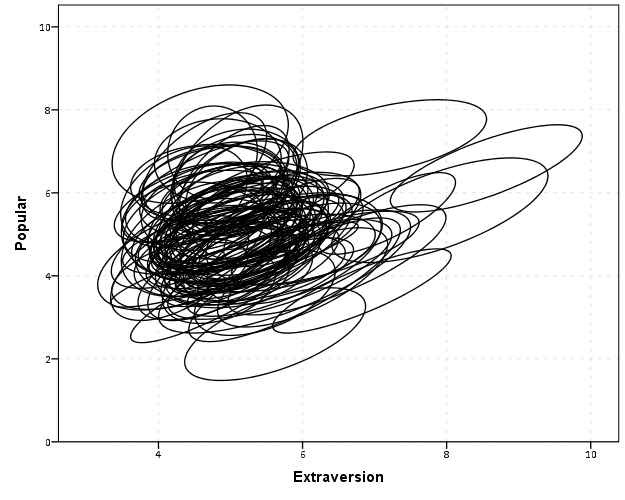
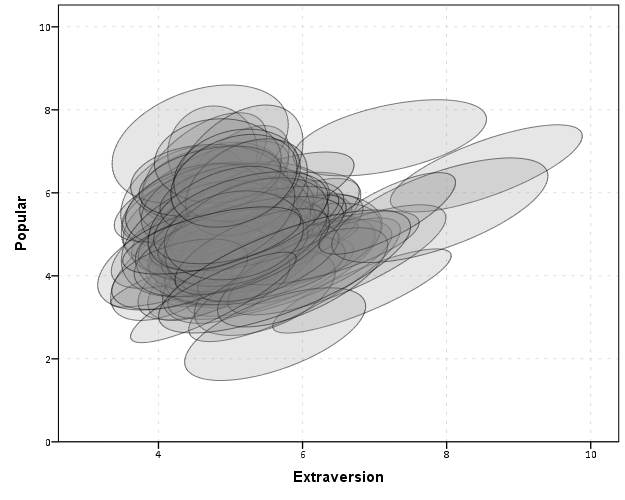
With 100 groups this is a pretty good test of the efficacy of the display. While many multi-level modelling strategies will have fewer groups, if the technique can not scale to at least 100 groups it would be a tough sell. So above is a bit of an overplotted mess, but here I actually draw the polygons with a light grey fill and use a heavy amount of transparency in both the fill and the exterior line. To draw the ellipses I use the polygon element and connect the points using the link.hull statement. The link.hull modifier draws the convex hull of the set of points, which of course an ellipse is convex.


GGRAPH
  /GRAPHDATASET NAME="graphdataset" DATASET = 'Ellipse' VARIABLES=X Y Id
  REPORTMISSING=NO
  /GRAPHSPEC SOURCE=INLINE.
BEGIN GPL
 SOURCE: s=userSource(id("graphdataset"))
 DATA: X=col(source(s), name("X"))
 DATA: Y=col(source(s), name("Y"))
 DATA: Id=col(source(s), name("Id"), unit.category())
 GUIDE: axis(dim(1), label("Extraversion"))
 GUIDE: axis(dim(2), label("Popular"))
 ELEMENT: polygon(position(link.hull(X*Y)), split(Id), color.interior(color.grey), transparency.interior(transparency."0.8"),
          transparency.exterior(transparency."0.5"))
END GPL.

I thought that using a fill might make the plot even more busy, but that doesn’t appear to be the case. Using heavy transparency helps a great deal. Now what can we exactly learn from these plots?

First, you can assess the distribution of the effect of extroversion on popularity by class. In particular for multi-level models we can assess whether we can to include random intercepts and/or random slopes. In this case the variance of the extroversion slope looks very small to me, so it may be reasonable to not let its slope vary by class. Random intercepts for classes though seem reasonable.

Other things you can assess from the plot are if there are any outlying groups, either in coordinates on the x or y axis, or in the direction of the ellipse. Even in a busy – overplotted data display like this we see that the covariances are all basically in the same positive direction, and if one were strongly negative it would stick out. You can also make some judgements about the between group and within group variances for each variable. Although any one of these items may be better suited for another plot (e.g. you could actually plot a histogram of the slopes estimated for each group) the ellipses are a high data density display that may reveal many characteristics of the data at once.

A few other interesting things that are possible to note from a plot like this are aggregation bias and interaction effects. For aggregation bias, if the direction of the orientation of the ellipses are in the opposite direction of the point cloud of the means, it provides evidence that the correlation for the aggregate data is in the opposite direction as the correlation for the micro level data.

For interaction effects, if you see any non-random pattern in the slopes it would suggest an interaction between extroversion and some other factor. The most common one is that slopes with larger intercepts tend to be flatter, and most multi-level software defaults to allow the intercepts and slopes to be correlated when they are estimated. I was particularly interested in this here, as the popularity score is bounded at 10. So I really expected that to have a limiting effect on the extroversion slope, but that doesn’t appear to be the case here.

So unfortunately none of the cool viz. things I mention (outliers, aggregation bias or interaction effects) really appear to occur in this plot. The bright side is it appears to be a convenient set of data to fit a multi-level model too, and even the ceiling effect of the popularity measure do not appear to be an issue.

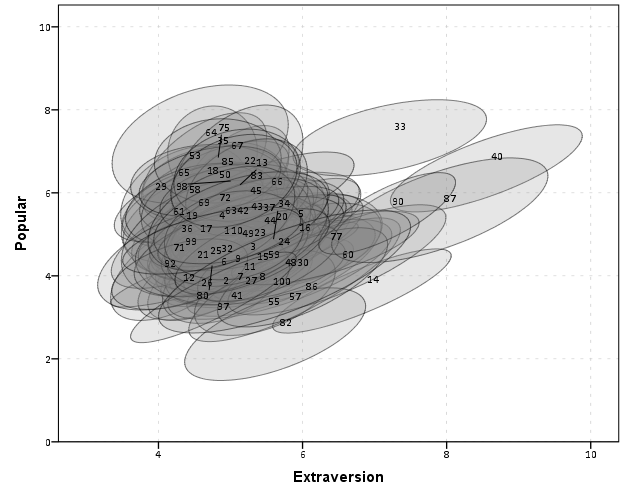
We can add in other data to the plot from either the original dataset or the CorrEll calculated dataset. Here is an example of grabbing data from the CorrEll dataset and labelling the ellipses with their group numbers. It is not very useful for the dense cloud, but for the outlying groups you can pretty easily see which label is associated with each ellipse.


DATASET ACTIVATE CorrEll.
FORMATS Meanpopular Meanextrav class (F3.0).
DATASET ACTIVATE Ellipse.
GGRAPH
  /GRAPHDATASET NAME="graphdataset" DATASET = 'Ellipse' VARIABLES=X Y Id
  /GRAPHDATASET NAME="Center" DATASET = 'CorrEll' VARIABLES=Meanpopular Meanextrav class
  REPORTMISSING=NO
  /GRAPHSPEC SOURCE=INLINE.
BEGIN GPL
 SOURCE: s=userSource(id("graphdataset"))
 DATA: X=col(source(s), name("X"))
 DATA: Y=col(source(s), name("Y"))
 DATA: Id=col(source(s), name("Id"), unit.category())
 SOURCE: c=userSource(id("Center"))
 DATA: CentY=col(source(c), name("Meanpopular"))
 DATA: CentX=col(source(c), name("Meanextrav"))
 DATA: class=col(source(c), name("class"), unit.category())
 GUIDE: axis(dim(1), label("Extraversion"))
 GUIDE: axis(dim(2), label("Popular"))
 ELEMENT: polygon(position(link.hull(X*Y)), split(Id), color.interior(color.grey), transparency.interior(transparency."0.8"),
          transparency.exterior(transparency."0.5"))
 ELEMENT: point(position(CentX*CentY), transparency.exterior(transparency."1"), label(class))
END GPL.

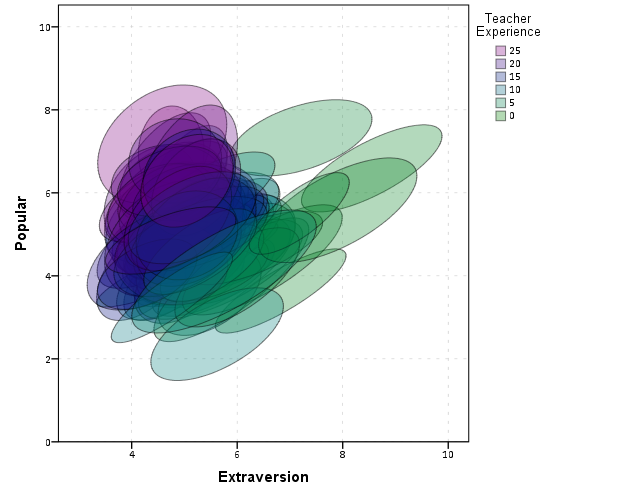
Another piece of information we can add into the plot is to color the fill of the ellipses using some alternative variable. Here I color the fill of the ellipse according to teacher experience with a green to purple continuous color ramp. SPSS uses some type of interpolation through some color space, and the default is the dreaded blue to red rainbow color ramp. With some experimentation I discovered the green to purple color ramp is aesthetically pleasing (I figured the diverging color ramps from colorbrewer would be as good a place to start as any). I use a diverging ramp as I want a higher amount of discrimination for exploratory graphics like this. Using a sequential ramp ends up muting one end of the spectrum, which I don’t really want in this circumstance.


DATASET ACTIVATE popular2.
DATASET DECLARE TeachExp.
AGGREGATE OUTFILE='TeachExp'
  /BREAK=Class
  /TeachExp=FIRST(texp).
DATASET ACTIVATE Ellipse.
MATCH FILES FILE = *
  /TABLE = 'TeachExp'
  /RENAME (Class = Id)
  /BY Id.
FORMATS TeachExp (F2.0).
*Now making plot with teacher experience colored.
DATASET ACTIVATE Ellipse.
GGRAPH
  /GRAPHDATASET NAME="graphdataset" DATASET = 'Ellipse' VARIABLES=X Y Id TeachExp
  REPORTMISSING=NO
  /GRAPHSPEC SOURCE=INLINE.
BEGIN GPL
 SOURCE: s=userSource(id("graphdataset"))
 DATA: X=col(source(s), name("X"))
 DATA: Y=col(source(s), name("Y"))
 DATA: TeachExp=col(source(s), name("TeachExp"))
 DATA: Id=col(source(s), name("Id"), unit.category())
 GUIDE: axis(dim(1), label("Extraversion"))
 GUIDE: axis(dim(2), label("Popular"))
 GUIDE: legend(aesthetic(aesthetic.color.interior), label("Teacher Experience"))
 SCALE: linear(aesthetic(aesthetic.color.interior), aestheticMinimum(color.green), aestheticMaximum(color.purple))
 ELEMENT: polygon(position(link.hull(X*Y)), split(Id), color.interior(TeachExp), transparency.interior(transparency."0.7"),
          transparency.exterior(transparency."0.5"))
END GPL.

Again I use a heavy amount of transparency and it produces what I think is a very nice looking plot. From this we can deduce that there is a clear relationship between extroversion and teacher experience, younger teachers tend to be more extroverted. We can also see that teacher experience explains some of the differences in means not explained by extroversion. That is some of the teachers with higher mean popular scores but lower extroversion scores are more experienced. This suggests the effects of teacher experience and extroversion are additive in the model predicting popularity.

You could of course color the ellipse with other variables as well. Because these are data ellipses and not confidence ellipses, you could make ellipses with fewer observations more transparent to illustrate that those estimates are less certain. Here the classrooms are all very similar size, so the error in the estimates is basically constant for all of the groups in this example.

The current code calculates the ellipses based on the eigenvectors and eigenvalues of the covariance matrix, but I may change this in the future to calculate them based on the Cholesky decomposition. If you read the Friendly paper most of the notation is written in terms of the Cholesky decomposition, and this would allow one to estimate confidence ellipses as well as the data ellipses here. So you could draw an ellipse that shows a confidence interval as opposed to the ellipses here that are just one possible level curve through the bivariate normal estimate.

Another thing I noticed the other day in the bowels of the SPSS chart template was that the xml defined glyphs had a rotation and an aspect parameter, so you could actually make a set of ellipse glyphs (although to cycle through them in SPSS charts is a pain). That makes me think that rotation and aspect should be mappable in the grammar of graphics, but I am unfamiliar with any statistical packages that allow you to easily manipulate figures in plots by specifying either the rotation of a glyph or the aspect of the glyph.

Let me know if there are any other good examples of using ellipses to visualize multi-level data.

Working with American Community Survey Data in SPSS

Going through the documentation and downloading data from the Census is quite a chore. Here I am going to give some example SPSS functions I have created for working with the plain text 5 year summary files available from the Census’s FTP site. I mainly use this for mapping purposes, in particular mapping the small area census geographies. Here I have posted the code used for this analysis.

To start off, last time I checked you can not get block group data from the Census’s GUI interface that allows you to point and click certain data downloads, so if you want small geographies you have to grab it from the plain text files. Of course, if you check out the technical document you will see there are hundreds of tables which each have hundreds of variables. So if you navigate to Appendix E (page 45) of the Tech Doc. You will see here that a set of variables in a table, say table B01001 (which contains variables related to Sex by Age) is available at the block group level and is in the summary file sequence number 1.

Slightly confusingly, the sequence number is what signals which plain text file the data is located in, and if you download and uzip the state table you will see a set of text files that look like e20125ny0002000.txt or m20125ny0002000.txt. The e stands for estimates, and the m stands for margin of error. These comma separated files (with no text qualifiers, as they do not have strings with commas) contain a set of 6 consistent variables at the start, and then a variable number of variables at the end of the file. From here on when I refer to a table, I don’t mean the B01001 descriptor, I mean either the sequence number and/or the actual text file the data is located in.

Associating the particular variable in a table to its definition is accomplished with the sequence number and table number lookup file. I think I am just going to say look at my code on how to associate those two tables – I’m pretty sure anything I narrate will only confuse matters. Unfortunately the line number field does not correspond to the actual variable order in the text file – you have to take into account that the same text file contains multiple sequences of line numbers that restart at 1.

So again I have all of the materials I will use in the post available to download (linked earlier in the post), but to follow along with your own data you will need;

  • The ACS Technical Doc (to look up what variables you want).
  • The sequence number and table number lookup file (to figure out what the variables represent)
  • An unzipped file of the actual data
  • The SPSS MACRO to grab the ACS data (contained in the ACS_MACRO.sps file) and the VariableLabels.sps file that helps to figure out what the variables are.

Here I placed that and my syntax all into the same folder. So to reference these files I only need to define one file handle. So to start lets define a file handle named data and then insert my two other syntax files. The first grabs the sequence number table lookup (and names the SPSS dataset MetaACS) and does some data manipulations on that lookup table. The second INSERT command defines our macro to grab the actual ACS data. (You can open up the ACS_Examples.sps syntax to follow along – the example tables are for New York State block groups only file.)


FILE HANDLE data /name = "!Your file location Here!".
INSERT FILE = "data\VariableLabels.sps" CD=YES.
INSERT FILE = "data\ACS_MACRO.sps". 

So now from looking at the technical document I know I want to grab the information from the Sex by Age table. This happens to be sequence number 2. So first I run the command:


!ACSTable Seq = 2.

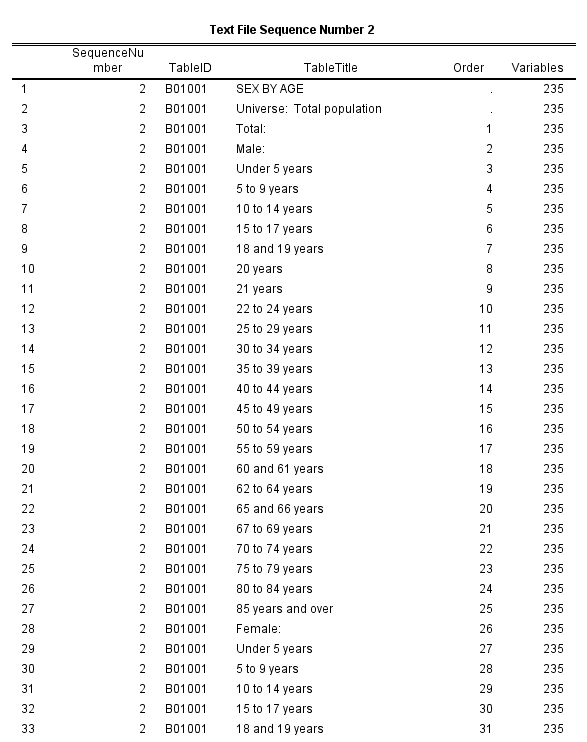
And this produces a table that looks like below:

In this table the TableTitle is the description of the variable, and the Order column tells you what number the variable is in the subsequent text file. Not all rows will refer to a variable, and so we see here that for the SEX BY AGE table (first row), for the subsequent variables, V1 is the Total population, V2 is the Male population, and V3 is the Male population Under 5 years of age. Most of the variables provided by the ACS have this subsequent nesting structure, and so although thousands of variables exist in all of the tables, they just tend to be various demographic breakdowns into more specific categories.

The variable in the right most column tells us that in this table (besides the 6 that are at the start of every table) there ends up being 235 total variables in the table. So now we can call the syntax to grab the actual data.


!ImportACS File = 'data\e20125ny0002000.txt' Table = T2 Cells = 235.

This !ImportACS macro takes as parameters:

  • File – the full file location (in quotes) of the text file that contains the data
  • Table – this token assigns the dataset name and the prefix for all of the variables in the file (excluding the 6 consistent ones). So it needs to follow the conventions for naming those files.
  • Cells – this defines the total number of variables that the table contains after the 6 consistent ones.

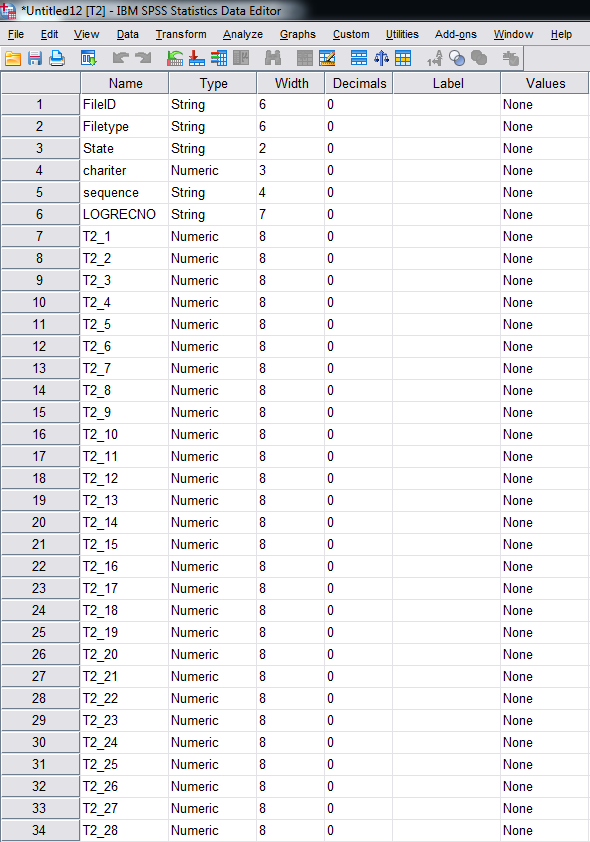
So after you run this syntax it will open a table that has the variables as below:

So we can see the variables FileID, Filetype, State, chariter, sequence, and LOGRECNO will always be the first six variables. After those we have a set of 235 variables of the form T2_1, T2_2 …. T2_235.

As I noted from the original !ACSTable macro, we can look up each individual value, and so we know T2_1 is the total population, T2_2 is the male population, and T2_3 is the male population under 5 years of age. So when I grabbed this table I actually wanted the entire population between 5 and 17 years old (not just males or females). So to calculate that variable I need to sum several variables together.


COMPUTE Under17 = SUM(T2_4 to T2_6,T2_28 to T2_30).

I have some further examples in the ACS_Example.sps syntax that grabs data on race, children in female headed households, Spanish speaking households, and households below poverty. I then merge the tables together using the LOGRECNO variable (which is the census geography id).

From this you can grab whatever tables you want and then merge them together. Digging through the documentation tends to be the hardest part, given how large it is. I originally wrote this for the 5 year estimates in 2010 and recently needed to revisit with 2012 data. The format of the data is the same, but the sequence numbers differed from 2010 to 2012. I only provide examples with the estimates data here, but the macro should work just fine with the margin of error data files as well.

Negative Binomial regression and predicted probabilities in SPSS

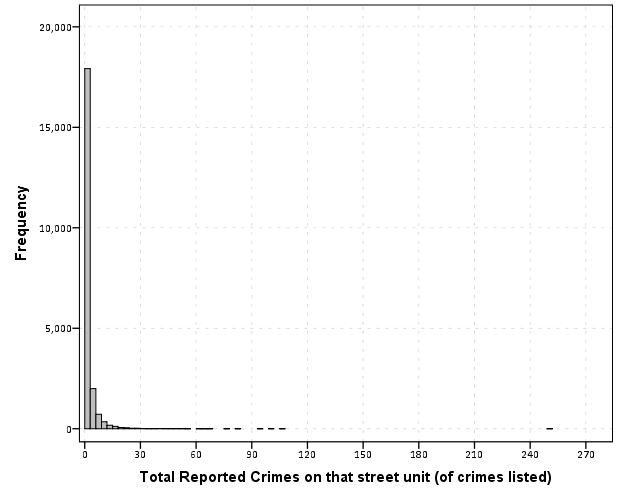
For my dissertation I have been estimating negative binomial regression models predicting the counts of crimes at small places (i.e. street segments and intersections). When evaluating the fit of poisson regression models and their variants, you typically make a line plot of the observed percent of integer values versus the predicted percent by the models. This is particularly pertinent for data that have a high proportion of zeros, as the negative binomial may still under-predict the number of zeros.

I mistakenly thought that to make such a plot you could simply estimate the predicted value following the negative binomial regression model and then round the predictions. But I was incorrect, and to make the typical predicted versus observed plot you need to estimate the probability of an observation taking an integer value, and then take the mean of that probability over all the observations. That mean will subsequently be the predicted percent given the model. Fortunately I caught my mistake before I gave some talks on my work recently, and I will show how to make said calculations in SPSS. I have posted the data to replicate this work at this dropbox link, and so you can download the data and follow along.

First, I got some help on how to estimate the predicted probabilities via an answer to my question at CrossValidated. So that question lists the formula one needs to estimate the predicted probability for any integer value N after the negative binomial model. To calculate that value though we need to make some special SPSS functions, the factorial and the complete gamma function. Both have SPSS tech help pages showing how to calculate them.

For the factorial we can use a general relationship with the LNGAMMA function.


DEFINE !FACT (!POSITIONAL = !ENCLOSE("(",")"))
( EXP(LNGAMMA((!1)+1)) )
!ENDDEFINE.

And for the complete gamma function we can use a relationship to the CDF of the gamma function.


DEFINE !GAMMAF (!POSITIONAL = !ENCLOSE("(",")"))
( EXP(-1)/(!1)/(CDF.GAMMA(1,(!1),1) - CDF.GAMMA(1,(!1)+1,1)) )
!ENDDEFINE.

And given these two functions, we can create a macro that takes as parameters and returns the predicted probability we are interested in:

  • out – new variable name for predicted probability of taking on that integer value
  • PredN – the predicted mean of the variable conditional on the covariates
  • Disp – estimate of the dispersion parameter
  • Int – the integer value being predicted

DEFINE !PredNB (Out = !TOKENS(1)
               /PredN = !TOKENS(1)
                        /Disp = !TOKENS(1)
                        /Int = !TOKENS(1) )
COMPUTE #a = (!Disp)**(-1).
COMPUTE #mu = !PredN.
COMPUTE #Y = !Int.
COMPUTE #1 = (!GAMMAF(#Y + #a))/(!FACT(#Y)*!GAMMAF(#a)).
COMPUTE #2 = (#a/(#a+#mu))**#a.
COMPUTE #3 =  (#mu/(#a + #mu))**#Y.
COMPUTE !Out =  #1*#2*#3.
!ENDDEFINE.

But to make our plot we want to estimate this predicted probability over a range of values, so I created a helper macro that instead of taking only one integer value, takes the end integer value and will calculate the predicted probability of zero through N.


DEFINE !PredNBRange (Num = !TOKENS(1)
                    /Mean = !TOKENS(1)
                    /Disp = !TOKENS(1)
                    /Stub = !TOKENS(1) )
!DO !I = 0 !TO !Num
  !LET !Base = !CONCAT(!Stub,!I)
  !PredNB Out = !Base PredN = !Mean Disp = !Disp Int = !I.
!DOEND 
!ENDDEFINE.

The example data and code I have posted compares these values to the ones predicted from Stata, and shows my function agrees with Stata to about 7 decimal points. I won’t go through all of those commands here, but I will show how to make the predicted proportions plot after you have a vector of predicted probabilities (you can download all of the code and data and the link I reference prior in the post).

So lets say that you have a vector NB0 TO NB8, and these are the predicted probabilities of integer values 0 to 8 for the observations in your dataset. To subsequently get the mean of the predictions, you can use the AGGREGATE command. Having no variables specified on the BREAK subcommand tells SPSS to aggregate over all values in the dataset. Here I export the file to a new dataset named PredNBAgg.


DATASET DECLARE PredNBAgg.
AGGREGATE OUTFILE='PredNBAgg'
  /BREAK = 
  /NB0 TO NB8 = MEAN(NB0 TO NB8).

Now to merge later on to the observed proportions, I will reshape the dataset so the mean values are all in the same column using VARSTOCASES. Here I also make a category for the predicted probability of being 9 or higher (which isn’t typical for these types of plots, but something I believe is useful).


DATASET ACTIVATE PredNBAgg.
COMPUTE NB9_Plus = 1 - SUM(NB0 TO NB8).
VARSTOCASES /MAKE NBPred FROM NB0 TO NB9_Plus /INDEX Int.
COMPUTE Int = Int - 1. /*Index starts at 1 instead of 0 */.

Now I reactivate my original dataset, here named PredNegBin, calculate the binned observed values (with observations 9 and larger recoded to just 9) and then aggregate those values.


DATASET ACTIVATE PredNegBin.
RECODE TotalCrime (9 THRU HIGHEST = 9)(ELSE = COPY) INTO Int.
DATASET DECLARE PredObsAgg.
AGGREGATE OUTFILE='PredObsAgg'
  /BREAK = Int
  /TotalObs = N.

To get the predicted proportions within each category, I need to do another aggregation to get the total number of observations, and then divide the totals of each integer value with the total number of observations.


DATASET ACTIVATE PredObsAgg.
AGGREGATE OUTFILE = * MODE=ADDVARIABLES OVERWRITE=YES
  /BREAK = 
  /TotalN=SUM(TotalObs).
COMPUTE PercObs = TotalObs / TotalN.

Now we can go ahead and merge the two aggregated datasets together. I also go ahead and close the old PredNBAgg dataset and define a value label so I know that the 9 integer category is really 9 and larger.


MATCH FILES FILE = *
  /FILE = 'PredNBAgg'
  /BY Int.
DATASET CLOSE PredNBAgg.
VALUE LABELS Int 9 '9+'.

Now at this point you could make the plot with the predicted and observed proportions in seperate variables, but this would take two ELEMENT statements within a GGRAPH command (and I like to make line plots with both the lines and points, so it would actually take 4 ELEMENT statements). So what I do here is reshape the data one more time with VARSTOCASES, and make a categorical variable to identify if the proportion is the observed value or the predicted value from the model. Then you can make your chart.


VARSTOCASES /MAKE Dens FROM PercObs NBPred /Index Type /DROP TotalObs TotalN.
VALUE LABELS Type 
 1 'Observed'
 2 'Predicted'.
GGRAPH
  /GRAPHDATASET NAME="graphdataset" VARIABLES=Int Dens Type
  /GRAPHSPEC SOURCE=INLINE.
BEGIN GPL
  SOURCE: s=userSource(id("graphdataset"))
  DATA: Int=col(source(s), name("Int"), unit.category())
  DATA: Type=col(source(s), name("Type"), unit.category())
  DATA: Dens=col(source(s), name("Dens"))
  GUIDE: axis(dim(1), label("Total Crimes on Street Units"))
  GUIDE: axis(dim(2), label("Percent of Streets"))
  GUIDE: legend(aesthetic(aesthetic.color.interior), null())
  SCALE: cat(aesthetic(aesthetic.color.interior), map(("1",color.black),("2",color.red)))
  ELEMENT: line(position(Int*Dens), color.interior(Type))
  ELEMENT: point(position(Int*Dens), color.interior(Type), color.exterior(color.white), size(size."7"))
END GPL.

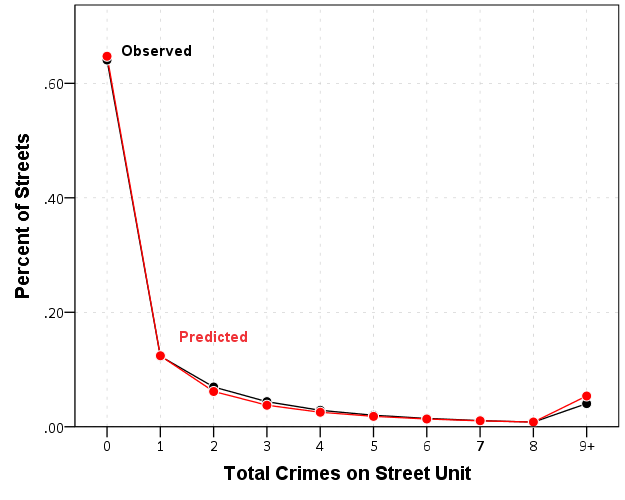
And voila, here you can see the predicted values are so close to the observed that it is difficult to even see the observed values. Here instead of creating a legend I manually added labels to the chart. A better chart may be to subtract the observed from predicted (especially if you were comparing multiple poisson models), but it should be quite plain to see that the negative binomial fits quite well to the observed data in this instance.

Similar to Paul Allison’s experience, even with nearly 64% of the observations being zero, the negative binomial model fits just fine. I recently fit some other models with the same data (but a different outcome) in which the number of zeros were nearer to 90%. In that instance the negative binomial model would not converge, so estimating a zero inflated model was necessary. Here though it is clearly not necessary, and I would prefer the negative binomial model over a zip (or hurdle) as I see no obvious reason why I would prefer the complications of the different predicted zero equation in addition to the count equation.

Quick SPSS tip: Suppressing output

When running commands in SPSS, it routes summaries and output of particular functions to the active Output document. This is very nice for statistical reporting of various tables, like crosstabs or frequencies or nested regression models. This however is not so nice in some circumstances in which the tables are very big. Rendering the output of these large tables takes a fair bit of memory. Also it is near impossible to navigate the tables when they get very large. (I should note SPSS does have some nice pivot table functionality for nested tables, e.g. in CTABLES, but the examples that follow with don’t apply to that.)

A few examples I come across tables being annoying often are:

  • Large correlation matrices or distance matrices (which I often export directly to an SPSS file – note PROXIMITIES has the option to suppress the table on the command, CORRELATIONS does not).
  • Macro commands that have various data transformations and may produce a series of tables (e.g. VARSTOCASES or CREATE). The regression procedures tend to be the worst offenders, so if you say want the predicted values from a REGRESSION or covariances from FACTOR you get half a dozen other tables along with it.
  • Using SPLIT FILE with many groups.

There are basically two ways I know of to easily suppress the output:

  • Use the Output Management System (OMS)
  • Use SET RESULTS OFF ERRORS OFF. – Via David Marso

It is pretty simple to use either to just suppress the output. For OMS it would be:


OMS /SELECT ALL EXCEPT = [WARNINGS] 
    /DESTINATION VIEWER = NO 
    /TAG = 'NoJunk'.
*Your Commands here.
OMSEND TAG = 'NoJunk'.

The OMS command just grabs all output except for warnings and tells SPSS to not send it to the output viewer. Per some comments I updated the example to take a TAG subcommand on the OMS command, as this allows you to have multiple OMS statements and only turn off specific ones at a time. Here it is hard to see the utility, but it should be more obvious when we place this inside a macro.

To replace the OMS example with the SET RESULTS OFF ERRORS OFF. trick by David Marso, you would basically just replace the original OMS command and then wrap it in PRESERVE and RESTORE statements.


PRESERVE.
SET RESULTS OFF ERRORS OFF.
*Your Commands here.
RESTORE.

Because this changes the system output settings, it is always a good idea to use PRESERVE and then set the user settings back to what they originally were with RESTORE. OMS has the slight advantage here that you can set it to still print warning messages. (I do not know off-hand which version of SPSS the OMS command was introduced.)

I will give a pretty simple example of using OMS with CORRELATIONS to suppress such junk output. A question on SO the other day asked about producing all pair-wise correlations above a threshold, and I gave an answer and an example macro to accomplish this (FYI such things would be useful for producing corrgrams or a network diagram of correlations). The output in that example though still produces the correlation table (which in the original posters situation would produce a 200*200 table in the output) and will produce various junk when running the VARSTOCASES command. Here I wrap the macro in the OMS statement suppressing the tables and you do not get such junk.


DEFINE !CorrPairs (!POSITIONAL !CMDEND)
OMS /SELECT ALL EXCEPT = [WARNINGS] 
    /DESTINATION VIEWER = NO 
    /TAG = "CorrPairs".
DATASET DECLARE Corrs.
CORRELATIONS  /VARIABLES=!1  /MATRIX=OUT('Corrs'). 
DATASET ACTIVATE Corrs.
SELECT IF ROWTYPE_ = "CORR".
COMPUTE #iter = 0.
DO REPEAT X = !1.
  COMPUTE #iter = #iter + 1.
  IF #iter > ($casenum-1) X = $SYSMIS.
END REPEAT.
VARSTOCASES /MAKE Corr FROM !1 /INDEX X2 (Corr) /DROP ROWTYPE_.
RENAME VARIABLES (VARNAME_ = X1).
OMSEND TAG="CorrPairs".
!ENDDEFINE.

And now using the same example data as I used on the question:


***********************************.
*Making fake data.
set seed 5.
input program.
loop i = 1 to 100.
end case.
end loop.
end file.
end input program.
dataset name test.
compute #base = RV.NORMAL(0,1).
vector X(20).
loop #i = 1 to 20.
compute X(#i) = #base*(#i/20)  + RV.NORMAL(0,1).
end loop.
exe.
***********************************.
*Now generate correlation pairs.
!CorrPairs X1 to X20.

If you want to see all the output that was originally generated just comment out the two lines with the OMS and OMSEND statements in the macro. Newer versions of SPSS limit the number of rows displayed in output tables, so your system shouldn’t crash with newer versions of SPSS even when you have enormous tables. But the advice here still applies, as you might as well route the output for those large tables somewhere else so that they are easier to explore (either using OMS to save the tables or helper functions on certain commands to export tables).

My Blogging in Review in 2013

2013 was my second year in blogging. I published 40 posts in 2013 (for a total of 72), and my cumulative site views were just a few shy of a 21,000 for the year. I only recieved 7,200 site views in 2012, so the blog has seen a fair bit of growth. The below chart aggregates the site views per month since the beginning (in December 2011) until December 2013. December has been a bit of a dip with only around an average of 60 views per day, but I was up to an average of 78 and 75 views per day in October and November respectively.

The large uptick in March was due to the Junk Charts Challenge being mentioned by Kaiser Fung. I got over 500 site views that day, and have totalled 765 referrals from the JunkCharts domain. This is pretty similar to the bursty behavior I noted on the CV blog, and that one good tweet or mention by a prominent figure will boost visibility by a large margin.

Most of the regular traffic though comes from generic internet searches, mainly for SPSS related material. A few of my earlier posts of Comparing continuous distributions of unequal size groups in SPSS (2,468 total views), Hacking the default SPSS chart template (2,237), and Avoid Dynamite Plots! Visualizing dot plots with super-imposed confidence intervals in SPSS and R (1,542) are some of my most popular posts. The Junk Charts Challenge post has a total of 1,804 views, but it seems to me that it was more of a flood initially and then a trickle as oppossed to the steady views the other posts bring.

Last year I said I would blog about a few topics and failed to write a post about any of them, so I won’t do that again this year. I will however state that I am currently on the job market, as I recently defended my prospectus. If you are aware of a job opportunity you think I would be interested in, or would like to talk to me about a consulting project feel free to send me an email (you can see my CV for my qualifications and brief discussion of past and current consulting services I have provided).

Some sites give advice about maintaining a blog and attracting visitors (such as writing posts so often). My advice is to write quality material, and the rest is just icing on the cake. Hopefully I have more cake for you in the near future.

Network Xmas Tree in SPSS

Motivated by Rick Wicklin’s raster based Christmas Tree in SAS, here I will show how to lay out a network Xmas tree in SPSS – XKCD network style.

SPSS’s GPL language has the ability to lay out different network diagrams given a list of edges and vertices. One of the layouts is a tree layout, and is intended for hierarchical data. Dendrograms created from hierarchical clustering are some of the most popular uses for this type of layout.

So to create the data for our Xmas tree, what I first did was just drew the XKCD tree on a piece of paper, and then replaced the ornaments with an integer value used to represent a node. Below is my best ASCII art representation of that tree.


              1
          ____|______
         |           |
         2           3
     ____|      _____|_____
    |          |           |
    4          5           6
 ___|____      |       ____|____
|        |     |      |         |
7        8     9     10        11
|_____      ___|___   |         |         
|     |    |       |  |         |
12   13    14      15 16       17

From here we can make an edge dataset that consists of the form of all the directed connections in the above graph. So 1 is connected to 2, 2 is connected to 4 etc. That dataset will look like below.


data list free / XFrom XTo.
begin data
1 2
1 3
2 4
3 5
3 6
4 7
4 8
5 9
6 10
6 11
7 12
7 13
9 14
9 15
10 16
11 17
end data.
dataset name edges.

If all I wanted to do was to draw the edges this would be sufficient for the graph. But I also want to style the nodes, so I create a dataset listing the nodes and a color which I will draw them with.


data list free / Node (F2.0) Type (A15).
begin data
1 Yellow
2 Red
3 Red
4 Green
5 Red
6 Red
7 Red
8 Red
9 Red
10 Green
11 Green
12 Green
13 Red
14 Green
15 Red
16 Green
17 Red
end data.
dataset name nodes.

Now here is the magic of GPL to draw our Xmas tree.


GGRAPH
  /GRAPHDATASET NAME="edges" DATASET = "edges" VARIABLES=XFrom XTo
  /GRAPHDATASET NAME="nodes" DATASET = "nodes" VARIABLES=Node Type
  /GRAPHSPEC SOURCE=INLINE.
BEGIN GPL
 SOURCE: e=userSource(id("edges"))
 DATA: XFrom=col(source(e), name("XFrom"), unit.category())
 DATA: XTo=col(source(e), name("XTo"), unit.category())
 SOURCE: n=userSource(id("nodes"))
 DATA: Node=col(source(n), name("Node"), unit.category())
 DATA: Type=col(source(n), name("Type"), unit.category())
 GUIDE: axis(dim(1), null())
 GUIDE: legend(aesthetic(aesthetic.color.interior), null())
 COORD: rect(dim(1,2), reflect(dim(2)))
 SCALE: cat(aesthetic(aesthetic.color.interior), map(("Yellow", color.yellow), ("Red", color.red), ("Green", color.green)))
 ELEMENT: edge(position(layout.tree(node(Node),from(XFrom), to(XTo), root("1"))))
 ELEMENT: point(position(layout.tree(node(Node),from(XFrom), to(XTo), root("1"))), color.interior(Type), size(size."14"))
END GPL.

I ended up drawing the Y axis (and reflecting it) because my chart template did not have enough padding for the root node and the yellow circle was partially cut off in the plot. I then post-hoc deleted the Y axis, changed the aspect ratio and the background color of the plot. And Voila – Happy Holidays!

A Festschrift (blog post) for Lord, his paradox and Novick’s prediction

Lord’s paradox is a situation in which analyzing change scores between two time points results in different treatment effect estimates than analyzing the treatment effect of the second time point conditional on the first time point. In terms of regression equations we have the following as the change score model:

Y_2 - Y_1 = \beta_a \cdot T

And the following as the conditional model:

Y_2 = \beta_b \cdot T + \gamma \cdot Y_1

Lord’s paradox is the fact that \beta_a and \beta_b won’t always be the same. I won’t go into too many details on why that is the case, and I would suggest the reader to review Allison (1990) and Holland and Rubin (1983) for some treatments of the problem. The traditional motivation for the change score model (which is pretty similar to fixed effects in panel regressions) is to account for any time invariant omitted variables that may be correlated with a unit being exposed to the treatment.

So lets say that we have an equation predicting Y_2

Y_2 = \beta \cdot T + \delta \cdot X

Lets also say that we cannot observe X, we know that it is correlated with T, but that X does not vary in time. For an example lets say that the treatment is a diet regimen for freshman college students and the outcome of interest is body fat content, and if they sign up they get discounts on specific cafeteria meals. Students voluntarily sign up to take the treatment though, so one may think that certain student characteristics (like being in better shape or have more self control with eating) are correlated with selecting to sign up for the diet. So how can we account for those pre-treatment characteristics that are likely correlated with selection into the treatment?

If we happen to have pre-treatment measures of Y, we can see that:

Y_1 = \delta \cdot X

And so we can subtract the latter equation from the former to cancel out the omitted variable effect:

Y_2 - Y_1 = \beta \cdot T + \delta \cdot X - \delta \cdot X = \beta \cdot T

Now, a frequent critique of the change score model is that it assumes that the autoregressive effect of the baseline score on the post score is 1. See Frank Harrell’s comment on this answer on the Cross Validated site (also see my answer to that question as to why change scores that include the baseline on the right hand side don’t make sense). Holland and Rubin (1983) make the same assertion. To make it clear, these critiques say that change scores are only justified when in the below equation \rho is equal to 1.

Y_2 = \beta \cdot T + \delta \cdot X + \rho \cdot Y_1

This caused me some angst though. As you can see in my original formulation there is no \rho \cdot Y_1 term at all, so it would seem that if anything I assume it is 0. But it seems that my description of time constant ommitted variables is making the same presumption. To show this lets go back one further step in time:

Y_0 = \delta \cdot X

We can see that we could just replace \delta \cdot X with the lagged value. Substituting this into the equation predicting Y_1 we would then have.

Y_1 = \rho \cdot Y_0 = Y_0

Which is the same as saying \rho=1. So my angst is resolved and Frank Harrell, Don Rubin and Paul Holland are correct in their assertions and doubting such a group of individuals surely makes me crazy! This does bring other questions though as to when the change score model is appropriate. Obviously our models are never entirely correct, and the presumption of \rho = 1 is on its face ridiculous in most situations. It is akin to saying the outcome is a random walk that is only guided by various exogenous shocks.

As always, the model one chooses should be balanced against alternatives in an attempt to reduce bias in the effect estimates we are interested in. When the unobserved and omitted X is potentially very large and have a strong correlation with being given the treatment, it seems the change score model should be preferred. I presume someone smarter than me can give better quantitative estimates as to when the bias of assuming \rho=1 is a better choice than making the assumption of no other unobserved time invariant omitted variables.


I end this post on a tangent. I recently revisited the material as I wanted to read Holland and Rubin (1983) which is a chapter in the reader Principals of moderns Psychological Measurement: A Festschrift for Frederic M. Lord. I also saw in that same reader a chapter by Melvin Novick, The centrality of Lord’s paradox and exchangeability for all statistical inference. At the end he was pretty daring in making some predictions for the state of statistics as of November 12, 2012 – so I am a year late with my Festschrift but they are still interesting fodder none-the-less. I’ll leave the reader to judge the extent Novick was correct in his following predictions:

  1. be less dependent on constricting models such as the normal and will primarily use more general classes of distributions, for example, the exponential power distribution;
  2. be fully Bayesian with full emphasis on the psychometric assessment of proper prior distributions;
  3. be fully decision theoretic with emphasis on the pyschometric assessment of individual and institutional utilities;
  4. use robust classes of prior distributions and utility functions as well as robust model distributions;
  5. rely completely on full-rank Bayesian univariate and multivariate analyses of variance and covariance using fully exchangeable, informative prior distributions as appropriate;
  6. emphasize exchangeability through careful modeling, blocking, and covariation with randomization playing a residual role;
  7. emphasize the use of posterior predictive distributions using the lessons of Lord’s paradox, exchangeability, and appropriate conditional probabilities;
  8. place great emphasis on numerical solutions when exact Bayesian solutions prove intractable;
  9. still use some pseudo Bayesian methods when both theoretical and computational fully Bayesian solutions remain intractable. (This prevision is subject to modification if I can convince Rubin, Holland and their associates to devote their impressive skills to the quest for fully Bayesian solutions. Should this happen, there may be no need for any pseudo Bayesian methods.)

Citations

  • Allison, Paul. 1990. Change scores as dependent variables in regression analysis. Sociological methodology 20: 93-114.
  • Holland, Paul & Donald Rubin. 1983. On Lord’s Paradox. In Principles of modern psychological measurement: A festchrift for Frederic M. Lord edited by Wainer, Howard & Samuel Messick pgs:3-25. Lawrence Erlbaum Associates. Hillsdale, NJ.
  • Novick, Melvin. 1983. The centrality of Lord’s paradox and exchangeability for all statistical inference. In Principles of modern psychological measurement: A festchrift for Frederic M. Lord edited by Wainer, Howard & Samuel Messick pgs:3-25. Lawrence Erlbaum Associates. Hillsdale, NJ.
  • Wainer, Howard & Samuel Messick. 1983. Principles of modern psychological measurement: A festchrift for Frederic M. Lord. Lawrence Erlbaum Associates. Hillsdale, NJ.