The Junk Charts Challenge: Remaking a great line chart in SPSS

I read and very much enjoy Kaiser Fung’s blog Junk Charts. One of the exchanges in the comments to the post, Remaking a great chart, Kaiser asserted it was easier to make the original chart in Excel than in any current programming language. I won’t deny it is easier to use a GUI dialog than learn some code, but here I will present how you would go about making the chart in SPSS’s grammar of graphics. The logic extends part-and-parcel to ggplot2.

The short answer is the data is originally in wide format, and most statistical packages it is only possible (or at least much easier) to make the chart when the data is in long format. This ends up being not a FAQ, but a frequent answer to different questions, so I hope going over such a task will have wider utility for alot of charting tasks.

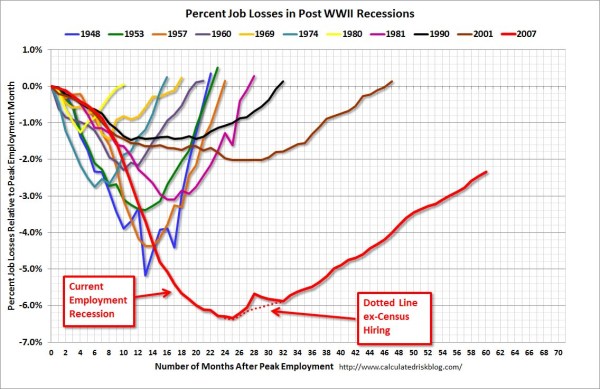
So here is the original chart (originally from the Calculated Risk blog)

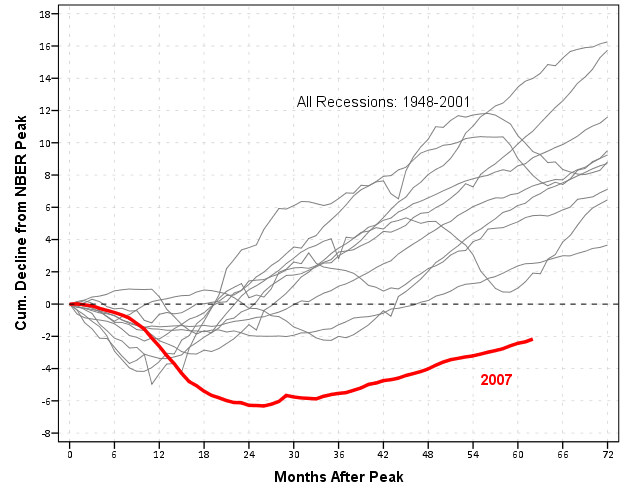
And here is Kaiser Fung’s updated version;

Within the article Kaiser states;

One thing you’ll learn quickly from doing this exercise is that this is a task ill-suited for a computer (so-called artificial intelligence)! The human brain together with Excel can do this much faster. I’m not saying you can’t create a custom-made application just for the purpose of creating this chart. That can be done and it would run quickly once it’s done. But I find it surprising how much work it would be to use standard tools like R to do this.

Of course because anyone saavy with a statistical package would call bs (because it is), Kaiser gets some comments by more experienced R users saying so. Then Kaiser retorts in the comments with a question how to go about making the charts in R;

Hadley and Dean: I’m sure you’re better with R than most of us so I’d love to hear more. I have two separate issues with this task:

  1. assuming I know exactly the chart to build, and have all the right data elements, it is still much easier to use Excel than any coding language. This is true even if I have to update the chart month after month like CR blog has to. I see this as a challenge to those creating graphing software. (PS. Here, I’m thinking about the original CR version – I don’t think that one can easily make small multiples in Excel.)
  1. I don’t see a straightforward way to proceed in R (or other statistical languages) from grabbing the employment level data from the BLS website, and having the data formatted precisely for the chart I made. Perhaps one of you can give us some pseudo-code to walk through how you might do it. I think it’s easier to think about it than to actually do it.

So here I will show how one would go about making the charts in a statistical package, here SPSS. I actually don’t use the exact data to make the same chart, but there is very similar data at the Fed Bank of Minneapolis website. Here I utilize the table on cumulative decline of Non-Farm employment (seasonally adjusted) months after the NBER defined peak. I re-format the data so it can actually be read into a statistical package, and here is the xls data sheet. Also at that link the zip file contains all the SPSS code needed to reproduce the charts in this blogpost.

So first up, the data from the Fed Bank of Minneapolis website looks like approximately like this (in csv format);

MAP,Y1948,Y1953,Y1957,Y1960,Y1969,Y1973,Y1980,Y1981,Y1990,Y2001,Y2007
0,0,0,0,0,0,0,0,0,0,0,0
1,-0.4,-0.1,-0.4,-0.6,-0.1,0.2,0.1,0.0,-0.2,-0.2,0.0
2,-1.1,-0.3,-0.7,-0.8,0.1,0.3,0.2,-0.1,-0.3,-0.2,-0.1
3,-1.5,-0.6,-1.1,-0.9,0.3,0.4,0.1,-0.2,-0.4,-0.3,-0.1
4,-2.1,-1.2,-1.4,-1.0,0.2,0.5,-0.4,-0.5,-0.5,-0.4,-0.3

This isn’t my forte, so I’m unsure when Kaiser says grab the employment level data from the BLS website what exact data or table he is talking about. Regardless, if the table you grab the data from is in this wide format, it will be easier to make the charts we want if the data is in long format. So in the end if you want the data in long format, instead of every line being a different column, all the lines are in one column, like so;

MAP, YEAR, cdecline
0, 1948, 0
1, 1948, -.04
.
72, 1948, 8.2
0, 2007, 0
1, 2007, 0
.

So in SPSS, the steps would be like this to reshape the data (after reading in the data from my prepped xls file);

GET DATA /TYPE=XLS
 /FILE='data\historical_recessions_recoveries_data_03_08_2013.xls'
   /SHEET=name 'NonFarmEmploy'
   /CELLRANGE=full
   /READNAMES=on
   /ASSUMEDSTRWIDTH=32767.
DATASET NAME NonFarmEmploy.

*Reshape wide to long.
VARSTOCASES
/MAKE cdecline from Y1948 to Y2007
/INDEX year (cdecline).
compute year = REPLACE(year,"Y","").

This produces the data so instead of having seperate years in different variables, you have the cumulative decline in one column in the dataset, and another categorical variable identifying the year. Ok, so now we are ready to make a chart that replicates the original from the calculated risk blog. So here is the necessary code in SPSS to make a well formatted chart. Note the compute statement first makes a variable to flag if the year is 2007, which I then map to the aesthetics of red and larger size, so it comes to the foreground of the chart;

compute flag_2007 = (year = "2007").
GGRAPH
  /GRAPHDATASET NAME="graphdataset" VARIABLES=MAP cdecline flag_2007 year
  /GRAPHSPEC SOURCE=INLINE.
BEGIN GPL
 SOURCE: s=userSource(id("graphdataset"))
 DATA: MAP=col(source(s), name("MAP"))
 DATA: cdecline=col(source(s), name("cdecline"))
 DATA: flag_2007=col(source(s), name("flag_2007"), unit.category())
 DATA: year=col(source(s), name("year"), unit.category())
 SCALE: cat(aesthetic(aesthetic.color), map(("0", color.grey), ("1", color.red)))
 SCALE: cat(aesthetic(aesthetic.size), map(("0",size."1px"), ("1",size."3.5px")))
 SCALE: linear(dim(1), min(0), max(72))
 SCALE: linear(dim(2), min(-8), max(18))
 GUIDE: axis(dim(1), label("Months After Peak"), delta(6))
 GUIDE: axis(dim(2), label("Cum. Decline from NBER Peak"), delta(2))
 GUIDE: form.line(position(*,0), size(size."1px"), shape(shape.dash), color(color.black))
 GUIDE: legend(aesthetic(aesthetic.color.interior), null())
 GUIDE: legend(aesthetic(aesthetic.size), null())
 ELEMENT: line(position(MAP*cdecline), color(flag_2007), size(flag_2007), split(year))
END GPL.

Which produces this chart (ok I cheated alittle, I post-hoc added the labels in by hand in the SPSS editor, as I did not like the automatic label placement and it is easier to add in by hand than fix the automated labels). Also note this will appear slightly different than the default SPSS charts because I use my own personal chart template.

That is one hell of a chart command call though! You can actually produce most of the lines for this call through SPSS’s GUI dialog, and it just takes some more knowledge of the graphic language of SPSS to adjust the aesthetics of the chart. It would take a book to go through exactly how GPL works and the structure of the grammar, but here is an attempt at a more brief run down.

So typically, you would make seperate lines by specifiying that every year gets its own color. This is nearly impossible to distinguish between all of the lines though (as Kaiser originally states). A simple solution is to only highlight the line we are interested in, 2007, and make the rest of the lines the same color. To do this and still have the lines rendered seperately in SPSS’s GPL code, one need to specify the split modifier within the ELEMENT statement (the equivalent in ggplot2 is the group statement within aes). The things I manually edited differently than the original code generated through the GUI are;

  • Guide line at the zero value, and then making the guideline 1 point wide, black, and with a dashed pattern (GUIDE: form.line)
  • Color and size the 2007 line differently than the rest of the lines (SCALE: cat(aesthetic(aesthetic.color), map(("0", color.grey), ("1", color.red))))
  • Set the upper and lower boundary of the x and y axis (SCALE: linear(dim(2), min(-8), max(18)))
  • set the labels for the x and y axis, and set how often tick marks are generated (GUIDE: axis(dim(2), label("Cum. Decline from NBER Peak"), delta(2)))
  • set the chart so the legend for the mapped aesthetics are not generated, because I manually label them anyway (GUIDE: legend(aesthetic(aesthetic.size), null()))

Technically, both in SPSS (and ggplot2) you could produce the chart in the original wide format, but this ends up being more code in the chart call (and grows with the numbers of groups) than simply reshaping the data so the data to makes the lines is in one column.

This chart, IMO, makes the point we want to make easily and succintly. The recession in 2007 has had a much harsher drop off in employment and has lasted much longer than employment figures in any recession since 1948. All of the further small multiples are superflous unless you really want to drill down into the differences between prior years, which are small in magnitude compared to the current recession. Using small lines and semi-transparency is the best way to plot many lines (and I wish people running regressions on panel data sets did it more often!)

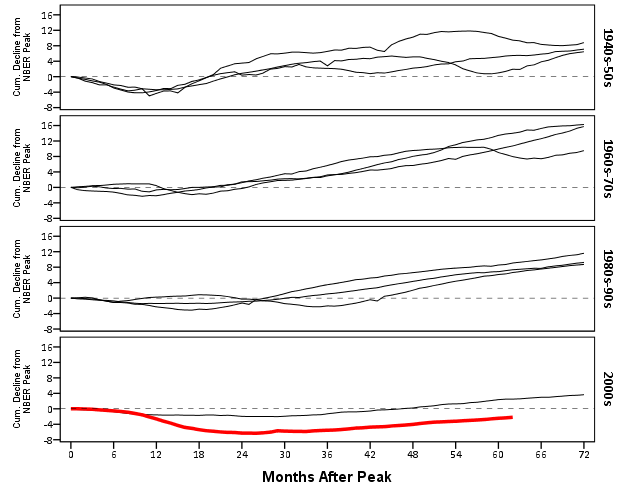
So although that one graph call is complicated, it takes relatively few lines of code to read in the data and make it. In ggplot2 I’m pretty sure would be fewer lines (Hadley’s version of the grammar is much less verbose than SPSS). So, in code golf terms of complexity, we are doing alright. The power in programming though is it is trivial to reuse the code. So to make a paneled version similar to Kaiser’s remake we simply need to make the panel groupings, then copy-paste and slightly update the prior code to make a new chart;

compute #yearn = NUMBER(year,F4.0).
if RANGE(#yearn,1940,1959) = 1 decade = 1.
if RANGE(#yearn,1960,1979) = 1 decade = 2.
if RANGE(#yearn,1980,1999) = 1 decade = 3.
if RANGE(#yearn,2000,2019) = 1 decade = 4.
value labels decade
1 '1940s-50s'
2 '1960s-70s'
3 '1980s-90s'
4 '2000s'.

GGRAPH
  /GRAPHDATASET NAME="graphdataset" VARIABLES=MAP cdecline year decade flag_2007
  /GRAPHSPEC SOURCE=INLINE.
BEGIN GPL
 SOURCE: s=userSource(id("graphdataset"))
 DATA: MAP=col(source(s), name("MAP"))
 DATA: cdecline=col(source(s), name("cdecline"))
 DATA: year=col(source(s), name("year"), unit.category())
 DATA: flag_2007=col(source(s), name("flag_2007"), unit.category())
 DATA: decade=col(source(s), name("decade"), unit.category())
 SCALE: cat(aesthetic(aesthetic.color), map(("0", color.black), ("1", color.red)))
 SCALE: cat(aesthetic(aesthetic.size), map(("0",size."1px"), ("1",size."3.5px")))
 SCALE: linear(dim(1), min(0), max(72))
 SCALE: linear(dim(2), min(-8), max(18))
 GUIDE: axis(dim(1), label("Months After Peak"), delta(6))
 GUIDE: axis(dim(2), label("Cum. Decline from NBER Peak"), delta(2))
 GUIDE: axis(dim(4), opposite())
 GUIDE: form.line(position(*,0), size(size."0.5px"), shape(shape.dash), color(color.lightgrey))
 GUIDE: legend(aesthetic(aesthetic.color), null())
 GUIDE: legend(aesthetic(aesthetic.size), null())
 ELEMENT: line(position(MAP*cdecline*1*decade), color(flag_2007), size(flag_2007), split(year))
END GPL.

It should be easy to see comparing the new paneled chart syntax to the original, it only took two slight changes; 1) I needed to add in the new decade variable and define it in the DATA mapping, 2) I needed to add it to the ELEMENT call to produce paneling by row. Again I cheated alittle, I post hoc edited the grid lines out of the image, and changed the size of the Y axis labels. If I really wanted to automate these things in SPSS, I would need to rely on a custom template. In R in ggplot2, this is not necessary, as everything is exposed in the programming language. This is quite short work. Harder is to add in labels, I don’t bother here, but I would assume to do it nicely (if really needed) I would need to do it manually. I don’t bother here because it isn’t clear to me why I should care about which prior years are which.

On aesthetics, I would note Kaiser’s original panelled chart lacks distinction between the panels, which makes it easy to confuse Y axis values. I much prefer the default behavior of SPSS here. Also the default here does not look as nice in the original in terms of the X to Y axis ratio. This is because the panels make the charts Y axis shrink (but keep the X axis the same). My first chart I suspect looks nicer because it is closer to the Cleveland ideal of average 45 degree banking in the line slopes.

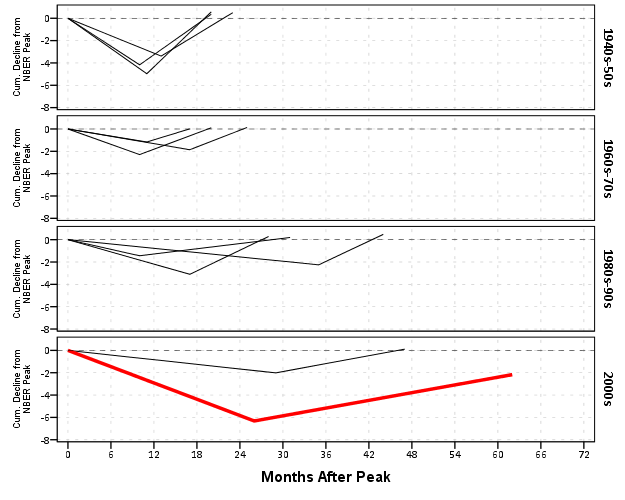
What about the data manipulation Kaiser suggests is difficult to conduct in a statistical programming language? Well, that is more difficult, but certainly not impossible (and certainly not faster in Excel to anyone who knows how to do it!) Here is how I would go about it in SPSS to identify the start, the trough, and the recovery.

*Small multiple chart in piecewise form, figure out start, min and then recovery.
compute flag = 0.
*Start.
if MAP = 0 flag = 1.
*Min.
sort cases by year cdecline.
do if year <> lag(year) or $casenum = 1.
    compute flag = 2.
    compute decline_MAP = MAP.
else if year = lag(year). 
    compute decline_MAP = lag(decline_MAP).
end if.
*Recovery.
*I need to know if it is after min to estimate this, some have a recovery before the
min otherwise.
sort cases by year MAP.
if lag(cdecline) < 0 and cdecline >= 0 and MAP > decline_MAP flag = 3.
if year = "2007" and MAP = 62 flag = 3.
exe.
*Now only select these cases.
dataset copy reduced.
dataset activate reduced.
select if flag > 0.

So another 16 lines (that aren’t comments) – what is this world of complex statistical programming coming too! If you want a run-down of how I am using lagged values to identify the places, see my recent post on sequential case processing.

Again, we can just copy and paste the chart syntax to produce the same chart with the reduced data. This time it is the exact same code as prior, so no updating needed.

GGRAPH
  /GRAPHDATASET NAME="graphdataset" VARIABLES=MAP cdecline year decade flag_2007
  /GRAPHSPEC SOURCE=INLINE.
BEGIN GPL
 SOURCE: s=userSource(id("graphdataset"))
 DATA: MAP=col(source(s), name("MAP"))
 DATA: cdecline=col(source(s), name("cdecline"))
 DATA: year=col(source(s), name("year"), unit.category())
 DATA: flag_2007=col(source(s), name("flag_2007"), unit.category())
 DATA: decade=col(source(s), name("decade"), unit.category())
 SCALE: cat(aesthetic(aesthetic.color), map(("0", color.black), ("1", color.red)))
 SCALE: cat(aesthetic(aesthetic.size), map(("0",size."1px"), ("1",size."3.5px")))
 SCALE: linear(dim(1), min(0), max(72))
 SCALE: linear(dim(2), min(-8), max(1))
 GUIDE: axis(dim(1), label("Months After Peak"), delta(6))
 GUIDE: axis(dim(2), label("Cum. Decline from NBER Peak"), delta(2))
 GUIDE: axis(dim(4), opposite())
 GUIDE: form.line(position(*,0), size(size."0.5px"), shape(shape.dash), color(color.lightgrey))
 GUIDE: legend(aesthetic(aesthetic.color.interior), null())
 GUIDE: legend(aesthetic(aesthetic.size), null())
 ELEMENT: line(position(MAP*cdecline*1*decade), color(flag_2007), size(flag_2007), split(year))
END GPL.

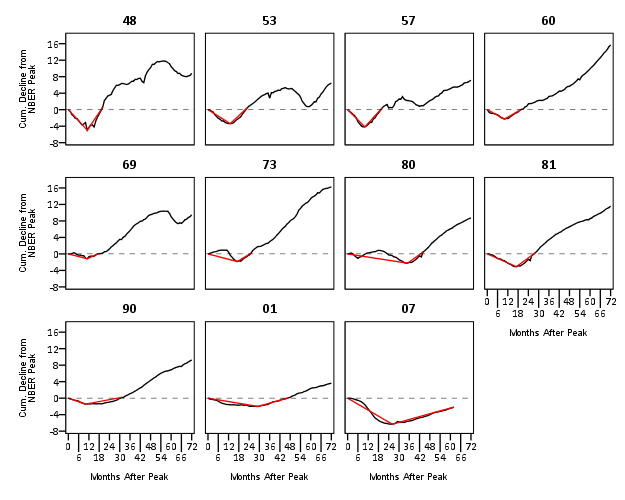
Again I lied a bit earlier, you really only needed 14 lines of code to produce the above chart. I actually spent a few saving to a new dataset. I wanted to see if the reduced summary in this dataset was an accurate representation. You can see it is except for years 73 and 80, in which they had slight positive recoveries before the bottoming out, so one bend in the curve doesn’t really cut it in those instances. Again, the chart only takes some slight editing in the GPL to produce. Here I produce a chart where each year has it’s own panel, and the panels are wrapped (instead of placed in new rows). This is useful when you have many panels.

compute reduced = 1.
dataset activate NonFarmEmploy.
compute reduced = 0.
add files file = *
/file = 'reduced'.
dataset close reduced.
value labels reduced
0 'Full Series'
1 'Kaisers Reduced Series'.

*for some reason, not letting me format labels for small multiples.
value labels year
'1948' "48"
'1953' "53"
'1957' "57"
'1960' "60"
'1969' "69"
'1973' "73"
'1980' "80"
'1981' "81"
'1990' "90"
'2001' "01"
'2007' "07".

GGRAPH
  /GRAPHDATASET NAME="graphdataset" VARIABLES=MAP cdecline year flag_2007 reduced
  /GRAPHSPEC SOURCE=INLINE.
BEGIN GPL
 SOURCE: s=userSource(id("graphdataset"))
 DATA: MAP=col(source(s), name("MAP"))
 DATA: cdecline=col(source(s), name("cdecline"))
 DATA: year=col(source(s), name("year"), unit.category())
 DATA: flag_2007=col(source(s), name("flag_2007"), unit.category())
 DATA: reduced=col(source(s), name("reduced"), unit.category())
 COORD: rect(dim(1,2), wrap())
 SCALE: cat(aesthetic(aesthetic.color), map(("0", color.black), ("1", color.red)))
 SCALE: linear(dim(1), min(0), max(72))
 SCALE: linear(dim(2), min(-8), max(18))
 GUIDE: axis(dim(1), label("Months After Peak"), delta(6))
 GUIDE: axis(dim(2), label("Cum. Decline from NBER Peak"), delta(2))
 GUIDE: axis(dim(3), opposite())
 GUIDE: form.line(position(*,0), size(size."0.5px"), shape(shape.dash), color(color.lightgrey))
 GUIDE: legend(aesthetic(aesthetic.color.interior), null())
 GUIDE: legend(aesthetic(aesthetic.size), null())
 ELEMENT: line(position(MAP*cdecline*year), color(reduced))
END GPL.

SPSS was misbehaving and labelling my years with a comma. To prevent that I made value labels with just the trailing two years. Again I post-hoc edited the size of the Y and X axis labels and manually removed the gridlines. Quite short work. Harder is to add in labels, I don’t bother here, but I would assume to do it nicely (if really needed) I would need to do it manually. I don’t bother here because it isn’t clear to me why I should care

As oppossed to going into a diatribe about the utility of learning a statistical programming language, I will just say that, if you are an analyst that works with data on a regular basis, you are doing yourself a disservice by only sticking to excel. Not only is the tool in large parts limited to the types of graphics and analysis one can conduct, it is very difficult to make tasks routine and reproducible.

Part of my dissapointment is that I highly suspect Kaiser has such programming experience, he just hasn’t taken the time to learn a statistical program thoroughly enough. I wouldn’t care, except that Kaiser is in a position of promoting best practices, and I would consider this to be one of them. I don’t deny that learning such programming languages is not easy, but as an analyst that works with data every day, I can tell you it is certainly worth the effort to learn a statistical programming language well.

Informational Asymmetries in my role as Crime Analyst

One aspect I’ve come to realize in my job as crime analyst, and really in any technical job I’ve had, is that I face large informational asymmetries between myself and my employers (and colleagues). What exactly do I mean? Well, I consider a prime example of informational asymmetry when I have a large body of knowledge about some particular topic or task I need to conduct, and the person asking for the task has relatively little.

I believe this is problematic in one major way with my job: That people don’t know what is or is not reasonable to ask me to do, or similarly how long it takes me to conduct particular tasks. I believe most of the time this makes people hesitate to ask me particular questions or ask me to conduct particular analysis. The obverse happens though not entirely infrequently, I get asked nonchalantly to do something that is a considerable investment.

I’m not sure how to best solve this situation (especially the not asking part) besides by developing relationships with colleagues and the boss, and through experience elucidating what I can (or can’t do). To a certain extent I can’t know what people want if they don’t ask me.

The situation in which someone asks me to do something that takes more of in investment is easier, in that I can directly tell the person that this request is either unreasonable or will take along time. A good example of tasks that on the outside may look similar in scope, but are largely different are descriptive vs. causal analysis.

Examples of the difference are “How many calls for service occurred at this particular apartment in the last year?” (descriptive), or “Is there more crime around 15 Main St. than we would normally expect?” (causal). The first is typically just a query or the database and a table or map, and this will typically satisfy the answer. The other though is much more difficult, I have to dream up a reasonable comparison, else the information I provide may be potentially out of context.

The information I produce also depends on who is asking. If someone within the PD asks for descriptive statistics, that is usually all I provide. If someone from the public asks for descriptive statistics, I frequently (at least attempt to) provide more context for those statistics (i.e. some reasonable comparisons or historical trends that form the basis for causal analysis).

This is because I assume people within the PD have the necessary external context to evaluate the information, whereas people outside the PD don’t. If I just stated how many calls for service occurred on your street block, you may think your street is crime ridden, because you don’t have a good internal baseline to judge what is a reasonable number of calls for service. In such requests to the public I try to provide historical numbers over a long period (as people are often worried about newer trends) or comparisons to neighboring areas.

The informational asymmetry problem stills persists though, and filters into other areas of work. In particular how am I evaluated within the PD itself.

Some random SPSS graph tips: shading areas under curves and using dodging in binned dot plots

This is just a quick post on some random graphing examples you can do with SPSS through inline GPL statements, but are not possible through the GUI dialog. These also take knowing alittle bit about the grammar of graphics, and the nuts and bolts of SPSS’s implementation. First up, shading under a curve.

Shading under a curve

I assume the motivation for doing this is obvious, but it is alittle advanced GPL to figure out how to accomplish. I swore someone asked how to do this the other day on NABBLE, but I could not find any such questions. Below is an example.

*****************************************.
input program.
loop #i = 1 to 2000.
compute X = (#i - 1000)/250.
compute PDF = PDF.NORMAL(X,0,1).
compute CDF = CDF.NORMAL(X,0,1).
end case.
end loop.
end file.
end input program.
dataset name sim.
exe.

formats PDF X (F2.1).

*area under entire curve.
GGRAPH
  /GRAPHDATASET NAME="graphdataset" VARIABLES=X PDF MISSING=LISTWISE
  REPORTMISSING=NO
  /GRAPHSPEC SOURCE=INLINE.
BEGIN GPL
 SOURCE: s=userSource(id("graphdataset"))
 DATA: X=col(source(s), name("X"))
 DATA: PDF=col(source(s), name("PDF"))
 GUIDE: axis(dim(1), label("X"))
 GUIDE: axis(dim(2), label("Prob. Dens."))
 ELEMENT: area(position(X*PDF), missing.wings())
END GPL.


*Mark off different areas.
compute tails = 0.
if CDF <= .025 tails = 1.
if CDF >= .975 tails = 2.
exe.

*Area with particular locations highlighted.
GGRAPH
  /GRAPHDATASET NAME="graphdataset" VARIABLES=X PDF tails 
  /GRAPHSPEC SOURCE=INLINE.
BEGIN GPL
 SOURCE: s=userSource(id("graphdataset"))
 DATA: X=col(source(s), name("X"))
 DATA: PDF=col(source(s), name("PDF"))
 DATA: tails=col(source(s), name("tails"), unit.category())
 SCALE: cat(aesthetic(aesthetic.color.interior), map(("0",color.white),("1",color.grey),("2",color.grey)))
 SCALE: cat(aesthetic(aesthetic.transparency.interior), map(("0",transparency."1"),("1",transparency."0"),("2",transparency."0")))
 GUIDE: axis(dim(1), label("X"))
 GUIDE: axis(dim(2), label("Prob. Dens."))
 GUIDE: legend(aesthetic(aesthetic.color.interior), null())
 GUIDE: legend(aesthetic(aesthetic.transparency.interior), null())
 ELEMENT: area(position(X*PDF), color.interior(tails), transparency.interior(tails))
END GPL.
*****************************************.

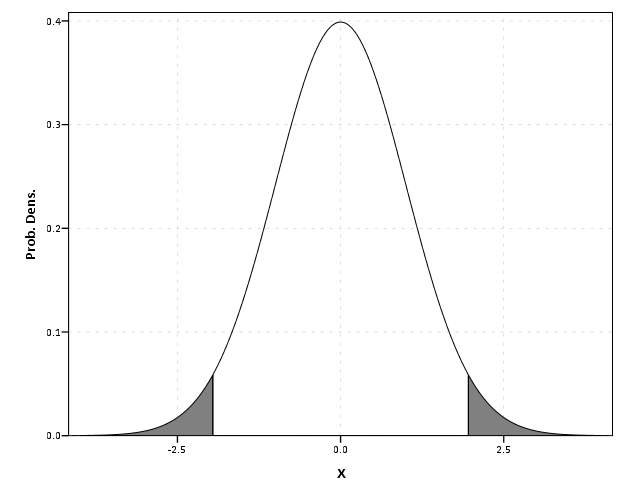
The area under the entire curve is pretty simple code, and can be accomplished through the GUI. The shading under different sections though requires a bit more thought. If you want both the upper and lower tails colored of the PDF, you need to specify seperate categories for them, otherwise they will connect at the bottom of the graph. Then you need to map the categories to specific colors, and if you want to be able to see the gridlines behind the central area you need to make the center area transparent. Note I also omit the legend, as I assume it will be obvious what the graph represents given other context or textual summaries.

Binning scale axis to produce dodging

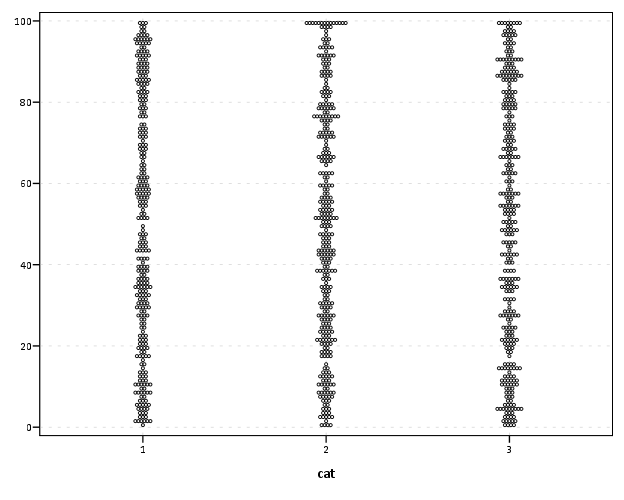
The second example is based on the fact that for SPSS to utilize the dodge collision modifier, one needs a categorical axis. What if you want the axis to really be scale though? You can make the data categorical but the axis on a continuous scale by specifying a binned scale, but just make the binning small enough to suit your actual data values. This is easy to show with a categorical dot plot. If you can, IMO it is better to use dodging than jittering, and below is a perfect example. If you run the first GGRAPH statement, you will see the points aren’t dodged, although the graph is generated just fine and dandy with no error messages. The second graph bins the X variable (which is on the second dimension) with intervals of width 1. This ends up being exactly the same as the continuous axis, because the values are all positive integers anyway.

*****************************************.
set seed = 10.
input program.
loop #i = 1 to 1001.
compute X = TRUNC(RV.UNIFORM(0,101)).
compute cat = TRUNC(RV.UNIFORM(1,4)).
end case.
end loop.
end file.
end input program.
dataset name sim.

GGRAPH
  /GRAPHDATASET NAME="graphdataset" VARIABLES=X cat
  /GRAPHSPEC SOURCE=INLINE.
BEGIN GPL
 SOURCE: s=userSource(id("graphdataset"))
 DATA: X=col(source(s), name("X"))
 DATA: cat=col(source(s), name("cat"), unit.category())
 COORD: rect(dim(1,2))
 GUIDE: axis(dim(1), label("cat"))
 ELEMENT: point.dodge.symmetric(position(cat*X))
END GPL.

*Now lets try to bin X so the points actually dodge!.
GGRAPH
  /GRAPHDATASET NAME="graphdataset" VARIABLES=X cat
  /GRAPHSPEC SOURCE=INLINE.
BEGIN GPL
 SOURCE: s=userSource(id("graphdataset"))
 DATA: X=col(source(s), name("X"))
 DATA: cat=col(source(s), name("cat"), unit.category())
 COORD: rect(dim(1,2))
 GUIDE: axis(dim(1), label("cat"))
 ELEMENT: point.dodge.symmetric(position(bin.rect(cat*X, dim(2), binWidth(1))))
END GPL.
****************************************.

Both examples shown here only take slight alterations to code generatable through the GUI, but take a bit more understanding of the grammar to know how to accomplish (or even know they are possible). You unfortunately can’t implement Wilkinson’s (1999) true dot plot technique like this (he doesn’t suggest binning, but by choosing where the dots are placed by KDE estimation). But this should be sufficient for most circumstances.

Interval graph for viz. temporal overlap in crime events

I’ve currently made a vizualization intended to be an exploratory tool to identify overlapping criminal events over a short period. Code to reproduce the macro is here, and that includes an example with made up data. As opposed to aoristic analysis, which lets you see globally the aggregated summaries of when crime events occurred potentially correcting for the unspecified time period, this graphical procedure allows you to identify whether local events overlap. It also allows one to perceive global information as well, in particular whether the uncertainty of events occur in morning, afternoon, or night.

A call to the macro ends up looking like this (other vars is optional and can include multiple variables – I assume token names are self-explanatory);

!interval_data date_begin = datet_begin time_begin = XTIMEBEGIN date_end = datet_end time_end = XTIMEEND 
label_id = myid other_vars = crime rand.

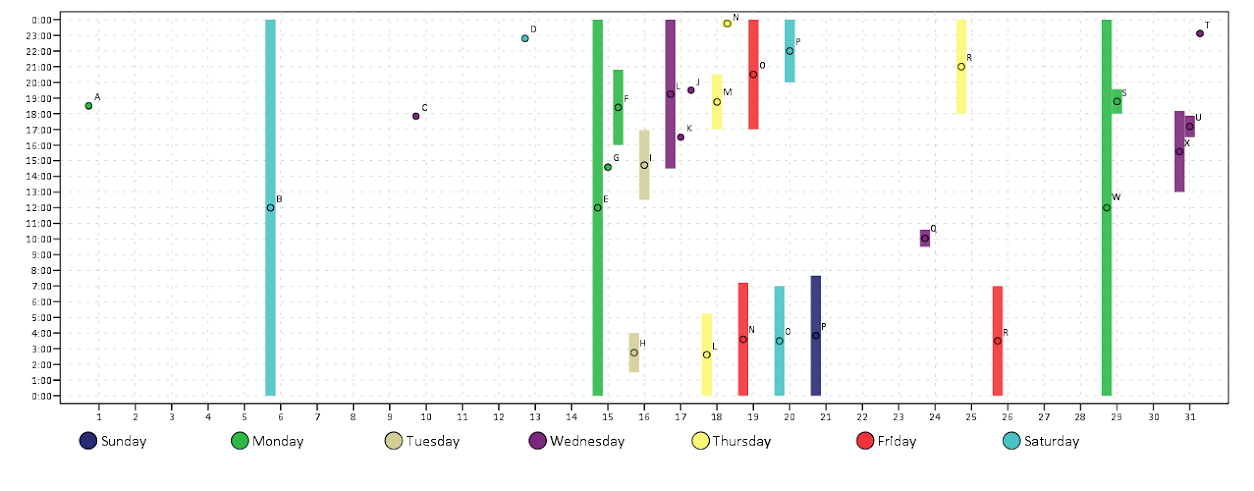
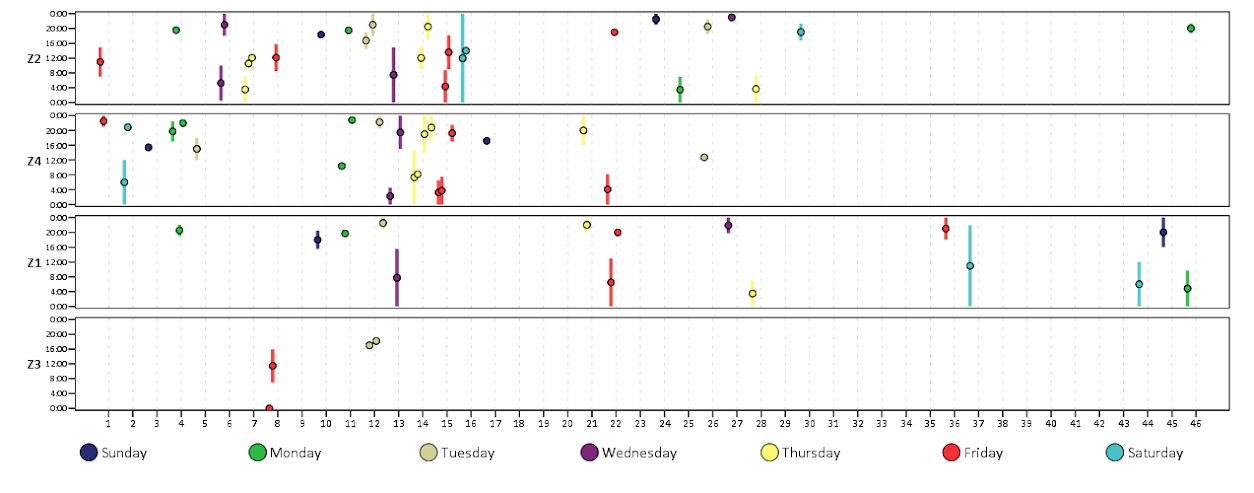
This just produces a new dataset name interval_data, which can then be plotted. And here is the example graph that comes with the macro and its fake data (after I edited the chart slightly).

GGRAPH
  /GRAPHDATASET NAME="graphdataset" dataset = "interval_data" VARIABLES= LABELID DAY TIMEBEGIN TIMEEND MID WITHINCAT DAYWEEK
  /GRAPHSPEC SOURCE=INLINE.
BEGIN GPL
 SOURCE: s=userSource(id("graphdataset"))
 DATA: LABELID=col(source(s), name("LABELID"), unit.category())
 DATA: DAY=col(source(s), name("DAY"), unit.category())
 DATA: TIMEBEGIN=col(source(s), name("TIMEBEGIN"))
 DATA: TIMEEND=col(source(s), name("TIMEEND"))
 DATA: MID=col(source(s),name("MID"))
 DATA: WITHINCAT=col(source(s),name("WITHINCAT"), unit.category())
 DATA: DAYWEEK=col(source(s),name("DAYWEEK"), unit.category())
 COORD: rect(dim(1,2), cluster(3,0))
 SCALE: cat(dim(3), values("1","2","3","4","5","6","7","8","9","10","11","12","13","14","15","16","17","18","19","20","21","22","23",
                                         "24","25","26","27","28","29","30","31"))
 ELEMENT: interval(position(region.spread.range(WITHINCAT*(TIMEBEGIN + TIMEEND)*DAY)), color.interior(DAYWEEK),
                             transparency.interior(transparency."0.1"), transparency.exterior(transparency."1")))
 ELEMENT: point(position(WITHINCAT*MID*DAY), color.interior(DAYWEEK), label(LABELID))
END GPL.

The chart can be interpreted as the days of the week are colored, and each interval represents on crime event, except when a crime events occurs over night, then the bar is split over two days (and each day the event is labeled). I wanted labels in the chart to easily reference specific events, and I assigned a point to the midpoint of the intervals to plot labels (also to give some visual girth to events that occurred over a short interval – otherwise they would be invisible in the chart). To displace the bars horizontally within the same day the chart essentially uses the same type of procedure that occurs in clustered bar charts.

GPL code can be inserted directly within macros, but it is quite a pain. It is better to use python to paramaterize GGRAPH, but I’m too lazy and don’t have python installed on my machine at work (ancient version of SPSS, V15, is to blame).

Here is another example with more of my data in the wild. This is for thefts from motor vehicles in Troy from the beginning of the year until 2/22. We had a bit of a rash over that time period, but they have since died down after the arrest of one particular prolific offender. This is evident in the chart,

We can also break down by other categories. This is what the token other_vars is for, it carries forward these other variables for use in facetting. For an example Troy has 4 police zones, and here is the graph broken down by each of them. Obviously crime sprees within short time frames are more likley perpetrated in close proximity. Also events committed by the same person are likely to re-occur within the same geographic proximity. The individual noted before was linked to events in Zone 4. I turn the labels off (it is pretty easy to toggle them in SPSS), and then one can either focus on individual events close in time or overlapping intervals pretty easily.

*Panelling by BEAT_DIST.
GGRAPH
  /GRAPHDATASET NAME="graphdataset" dataset = "interval_data" VARIABLES= LABELID DAY TIMEBEGIN TIMEEND MID WITHINCAT DAYWEEK BEAT_DIST
  /GRAPHSPEC SOURCE=INLINE.
BEGIN GPL
 SOURCE: s=userSource(id("graphdataset"))
 DATA: LABELID=col(source(s), name("LABELID"), unit.category())
 DATA: DAY=col(source(s), name("DAY"), unit.category())
 DATA: TIMEBEGIN=col(source(s), name("TIMEBEGIN"))
 DATA: TIMEEND=col(source(s), name("TIMEEND"))
 DATA: MID=col(source(s),name("MID"))
 DATA: WITHINCAT=col(source(s),name("WITHINCAT"), unit.category())
 DATA: DAYWEEK=col(source(s),name("DAYWEEK"), unit.category())
 DATA: BEAT_DIST=col(source(s),name("BEAT_DIST"), unit.category())
 COORD: rect(dim(1,2), cluster(3,0))
 SCALE: cat(dim(3), values("1","2","3","4","5","6","7","8","9","10","11","12","13","14","15","16","17","18","19","20","21","22","23",
                           "24","25","26","27","28","29","30","31","32","33","34","35","36","37","38","39","40","41","42","43","44","45",
                           "46"))
 ELEMENT: interval(position(region.spread.range(WITHINCAT*(TIMEBEGIN + TIMEEND)*DAY*1*BEAT_DIST)), color.interior(DAYWEEK),
                             transparency.interior(transparency."0.1"), transparency.exterior(transparency."1")))
 ELEMENT: point(position(WITHINCAT*MID*DAY*1*BEAT_DIST), color.interior(DAYWEEK), label(LABELID))
END GPL.

Note that to make the X axis insert all of the days I needed to include all of the numerical categories (between 1 and 46) in the value statement in the SCALE statement.

The chart in its current form can potentially be improved in a few ways, but I’ve had trouble accomplishing them so far. One is instead of utilizing clustering to displace the intervals, one could use dodging directly. I have yet to figure out how to specify the appropriate GPL code though when using dodging instead of clustering. Another is to utilize the dates directly, instead of any aribitrary categorical counter since the beginning of the series. To use dodging or clustering the axis needs to be categorical, so you could just make the axis the date, but bin the dates and specify the width of the bin categories to be 1 day (this would also avoid the annoying values statement to specify all the days). Again though, I was not able to figure out the correct GPL code to accomplish this.

I’d like to investigate ways to make this interactive and link with maps as well. I suspect it is possible in D3.js, and if I get around to figuring out how to make such a map/graphic duo I will for sure post it on the blog. In the meantime any thoughts or comments are always appreciated.

Using sequential case processing for data management in SPSS

SPSS when making calculations essentially loops through every variable sequentially. So although calculations in syntax are always vectorized (the exception being explicit loops in MATRIX commands), that is compute y = x - 5. works over the entire x vector without specifying it, it really is just doing a loop through all of the records in the data set and calculating the value of y in one row at a time.

We can use this to our advantage though in a variety of data management tasks in conjunction with using lagged values in the data matrix. Let’s consider making a counter variable within a set of ID’s. Consider the example dataset below;

data list free /id value.
begin data
1 10
1 11
1 14
1 13
2 12
2 90
2 16
2 14
3 12
3 8
3 17
3 22
end data.
dataset name seq.

To make a counter for the entire dataset, it would be as simple as using the system variable $casenum, but what about a counter variable within each unique id value? Well we can use SPSS’s sequential case processing and LAG to do that for us. For example (note that this assumes the variables are already sorted so the id’s are in sequential order in the dataset);

DO IF id <> LAG(id) or MISSING(LAG(id)) = 1.
    COMPUTE counter_id = 1.
ELSE IF id = LAG(id).
    COMPUTE counter_id = lag(counter_id) + 1.
END IF.

The first if statement evalutes if the previous id value is the same, and if it is different (or missing, which is for the first row in the dataset) starts the counter at 1. If the lagged id value is the same, it increases the counter by 1. It should be clear how this can be used to identify duplicate values as well. Although the MATCH FILES command can frequently be more economical, it is pretty easy using sort. For instance, lets say in the previous example I wanted to only have one id per row in the dataset (e.g. eliminate duplicate id’s), but I wanted to only keep the highest value within id. This can be done just by sorting the dataset in a particular way (so the id with the highest value is always at the top of the list of sequential id’s).

SORT CASES BY id (A) value (D).
COMPUTE dup = 0.
IF id = lag(id) dup = 1.
SELECT IF dup = 0.

The equivalent expression using match files would be (note the reversal of dup in the two expressions, in match files I want to select the 1 value).

SORT CASES BY id (A) value (D).
MATCH FILES file = *
/first = dup
/by id.
SELECT IF dup = 1.

The match files approach scales better to more variables. If I had two variables I would need to write IF id1 = lag(id1) and id2 = lag(id2) dup = 1. with the lag approach, but only need to write /by id1 id2. for the match files approach. Again this particular example can be trivially done with another command (AGGREGATE in this instance), but the main difference is the two approaches above keep all of the variables in the current data set, and this needs to be explicitly written on the AGGREGATE command.

DATASET ACTIVATE seq.
DATASET DECLARE agg_seq.
AGGREGATE
  /OUTFILE='agg_seq'
  /BREAK=id
  /value=MAX(value).
dataset close seq.
dataset activate agg_seq.

One may think that the sequential case processing is not that helpful, as I’ve shown some alternative ways to do the same thing. But consider a case where you want to propogate down values, this can’t be done directly via match files or aggregate. For instance, I’ve done some text munging of tables exported from PDF files that look approximately like this when reading into an SPSS data file (where I use periods to symbolize missing data);

data list free /table_ID (F1.0) row_name col1 col2 (3A5).
begin data
1 . Col1 Col2 
. Row1 4 6
. Row2 8 20
2 . Col1 Col2
. Row1 5 10
. Row2 15 20
end data.
dataset name tables.

Any more useful representation of the data would need to associate particular rows with which table it came from. Here is sequential case processing to the rescue;

if MISSING(table_ID) = 1 table_ID = lag(table_ID).

Very simple fix, but perhaps not intuitive without munging around in SPSS for awhile. For another simple application of this see this NABBLE discussion where I give an example of propogating down and concatenating multiple string values). Another (more elaborate) example of this can be seen when merging and sorting a database of ranges to a number within the range.

This is what I would consider an advanced data management tool, and one that I use on a regular basis.

Aoristic analysis with SPSS

I’ve written a macro to conduct aoristic analysis with SPSS. Here I will briefly describe what it is, provide alternative references and demonstrate some of its utility on example data from Arlington PD.

In short, crime event data are frequently recorded as occurring within some indefinate time frame. For example, you may park your car and go to work at 08:00, and when you come back out at 04:30 on the same day to find your car window broken and your GPS stolen. Unless there happens to be other witnesses to the crime, you don’t know when the criminal event occurred besides between those two times. Where this is problematic for crime analysis is, you want to be able to look at the distribution of when events occurred, so as to give suggestions to understand why the event is occurring and how to potentially address it. Allocating patrols geographically and temporally to areas of high crime incidence has been regular practice for a long time (Wilson, 1963)! Aoristic analysis is simply a means to take into account that uncertainty of when the event occurred when we examine the overal incidence of crimes occurring across a set of times.

For a very brief illustrative example, lets say we want to know the number of crimes occuring for within the hours of 08:00, 09:00 and 10:00. If we had a criminal event that potentially occurred between 08:00 and 10:00, which is a total time span of 120 minutes (2 hours), instead of counting that event as occurring at 08:00 (the begin time), 10:00 (the end time) or 09:00 (the middle time), we spread the event out over the time frame, and only partially count it within any particular interval. So here it would count as a total of 0.50 weight in both the 08:00 and 09:00 category (60/120=0.25) and assign 0 weight in the 10:00 category (note the weights sum back to the value of 1). This just ends up being a way to estimate the incidence of some event within a given time bin knowing that the event did not necessarily occur in that time bin, so only partially counts towards the total in that bin (where partially is defined by how long the interval is and how much of that interval overlaps with the bin).

Here I illustrate the macro with some examples from the Arlington PD data downloaded on 1/11/2013. This is the only dataset I’ve found publicly available online that has both start and end dates for events (I first looked at NIBRS, and was slightly surprised that they did not have this information). I have the macro code, with examples therein of fake data and the same Arlington PD data, and compare them to this online calculator.

Note, my results will be slightly different than most other programs (including the online app I pointed to) because of one arbitrary (but what I feel is reasonable) coding decision. When an event is over the time period evaluated in the particular estimate (either days or week for my functions), it simply returns the event coded as having equal weight across the time period. Other’s don’t do this as far as I’m aware. So say an event takes place between 08:00 on 1/2/2013 and 10:00 on 1/3/2013. For my functions that only evaluate times over the day, I would return equal probability within every time slot, although some calculators would say there is a higher probability of occurring for times between 08:00 and 10:00 (because of the wrap-around). I believe this practice is a bit of a stretch, and any uncertainty over a day is essentially saying it is totally useless information to determine when during the time of day at all (although my week functions would be equivalent in that example). In those cases the begin and end times say more about when people check there cars, wake up in the morning, get home from work, come back from vacation etc. than they do about when the actual crime occurred.

Some examples

If you want to follow along right within SPSS, I suggest going to the google code site I’ve posted the code and data, but otherwise you can just take my word for it and see how the macro works in practice. I provide several seperate functions to either estimate the frequency of crimes occurring during 1 hour bins over the day, 15 minute bins over the day, days over the week, 1 hour bins over the week, or 15 minute bins over the week.

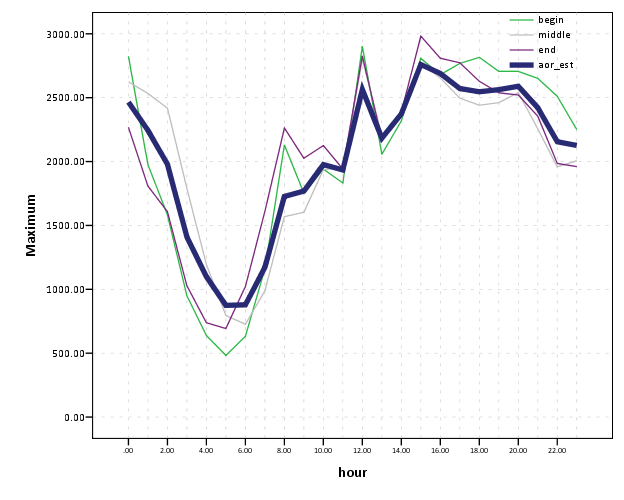
Here is an example call of the macro and the output from the 1 hour bins over the day with all crimes for the Arlington data.

!aoristic_day1hour begin_date = Date1 begin_time = Time1 end_date = Date2 end_time = Time2.

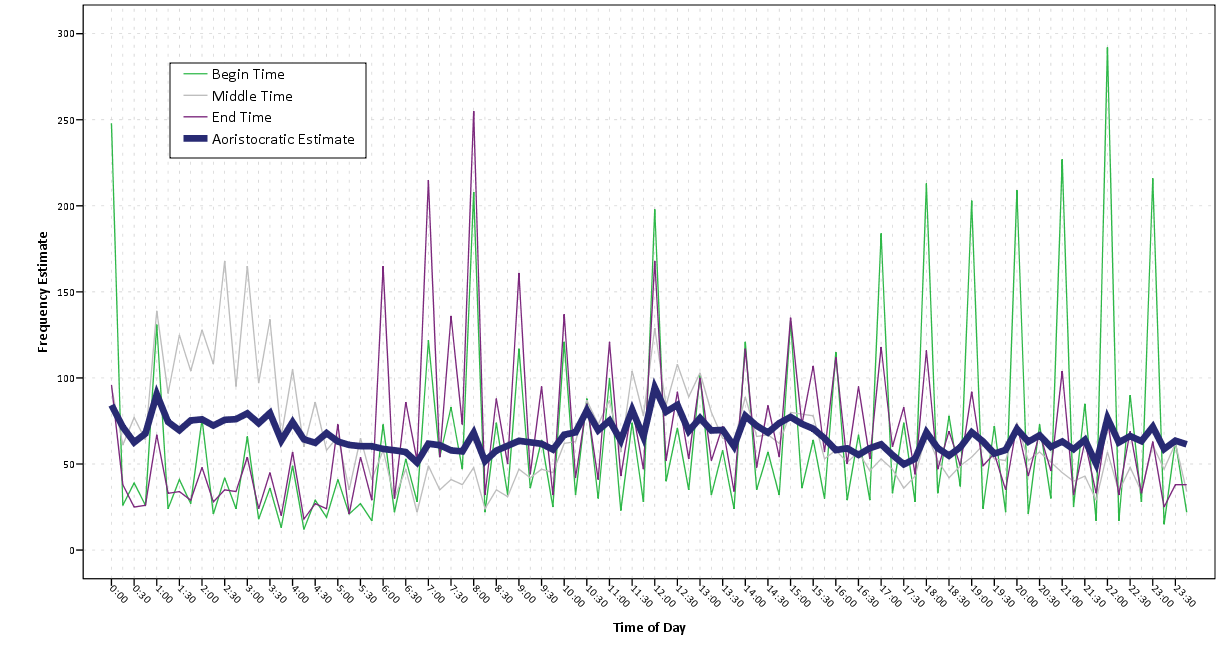
Date1 and Date2 are the begin and end dates respectively, Time1 and Time2 are the begin and end times respectively. Below is (close to) the automated graph the macro produces, which is just a line chart super-imposing the both the aoristic estimate and what the estimate would be if using the begin, end or middle time. The only differences are I post-hoc edited the aoristoc estimate line to be thicker and in the front (so it is more prominent) plus my personal chart template. Paramaterizing GGRAPH charts to work in macros is quite annoying, and python is a preferable solution (I’m personally happy with just a helper function to return the data in a nice format for me to generate the approprate GGRAPH code to generate the chart myself, there is more power in knowing the grammar than being complacent with the default chart).


So you can see here that overall, the aoristoc number does not make much of a difference. Here is the same info for the 15 minute bins across the week.

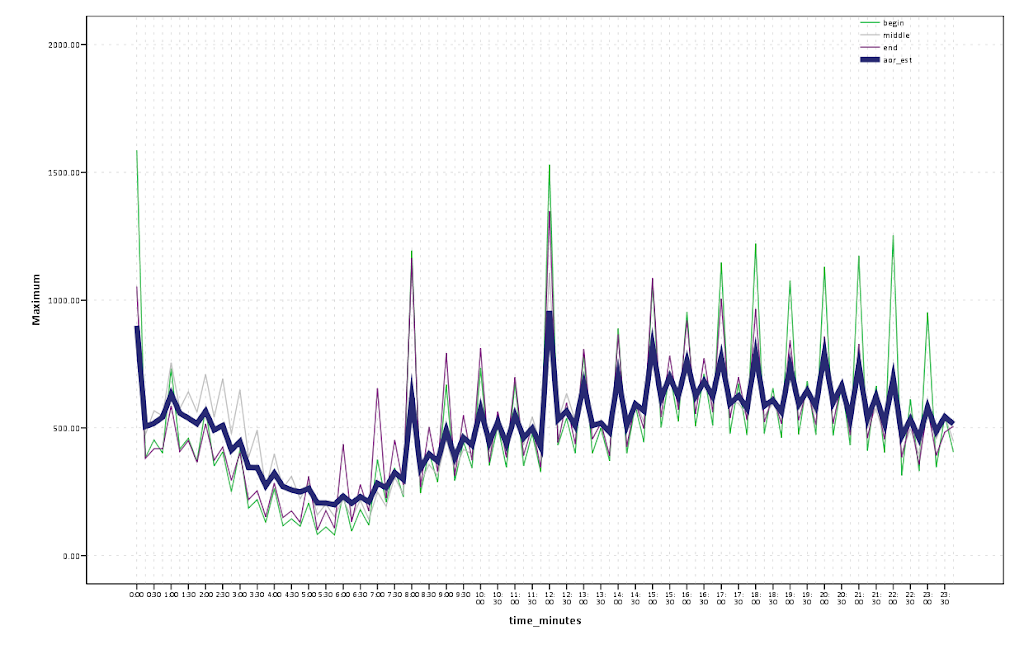
!aoristic_day15min begin_date = Date1 begin_time = Time1 end_date = Date2 end_time = Time2.


You can see here the aoristic estimate smooths out the data quite a bit more (which is nice above and beyond just worrying about whether one approach is correct or not. With the smaller time bins you can also see patterns to over-report incidents at natural times of hour and half-hour intervals. You can also see midnight, noon and 08:00 are aberently popular times to report either beginning or end times of incidents. You can spot a few other ones as well that differ between begin and end times, for instance it appears 07:00 is a popular end time but not so popular a begin time. The obverse is true for events in the middle afternoon, late evening and early night (e.g. the big spikes in the green begin time line for hours between 17:00 till midnight). Also note that it is near universal that crime dips to its lowest around 4~5 am, and you can see using either the aoristic estimate or the middle point of the event brings the number of events up during this period (as expected).

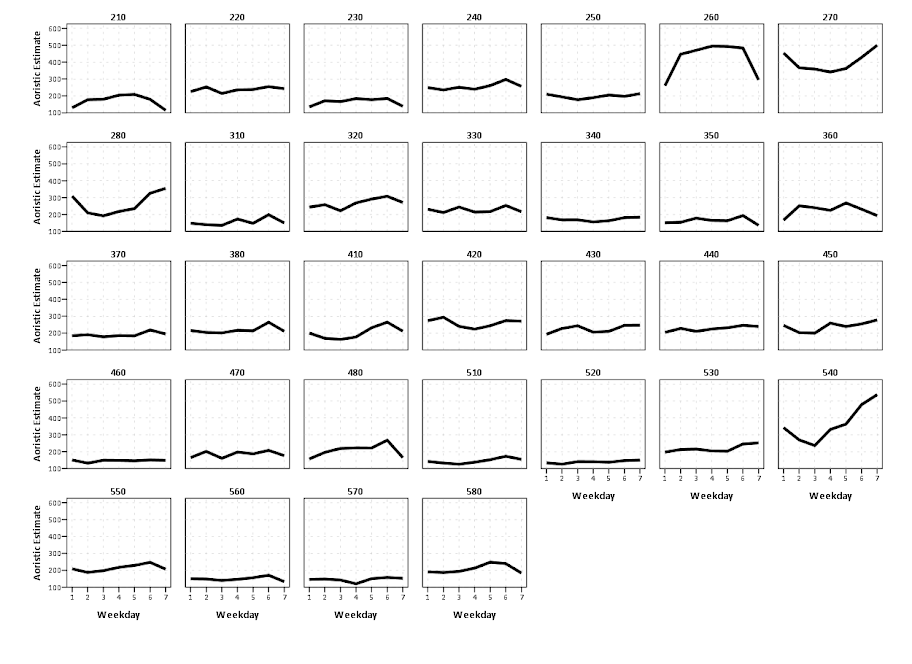
Also in the set of functions I have the capability to specify an arbitrary category to split the results by, and here is an example splitting the day of week aoristic estimate by the beat variable provided with the Arlington data. Again this isn’t the direct code, but a subsequent GGRAPH command to produce a nicer chart (the original is ok if you make it much bigger, but with so many categories facet wrapping is appropriate to save space).

!aoristic_week begin_date = Date1 begin_time = Time1 end_date = Date2 end_time = Time2 split = Beat.


The main thing that draws attention in this graph is the difference in levels of calls and different trends between beats (there were no obvious differences in the aoristic estimates versus the naive estimates, which is unsurprising since most incidents don’t have uncertainty of over a day). I know nothing about Arlington, and I don’t know where these beats are, so I can’t say anything about why these differences may potentially occur. In SPSS days start at Sunday (so Sunday = 1 and Saturday = 7). It isn’t that strange to expect slightly more crime on Fridays and Saturdays (people out and about doing things that make them more vulnerable), but for most of the beats showing a flat profile this is not strange either. But it is interesting to see Beat 260 have an atypical pattern of obviously more crimes during the week, and if I had to hazard a guess I would assume there is a middle or high school in Beat 260.

Although you could argue aoristic analysis is called for based purely on theoretical grounds, all these examples show events that it doesn’t make much of a difference whether you use it or simpler methods. Where it is likely to make the most difference though are events which have the longest unknown time intervals. Property crimes tend to be committed when the victim is not around, and so here I compare the aoristic estimate for 15 minute intervals over the day for burglaries, which will show an example where the aoristic estimate makes an actual difference!


One can see the property crimes have a larger difference for the aoristic estimate across the day, and it is largely flat compared to begin and end times. The end and begin times are likely biased to report when people discovered that the victimization occurred or when they last left their home vulnerable. There is some slight trend for more burglaries to occur during the daytime, and somewhat higher periods during the night (with lulls around 08:00 and 18:00. These are near the exact opposite conclusions you would make with utilizing the begin and end times as to when most burglaries occurred! Middle times results in some weird differences as well, with a high spike in the 01:00 to 04:00 range.

Some closing

This project kicked my butt alittle, and took much longer than I expected. Certainly the code could use improvement and re-factoring, but I’m glad it is done (and seemingly working). You will see there is certainly alot of redundancy between the functions, some temporary variables are computed multiple times, and the week long functions take a while to compute.

In the SPSS macro what I do in a nutshell is make a variable for every time bin, calculate the weight each case has for that time bin, then reshape the dataset wide to long, then at last aggregate the total weight within each time bin. Note this results in many more cases than the original data. For example, the Arlington data I will display later in the post has slightly over 49,000 incidents. For the 15 minute intervals per day (96), this results in over 4.7 million cases (49,000*96). For the 1 hour bins across the week, this results in n times 168 more cases, for the 15 minute bins across the week in n times 672! Subsequently those latter two take an appreciable amount of time to compute for larger datasets (if you don’t run out of local memory on your computer entirely, which I’m guessing could easily happen for some of the older systems and when you have upwards of probably 60,000 cases).

For those interested, the bottle-neck is obviously the VARSTOCASES procedure. But, I have a substantive reason for going through that step, and that is if one wants to use the original data weighted, for say kernel density maps sliced by time of day having the data in that format (long with a field identifying the factor) is more convienant than in the wide format. Thinking about it I could generate NULL data for 0 weight categories and then drop those cases during the VARSTOCASES, but it remains to be seen if that will have much of an appreciable effect on real world datasets. Hopefully in the near future I will get the time to provide examples of that (probably in R using facetting and small multiple maps). If anyone has improvements to the code feel free to send them to me (or just shoot me an email).

In the future I plan on talking about some more visualization techniques to explore crime data with intervals like this. In particular I have a plot manipulating the grammar of graphics a bit to produce a visualization of individual incidents, but it still needs some work and writing up into a nice function. Here is an example though.


Citations

Wilson, O.W. 1963. Police Administration. McGraw-Hill.

Ratcliffe, Jerry H. 2002. Aoristic signatures and the spatio-temporal analysis of high volume crime patterns. Journal of Quantitative Criminology 18(1): 23-43. PDF Here.

My experience blogging in 2012

I figured I would write a brief post about my experience blogging. I created this blog and published my first post in December of 2011. Since then, in 2012, I published 30 blog posts, and totaled 7,200 views. While I thought the number was quite high (albeit a bit dissapointing compared to the numbers of Larry Wasserman), it is still many more people than would have listened to what I had to say if I didn’t write a blog. When starting out I averaged under 10 views a day, but throughout the year it steadily grew, and now I average about 30 views per day. The post that had the most traffic in one day was When should we use a black background for a map?, and that was largely because of some twitter traffic (a result of Steven Romalewski tweeting it and then it being re-tweeted by Kenneth Field), and it had 73 views.

I started the blog because I really loved reading alot of others blogs, and so I hope to encourage others to do so as well. It is a nice venue to share work and opinions for an academic, as it is more flexible and can be less formal than articles. Also much of what I write about I would just consider helpful tips or generic discussion that I wouldn’t get to discuss otherwise (SPSS programming and graph tips will never make it into a publication). One of my main motivations was actually R-Bloggers and the SAS blog roll; I would like a similarly active community for SPSS, but there is none really that I have found outside of the NABBLE forum (some exceptions are Andy Field, The Analysis Factor, Jon Peck and these few posts by a Louis K I only found through the labyrinth that is the IBM developerworks site (note I think you need to be signed in to even see that site), but they certainly aren’t very active and/or don’t write much about SPSS). I assume the best way to remedy that is to lead by example! Most of my more popular posts are ones about SPSS, and I frequently get web-traffic via general google searches of SPSS + something else I blogged about (hacking the template and comparing continuous distributions are my two top posts).

Also the blog is also just another place to highlight my academic work and bring more attention to it. WordPress tells me how often someone clicks a link on the blog, and someone has clicked the link to my CV close to 40 times since I’ve made the blog. Hopefully I have some pre-print journal articles to share on the blog in the near future (as well as my prospectus). My post on my presentation at ASC did not generate much traffic, but I would love to see a similar trend for other criminologists/criminal justicians in the future. My work isn’t perfect for sure, but why not get it out there at least for it to be judged and hopefully get feedback.

I would like to blog more, and I actively try to write something if I haven’t in a few weeks, but I don’t stress about it too much. I certainly have an infinite pool of posts to write about programming and generating graphs in SPSS. I have also thought about talking about historical graphics in criminology and criminal justice, or generally talking about some historical and contemporary crime mapping work. Other potential posts I’d like to write about are a more formal treatment about why I loathe most difference-in-differences designs, and perhaps about the sillyness that can ensue when using null-hypothesis significance testing to determine racial bias. But they will both take more careful elaboration on, so might not be anytime soon.

So in short, SPSSer’s, crime mapper’s, criminologist’s/criminal justician’s, I want you to start blogging, and I will eagerly consume your work (and in the meantime hopefully produce some more useful stuff on my end)!

Some more about black backgrounds for maps

I am at it again discussing black map backgrounds. I make a set of crime maps for several local community groups as part of my job as a crime analyst for Troy PD. I tend to make several maps for each group, seperating out violent, property and quality of life related crimes. Within each map I try to attempt to make a hierarchy between crime types, with more serious crimes as larger markers and less severe crimes as smaller markers.

Despite critiques, I believe the dark background can be useful, as it creates greater contrast for map elements. In particular, the small crime dots are much easier to see (and IMO in these examples the streets and street name labels are still easy to read). Below are examples of the white background, a light grey background, and a black background for the same map (only changes are the black point marker is changed to white in the black background map, streets and parks are drawn with a heavy amount of transparency to begin with so don’t need to be changed).

Surprisingly to me, ink be damned, even printing out the black background looks pretty good! (I need to disseminate paper copies at these meetings) I think if I had to place the legend on the black map background I would be less thrilled, but currently I have half the page devoted to the map and the other half devoted to a table listing the events and the time they occurred, along with the legend (ditto for the scale bar and the North arrow not looking so nice).

I could probably manipulate the markers to provide more contrast in the white background map (e.g. make them bigger, draw the lighter/smaller symbols with dark outlines, etc.) But, I was quite happy with the black background map (and the grey background may be a useful in-between the two as well). It took no changes besides changing the background in my current template (and change black circles to white ones) to produce the example maps. I also chose those sizes for markers for a reason (so the map did not appear flooded with crime dots, and more severe and less severe crimes were easily distinguished), and so I’m hesistant to think that I can do much better than what I have so far with the white background maps (and I refuse to put those cheesy crime marker symbols, like a hand gun or a body outline, on my maps).

In terms of differentiating between global and local information in the maps, I believe the high contrast dark background map is nice to identify local points, but does not aid any in identifying general patterns. I don’t think general patterns are a real concern though for the local community groups (displaying so many points on the same map in general isn’t good for distinguishing general patterns anyway).

I’m a bit hesitant to roll out the black maps as of yet (maybe if I get some good feedback on this post I will be more daring). I’m still on the fence, but I may try out the grey background maps for the next round of monthly meetings. I will have to think if I can devise a reasonable experiment to differentiate between the maps and whether they meet the community groups goals and/or expectations. But, all together, the black background maps should certainly be given serious consideration for similar tasks. Again, as I said previously, the high contrast with smaller elements makes them more obvious (brings them more to the foreground) than with the white background, which as I show here can be useful in some circumstances.

The leaning tower optical illusion: Is it applicable to statistical graphics?


Save in the memory banks whether the slope of the lines in the left hand panel appear similar, smaller or larger than the slope of the lines in the right hand panel.

I enjoy reading about optical illusions, both purely because I think they are neat and there applicability to how we present and perceive information in statistical graphics. A few examples I am familiar with are;

  • The Rubin Vase optical illusion in which it is difficult to distinguish between what object is the background and which is the foreground. This is applicable to making clear background/foreground seperation between grid lines and chart elements.
  • Change blindness, which makes it difficult to interpret animated graphics that do not have smooth, continous transitions between chart states.
  • Mach bands, where the color of an object is perceived differently given the context of the surrounding colors. I recently came across one of the most dramatic examples of this at the very cool mighty optical illusion site. I actually went and edited the image in that example to make sure there was no funny business it was so dramatic an effect! Image included below.


I was recently pointed to a new (to me) example of an optical illusion, the leaning tower illusion, in a paper by Kingdom, Yoonessi & Gheorghiu (2007) (referred via the Freakonometrics blog).


Although I suggest to read the article (it is very brief) – to sum it up both pictures above are identical, although the tower on the right appears to be leaning more to the right. Although the pictures are seperate (and have some visual distinction) our minds interpret them in the same “plane”. And hence objects that are further away in the distance should not be parallel but should actually converge within the image.

Off-the-cuff this reminded me of the Ponzo illusion, where our minds know that the lines are still running parallel, and our perception of other surrounding elements changes conditional on that dominant parallel lines pattern. Here is another good example of this from the mighty optical illusions site (actually I did not know the name of this effect – and when I googled subway tile illusion this is the site that came up – and I’m glad I found it!)

Is this applicable to statistical graphics though? One of the later images in the Perception article appear to be potentially more reminiscent of a small multiple line chart (and we all know I strongly advocate for the use of small multiple charts).


We do know that interpreting the distance between sloping lines is difficult (as elaborated on in some of Cleveland’s work), but this is different in that potentially our perception of the parallelness of lines between panels in a small multiple is distorted based the directions of lines within the panel. Off-hand though we may expect that the context doesn’t exactly carry-over, there is no visual schematic in 2d statistical graphics that lines are running further from our perspective. So to test this out I attempted to create some settings in small multiple line panels that might cause similar optical illusions.

So, going back to the picture at the beginning of the article, here are those same lines superimposed on the original picture. My personal objectivity to tell if these result in visual distortions is gone at this point, but at best I could only conjure up perhaps some slight distortion between panels (which is perhaps no worse than our ability to effectively perceive slopes accurately anyway).

I think along these lines one could come up with some more examples where between panel comparisons for line graphs in small multiples produce such distortions, but I was unable to produce anything compelling in some brief tries (so let me know if you come across any examples where such distortions occur!) Simply food for thought though at this point.

I do think though that the Ponzo scheme can be illustrated with essentially the same graphic.


It isn’t as dramatic as the subway tile example, but I do think it appears the positive sloping line where the negative sloping lines converge at the top of the image appears larger than the line in space and the bottom right of the image.

I suspect this could actually occur in real life graphics in which we have error bars superimposed on a graph with several lines of point estimates. If the point estimates start at a wide interval and then converge, it may produce a similar illusion that the error bars appear larger around the point estimates that are closer together. Again though I produced nothing real compelling in my short experimentation.

Using the edge element in SPSS inline GPL with arbitrary X,Y coordinates

This post is intended to be a brief illustration of how one can utilize the edge element in SPSS’s GGRAPH statements to produce vector flow fields. I post this because the last time I consulted the GGRAPH manual (which admittedly is probably a few versions olds) they only have examples of SPSS’s ability to utilize random graph layouts for edge elements. Here I will show how to specify the algebra for edge elements if you already have X and Y coordinates for the beginning and end points for the edges. Also to note if you want arrow heads for line elements in your plots you need to utilize edge elements (the main original motivation for me to figure this out!)

So here is a simple example of utilizing coordinate begin and end points to specify arrows in a graph, and below the code is the image it produces.

DATA LIST FREE/ X1 X2 Y1 Y2 ID.
BEGIN DATA
1 3 2 4 1
1 3 4 3 2
END DATA.

GGRAPH
  /GRAPHDATASET NAME="graphdataset" VARIABLES=X1 Y1 X2 Y2 ID MISSING=LISTWISE REPORTMISSING=NO
  /GRAPHSPEC SOURCE=INLINE.
BEGIN GPL
  SOURCE: s=userSource(id("graphdataset"))
  DATA: X1=col(source(s), name("X1"))
  DATA: Y1=col(source(s), name("Y1"))
  DATA: X2=col(source(s), name("X2"))
  DATA: Y2=col(source(s), name("Y2"))
  DATA: ID=col(source(s), name("ID"))
  GUIDE: axis(dim(1), label("X"))
  GUIDE: axis(dim(2), label("Y"))
  ELEMENT: edge(position((X1*Y1)+(X2*Y2)), shape(shape.arrow))
END GPL.

The magic happens in the call to the edge element, specifically the graph algebra position statement of (X1*Y1)+(X2*Y2). I haven’t read Wilkinson’s Grammar of Graphics, and I will admit with SPSS’s tutorial on graph algebra at the intro to the GPL manual it isn’t clear to me why this works. I believe the best answer I can say is that different elements have different styles to specify coordinates in the graph. For instance interval elements (e.g. bar charts) can take a location in one dimension and an interval in another dimension in the form of X*(Y1+Y2) (see an example in this post of mine on Nabble – I also just found in my notes an example of specifying an edge element in the similar manner to the interval element). This just happens to be a valid form to specify coordinates in edge elements when you aren’t using one of SPSS’s automatic graph layout rendering. I guess it is generically of the form FromNode(X*Y),ToNode(X*Y), but I haven’t seen any documentation for this and all of the examples I had seen in the reference guide utilize a different set of nodes and edges, and then specify a specific type of graph layout.

Here is another example visualizing a vector flow field. Eventually I would like to be able to superimpose such elements on a map – but that appears to not yet be possible in SPSS.

set seed = 10.
input program.
loop #i = 0 to 10.
loop #j = 0 to 10.
compute X = #i.
compute Y = #j.
*compute or_deg = RV.UNIFORM(0,360).
end case.
end loop.
end loop.
end file.
end input program.
dataset name sim.
execute.

*making orientation vary directly with X & Y attributes.

compute or_deg = 18*X + 18*Y.

*now to make the edge I would figure out the X & Y coordinate with alittle distance added (lets say .01) based on the orientation.
COMPUTE #pi=4*ARTAN(1).
compute or_rad = (or_deg/180)*#pi.
compute distance = .7.
execute.

compute X2 = X + sin(or_rad)*distance.
compute Y2 = Y + cos(or_rad)*distance.
execute.

DATASET ACTIVATE sim.
* Chart Builder.
GGRAPH
  /GRAPHDATASET NAME="graphdataset" VARIABLES=X Y X2 Y2 or_deg MISSING=LISTWISE REPORTMISSING=NO
  /GRAPHSPEC SOURCE=INLINE.
BEGIN GPL
  SOURCE: s=userSource(id("graphdataset"))
  DATA: X=col(source(s), name("X"))
  DATA: Y=col(source(s), name("Y"))
  DATA: X2=col(source(s), name("X2"))
  DATA: Y2=col(source(s), name("Y2"))
  DATA: or_deg=col(source(s), name("or_deg"))
  GUIDE: axis(dim(1), label("X"))
  GUIDE: axis(dim(2), label("Y"))
  ELEMENT: edge(position((X*Y)+(X2*Y2)), shape(shape.arrow))
END GPL.

You can then use other aesthetics in these charts same as usual (color, size, transparency, etc.)